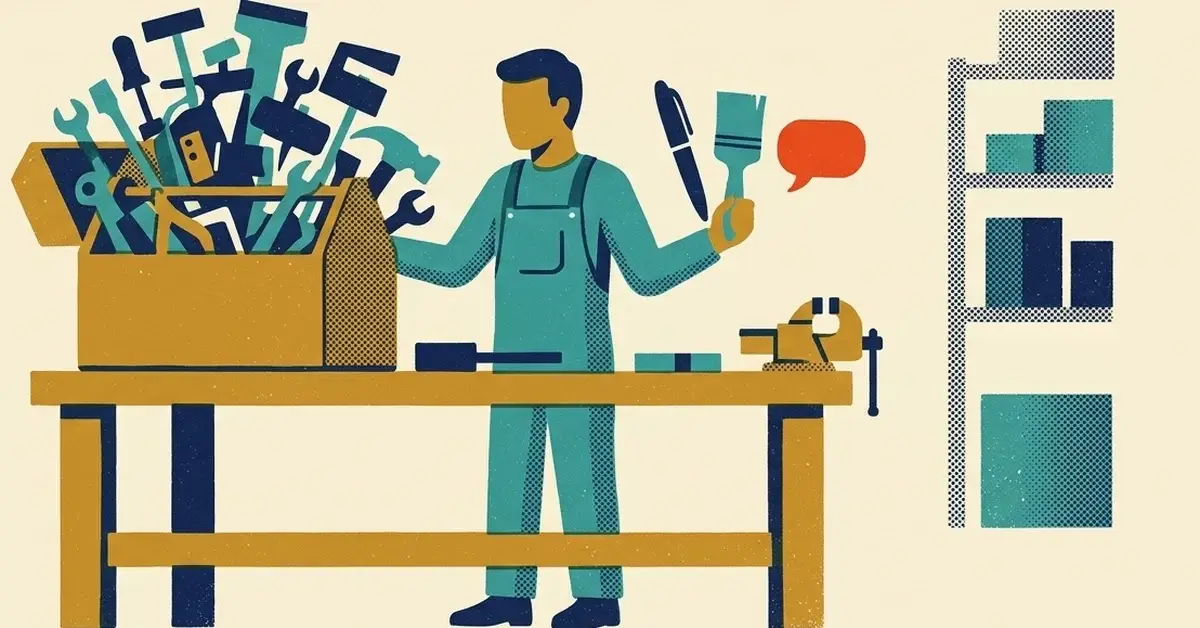
Search "best AI tools for small business" and you get lists of 25, 50, 100 apps.
You don't need 100. You probably don't need ten.
Every tool you add is another login, another subscription and another place client information ends up. For a service business (HVAC, landscaping, a law office, a real estate team, a consultant), three jobs cover most of what AI is actually good for right now:
- Writing: emails, quotes, service pages, social posts.
- Visuals: flyers, social graphics, simple brochures.
- First replies: answering the same questions and collecting lead details when you can't get to the phone.
One tool per job. That's the whole stack.
The quick answer
- Writing: use the AI assistant that comes with the email you already pay for. Copilot Chat if you're on Microsoft 365, Gemini if you're on Google Workspace. ChatGPT if you're on neither.
- Visuals: Canva, with its built-in AI tools.
- First replies: a chat tool with AI answers on your website (Tidio is one), or ManyChat if most of your leads message you on Instagram or Facebook.
- Set each one up in a week, one tool at a time, before you add anything else.
Tool 1: An AI writing assistant (start with the one you already have)
This is the one you'll use daily: follow-up emails, quote cover letters, Google Business Profile updates, FAQ answers, social captions.
Before you sign up for anything, check what you already have.
- Microsoft 365: Microsoft says Copilot Chat is available "at no additional cost" to people who sign in with a work account on eligible plans, including Business Basic, Standard and Premium (Microsoft Licensing FAQs: Who is eligible to use Microsoft Copilot Chat?). As of November 2026 it's called Microsoft Copilot Chat (it used to be Microsoft 365 Copilot Chat), and its main address is moving to copilot.cloud.microsoft (Microsoft Learn: Microsoft Copilot requirements).
- Google Workspace: Google lists the Gemini app as a core service on most Workspace editions, Business Standard among them (Google Workspace Admin Help: Turn the Gemini app on or off).
- Neither: ChatGPT works fine. Use a business plan for client work, not a personal account.
Why the one tied to your work account? Because it's covered by your business agreement. Microsoft says Copilot Chat prompts and responses from work accounts aren't used to train its foundation models (Microsoft Learn: Enterprise data protection). A personal ChatGPT account can use your chats for training unless you turn that off. Who owns the data you feed into AI has the details for each tool.
Use it for:
- client follow-ups after a job
- service descriptions and FAQ answers
- turning your rough notes into a clean quote email
- a month of social post ideas
Start every prompt with who you are and what you need. Copy this and fill in the blanks:
I run a [type of business] in [town]. Write 3 short, friendly follow-up texts to send a client the day after a [service]. Ask how it went and whether they'd leave a Google review. No exclamation marks.
Read everything before it goes out. AI writes confidently, including when it's wrong.
Tool 2: Canva for visuals
You don't need a designer for a flyer, an Instagram post or a one-page service sheet.
Canva has templates for all of those, plus AI tools that draft a design or text from a description. Canva's help center says free accounts get some of its AI features, like Magic Write, with limited monthly use, and the newest Canva AI tools need a paid plan (Canva Help: Using Canva AI).
Use it for:
- before-and-after posts from job photos
- a seasonal flyer ("book your AC tune-up before summer")
- turning a blog post into a short carousel
- a simple brochure to leave with clients
Set up your brand once. Add your logo, two or three colors and one font, then build every design from those. That's what makes ten quick posts look like one business.
Tool 3: Auto-replies for the questions you answer every day
You're on a roof, in a meeting, or driving. A lead messages your website or your Facebook page. By the time you reply, they've messaged someone else.
An auto-reply tool answers the common questions right away and collects what you need to call them back.
Two kinds, depending on where your leads come from:
- Website chat. Tools like Tidio put a chat box on your site, and its AI assistant, Lyro, answers from the FAQs and information you give it.
- Social DMs. ManyChat automates replies in Instagram, Facebook Messenger, WhatsApp, TikTok and a few other channels. Your plan sets how many you can connect at once (two on the free plan).
Pick the one that matches where your messages actually arrive. Check the last month: website form, Facebook, Instagram, text?
Use it for:
- hours, service area and "do you do X?"
- collecting name, phone, address and what they need
- sending a booking link
- telling people when a person will get back to them
Write the answers yourself first. List the 10 questions you get most. Write a two-line answer to each. That list is what the tool works from, and it's useful on its own for your website FAQ.
And always give a way to reach a human. "A person will call you back within one business day" is fine, if it's true. A bot that loops is worse than no bot.
Should I use AI for lead follow-up? covers where automation helps and where it costs you the job.
What about everything else?
Predictive analytics, AI agents that run your inbox, automated reporting dashboards. Some are good.
But unless one of them fixes a problem you can name ("we lose two leads a week because nobody answers after 5pm"), it's another subscription and another login. Get the three basics working first.
Before you add any new tool, ask:
- What job does it do that none of my three tools already do?
- Who on the team will use it every week?
- Will it see client data, and does it train on it?
- What happens to our data if we cancel?
A one-week setup plan
- Day 1: Check which AI assistant your Microsoft 365 or Google Workspace plan already includes. Sign in with your work account.
- Day 2: Write your 10 most common customer questions and short answers.
- Day 3: Use the assistant to draft three follow-up messages and one service description. Edit them until they sound like you.
- Day 4: Set up your Canva brand kit and make one social post from a real job photo.
- Day 5: Pick your auto-reply tool based on where leads come from. Load your 10 answers.
- Day 6: Test it. Send it a question as if you were a customer. Ask a friend to try too.
- Day 7: Write a one-line rule for the team: what can go into AI tools, and what can't (client financial details, passwords, anything confidential).
When to get help
Bring someone in if:
- You're not sure which Microsoft 365 or Google Workspace plan you're on, or who's an admin.
- Staff are already using personal AI accounts for client work.
- You want the chat tool connected to your calendar or CRM and don't know what it'll be able to see.
If you'd like help setting it up, get in touch.
Related reading
- Who owns the data you feed into AI?
- Should I use AI for lead follow-up?
- Best AI tools for solopreneurs: a budget-friendly breakdown
Originally published October 2025. Updated November 2026.




No comments yet