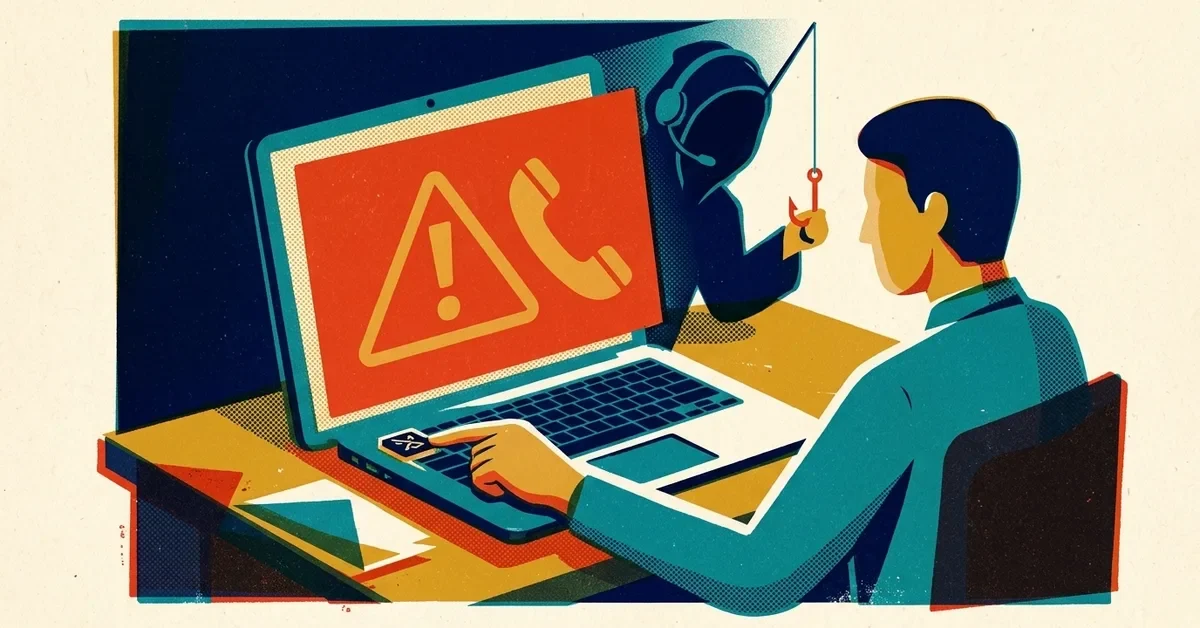
You come in on Monday and every file has a strange new extension. There's a note on the desktop with a countdown and a price in Bitcoin. The accounting software won't open. The customer database is gibberish.
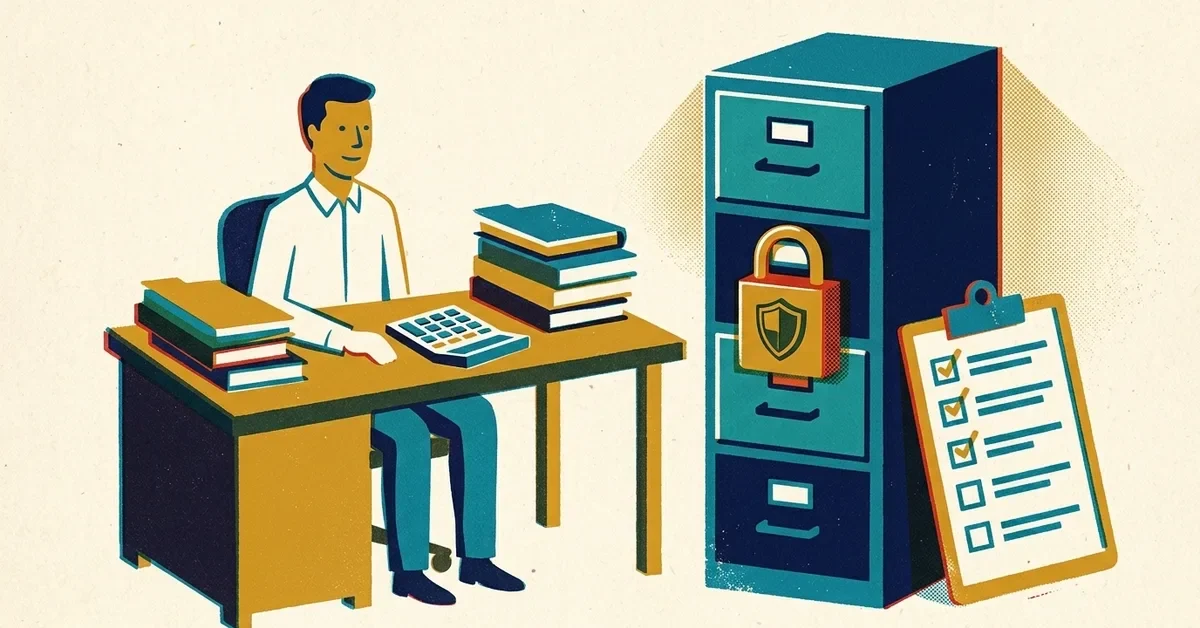
Almost every business owner says the same thing when ransomware comes up: "We're fine, we have backups." Often they're right that backups exist. The problem is that the backups are set up in a way ransomware can reach, or they've quietly stopped working, or they don't cover the thing you'd most need back. Ten minutes of checking will tell you which.
The 10-minute backup self-check
Answer these honestly. Each "no" or "not sure" is a gap.
- Is your backup drive unplugged right now? If the external drive or backup box is always connected to the server or a PC, ransomware that reaches that machine can encrypt the backup too. A backup that's always online is a second copy for the attacker to lock.
- Is your "backup" actually just sync? OneDrive, Dropbox, Google Drive and iCloud keep folders the same on every device. That's great for working from anywhere, but sync copies mistakes too: delete a folder or let ransomware scramble your files, and the change syncs everywhere. These services have some undo features (version history, a recycle bin), but they're a safety net, not a separate backup you control.
- When did you last restore something? Not "check the backup ran." Actually pull a file back, open it and confirm it's the recent version. If you can't remember, you don't know whether it works.
- Is your email backed up? Microsoft 365 and Google Workspace keep your mail running, but keeping deleted items for a while isn't the same as a backup (more on this below).
- Is there a copy somewhere an attacker with your admin password couldn't delete? Offline, in a separate account, or locked against changes for a set time.
- Does it include everything? The accounting company file, the line-of-business database, shared drives, and each laptop's local files, not just the server.
If you answered yes to all six, you're in better shape than most. If not, the rest of this post explains why each matters and how to fix it.
What about Microsoft 365 and Google Workspace mail?
This is the gap people don't expect. Microsoft is clear that in cloud services like Microsoft 365, your data stays your responsibility. Microsoft keeps the service running and stores redundant copies against its own hardware failures, but protecting your content from deletion, a rogue employee or an attacker inside your account is on you.
What Microsoft 365 gives you by default is retention, not backup. When someone deletes an email and empties Deleted Items, Exchange Online keeps it in a recovery folder for 14 days by default, adjustable up to 30. After that it's gone. If an attacker with access deletes a mailbox's contents and nobody notices for a month, retention won't help.
Microsoft does now sell a real backup product. Microsoft 365 Backup backs up Exchange mailboxes, OneDrive and SharePoint inside Microsoft's cloud, with backups that can't be changed once taken, and restore points you can roll back to over a window you choose, from three months to two years. It's pay-as-you-go, billed through an Azure subscription at a list price of $0.15 per GB per month of protected content (as of October 2026). An admin turns it on in the Microsoft 365 admin center > Settings > Microsoft 365 Backup, then creates a policy for Exchange, OneDrive and SharePoint. Third-party Microsoft 365 backup services are the other common option; either way, someone has to choose one.
Google Workspace has Vault, which is built for retention, legal holds and search. It isn't designed to restore a wrecked account to how it was last Tuesday, so most businesses on Workspace add a separate backup service.
How a ransomware attack actually unfolds
Most people picture ransomware as one moment: click a bad link, screen locks. In reality it has stages, and the lock screen is the last one. Understanding the stages is what makes the backup advice make sense.
Getting in
The common front doors are phishing (a fake email that steals a password or delivers malware), stolen or reused passwords, and exposed remote access. Criminals take passwords leaked in old breaches and try them against your accounts, which is credential stuffing. And a forgotten remote desktop or unpatched VPN box can let them in without anyone clicking anything, which we cover in locking down remote access.
Looking around
The attacker doesn't encrypt anything yet. They move quietly from the first computer to others, mapping where the important files and the admins are. Above all, they look for your backups, so they can wreck your escape route before they spring the trap. This can take days or weeks.
Stealing the data
Before encrypting, modern attackers copy your data out. That gives them a second lever: pay to unlock your files, and pay again so we don't publish your customer records. This is called double extortion. Good backups get your business running again, but they don't undo the theft, which is why keeping attackers out still matters.
Encrypting and demanding
Only now, with your data copied and your backups damaged, do they trigger the encryption, usually overnight or over a weekend.
Why "we have backups" so often fails
Sophos surveyed organizations hit by ransomware and found that 94% said the attackers tried to compromise their backups, and 57% of those attempts succeeded (March 2024 report). Finding the backups is the point of all that quiet looking around.
The reason is simple. Most small businesses keep backups connected to the same network as everything else: a drive plugged into the server, or a backup app signed in to a cloud folder all the time. If the attacker can reach the backup from an infected machine, so can the ransomware. You had a spare key, but you hung it on the same hook as the original.
And this matters for small businesses in particular. In Verizon's 2025 Data Breach Investigations Report, ransomware was involved in 88% of breaches at small and medium businesses, compared with 39% at large ones.
The 3-2-1 rule, done properly
The rule is decades old and still works:
- 3 copies of your data. The live version plus two backups.
- 2 different types of storage. For example, one local backup device and one cloud backup service, so one failure can't take out everything.
- 1 copy offsite and out of reach. Somewhere an attacker on your network, or holding your admin password, can't touch.
Two ideas make that last copy hold up:
Air-gapped means disconnected. An external drive you plug in for the backup, then unplug and lock in a drawer, is a low-tech air gap that works. Rotate two drives so one is always away from the office.
Immutable means write-once. An immutable backup can't be changed or deleted for a set period, even by someone with the admin password. Attackers often steal admin logins and delete backups "legitimately," so this matters. Many cloud backup services offer it as a setting. Turn it on.
Do this and the attack falls apart on your end: they encrypt your systems, you wipe the machines and restore from the copy they never reached.
Test the restore
A backup you've never restored is a hope, not a backup. Plenty of businesses find out mid-crisis that their backups had been failing for months, or never included the one database that mattered.
Once a quarter, pull real files back from each backup and confirm they open and are current. Once a year, try restoring something bigger, like the accounting company file or a whole mailbox, and time how long it takes. That number is how long you'd be down.
Keep them out in the first place
Backups are the parachute. These keep the plane from catching fire:
- Multi-factor sign-in everywhere. A password plus a second proof, like an app prompt or a passkey, makes a stolen password alone useless.
- Automatic updates for Windows, browsers and apps. Updates fix the holes attackers use.
- Endpoint detection and response (EDR). Security software that watches for suspicious behavior, like a program suddenly encrypting thousands of files, and stops it.
- Email filtering that quarantines malicious messages before anyone can click.
- No remote desktop open to the internet, and patched firewalls and VPN boxes.
Two versions of the same Monday
A 12-person practice's office manager gets an email that looks like it's from a billing vendor and enters her password on a fake page. For nine days nothing seems wrong. The attacker moves from her PC to the server, finds the patient database and the backup drive plugged into that server, copies years of records, and on a Friday night encrypts everything.
In the first version, the only backup was that plugged-in drive. It's encrypted too. The practice faces weeks of downtime, a large recovery bill and a threat to publish patient data.
In the second version, the practice also had an immutable cloud backup and a rotating offline drive in a safe. It still has the data-theft problem to manage, but systems are back by midweek and it owes the attacker nothing to get its files. Same attack. The difference was one copy the attacker couldn't reach.
Your action plan
- Run the 10-minute self-check above and write down every gap.
- Turn on multi-factor sign-in for email, banking, accounting and cloud tools.
- Get one backup copy out of reach this week: offline, immutable, or in a separate account with separate credentials.
- Decide how your email is backed up, whether that's Microsoft 365 Backup, Google Vault plus a backup service, or a third-party tool.
- Do a test restore this month and put a quarterly reminder on the calendar.
- Write a one-page plan: who you call, in what order, if it happens. CISA's #StopRansomware guide is a good free starting point.
When to call someone
- Your self-check turned up a backup drive that's always connected, or no backup of email at all, and you're not sure what to replace it with.
- Your last test restore failed, or you can't work out how to run one.
- You're seeing renamed files or a ransom note. Disconnect affected machines from the network (unplug the cable or turn off Wi-Fi, don't shut them down) and get help before restoring anything.
If you'd like a second pair of eyes on your backups, our cybersecurity team can help. If you have IT help already but nobody watching for attacks overnight, our co-managed EDR with 24/7 response works alongside your IT person, so an alert at 2am gets answered.