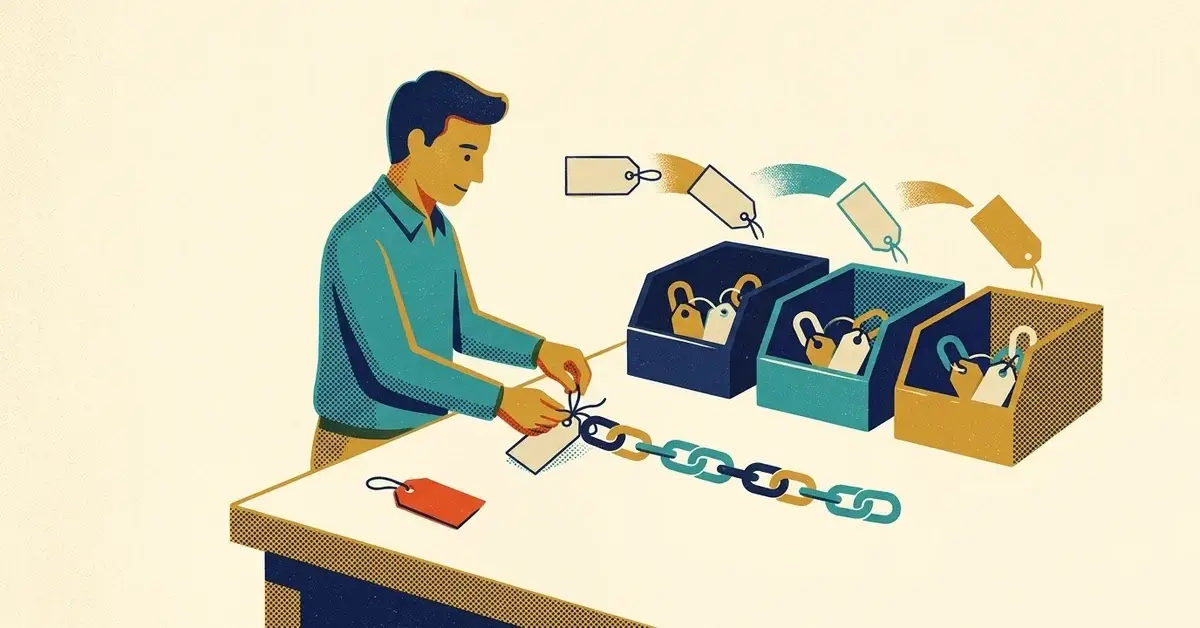
You post on Facebook, send a newsletter, update your Google Business Profile and hand out a flyer with a QR code. A lead comes in.
Which one sent it?
If your analytics can't tell you, you're guessing where to spend next month's time and money. UTM codes fix that. They're small labels you add to the links you share, so Google Analytics can say exactly where each click came from.
This post is the whole system: the five tags, one naming sheet, copy-and-paste templates for each channel, and how to check it's working.
The quick answer
- Tag every link you share outside your website: social posts, emails, your Business Profile, QR codes, ads that aren't Google Ads.
- Always use utm_source, utm_medium and utm_campaign. Add utm_content when one post or email has more than one link.
- All lowercase, underscores instead of spaces, and the same value for the same thing every time.
- Pick mediums GA4 recognizes (email, social, paid_social, organic), or the visits land in "Unassigned".
- Don't hand-tag Google Ads. Leave auto-tagging on.
- Keep every tag in one shared sheet, and click each link before it goes out.
What a UTM code looks like
A UTM is a bit of text added to the end of a link after a question mark:
https://yoursite.com/spring-offer?utm_source=facebook&utm_medium=social&utm_campaign=spring_offer
The page is the same. The visitor sees the same thing. But GA4 now records that this visit came from Facebook, as unpaid social, for the spring offer.
Think of it like a luggage tag. Without one, every bag comes off the plane looking the same.
The five tags (and the ones you can skip)
Google's campaign URL help page lists the parameters and says you should always use source, medium and campaign. Leave one out and the report shows "(not set)" instead.
utm_source: where the click came from
The site, platform or thing: facebook, instagram, linkedin, newsletter, google, flyer.
utm_medium: what kind of traffic it was
The channel type: social, paid_social, email, organic, print.
This is the one that matters most for your reports. More on that below.
utm_campaign: what you were promoting
Your name for the push: spring_offer, october_newsletter, free_audit.
utm_content: which link or version
Tells two links apart inside one email or post: header_button, footer_link, video_a, video_b.
utm_term: the keyword
For paid search keywords. If you run Google Ads with auto-tagging (below), you won't need it.
Google's page lists a few more (utm_id, utm_source_platform, utm_creative_format, utm_marketing_tactic). The last two aren't reported in GA4 at all, so a small business can skip all four.
How to tell your tracking needs this
Open GA4 and go to Reports > Acquisition > Traffic acquisition. You need a system if you see any of these:
- One platform on three rows.
facebook,Facebookandfb. Google says values are case sensitive, so GA4 counts them as three different sources. - A big "Unassigned" row. Traffic with a source GA4 couldn't sort into a channel. Homemade mediums cause this.
- Your newsletter is invisible. Google's GA4 help on email campaigns says email links without UTM tags can show up as Direct traffic instead of Email.
- Nobody can answer "where did that lead come from?" without checking three tools.
Why the medium decides your channel
GA4 sorts every visit into a channel (Email, Organic Social, Paid Social and so on) using fixed rules. Google publishes them on its default channel group page:
- Email: the source or medium is
email(ore-mail,e_mail). - Organic Social: the source is a known social site, or the medium is
social(orsocial-media,smand a few others). - Paid Social: a social source plus a paid medium, one that contains
cpor starts withpaid(cpc,paid_social). - Organic Search: a search engine as the source, or the medium
organic. - Unassigned: nothing matched.
So utm_medium=local_post or utm_medium=posting_stuff lands in Unassigned. Your campaign name still shows up, but the channel report gets messier every month.
Use the values below and that doesn't happen.
The naming sheet
Make a spreadsheet with these columns: Date, Link name, Page URL, utm_source, utm_medium, utm_campaign, utm_content, Full tagged link, Created by. Every tagged link anyone sends goes in it first.
Then agree on the values. Here's a starting set that keeps each link in the right GA4 channel:
Where the link lives | utmsource | utmmedium | GA4 channel |
|---|---|---|---|
Newsletter or email blast | newsletter | ||
Facebook post | social | Organic Social | |
Instagram post or bio | social | Organic Social | |
LinkedIn post | social | Organic Social | |
Facebook or Instagram ad | facebook or instagram | paid_social | Paid Social |
Google Business Profile website link | organic | Organic Search | |
Google Business Profile post | organic | Organic Search | |
QR code on a flyer or sign | flyer or sign | Unassigned |
Two notes on that table.
The Business Profile rows use google and organic on purpose. A visit from your profile really is unpaid Google traffic, so it stays in Organic Search where it belongs, and the campaign name (gbp_listing, gbp_post) tells it apart from your regular search visits.
QR codes and print land in Unassigned because GA4 has no offline channel. That's fine. You'll find them by campaign name, and nothing else will be in that row if the rest of your tags follow the sheet.
Naming rules for everything else
- Lowercase only.
- Underscores, no spaces.
- Short and readable:
spring_offer, notSpring Offer 2026 FINAL v2. - One name per thing, forever. If it's
newslettertoday, it'snewsletterin a year.
Weirdly, the hardest part isn't building links. It's getting three people to spell "facebook" the same way. The sheet solves that.
Copy-and-paste templates
Swap in your own page and campaign names. Each one goes on the end of the page URL.
Newsletter, main button:
?utm_source=newsletter&utm_medium=email&utm_campaign=october_newsletter&utm_content=main_button
Newsletter, a second link in the same email:
?utm_source=newsletter&utm_medium=email&utm_campaign=october_newsletter&utm_content=footer_link
Facebook post:
?utm_source=facebook&utm_medium=social&utm_campaign=spring_offer&utm_content=post_1
Instagram bio link:
?utm_source=instagram&utm_medium=social&utm_campaign=bio_link
Facebook or Instagram ad:
?utm_source=facebook&utm_medium=paid_social&utm_campaign=spring_offer&utm_content=carousel_a
Google Business Profile website link:
?utm_source=google&utm_medium=organic&utm_campaign=gbp_listing
Google Business Profile post:
?utm_source=google&utm_medium=organic&utm_campaign=gbp_post&utm_content=october_offer
QR code on a flyer:
?utm_source=flyer&utm_medium=print&utm_campaign=home_show&utm_content=front_side
For Meta ads, you can add the tag in Ads Manager instead of editing the website link. In the ad's Tracking section, enter it in the URL parameters field or click Build a URL parameter (Meta's URL parameters help). Adding the tag to the end of the website URL works too.
You don't have to type any of this. Google's help page links to its free Campaign URL Builder: paste the page, fill in the boxes, copy the result into your sheet.
Google Ads: leave auto-tagging on
Don't add hand-written UTMs to Google Ads.
Google Ads has auto-tagging, which adds its own click ID to every ad click. Google's auto-tagging help page says it's on by default for new accounts and is needed to link Google Ads with Analytics. It also says GA4 gives auto-tagging priority over manual tags, so a UTM on a Google ad mostly adds clutter.
To check it's on: in Google Ads, click Admin > Account settings > Auto-tagging and make sure Tag the URL that people click through from my ad is ticked. Then link Google Ads to GA4 so the campaign names come through.
Test every link before it goes out
- Open the tagged link in a private browser window. Make sure the page loads and the tag is still on the end of the address.
- If a link shortener or QR generator is involved, scan or click the final version, not the original.
- Check GA4 the next day. Google's data freshness page says standard reports usually take several hours to process, up to about 12 for the full day.
A broken QR code on 500 printed flyers is an expensive typo.
Reading the results in GA4
Go to Reports > Acquisition > Traffic acquisition. The table shows channels by default.
- Click the dropdown above the first column and switch it to Session source / medium to see each source.
- Switch it to Session campaign to see your campaign names.
- Set the date range to match your campaign.
Then look at the leads column, not just sessions. If you haven't set up form submissions or calls as key events yet, our GA4 cleanup guide covers that.
Ask one question each month: what should we do more of, and what should we stop?
The mistakes that break it
- Tagging links between your own pages. It can muddy where visitors really came from, so keep UTMs for links from outside your site.
- Mixing spellings.
Facebook,facebookandfbare three sources to GA4. - Making up mediums.
local_post,gmb,website. They all end up in Unassigned. - Putting personal details in a tag. Never put a name, email address or phone number in a UTM. Google's policy on personal information doesn't allow sending it to Analytics, and tagged links get forwarded.
- Tagging links you don't control. You can't tag the links AI tools or other websites show for you. Those show up on their own as referrals or AI Assistant traffic.
Keeping it working in a business
- One sheet, one owner. Everyone else asks before inventing a new value.
- A one-line staff rule: no link leaves the building without a tag from the sheet.
- Tag the boring links too. The website link on your Business Profile, your email signature, your QR codes. They're often the most useful ones.
- Once a quarter, sort GA4's source / medium list and fix anything that doesn't match the sheet.
When to get help
- GA4 still shows most of your traffic as Unassigned or Direct after a month of clean tags.
- Leads come in but GA4 doesn't record them, so you can see visits and nothing else.
- You're spending real money on ads and can't say which campaign brings booked work.
If you'd like someone to set this up with you, get in touch.



No comments yet