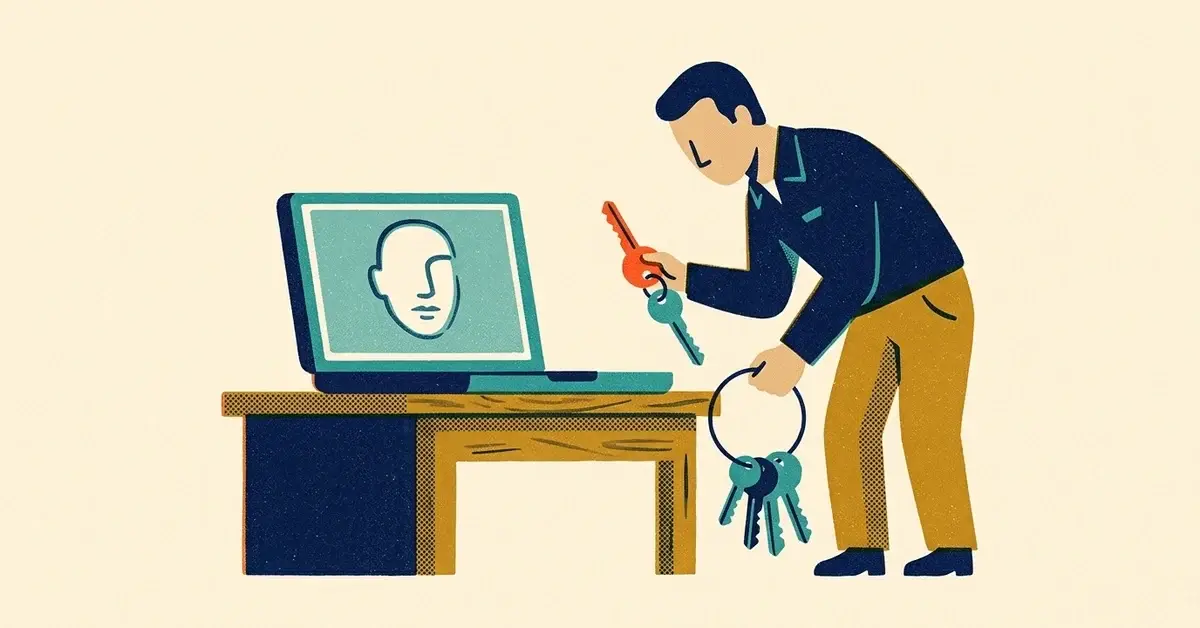
You read that hackers can "swap faces" to get past Windows Hello, the face sign-in on your work laptops. Now you're wondering if you should turn it off.
Here's the deal: the attack is real, but it needs someone who already has administrator rights on that PC. So the most important fix isn't about faces at all. It's about who has admin.
The quick answer
- Take local admin rights away from everyday user accounts. No admin, no face swap.
- Check whether your PCs have Enhanced Sign-in Security (ESS). It's the Windows feature that blocks this attack. Look in Settings > Accounts > Sign-in options.
- No ESS? Use a PIN instead of face sign-in on business PCs, at least on the ones that hold sensitive data.
- One person per PC for Windows Hello sign-in where you can.
- Keep MFA on for Microsoft 365 and everything else that matters, so a signed-in laptop isn't the only key.
What the "face swap" attack actually is
Researchers Baptiste David and Tillmann Osswald of the German security firm ERNW showed it at Black Hat USA in August 2025, as part of a study for Germany's federal cybersecurity agency, the BSI (ERNW write-up).
When you set up face sign-in, Windows saves a "template," a mathematical description of your face, in a database on the PC. On PCs without ESS, that database is encrypted, but the keys to open it sit on the same machine.
So someone with admin rights on the PC can:
- Open the face database.
- Put the template of their own face (enrolled on another computer) in place of yours.
- Walk up to your laptop, look at the camera, and be signed in as you.
That's the face swap. It's like a locksmith re-keying your front door so their key works. Clever, but they had to be inside the house already to do it.
The research looked at Windows Hello for Business, the version companies manage through Microsoft Entra ID or Active Directory. In July 2026 ERNW published the full report, about 170 pages (ERNW: full report released).
Against everyday attacks like phishing and password theft, Windows Hello is still much better than a password. This is a narrow problem, not a reason to go back to passwords.
How to tell if your PCs are protected
Enhanced Sign-in Security moves face and fingerprint data into a walled-off part of Windows (virtualization-based security) that even an administrator can't touch. Microsoft says that with ESS on, it's "impossible for malware to inject or replay data in order to simulate a user signing in" (Microsoft Learn: Windows Hello for Business policy settings).
The catch: it needs specific hardware. A compatible camera or fingerprint reader, the right drivers and firmware, TPM 2.0 and virtualization-based security (Microsoft Learn: Enhanced Sign-in Security). All Copilot+ PCs have it on by default, though Microsoft notes some don't have ESS sensors built in. Plenty of older and budget laptops can't do it at all.
To check one PC (Windows 11):
- Open Settings > Accounts > Sign-in options.
- Look for an Enhanced sign-in security entry. If it's there and says On, that PC is protected.
- If there's no such entry, assume it doesn't have ESS.
For a deeper check, Microsoft points to Event Viewer > Applications and Services Logs > Microsoft > Windows > Biometrics > Operational, event ID 1108. A sensor running with ESS shows as isolated in a "Virtual Secure Mode" process.
Fixes, easiest first
1. Remove local admin from daily accounts
This is the big one. The attack needs admin rights, and so do most of the other nasty things an attacker does once they're in.
- Staff sign in with a standard account every day.
- Admin work happens on a separate admin account, used only when needed.
- Every PC's built-in administrator gets a unique password that rotates. Microsoft's free Windows LAPS does that. It's built into Windows 11 and works on PCs joined to Microsoft Entra ID or Active Directory.
2. Switch PCs without ESS to a PIN
On a single PC: Settings > Accounts > Sign-in options, select facial recognition, then Remove (Microsoft Support). The PIN stays: Microsoft calls it the fallback, and it can't be turned off while Windows Hello for Business is in use.
A Windows Hello PIN isn't a weak password. It only works on that one device and is protected by the TPM chip against guessing. Make it longer than four digits.
Across a business, whoever manages your PCs can turn off biometrics with the Use biometrics policy (Group Policy: Computer Configuration > Administrative Templates > Windows Components > Windows Hello for Business, or the matching Intune setting). Microsoft notes this turns off face and fingerprint sign-in for every account type on the device.
3. Turn ESS on everywhere it's supported
On PCs that do support it, your IT person can set the Enable ESS with Supported Peripherals policy to 1. Microsoft recommends that value "for highest security": it blocks plug-in cameras and fingerprint readers that don't support ESS.
4. One Windows Hello user per PC
Shared PCs with several people enrolled give an attacker more to work with. The BSI recommends registering only one person per device for Windows Hello (BSI press release, in German).
If you think it's already happened
Signs someone tampered with sign-in on a PC:
- A user's face sign-in suddenly stops recognizing them and they have to use the PIN.
- Someone was "signed in" at a time they weren't at their desk.
- A new administrator account appeared that nobody remembers creating.
If you see any of these, don't just re-enroll the face and move on. Someone had admin on that machine. Disconnect it from the network, change the user's Microsoft 365 password, sign them out of all sessions, and have it checked for whatever else the attacker did.
Keep it from becoming a problem
- Buy for it. When you replace laptops, ask the seller whether the camera or fingerprint reader supports Windows Hello Enhanced Sign-in Security, and get the answer in writing.
- Manage your PCs centrally, so admin rights, PIN rules and Windows Hello policy are set once and not left to each laptop.
- One-line staff rule: "Never sign in to a work PC as an administrator unless IT asks you to."
When to call someone
- You don't know which of your PCs have local admin accounts, or who knows the passwords.
- You have a mix of laptops and no central way to set Windows Hello policy.
- You've seen one of the warning signs above.
If any of that sounds familiar, we can help you sort it out.
Related reading
- Windows SMB flaw CVE-2025-33073: are your PCs at risk?
- Windows Defender exploits: what to check on your PCs
- Centralized device management: secure every work PC
Originally published July 2025. Updated October 2026.



No comments yet