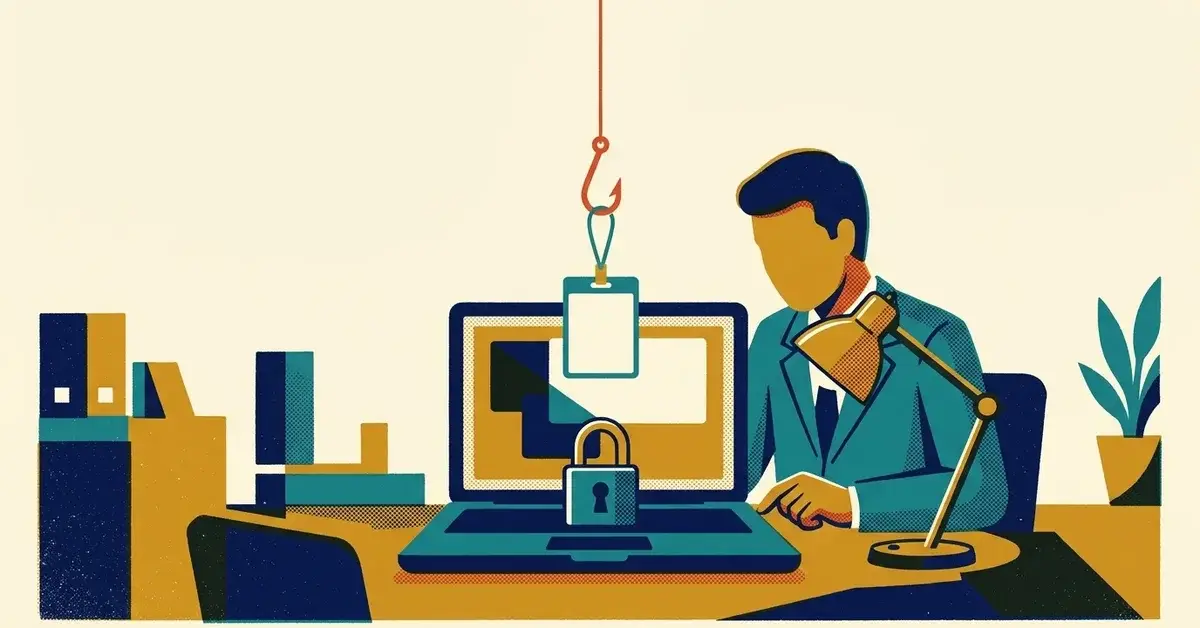
Someone got into a mailbox at your company. MFA was on. The sign-in log even says the user completed MFA. Nobody's lying, and MFA didn't break.
Here's the deal. A lot of attackers have stopped trying to beat MFA. They wait for you to finish it, then steal what Microsoft or Google hands your browser afterward: the session token that says "this person already signed in." With that, they don't need your password or your phone.
The quick answer
- MFA did its job. The attacker took the signed-in session that came after it, usually through a fake sign-in page that passes everything to the real one, or through malware on the computer.
- If it just happened, a password reset isn't enough. Revoke the user's sessions too. Our post on a Microsoft 365 sign-in from another country has the full lock-down, step by step.
- The fix for fake pages is phishing-resistant sign-in: passkeys, security keys or Windows Hello for Business. Passkeys are free in every Microsoft Entra ID edition, including the free one.
- If you have Microsoft 365 Business Premium (or another plan with Entra ID P1), use Conditional Access to require those methods, starting with admins, and to require managed devices.
- On Google Workspace, set 2-Step Verification to Only security key, which now accepts passkeys too.
Who can skip most of this: if everyone already signs in with passkeys or Windows Hello and your computers are managed, you've done the hard part. If you're on a plan without Entra ID P1, do step 3 and skip the Conditional Access sections below.
How a stolen session gets past MFA
Think of a concert. MFA is the person checking tickets at the gate. The session token is the wristband you get once you're through. Nobody checks tickets again inside. Steal the wristband and you skip the gate.
Microsoft splits tokens into two kinds. Sign-in session tokens (refresh tokens) keep you signed in and can last 90 days on a rolling window that restarts every time they're used. App session tokens (access tokens) are short, usually 60 to 90 minutes (Microsoft Learn). The long one is the prize.
Microsoft names two main ways tokens get stolen (same page):
- Adversary-in-the-middle (AiTM) phishing. The fake sign-in page sits between you and the real Microsoft page. You type your password and approve MFA, the fake page passes both along in real time, and it keeps the session cookie the real site sends back. Microsoft says this captures session cookies "even bypassing security measures like multifactor authentication." Our post on the RaccoonO365 phishing service shows what one of these kits looked like in the wild.
- Malware. Something running on the computer copies tokens or cookies out of the browser or memory after a perfectly normal sign-in.
How common is it? Microsoft, citing its 2024 Digital Defense Report, says password attacks are still far more common, but token theft incidents had grown to an estimated 39,000 a day, with a 146% rise in AiTM phishing over the year (Microsoft Learn). In one campaign Microsoft tracked in 2022, attackers went after more than 10,000 organizations and started payment fraud as little as five minutes after stealing a session. They used inbox rules to hide replies from the people they were scamming (Microsoft Security blog, July 2022).
Why codes and push approvals don't stop the fake page: they work just as well when typed into or approved for a fake page as a real one. CISA's fact sheet describes exactly that, a lookalike login page that collects the username, password and the six-digit code. CISA calls phishing-resistant MFA "the gold standard" and says "the only widely available phishing-resistant authentication is FIDO/WebAuthn," which is what passkeys and security keys use (CISA, October 2022). A passkey is tied to the real site's address, so a fake page has nothing to pass along.
One honest catch: passkeys don't help if malware is already on the computer, because that attack happens after a real sign-in. That's what the device steps further down are for.
Check what you have first
Five minutes, before you change anything.
- Security defaults or Conditional Access? In the Microsoft Entra admin center, go to Identity > Overview, open the Properties tab and look at Security defaults at the bottom. It'll say you're protected by security defaults, that you're using Conditional Access policies, or that neither is on (Microsoft Learn).
- Do you have Entra ID P1? Conditional Access needs it. Microsoft lists Microsoft 365 Business Premium and Microsoft 365 E3 as including P1, and E5 as including P2 (same page). Not on that list and no add-on? Assume the free tier.
- How do people sign in today? Go to Entra ID > Monitoring & health > Usage & insights and open the Authentication methods activity report (Microsoft Learn). If it's mostly text codes and push approvals, that's the gap.
- On Google Workspace, sign in as a super admin and open Menu > Security > Authentication > 2-step verification to see whether 2SV is enforced and which methods are allowed (Google Workspace Admin Help).
Signs a session was stolen
You're usually looking at this after something odd: a customer got a strange invoice email, or someone admits they "signed in to a document" from an email link.
- Open the sign-in log. Entra ID > Monitoring & health > Sign-in logs, filtered to the user. Check both the interactive and the non-interactive tabs (Microsoft Learn). A replayed token can show up as non-interactive sign-ins, because the attacker isn't typing anything.
- Look for a successful, MFA-satisfied sign-in the user can't explain, then later activity from the same IP address or browser. Microsoft's token theft playbook says to give immediate attention to unfamiliar non-interactive sign-ins (Microsoft Learn).
- Check for what attackers add next. The same playbook lists new MFA or passwordless methods on the account, mailbox forwarding rules added or edited, and mass or unusual file downloads.
- Know what your license shows you. Without Entra ID P2, risky activity shows up only as "Additional risk detected," with no details. P2 shows detections like Anomalous token, which Microsoft says can still flag some false positives at low and medium risk. The Attacker in the Middle detection needs Microsoft 365 E5 with Enterprise Mobility + Security E5 (Microsoft Learn). No alert doesn't mean nothing happened.
If it's real, don't stop at a new password. Revoking sessions is what kills a stolen token. For Exchange, SharePoint and Teams, Microsoft says a password reset or session revocation is enforced in near real time through Continuous Access Evaluation, though it can take up to 15 minutes (Microsoft Learn). The sign-in from another country post covers the rest: MFA methods, rules, forwarding, app access and the audit log.
What stops token theft, and what it needs
This table shows each control, the part of the attack it stops, and the license or setup it takes, as of November 2026.
Control | What it stops | What you need |
|---|---|---|
Passkeys, security keys, Windows Hello for Business | Fake sign-in pages: nothing to relay | Any Entra ID edition, including Free |
Conditional Access requiring phishing-resistant MFA | People falling back to a code or push | Entra ID P1 (Business Premium, Microsoft 365 E3) |
Conditional Access requiring a compliant device | Sign-ins from computers you don't manage | Entra ID P1 plus an Intune compliance policy |
Token protection | A stolen sign-in token replayed from another device | Conditional Access; desktop and mobile apps for Exchange, SharePoint and Teams on registered devices |
Risk detections with details (Anomalous token) | Spotting replay after the fact | Entra ID P2 |
Google 2SV set to Only security key | Fake sign-in pages on Google accounts | Google Workspace admin; accepts passkeys and security keys |
Google session control | How long a stolen web session keeps working (default 14 days) | Business Plus, Enterprise and some other editions |
Sources: Microsoft Learn on passkeys, authentication strengths, device compliance, token protection and risk detections; Google Workspace Admin Help on 2-Step Verification and session length. Checked November 2026.
How to stop it in Microsoft 365, step by step
Do these in order. Each one depends on the one before.
Step 1: Turn on passkeys
- Sign in to the Entra admin center as at least an Authentication Policy Administrator.
- Go to Entra ID > Security > Authentication methods > Policies and select Passkey (FIDO2). Select the link in the banner to opt in to passkey profiles. Microsoft notes you can't opt out afterward.
- On the Configure tab, set Allow self-service set up to Yes. If it's No, people can't add a passkey themselves.
- Open the Default passkey profile and choose the passkey types you'll allow. Device-bound passkeys live on one device (a security key or the Microsoft Authenticator app). Synced passkeys live in iCloud Keychain or Google Password Manager. Microsoft says to treat synced passkeys as phishing-resistant, with the same posture as other unverified authenticators.
- On Enable and Target, make sure it's on, add a target (start with a group of your admins), pick the profile and Save.
Passkeys are included in every Entra ID edition, Free included (Microsoft Learn). Passkeys in Microsoft Authenticator need Android 14 or iOS 17 or later (Microsoft Learn).
Step 2: Get people registered, admins first
Each person adds a passkey at mysignins.microsoft.com/security-info. Microsoft requires them to have completed MFA within the past five minutes first (Microsoft Learn). Windows Hello for Business also counts as phishing-resistant. Give everyone at least two methods, so a lost phone isn't a locked-out employee.
Step 3: Require phishing-resistant sign-in for admins
This needs Entra ID P1. If security defaults are on, Microsoft's order is to turn them off and recreate the same baseline policies in Conditional Access first; you can't run both (Microsoft Learn).
- Make sure every admin has registered a passkey or other phishing-resistant method. Microsoft warns that skipping this "risks locking you out of your tenant."
- Go to Entra ID > Conditional Access > Policies > New policy and name it.
- Under Users or workload identities, include Directory roles and pick at least Global Administrator, Exchange Administrator, SharePoint Administrator, User Administrator and the other admin roles Microsoft lists. Exclude your emergency access (break-glass) accounts.
- Under Target resources, include All resources.
- Under Grant, choose Require authentication strength, then Phishing-resistant MFA strength.
- Set the policy to Report-only, create it, check the results, then switch it to On (Microsoft Learn).
Step 4: Extend it to everyone
Once most people have registered, copy the policy for all users. One trap: if a policy requires a passkey for all resources, people can get stuck in a loop trying to add a passkey to Authenticator, because adding it requires a passkey. Microsoft's fix is to target specific apps instead of all resources, or to run a sign-up push before you enforce and use a Temporary Access Pass for stragglers (Microsoft Learn).
Step 5: Require a compliant device, if you use Intune
This closes the door on a token replayed from the attacker's own computer.
- Create an Intune compliance policy first and make sure at least one device is compliant. Microsoft warns the Conditional Access policy won't work as intended without one.
- In Entra ID > Conditional Access > Policies, create a new policy for All users, excluding break-glass accounts and, if you sync from on-premises Active Directory, the Directory Synchronization Accounts role.
- Target All resources, and under Grant choose Require device to be marked as compliant.
- Start in Report-only, then turn it on (Microsoft Learn).
No Intune? Skip this step for now. It's the one most small offices aren't ready for.
Step 6: Add token protection when the rest is solid
Token protection is a Conditional Access session control that only accepts sign-in tokens bound to the device they were issued to, so a copied token won't work elsewhere. It covers the desktop and mobile apps for Exchange, SharePoint and Teams on registered Windows 10 or newer devices, with Apple support for MDM-managed devices. It does not cover Outlook or SharePoint in a browser; browser support is a limited preview for Azure management tools only. Microsoft's rollout advice: pilot group, report-only first, and read both interactive and non-interactive sign-in logs long enough to cover normal use (Microsoft Learn).
Step 7: Don't forget the computers
Phishing-resistant sign-in does nothing about malware already on a laptop. Microsoft's own list of defenses includes "hardening your devices against malware-based attacks" alongside phishing-resistant credentials and device-based Conditional Access (Microsoft Learn). In practice that's updates on, an endpoint detection and response (EDR) tool watching every machine, and nobody browsing as a local admin.
How to stop it in Google Workspace
- Find out who already has a security key or passkey. Google says its reports can lag by up to 48 hours, so check each user's security settings for real-time status.
- Sign in as a super admin and go to Menu > Security > Authentication > 2-step verification. Pick an organizational unit (start with admins).
- Under Enforcement, choose On or a start date. Under Methods, choose Only security key. Google says this option "now supports both security keys and passkeys."
- Set a suspension grace period so someone who loses a key can sign in with a backup code. In this mode, users can't make their own backup codes; an admin has to provide them. Save (Google Workspace Admin Help).
- Optional: shorten how long a web session lasts at Menu > Security > Access and data control > Google Session control. The default is 14 days, and the setting is available on Business Plus, Enterprise and some other editions (Google Workspace Admin Help). A shorter session limits how long a stolen one works. It doesn't stop the theft, and it means more sign-ins for everyone, so weigh that.
When to get help
Most of this is an afternoon of admin work for someone comfortable in the Entra admin center or the Google Admin console. Bring in someone with incident response or Conditional Access experience, from inside or outside the company, if:
- You've found sign-ins nobody can explain and you can't tell what the session touched, or the logs have already aged out.
- You're moving from security defaults to Conditional Access and you don't have tested break-glass accounts. That's how admins lock themselves out.
- Your logs keep showing "Additional risk detected" and nobody can see why, or the same IP address turns up on more than one account.
If you have an IT person and want someone else watching sign-ins and alerts after hours, that's what our co-managed security does.
Related reading
- Someone Signed In to Our Microsoft 365 From Another Country. Now What?
- Hook, Line, and Sinker: The $100K Phishing Service That Stole Microsoft 365 Logins
- Phone Buzzing With Login Requests You Didn't Make? MFA Fatigue Attacks and How Passkeys Stop Them
Originally published November 2026.




No comments yet