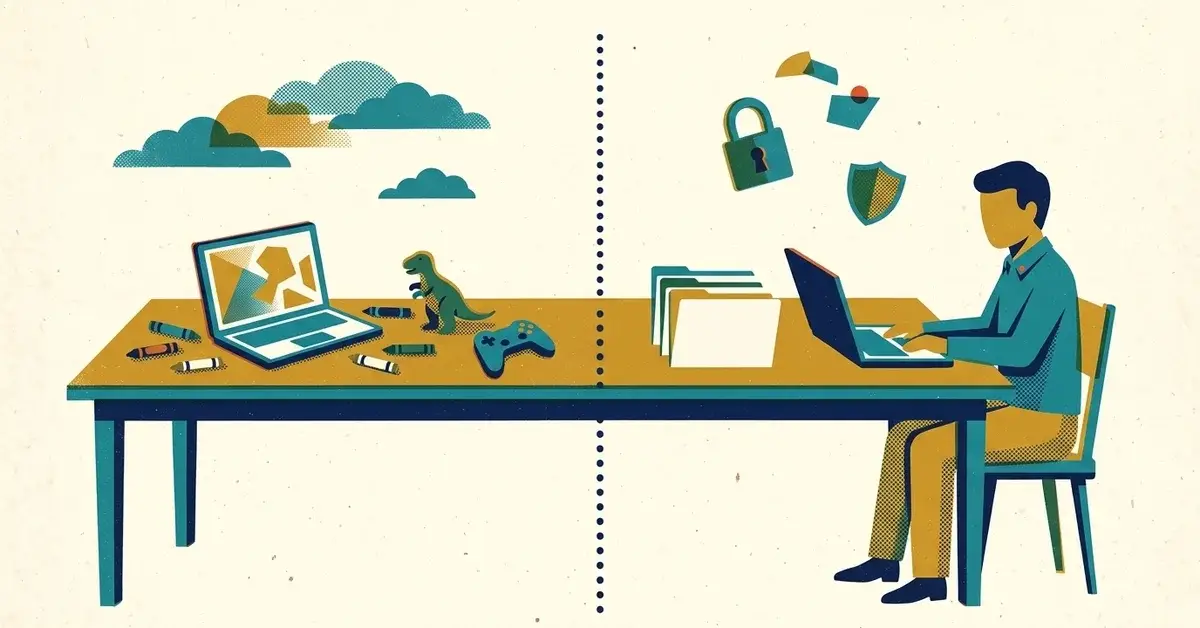
The business started on the laptop you already had. The same one the kids use for homework, the one with the family photos, the browser that remembers everyone's passwords. Now it also holds your invoices, your customer list and the login for the business bank account.
It works, until it doesn't. One bad download from a game site, one teenager who clicks "allow", one laptop left in a car in Martinez, and the business goes with it.
A computer used only for the business fixes most of that. Here's what "set up for business" actually means, in the order we'd do it. Menus are for Windows 11 as of October 2026.
The quick answer
- Use a computer that's only for the business. Family use goes on a different machine.
- Give it two accounts: a standard account you use every day, and a separate admin account for installing things.
- Turn on encryption so a lost or stolen laptop doesn't mean lost data, and keep the recovery key somewhere the business controls.
- Set up Windows Hello (face, fingerprint or PIN) so signing in is fast and not a sticky note.
- Check the security software is on and updates install on their own.
- Turn on backups, then test that you can actually get a file back.
- Decide now who you'll call for help, so you never let a stranger "fix" it remotely.
Why one shared laptop is a problem
Think of it like keeping the business checkbook in the kitchen junk drawer. Nobody means any harm. It's just that everyone in the house has their hand in there.
On a shared computer, everyone's habits become the business's risk. A free game, a browser extension, a "your computer is infected" pop-up that someone believes. Our post on fake virus warning pop-ups covers how convincing those can be. On a family laptop, whoever clicks it is clicking it on your customer files too.
Microsoft says the same thing in plainer words. Its page on managing user accounts in Windows says keeping work and personal activity in separate accounts helps keep a clear boundary between them and "adds an extra layer of security by keeping sensitive work or school data compartmentalized." A separate computer takes that one step further. Separate accounts on one machine still share the same hardware, the same installed software and the same bad download.
There's a paperwork side too. A computer that's only for the business keeps business files, emails and receipts in one place, apart from the family's. Whether that computer counts as a business expense, and what records you need to keep, is a question for your accountant. The UGA Small Business Development Center in Augusta offers no-cost, one-on-one consulting by appointment, and SCORE Greater Aiken offers free mentoring for Augusta, North Augusta and Aiken. They're the right people for "how should I keep my books." We're the right people for the computer.
How to tell if your computer is business-ready
Run through these. Every "no" is a step below.
- Does anyone besides you use it? Kids, a spouse, a friend who "just needed to check something."
- Do you sign in to Windows as an administrator every day? Most people do, because that's how the first account is set up.
- Is the drive encrypted, and do you know where the recovery key is?
- Do you sign in with a short password, or no password at all?
- If it died tonight, could you get your files back tomorrow?
- If something went wrong, do you know exactly who you'd let connect to it?
Step 1: A computer that's only for the business
New or one you already own, the rule is the same: business only. If the family needs a computer, they get the old one.
If it's a computer you already use, decide whether to set it up as is or start fresh. A laptop that's had years of family downloads is often worth wiping and setting up clean, with your business files copied back after.
Check the version too. Windows 10 reached the end of support, and our post on what changed when Windows 10 support ended covers what that means for a business PC. A new business computer should be on Windows 11.
Step 2: Two accounts, a standard one and an admin one
Here's the deal: an administrator account can install anything and change anything. If you browse, read email and open attachments while signed in as an admin, so can anything you accidentally run.
Microsoft's advice on that user accounts page is direct: limit the number of administrators, because "administrators have complete control over the system," and "it's safer to have fewer administrators and to use standard user accounts for day-to-day activities."
So the setup is:
- An everyday account (standard user) that you sign in with every day.
- A separate admin account you only type in when Windows asks for permission to install or change something.
To add an account: Settings > Accounts > Other users > Add account. To change an account's type: Settings > Accounts > Other users, select the account, then Change account type, and pick Standard User or Administrator.
One thing to decide before you start: which account the computer signs in with. Microsoft recommends signing in with a Microsoft account rather than a local account. A business on Microsoft 365 can use its work account instead. That choice matters for the next step.
Step 3: Turn on encryption, and keep the key in the business's hands
Encryption scrambles everything on the drive so it can't be read without signing in. Microsoft's BitLocker overview puts the point simply: it protects data on devices that are "lost, stolen, or inappropriately decommissioned." Without it, someone can pull the drive out of a stolen laptop and read it on another computer.
Which version you get depends on your edition of Windows:
- Windows 11 Home has Device encryption, which Microsoft says is available on a wider range of devices than BitLocker.
- Windows 11 Pro (and Enterprise and Education) has full BitLocker Drive Encryption as well.
Microsoft's page on Device encryption in Windows has the edge cases that catch people:
- It turns on by itself when you set up or sign in with a Microsoft account or a work or school account, and the recovery key is attached to that account.
- With a local account, it isn't turned on automatically.
- To check or turn it on: sign in with an administrator account, then Settings > Privacy & security > Device encryption, and set the toggle to On.
- If Device encryption doesn't appear, it's either not available on that hardware, or you're signed in with a standard account. Sign in as the admin and look again.
And one line from Microsoft's BitLocker overview worth knowing: a device that uses only local accounts "remains unprotected even though the data is encrypted," because the protection isn't finished until the recovery key is backed up.
Now the part nobody thinks about. That recovery key lives in whatever account set the computer up. If your business laptop was set up with your daughter's personal Microsoft account, the key to your business data is in her account. Make sure it's in an account the business controls, and keep a copy of the key somewhere safe that isn't the laptop itself.
Step 4: Windows Hello instead of a weak password
A sign-in you hate typing turns into a sign-in you make shorter. Windows Hello lets you sign in with your face, a fingerprint or a PIN instead.
Set it up at Settings > Accounts > Sign-in options, then under Ways to sign in choose Facial recognition, Fingerprint recognition or PIN, and Set up (Microsoft's steps). Face sign-in needs a Hello-compatible camera, and fingerprint needs a fingerprint reader. Not every laptop has them; a PIN works on all of them.
A PIN sounds weaker than a password, but it isn't the same thing. Microsoft's Windows security documentation explains that the PIN and biometric data stay on the device, and after too many wrong guesses the device locks. A stolen PIN is only useful to someone holding your laptop.
On a Mac, we set up the same list with Apple's built-in tools, Touch ID instead of Windows Hello. The menus are different; the checklist isn't.
Step 5: Security software on, updates automatic
Windows 11 comes with Microsoft Defender Antivirus. Microsoft's Windows security book says it's included in all versions of Windows 11, and that if you install another antivirus app, Defender turns itself off.
To check it's on: open Windows Security, select Virus & threat protection, then under Virus & threat protection settings make sure Real-time protection is On (Microsoft's steps).
That's the floor, not the ceiling. On a business computer we set up, we also install security software that checks in with us, so a warning doesn't just sit on a screen nobody's looking at. Either way, leave Windows updates set to install on their own, and restart when it asks instead of postponing it for a month.
Step 6: Backups, and a test restore
A backup you've never restored from is a hope, not a backup.
The minimum: your business files are copied somewhere other than the laptop, automatically, and at least one copy can't be wiped by whatever wipes the laptop. Then pick one file, delete it, and get it back. If that takes you an afternoon of guessing, it's not ready.
Our 10-minute backup check and the 3-2-1 rule walks through what a backup that survives ransomware looks like. It's written for offices, but the rule is the same for a one-laptop business.
Step 7: Decide who's allowed to help, before you need it
Remote support is how a computer gets fixed without anyone driving over. It's also how scammers get in.
Microsoft's own page on its Quick Assist remote support tool says: "Never allow a connection to your device by someone claiming to be 'IT Support' unless you initiated the interaction with them." That goes for any remote tool. If someone calls you about a problem with your computer, it's not a support call. It's a sales pitch from a criminal.
So decide now. Write down who your IT help is, how you contact them, and that you only ever let in a session you started. On a computer we set up, our remote support tool is installed ahead of time, so we can help without a visit and you never have to install something a stranger asked for.
Keeping it that way
- One rule for the household: the business computer isn't for anyone else. Not for homework, not "just for a minute."
- Sign in to your standard account, not the admin one. If Windows asks for the admin password, stop and ask yourself why.
- Lock it when you walk away, even at home.
- Use a password manager for the business logins instead of the browser everyone shares. A full post on passwords and sign-in codes for new businesses is coming later in this series.
- Keep a short record: the computer's make and model, which account set it up, where the recovery key is, and who supports it.
When to call someone
- You're moving the business off a family computer and don't know what to copy, wipe or keep.
- Device encryption won't turn on, or you can't find the recovery key for a computer that's already encrypted.
- You're buying a computer for the business, or for your first hire, and want it set up right the first time.
If you're in the Augusta area, our New Business Computer Setup project covers all of this, done in person: separate accounts, encryption, sign-in, security software, remote support and backups. Computer setup is hands-on work, so we only do it in the Augusta area. Get in touch if you'd like a hand.
Related reading
- Fake Virus Warning Pop-Up? What to Do (and What Not to Click)
- Do Your Backups Actually Protect You From Ransomware? A 10-Minute Check and the 3-2-1 Rule
- Still Have Windows 10 PCs at Work? What Changed on October 13
Starting a business in Augusta
More from this Saturday series:



No comments yet