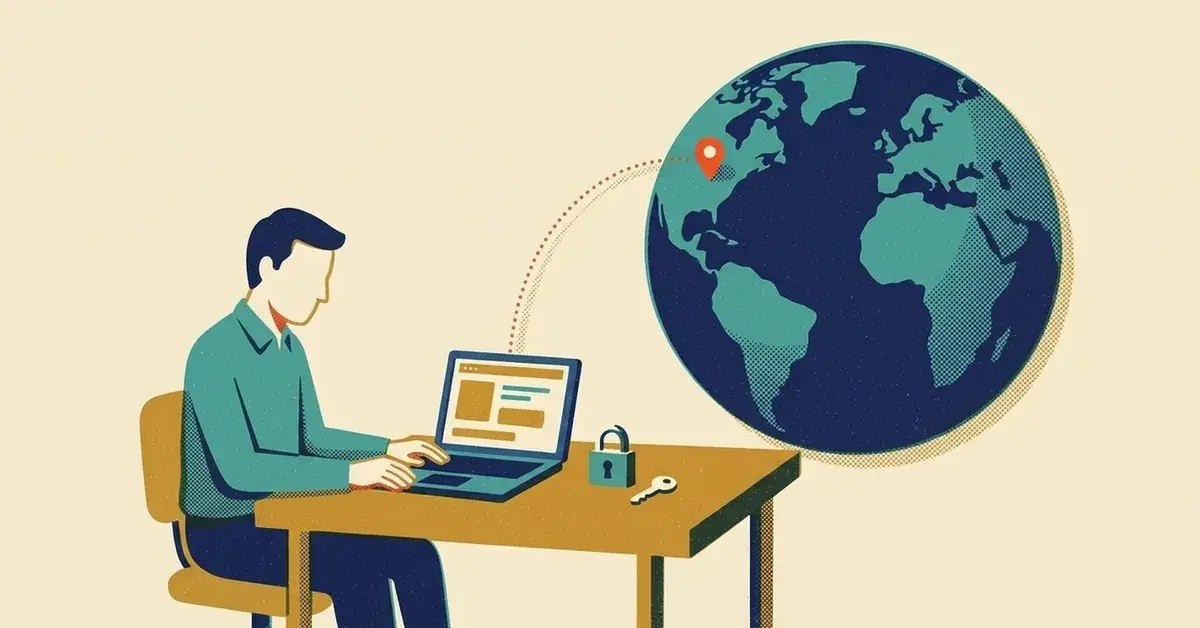
An alert, a user, or a log you happened to open shows a Microsoft 365 sign-in from a country nobody was in. It might be a phone on a roaming carrier. It might be someone holding the password.
You can usually tell which in about fifteen minutes. This post covers the log, the questions to ask, and the full lock-down if it turns out to be real.
The quick answer
- Ask the person. By phone or in person, not by email. Were they traveling, on a VPN, or on a hotspot at that time?
- Open the sign-in in the Microsoft Entra sign-in log. Look at whether it succeeded, which app it used, the device and browser, and whether MFA was part of it.
- If it was them, or it failed, write it down and move on. A failed sign-in means whoever it was didn't get in that time.
- If it succeeded and nobody can explain it, treat the account as compromised. Disable it, revoke its sessions, check its MFA methods, forwarding, inbox rules and app access, then read what it did. All of that is below.
Can stop here: if the person confirms the sign-in was theirs, you're done. Close it out and keep the log entry.
Check what you have first
Two things decide how much you can find out: your role and how long the logs go back.
To read the sign-in log you need to be at least a Reports Reader. Sign in to the Microsoft Entra admin center and go to Entra ID > Monitoring & health > Sign-in logs (Microsoft Learn).
The logs don't keep everything forever. This table shows what Microsoft keeps and for how long, as of November 2026.
Log | Where | How long it's kept |
|---|---|---|
Entra sign-in logs | Entra admin center > Entra ID > Monitoring & health > Sign-in logs | 7 days on Entra ID Free, 30 days on P1 and P2 |
Entra audit logs (changes to users, roles, apps) | Same Monitoring & health menu | 7 days on Free, 30 days on P1 and P2 |
Risky sign-ins (ID Protection) | Entra ID Protection | 7 days Free, 30 days P1, 90 days P2 |
Unified audit log (mailbox, SharePoint and other activity) | Microsoft Purview portal > Audit | 180 days on non-E5 licenses; one year for Entra, Exchange and SharePoint records with E5 |
Sources: Microsoft's pages on Entra data retention and searching the audit log, checked November 2026.
Not sure which Entra tier you have? Assume 7 days and pull the sign-in details today. Microsoft says the Free tier's retention isn't retroactive, so an entry that's expired can't be recovered unless it was archived.
Step 1: Work out whether it's a false alarm
- Write down the facts first. Username, time, IP address, location, app. Microsoft notes the log shows times in the time zone of the admin who's viewing it, not the user's.
- Open the sign-in. In Sign-in logs, filter to the user. Check the User sign-ins (non-interactive) tab too. Microsoft's current log has separate tabs for interactive and non-interactive sign-ins, and the older view shows only interactive ones (Microsoft Learn).
- Read the status. Open the entry. The Basic info tab shows whether the sign-in succeeded, and an error code and reason if it failed.
- Read the device. The Device info tab shows the browser and operating system, and whether the device is compliant, managed or hybrid joined. A Chrome-on-Linux sign-in to a user who only has an iPhone and a Windows laptop is worth a call.
- Read how it authenticated. The Authentication Details tab lists the steps and methods used and whether each one succeeded. Whoever it was, a successful password step followed by a failed MFA step tells you they had the right password. That's a reason to reset it.
- Treat the location as a hint, not proof. Microsoft says there's no definitive link between an IP address and where the device is. Mobile providers and VPNs issue IP addresses from central pools that are often far from where the device is used, and the lookup is best effort (Microsoft Learn).
- Call the person. Show them the time, the app, the browser and the operating system.
Probably a false alarm
- The person was traveling, on a VPN, or on a mobile hotspot at that time.
- The browser and operating system match what they use.
- It's a single sign-in and nothing changed afterward.
Treat it as real
- The person says it wasn't them.
- The device, browser or operating system is one they don't own.
- The sign-in succeeded, and is followed by something you can't explain: a new MFA method, a new mailbox rule, a new app with access.
One extra check, if you have it. Entra ID Protection flags sign-ins from anonymous IP addresses such as the Tor browser and anonymous VPNs on the Free tier. Travel-based detections like atypical travel need Entra ID P2, and without P2 you only see a generic "Additional risk detected" (Microsoft Learn). No alert from those isn't a clean bill of health.
Step 2: If it's real, lock the account down
Microsoft's own guide for a compromised mailbox lays out the order. This follows it, with the menu paths (Microsoft Learn).
- Disable the account. Microsoft calls this preferred and highly recommended until you finish investigating. In the Entra admin center go to Entra ID > Users > All users, select the user, and under Account status choose Edit. Clear Account enabled and save (Microsoft Learn). If the person can't be locked out of work, the next best step is a password reset. Make it a new, unique password. Don't email it, because the attacker may be in the mailbox. If the account syncs from on-premises Active Directory, reset it there, twice. And remember app passwords aren't revoked by a reset: delete them and make new ones.
- Revoke sessions. On the user's Overview page, select Revoke sessions. In PowerShell:
Revoke-MgUserSignInSession -UserId <UPN>. Microsoft says this invalidates refresh tokens. Then wait, because it isn't instant. Access tokens last 1 hour by default, and an app that keeps its own session cookie decides for itself when to let go (Microsoft Learn). Check the sign-in log again after an hour. - Review the MFA methods. Go to Entra ID > Users, select the user, then Authentication methods. Delete any you don't recognize. Require re-register MFA deletes phone numbers, Authenticator apps and software tokens and asks the user to set up new ones at next sign-in. The person can see their own list at mysignins.microsoft.com/security-info (Microsoft Learn).
- Check forwarding and inbox rules. Connect to Exchange Online PowerShell and run these two, which are Microsoft's:
Get-Mailbox -Identity <address> | Format-List Forwarding*Address,DeliverTo*
Get-InboxRule -Mailbox <address> -IncludeHidden | Format-List Name,Enabled,RedirectTo,Forward*,Identity
A value in ForwardingSmtpAddress means mail is going to an outside address. A value in RedirectTo, ForwardTo or ForwardAsAttachmentTo on a rule means the same. Use the command rather than only looking in Outlook, because Microsoft's check includes hidden rules. Microsoft also lists rules that move messages to Notes, Junk Email or RSS Subscriptions as a sign of compromise. Remove what you didn't create.
- Turn off automatic external forwarding, if nobody needs it. In the outbound spam filter policy, set automatic forwarding to Off - Forwarding is disabled. The default, Automatic - System-controlled, behaves differently depending on the organization. Turning it off also disables any legitimate rule that forwards outside, so ask first. The Auto forwarded messages report shows who's forwarding now (Microsoft Learn).
- Review app access. Go to Entra ID > Enterprise apps > All applications, open an app you don't recognize, and select Permissions. On the Admin consent tab you can revoke a permission. The portal won't revoke from the User consent tab, which takes Graph or PowerShell. Revoking doesn't stop someone consenting again (Microsoft Learn). Our app-access post goes through disabling an app without deleting it.
- Check the account's admin roles. Go to Entra ID > Users, select the user, then Assigned roles. Remove any you didn't grant (Microsoft Learn).
- Search for the same IP address in other users' sign-ins. If it shows up on a second account, you have more than one problem.
Step 3: Find out what they did
Locking the door doesn't tell you what was taken. Do these next.
- Read Sent Items and Deleted Items. Microsoft's list of symptoms includes odd messages such as "I'm stuck in London, send money," and a fake signature. Look for invoice conversations and anything asking for money or new bank details.
- Run a message trace in the Defender portal for the window you're worried about.
- Search the audit log. In the Microsoft Purview portal, open Audit, pick a date range that starts before the first odd sign-in, add the user, and run it. Microsoft says it typically takes 60 to 90 minutes for records from core services to appear. Don't filter by activity on the first pass (Microsoft Learn).
- Tell anyone who got a message from the account. If it looks like a request for money, call the recipient on a number you already had. Our post on business email compromise covers what that looks like.
Step 4: Put the account back
- Reset the password once more and enable the account. Microsoft's order is to reset first, then enable.
- If the account was used to send spam, it may be blocked from sending. Remove it from the Restricted entities page in the Defender portal.
- Check the sign-in log daily for the next week.
Why a password reset alone isn't enough
A new password doesn't kill a session that's already signed in. Revoking sessions does that. And some phishing pages relay your MFA prompt and capture the signed-in session as well, which is why a fake Microsoft login page matters here. Microsoft's guide lists the persistence tricks: MFA methods, rules, forwarding, app consent, roles. That's why each one is a separate step above.
When to get help
This is a job for one admin and a free afternoon, if the logs are there. Get someone with incident-response experience, whoever that is, if any of these are true:
- The sign-in succeeded, you can't link it to the person, and the logs have already aged out or you can't read them.
- You find a rule, forwarding address, MFA method or app you didn't create, or the account sent money requests to customers.
- The account holds an admin role, or the same IP shows up on more than one account.
Also check whether your cyber insurance policy says who you have to call and how soon.
If you have an IT person and want someone else watching sign-ins and alerts after hours, that's what our co-managed security does.
Related reading
- The Microsoft 365 Security Settings Small Businesses Never Turn On
- How to Disable a Microsoft 365 App and Revoke Its Access
- Business Email Compromise: The $3 Billion Scam Hiding in Your Inbox
Originally published November 2026.


No comments yet