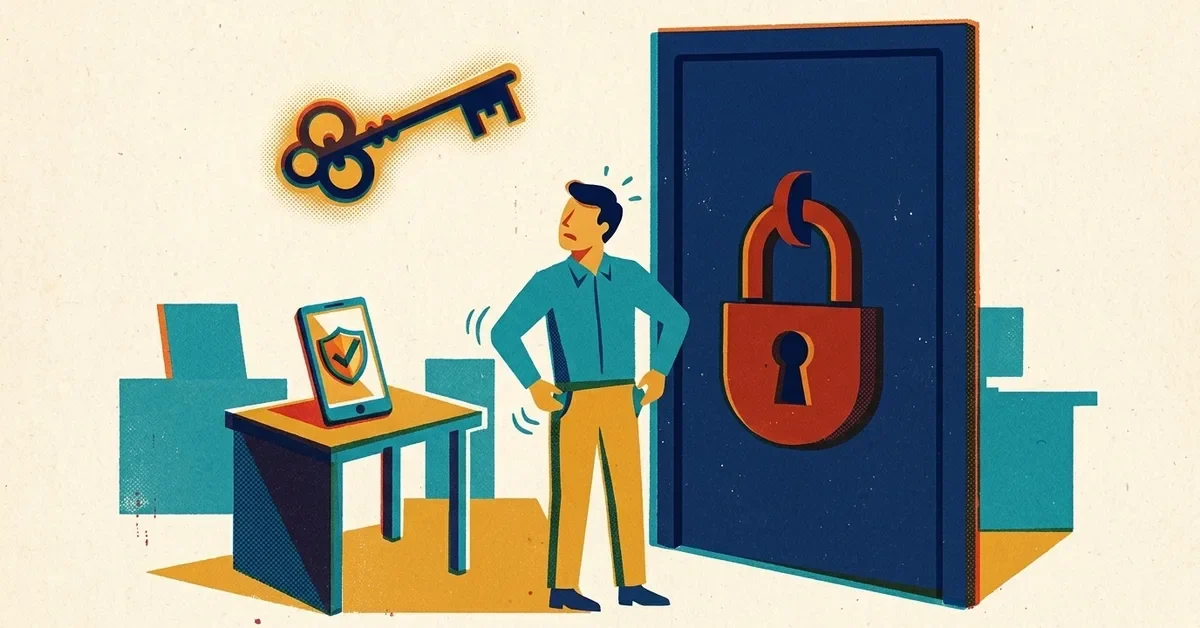
It's Monday morning, the screen says your password is wrong, and you're sure it isn't. Or you changed it last week and the new one has already gone out of your head. Either way you can't get into your email, and the day is waiting.
The fastest way back in depends on which password you're dealing with. Most small offices have at least three, and they're easy to mix up.
First, which password is it?
- The Windows sign-in screen (the first thing you see when the computer starts). If it asks for a PIN, that's a Windows Hello PIN tied to that one computer. If it shows your work email address, it's usually your Microsoft 365 password.
- Microsoft 365 (Outlook, Teams, OneDrive, office.com): your work email address and its password.
- Google Workspace (Gmail with your company's domain): your work email and its Google password.
- A personal Microsoft account (an outlook.com, hotmail.com or live.com address): separate from your work account, with its own reset page.
Once you know which one it is, use the matching section below.
Before you reset anything: the 60-second checks
- Caps Lock. Passwords are case-sensitive. Check the light on the keyboard.
- The keyboard layout. If a few characters come out wrong, Windows may have switched keyboard languages. Press Windows key + Spacebar to cycle back, or check the language letters near the clock on the taskbar.
- Type it somewhere you can see it. Type the password into Notepad or the email field to check what's coming out, then delete it.
- Wait a minute if you've had several tries. Microsoft 365 temporarily locks an account after 10 failed sign-ins, at first for one minute, longer if the failures continue. Typing the same wrong password again doesn't count twice, but guessing does. Stop guessing and reset instead.
Microsoft 365: reset it yourself
If your business has self-service password reset turned on, you don't need to wait for anyone:
- On any device, go to aka.ms/sspr, or click Forgot my password on the Microsoft sign-in page.
- Enter your work email address and the characters shown.
- Verify it's you with the method you set up earlier: a code to your phone, the Authenticator app, or an alternate email.
- Choose a new password. Then sign in again everywhere: Outlook, Teams, and your phone's mail app will all ask.
Resetting this way also clears a temporary lockout. If it says self-service reset isn't available for your account, it hasn't been turned on, so go to the admin section below.
Microsoft 365: when an admin needs to do it
In a small business, "the admin" is often the owner or whoever set up Microsoft 365. Here's the reset:
- Sign in to the Microsoft 365 admin center with an admin account.
- Go to Users > Active users, click the person's name, then Reset password.
- Let it generate a password or type one, and leave Require this user to change their password when they first sign in ticked.
- Give them the temporary password in person or by phone. Microsoft no longer emails it for you, and you shouldn't send it by email either.
Turn on self-service reset while you're there, so next time nobody has to wait for you: Settings > Org settings > Security & privacy > Self-service password reset, then follow the link to switch it on for all users. Microsoft says it's included with paid Microsoft 365 business plans (check your plan if you're on Business Basic, as the licensing page lists Business Standard and up).
Lost or replaced phone? Resetting the sign-in app
If the password is fine but the code or Authenticator prompt goes to a phone that's lost, broken or traded in, a password reset won't help. An admin needs to clear the old phone:
- Go to the Microsoft Entra admin center > Entra ID > Users, and pick the person.
- Open Authentication methods and choose Require re-register multifactor authentication. (Microsoft's steps)
- The next time they sign in, they'll be walked through setting up the new phone.
Afterwards, have them add a second method (a backup phone number or a second device) at aka.ms/security-info, so a lost phone isn't an emergency next time.
If the only admin account is the one that's locked out, the steps above won't work and you'll need Microsoft support. That's the strongest argument for having two admin accounts in every business, with the second kept for emergencies.
Google Workspace
Yourself: on the Google sign-in page, click Forgot password? and follow the prompts. Whether this works depends on your company's settings and whether you added a recovery phone or email.
As the admin: in the Google Admin console, go to Directory > Users, find the person, and click Reset password. Have Google generate it so they're forced to pick a new one at sign-in. (Google's steps) Google also suggests resetting their sign-in cookies, which signs them out everywhere.
The Windows PIN
On the sign-in screen, click I forgot my PIN under the PIN box. You'll confirm with your Microsoft 365 or Microsoft account password and then set a new PIN. The computer needs to be connected to the internet for this.
A PIN only works on that one computer. Changing it doesn't change your email password, and resetting your email password doesn't change your PIN.
A personal Microsoft account
For an outlook.com, hotmail.com or live.com address, reset it at account.live.com/password/reset. If you can't receive the code, the account recovery form is the last resort. Your work admin can't help with a personal account.
Making this happen less
- Use a password manager. Bitwarden, 1Password, or the one in Microsoft Edge or Google Chrome. A manager remembers the password so people don't have to, and makes unique passwords easy.
- Use passphrases. Three or four random words are easier to remember and harder to guess than "Summer2026!".
- Turn on self-service reset in Microsoft 365 or Google Workspace, and make sure everyone has registered a backup method.
- Stop forcing regular password changes. Current NIST guidance is to change passwords when there's a reason (a breach, a suspicion), not on a timer. Forced 90-day changes are a big cause of forgotten passwords. Our post on credential stuffing explains what actually protects a password.
When to call someone
Get help if nobody in the business can sign in as an admin, if you're locked out and you didn't do anything to cause it (a lockout you can't explain can mean someone else is trying your password), or if you get sign-in codes you didn't ask for. That last one is covered in our post on MFA fatigue attacks.
If you'd like a hand setting up self-service reset for your team, get in touch.



No comments yet