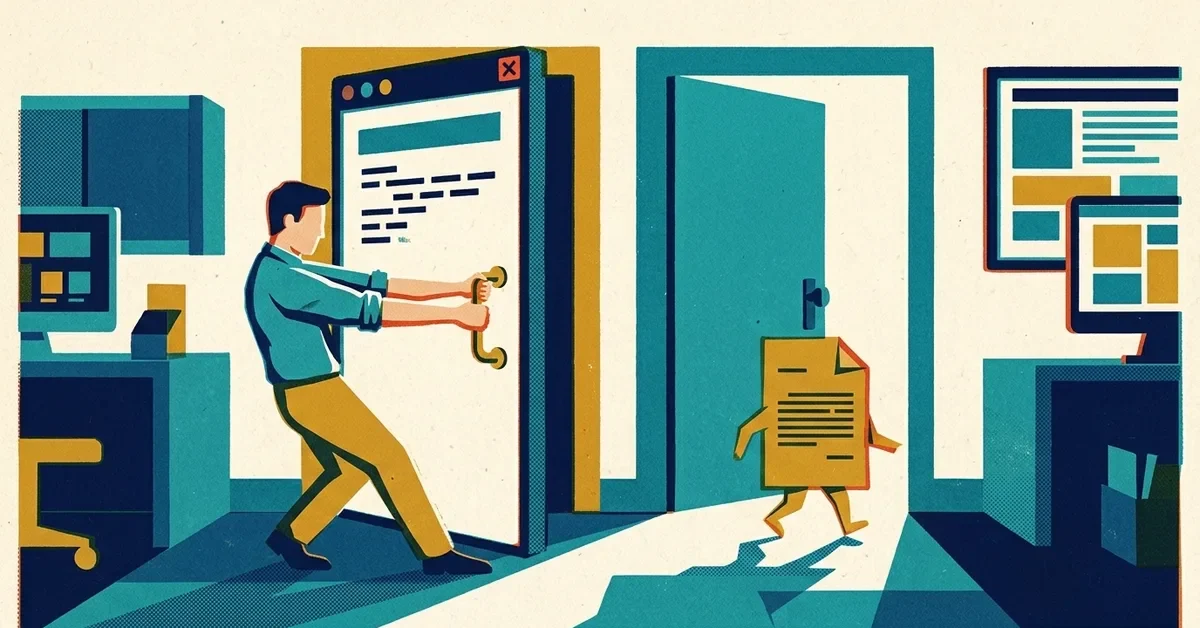
Two problems that land on our help desk all the time:
- The program won't open. You double-click, the cursor spins, and nothing. Or a window flashes and disappears. Or it opens but freezes.
- The file opens in the wrong program. PDFs open in the web browser instead of Adobe Acrobat. Spreadsheets open in some app nobody asked for.
Both are usually quick to fix. Here's how, starting with the easiest.
When a program won't open
1. Check it isn't already open, just stuck
Often the program is running in the background but frozen, so double-clicking again does nothing. Press Ctrl + Shift + Esc to open Task Manager, find the program in the list, click it, and choose End task. Then open it again.
2. Restart the computer
Use Start > Power > Restart, not Shut down. If Windows Update has been waiting to finish, a restart lets it, and half-installed updates are a common reason programs misbehave. Check Settings > Windows Update for a Restart now button too.
3. Repair the app
Windows can fix many apps without reinstalling them:
- Go to Settings > Apps > Installed apps.
- Find the program, click the … next to it, and choose Advanced options if it's there.
- Click Repair. If that doesn't help, Reset clears the app's settings and data on this computer (sign-ins and preferences), so try Repair first.
Not every program has these options. For older desktop programs, Control Panel > Programs and Features, right-click the program and choose Repair or Change if it's offered. (Microsoft's steps)
4. For Word, Excel, Outlook and the rest of Microsoft 365
Try safe mode first. Hold Ctrl while you open the program and click Yes when it asks about safe mode. Or press Windows key + R and type outlook /safe (or winword /safe, excel /safe). Safe mode starts it without add-ins. If it works in safe mode, an add-in is the problem: go to File > Options > Add-ins, and turn add-ins off one at a time to find the culprit. (Microsoft on Office safe mode)
Then repair Office if needed. Right-click Start, choose Installed apps, find Microsoft 365, click … and Modify. Choose Quick Repair first. If that doesn't fix it, run Online Repair, which takes longer and needs the internet. Repair fixes the whole suite, not just one app. (Microsoft's repair steps)
5. Reinstall
If nothing else works, uninstall the program from Settings > Apps > Installed apps and install a fresh copy from the maker's website or the Microsoft Store. Make sure you have your license key or sign-in first, and check where the program keeps its data so you don't lose it.
When files open in the wrong program
The quick way, for one file type
- Right-click the file and choose Open with > Choose another app.
- Pick the program you want, for example Adobe Acrobat.
- Click Always. From now on, that type of file opens in that program.
The settings way, for everything
Go to Settings > Apps > Default apps. Either type the file type into the search box (for example .pdf) and pick the app, or choose an app from the list and set which file types it opens. (Microsoft's guide)
If the program you want isn't in the list, it may not be installed on this computer, or it may need to be opened once first to register itself.
Why it keeps changing back
Some programs reclaim file types when they update or when you install something new, and some updates reset defaults. If it keeps happening, check whether a recently installed program is asking to "be your default" and say no.
When to call someone
Get help if a business program you rely on won't open after a repair, if several programs stopped working at the same time (that points to a Windows problem or a bad update), or if a program needs reinstalling and you're not sure where its data or license lives. Line-of-business software (accounting, practice management) often has its own database, and reinstalling it carelessly can lose data.




No comments yet