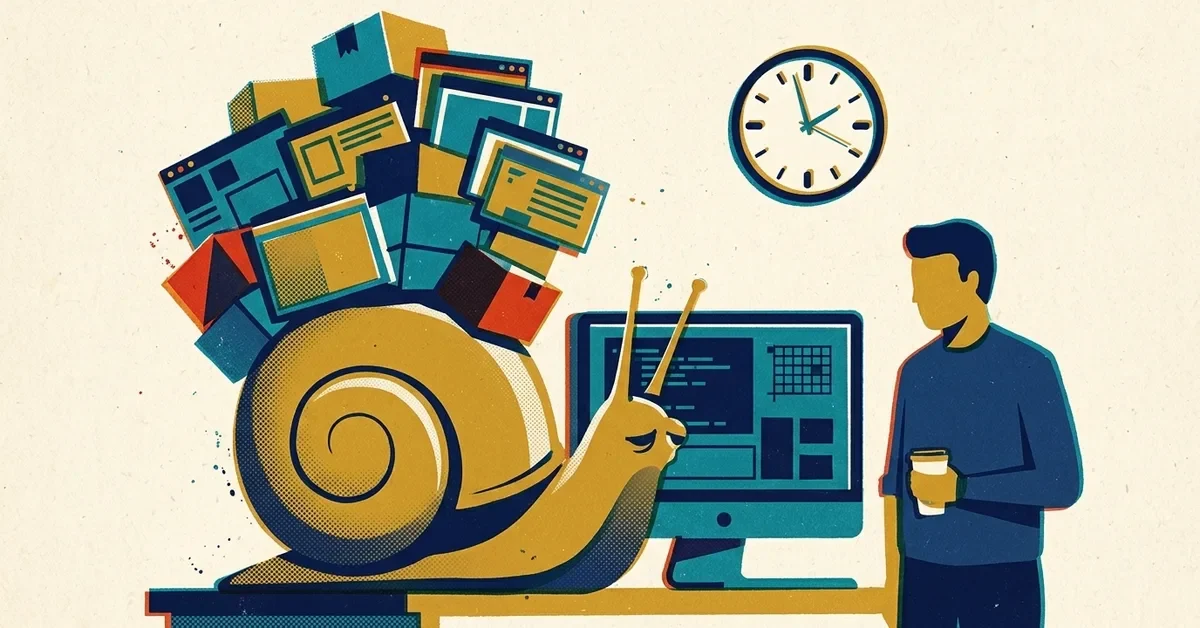
Clicking Outlook and waiting. Watching the spinning circle while a spreadsheet opens. A computer that felt fine last year now takes ten minutes to get going in the morning.
Slowness almost always has a cause you can find. Before anyone buys a new PC, it's worth fifteen minutes to work out whether this one is fixable.
Start here: restart it properly
This sounds too simple, but it's the most common fix. On Windows 11, Shut down doesn't fully reset the computer: a feature called Fast Startup saves part of the running system and reloads it next time. Restart does a full fresh start, and some updates only finish on a Restart.
If the computer "never gets turned off" or only ever gets shut down, click Start > Power > Restart and see if things improve.
Find what's hogging it: Task Manager
- Press Ctrl + Shift + Esc to open Task Manager.
- On the Processes page, click the CPU column heading to sort by it, then try Memory and Disk.
- Look for anything near the top using a big share for more than a minute or so.
What you'll commonly find:
- Your web browser using huge amounts of memory. Every open tab uses some. If you have 40 tabs open, close the ones you don't need, and remove browser extensions you don't use.
- Antivirus or Windows Update busy in the background. This is temporary. Let it finish, then restart.
- Cloud sync (OneDrive, Dropbox, Google Drive) syncing a big batch of files. Also temporary.
- Disk at 100% for long stretches on an older computer. That usually points to an old spinning hard drive (more below).
If something you don't recognize is at the top, search its name before ending it. To close a stuck program, select it and click End task.
Stop programs starting with Windows
Many programs set themselves to start every time Windows does, and each one adds to the wait in the morning. Go to Settings > Apps > Startup, sort by impact, and switch off anything you don't need running all the time (updaters, chat apps you rarely use, manufacturer extras). You can still open them when you want them.
Leave anything you don't recognize alone, along with your antivirus and anything from your IT provider.
Check the drive isn't full
Go to Settings > System > Storage. If the main drive is nearly full, Windows slows down and updates can fail. Clear space by:
- Emptying the Recycle Bin and the Downloads folder.
- Using Cleanup recommendations on the Storage page.
- Turning on Storage Sense, which clears temporary files automatically. By default it runs when space is low.
- Setting OneDrive files to Free up space so they live in the cloud until you open them.
Finish updates and scan for problems
- Settings > Windows Update: install anything waiting and restart if asked.
- Windows Security > Virus & threat protection > Scan options > Full scan. It can take a while, so run it at lunch. Malware is rarely the reason a PC is slow, but it's worth ruling out.
Laptop? Check the power setting
On laptops, Settings > System > Power & battery > Power mode may be set to Best power efficiency, which trades speed for battery life. Set it to Balanced or Best performance when plugged in. Not every computer shows this option.
Is it just too old?
Sometimes the honest answer is that the hardware can't keep up with how you use it now. Signs it's the computer rather than something you can fix:
- It has a spinning hard drive (HDD), not a solid-state drive (SSD). Check under Task Manager > Performance, where each disk shows its type. Swapping an HDD for an SSD is often the single biggest speed-up an older machine can get.
- Memory is constantly near full in Task Manager's Performance page even with just Outlook, Teams and a browser open. Windows 11's minimum is 4 GB, but in our experience 16 GB is the comfortable amount for a business PC running Microsoft 365, Teams and a browser all day. 8 GB works but fills up fast.
- It's still on Windows 10. Windows 10 support ended on 14 October 2025. Businesses can buy Extended Security Updates per device ($61 for the first year, doubling each year after, for up to three years), but that's a bridge, not a fix. If the computer can't run Windows 11 at all, it's time to plan a replacement.
When to call someone
Get help if a computer is slow straight after a restart with nothing obvious in Task Manager, if the disk is busy all the time, if several computers slowed down at once (that points to something on the network or a shared service), or if you're trying to decide between upgrading parts and replacing machines. A quick look at the hardware usually settles that question.

No comments yet