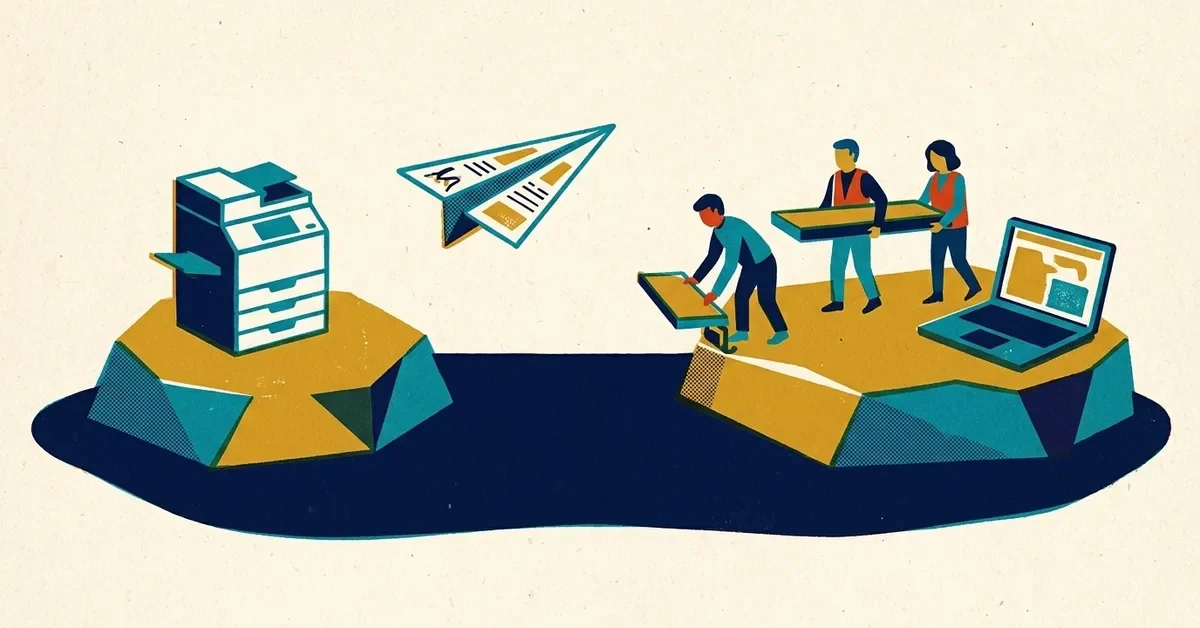
You hit Print, nothing comes out, and Windows says the printer is Offline. The printer is sitting right there, lights on, full of paper. It feels personal.
"Offline" just means your computer can't reach the printer right now. Usually the computer is looking for it in the wrong place, or a stuck print job is blocking everything behind it. Here's how to fix it, quickest steps first. These are based on Microsoft's own offline printer steps, plus what we see in real offices.
1. Restart the printer
Turn the printer off, unplug it for 30 seconds, then plug it back in and turn it on. Wait until it's fully ready (no blinking lights) before you try again. Restart the computer too if you haven't today.
2. Make sure they're on the same network
For a Wi-Fi or network printer, the computer and the printer must be on the same network. Common traps:
- The laptop is on the guest Wi-Fi and the printer is on the main one (or the other way round). Guest networks are usually set up to keep devices apart, which is exactly what you want for guests, but it stops printing.
- The printer lost its Wi-Fi connection after the router was restarted or the Wi-Fi password was changed. Most printers can print a network status page from their own menu, which shows whether they're connected.
3. Clear the print queue
One stuck job can block everything behind it.
- Go to Settings > Bluetooth & devices > Printers & scanners and click your printer.
- Click Open print queue.
- Click the … menu and choose Cancel all.
In the same queue window, check the printer isn't set to Pause printing or Use printer offline.
4. Restart the Print Spooler
The Print Spooler is the part of Windows that hands jobs to the printer, and it sometimes gets stuck. Search the Start menu for Services, open it, scroll to Print Spooler, right-click it and choose Restart.
5. Check you're printing to the right printer
Windows sometimes ends up with two copies of the same printer, like "HP LaserJet" and "HP LaserJet (Copy 1)", and only one of them works. In Printers & scanners, try the other copy. To set the working one as your default, click it and choose Set as default. If that button is missing, first turn off Let Windows manage my default printer on the Printers & scanners page.
6. Run the printer troubleshooter
In Windows 11, the printer troubleshooter now runs in the Get Help app. Go to Settings > System > Troubleshoot > Other troubleshooters and run the one for printers.
7. Remove the printer and add it again
In Printers & scanners, click the printer, choose Remove, then click Add device and let Windows find it again. If Windows doesn't find it, the printer maker's setup app (for example HP Smart) or the driver download from the maker's website will usually walk you through it.
Why it keeps happening: the printer's address changed
If your printer goes offline every few weeks, often after a power cut or router restart, this is the usual reason.
Every device on your network gets a numbered address from the router, a bit like a desk number. Routers hand those numbers out automatically, and after a restart the printer may get a different one. Computers set up to print to the old number then can't find it, and show Offline.
The fix is to give the printer a permanent address. In the router's settings this is usually called a DHCP reservation or reserved IP address: you tell the router to always give the printer the same number. Some printers can also have a fixed address set from their own menu. After that, remove and re-add the printer on each computer once so they all use the permanent address.
If the router settings aren't something you're comfortable with, this is a ten-minute job for whoever looks after your network, and it ends a lot of "printer's offline again" calls.
When to call someone
Get help if the printer is offline for everyone at once and restarting it doesn't help, if it prints from some computers but not others after you've tried the steps above, or if it needs the router changed to give it a fixed address. For printers you lease, the leasing company's support line can also help with the printer itself.
If printing is a regular headache in your office, let's talk.



No comments yet