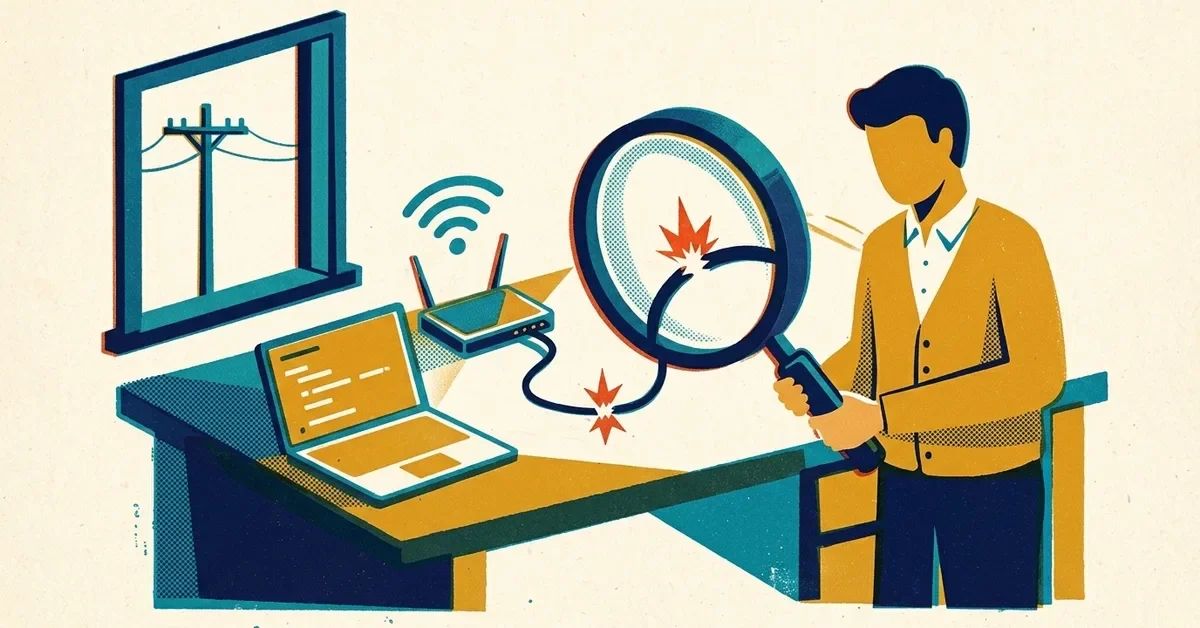
Pages won't load, Teams says it's reconnecting, and someone across the office says theirs is fine. Or everyone's is down. "The internet's broken" can mean three very different things, and each has a different fix.
Your connection is a chain: your computer talks to the Wi-Fi (your router), and the router talks to the internet through your provider's modem and line. The trick is finding which link broke.
The two-minute test: who else is affected?
- Check another device on the same Wi-Fi, like a phone with mobile data turned off, or a colleague's laptop.
- If only your computer is affected, the problem is your computer. Skip to "Fixing one computer".
- If every device is affected, the problem is the router or the internet line. Skip to "Fixing the whole office".
- If some things work and others don't (email loads but one website doesn't), it's probably that service, not your connection. Search "is [service] down" from your phone.
What the Wi-Fi icon is telling you
Click the Wi-Fi icon by the clock. If it says Connected, secured, your computer is talking to the router. If it says No internet, secured, it's connected to the router (so the Wi-Fi password worked), but Windows can't reach the internet beyond it.
Windows decides this by quietly testing a Microsoft web address after you connect, and Microsoft says the icon can occasionally be wrong. So if web pages load, trust the pages over the icon.
Fixing one computer
Work through these in order. Most problems are fixed by the first three.
1. Check the obvious switches
Make sure Airplane mode is off (click the Wi-Fi icon by the clock; the Airplane mode tile shouldn't be highlighted) and Wi-Fi is on. Many laptops also have a Wi-Fi key on the top row, often shared with an F key, that's easy to hit by accident.
2. Restart the computer
Use Restart, not Shut down. On Windows 11, Shut down doesn't fully reset everything, while Restart does.
3. Forget the network and reconnect
Go to Settings > Network & internet > Wi-Fi > Manage known networks, click your office network, choose Forget, then connect again with the Wi-Fi password. This clears a stale saved connection.
4. Ask Windows to get a fresh address
Right-click Start, choose Terminal, and type these one at a time, pressing Enter after each:
ipconfig /release(gives up the address the router assigned)ipconfig /renew(asks for a new one)ipconfig /flushdns(clears the computer's memory of website addresses)
5. Run the network troubleshooter
In Windows 11 the network troubleshooters now live in the Get Help app (Microsoft retired the old ones). Search the Start menu for Get Help and type "network", or go to Settings > System > Troubleshoot > Other troubleshooters.
6. Network reset (last resort)
Settings > Network & internet > Advanced network settings > Network reset > Reset now. This removes and reinstalls the network adapters and forgets every saved Wi-Fi network and VPN, and the computer restarts by itself after a few minutes. Have your Wi-Fi password and any VPN details handy before you do it.
Still only this computer? If it works plugged into a network cable but not on Wi-Fi, the Wi-Fi adapter may be failing. If it doesn't work either way, it's time to call someone.
Fixing the whole office
1. Check whether your provider has an outage
From your phone (on mobile data), check your internet provider's outage page or app, or call their support line. If they have an outage, there's nothing to fix on your end. Wait it out.
2. Restart the modem and router, in the right order
- Unplug the power from both the modem (the box your provider's cable or fiber line plugs into) and the router (the Wi-Fi box). Some providers give you one combined box; then there's only one to unplug.
- Wait about 30 seconds.
- Plug in the modem first and wait until its lights settle, usually a minute or two.
- Then plug in the router and give it a couple of minutes.
The order matters: the router needs the modem to be fully up before it asks it for a connection.
3. Look at the lights
If the modem's internet or online light is red, orange or blinking long after the restart, the problem is on the provider's side or the line itself. Call your provider. If the modem looks fine but nothing gets through the router, the router is the suspect.
When the Wi-Fi is slow or drops in one spot
If the internet works but is slow or keeps dropping in certain rooms, it's usually a Wi-Fi coverage problem, not the internet line. Most routers broadcast two bands: 2.4 GHz reaches further and through walls better, while 5 GHz is faster but has shorter range. A device far from the router may do better on 2.4 GHz. If whole areas of the office are weak, a second access point or a mesh system usually fixes it better than a more powerful single router.
Test your speed with the same device in the same spot next to the router. If it's fine there and poor at the desk, it's coverage. If it's poor even next to the router, talk to your provider.
Making the next outage hurt less
- Write down the basics and tape them inside a cupboard: provider name, account number, support phone number, and which box is the modem and which is the router.
- Have a backup. A phone hotspot will keep one or two people working through an outage. If the business can't function offline, a second connection (or a router with a cellular backup) is worth pricing.
- Keep guests off the business network. A separate guest Wi-Fi keeps visitors' devices away from your computers and printers. Our post on office Wi-Fi segmentation explains why.
When to call someone
Call your internet provider when every device is down, the modem lights stay red after a restart, or speeds are poor even next to the router. Call your IT help when one computer won't connect after everything above, when the office has dead spots, or when outages keep happening and nobody can say why. Repeated drops often come down to an old router or a cable problem that's quick to find with the right tools.
If that's you, we can help.




No comments yet