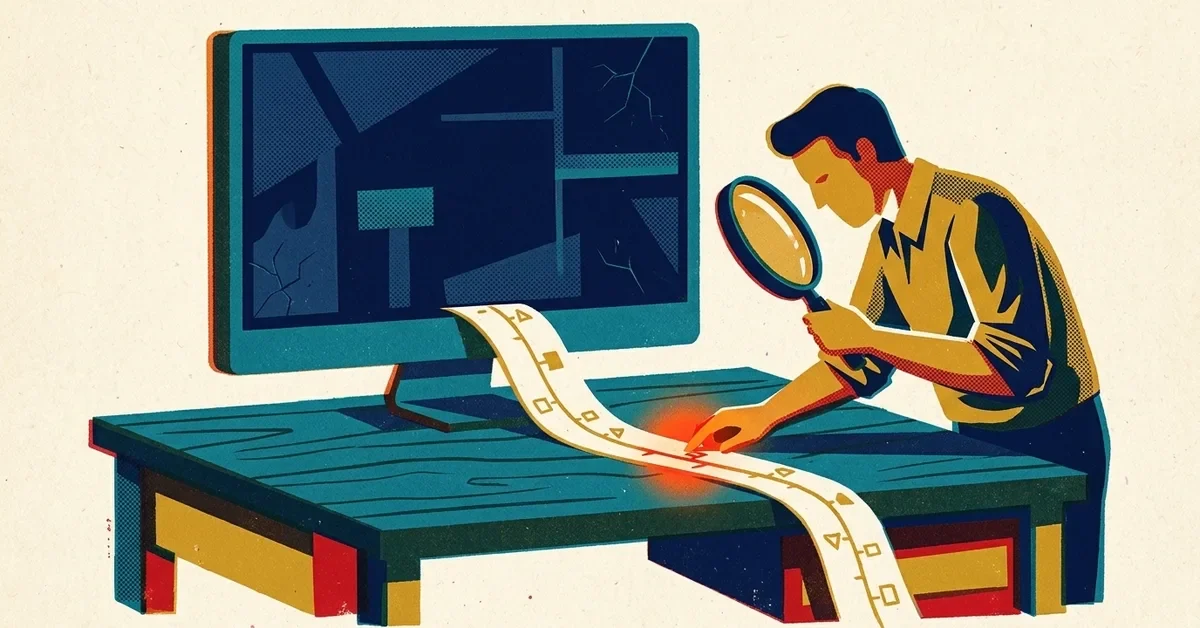
The screen goes dark and the computer restarts in the middle of a document. Or you come back from lunch to a login screen you didn't leave it on. Or a crash screen flashes up for a second with a code you don't have time to read.
Crashes feel random, but Windows keeps a record of every one. The trick is reading that record before you start changing things.
First: save your work somewhere safe
A computer that crashes regularly can get worse. Before you troubleshoot, make sure your important files are saved to OneDrive, SharePoint, Google Drive or a server, not only on this computer. If they aren't, copy them somewhere now.
What the crash screen looks like now
For years, Windows crashes meant the "blue screen of death". In 2025 Microsoft replaced it on Windows 11 with a plainer black "your device ran into a problem and will restart" screen. It shows a stop code (like CRITICAL_PROCESS_DIED) and sometimes the name of the file that failed, often a driver, before restarting. You don't need to catch it: Windows records it.
Step 1: look at Reliability Monitor
This is the most useful tool most people have never heard of.
- Click Start, type reliability, and open View reliability history. (Or press Windows key + R and type
perfmon /rel.) - You'll see a chart by day. Red circles with an X mark crashes and failures. Click a day to see the details underneath.
- Look for a pattern: the same program every time, "Windows was not properly shut down", or crashes that started the day an update or a new device was installed.
That pattern points you to the right fix below. Note down any stop codes or program names; they're what a technician will ask for.
Step 2: undo what changed
Crashes that start suddenly usually follow a change.
A recent Windows update
Go to Settings > Windows Update > Update history, check what installed around the day the crashes started, and use Uninstall updates at the bottom of the page if one lines up. Microsoft advises only removing an update when you have a reason, so do this when the dates match, and let it reinstall later once a fix is out.
A new or updated driver
Drivers are the small programs that run your hardware (graphics, Wi-Fi, docking stations), and they're the most common cause of crash screens. Right-click Start, open Device Manager, right-click the device that changed (often under Display adapters), choose Properties > Driver > Roll Back Driver. If the button is greyed out, there's no older version saved. In that case, get the latest driver from the computer maker's support site (Dell, HP, Lenovo) rather than a random download site.
New hardware or software
If crashes started after plugging in a new dock, printer or USB device, or installing a new program, unplug or uninstall it and see if they stop.
Step 3: repair Windows' own files
Damaged system files cause crashes too. Microsoft's repair tools are built in:
- Right-click Start and choose Terminal (Admin).
- Type
DISM /Online /Cleanup-Image /RestoreHealthand press Enter. It needs the internet and can take a while. - When it finishes, type
sfc /scannowand press Enter. - Restart when both are done.
(Microsoft recommends this order: DISM first, then SFC.)
Step 4: rule out the hardware
Memory
Press Windows key + R, type mdsched.exe, and choose Restart now and check for problems. The computer tests its memory and shows the result after it restarts. Errors mean the memory needs replacing.
The drive
Open Terminal and type Get-PhysicalDisk. The HealthStatus column should say Healthy. (Microsoft reference) If you've seen the old advice to use wmic, it no longer works on current Windows 11, as Microsoft removed it. The drive maker's own tool gives more detail.
Heat
A computer that crashes under load (video calls, big spreadsheets) and whose fan roars or case feels hot may be overheating. Laptops on soft surfaces block their vents, and desktops collect dust. Make sure air can flow, and have dusty machines cleaned.
When Windows won't start properly
If the computer crashes before you can sign in, Windows should eventually show the Choose an option recovery screen. From there, Troubleshoot > Advanced options lets you uninstall the latest update, use System Restore, or start in Safe Mode (go to Startup Settings, restart, then press 4). Safe Mode runs Windows with only the basics, which tells you whether a driver or program is to blame.
Newer Windows 11 computers also have Quick machine recovery: after repeated failed starts, Windows can fetch a fix from Windows Update by itself. It's on by default for Windows 11 Home and for Pro computers that aren't managed by a company.
When to call someone
Get help if Reliability Monitor shows crashes with no clear pattern, if the memory or drive checks report errors, if the computer won't start, or if the computer holds the only copy of important data. Random crashes on a computer that's several years old often come down to failing hardware, and it's worth confirming that before spending hours on software fixes.
Bring us the stop codes you noted, and we'll take it from there.


No comments yet