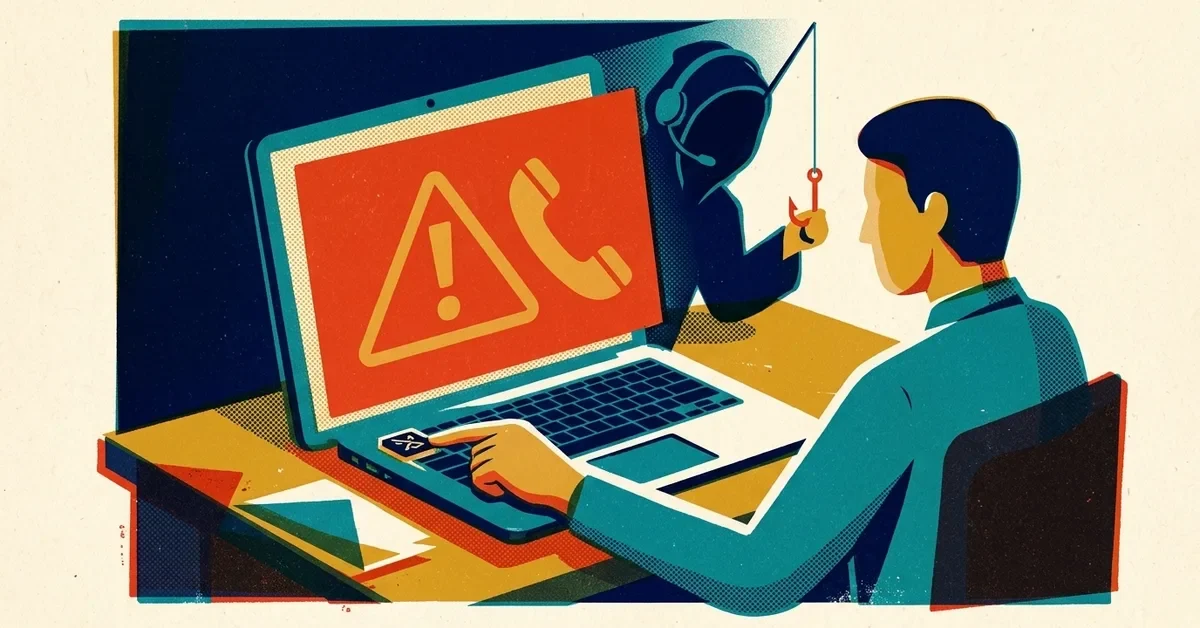
It's 11 p.m. and your phone buzzes with a sign-in approval request. You didn't sign in to anything. You tap Deny. Ten seconds later, another one. Then another. By the sixth buzz you're half asleep and assuming an app is glitching, and the easiest way to make it stop is to tap Approve.
That tap is what the attacker is waiting for. It's called an MFA fatigue attack (also known as MFA bombing or push bombing), and it's built to catch normal, tired people. If it's happening to you right now, start with the steps below. The rest of the post explains how it works and how to make sure it can't work again.
If your phone is buzzing right now
- Deny every prompt you didn't start. Don't approve one "just to make it stop," and don't type a number shown in a prompt you didn't ask for.
- Don't answer anyone who contacts you about it. A call, text, WhatsApp or Teams message from "IT" asking you to approve the prompt is part of the attack.
- Change your password now, from a device you trust. The prompts mean someone already has your current password. If you used that password anywhere else, change it there too.
- Tell whoever runs your IT, today. They can sign the account out of every session, check whether anything was approved and look at recent sign-ins. If your Microsoft Authenticator prompt offers a "report" option, use it.
If you already tapped Approve, treat it as a break-in rather than a close call: change the password, have your admin revoke all sessions, and check for new inbox rules that forward or hide email. Our business email compromise guide explains why attackers create those rules.
How an MFA fatigue attack works
MFA (multi-factor authentication) is the second step after your password: a code, an app prompt or a fingerprint that proves it's really you. It works extremely well. Microsoft found that MFA blocks more than 99.9 percent of automated account-takeover attacks, and a later Microsoft study put it at over 99.2 percent across all compromise attempts. Keep it on everywhere. But not every kind of MFA is equally hard to trick, and fatigue attacks go after the weakest kind.
The attack has three steps, and none of them need hacking skill.
- They get your password. Old breaches and password reuse make this easy, which is the whole idea behind credential stuffing. Verizon's 2024 Data Breach Investigations Report found that stolen credentials played a part in about a third of breaches over the past ten years.
- They hit your MFA and keep hitting it. If your MFA is a simple "Approve or Deny" push notification, every attempt to sign in with your password sends a prompt to your phone. So they try again and again, sometimes dozens of times in a row, sometimes spread over hours.
- They give you a reason to approve. Often they message you pretending to be IT: "We're pushing an update, please approve the prompt to finish." Now the buzzing has an explanation, and one tap lets them in.
This isn't theoretical. In September 2022 an attacker who had an Uber contractor's password flooded the contractor with push notifications for about an hour, then messaged on WhatsApp posing as Uber IT and said the prompts would stop once one was approved. The contractor approved one. If it works on a company with Uber's security budget, it works on a ten-person office.
Not all MFA is equal
Think of MFA as a ladder, weakest at the bottom.
- Text message (SMS) codes. Better than nothing, but a code can be phished, and criminals can talk a mobile carrier into moving your number to their SIM card (a "SIM swap"), so your codes go to them.
- Authenticator app codes. The rotating six-digit number in Microsoft or Google Authenticator. No SIM to hijack, but if a fake login page gets you to type the code, the attacker can use it immediately.
- Push with number matching. The sign-in screen shows a number and you type it into the app to approve. You can't approve on autopilot, and you can't approve a sign-in you didn't start, because you don't have the number. Microsoft now enforces number matching on all Authenticator push notifications, and users can't opt out. It kills the blind-tap version of this attack, though a convincing caller can still talk someone into reading out a number.
- Passkeys and hardware security keys. The only methods CISA counts as phishing-resistant MFA. This is where you want to end up.
Why passkeys stop it
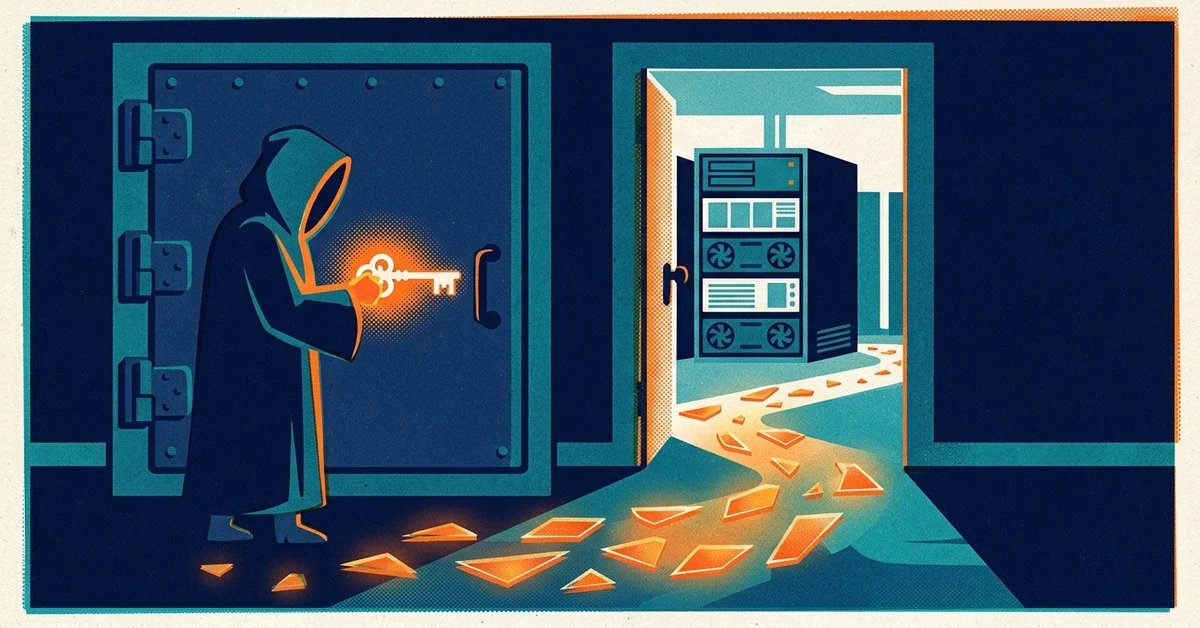
A passkey replaces the password and the code with a pair of cryptographic keys. The website keeps the public half. The private half stays on your phone, laptop or security key and never leaves it. To sign in, the site sends your device a challenge that only the private key can answer, and you unlock the device with your fingerprint, face or PIN. It's an open standard (FIDO2/WebAuthn) backed by Apple, Google and Microsoft, so it works across the industry.
Three things make it a dead end for fatigue attacks:
- There's nothing to spam. A passkey sign-in starts when you choose to sign in on your own device. An attacker with your password can't make a passkey prompt appear on your phone from across the internet.
- It won't work on a fake site. A passkey is tied to the real website's address. On a lookalike login page it simply doesn't respond, so there's no code for you to hand over.
- There's no secret on the server to steal. If a company you use is breached, your private key isn't in the haul.
Passkeys are mainstream now. The FIDO Alliance reported in late 2024 that more than 15 billion online accounts can use them, and Microsoft 365, Google Workspace and most banks support them.
The catch: an admin has to finish the job
Here's what trips up small businesses. Adding a passkey to your account doesn't stop this attack on its own. If your account still allows push approvals, text codes or phone calls, an attacker with your password just picks "Sign in another way" and starts the buzzing again. Passkeys only close the door once the weaker options are switched off or no longer accepted.
In Microsoft 365, that's a job for whoever administers your tenant (instructions as of October 2026):
- Turn passkeys on. In the Microsoft Entra admin center, go to Entra ID > Authentication methods > Policies > Passkey (FIDO2), enable it for all users or a pilot group, and make sure self-service setup is allowed. Microsoft's passkey setup guide covers the options, including passkeys stored in the Microsoft Authenticator app.
- Get everyone to register one. People add a passkey at mysignins.microsoft.com/security-info. Microsoft has also been nudging users toward this itself: since September 1, 2026 it automatically enables passkeys for anyone still using SMS or voice codes and prompts them to register one.
- Require passkeys, at least for the people who matter most. With Microsoft 365 Business Premium (which includes Microsoft Entra ID P1), a Conditional Access policy can require the built-in phishing-resistant MFA authentication strength, so a push approval or text code is no longer enough. Start with admins, the owner and anyone who moves money.
- Remove the weaker fallbacks. In the same Authentication methods > Policies page, turn off SMS and voice for users who have a passkey. You'll have to soon anyway: Microsoft retires its own SMS and voice codes for most users on February 1, 2027.
- Let people report a prompt they didn't start. Under Entra ID > Authentication methods > Settings, set Report suspicious activity to Enabled. It stays off if left on "Microsoft managed."
Keep a backup sign-in method (a second passkey or a hardware key) for every admin before you tighten anything, so nobody gets locked out.
In Google Workspace, people can add a passkey from their Google Account security settings and use it as their second step by default. An admin can also let users skip the password entirely with a passkey, a setting that is off by default in the Admin console's security settings.
Check yours in five minutes
- Open your own security info (mysignins.microsoft.com/security-info for Microsoft 365, or the Security page of your Google Account). If you don't see a passkey or security key listed, only a phone number or an authenticator app, you're not on the top rung yet.
- Ask your admin one question: "If someone has my password, can they still get in with a push approval or a text code?" If the answer is yes, the passkey work above isn't finished.
- For hardware keys, consider them for the owner, the bookkeeper and anyone with admin rights. They hold a passkey in a small USB or tap-to-use device and don't depend on a phone.
The one rule for your team
Never approve a sign-in prompt you didn't start yourself, and never let a message from "IT" talk you into approving one. Repeated prompts aren't a glitch. They mean someone has the password, and the right response is Deny, change the password, tell IT. Put that in your onboarding and repeat it now and then. Our post on social engineering covers the "IT is calling" trick in more detail.
When to call someone
- Someone approved a prompt they didn't start, or you can't tell whether they did.
- The prompts keep coming after the password was changed.
- Nobody in the business can get into the Entra admin center or Google Admin console to make the changes above.
If you'd rather have someone set this up and keep an eye on it, that's part of our cybersecurity service. Already have an IT person or provider? Our co-managed security adds round-the-clock monitoring of Microsoft 365 and Google Workspace sign-ins alongside them.