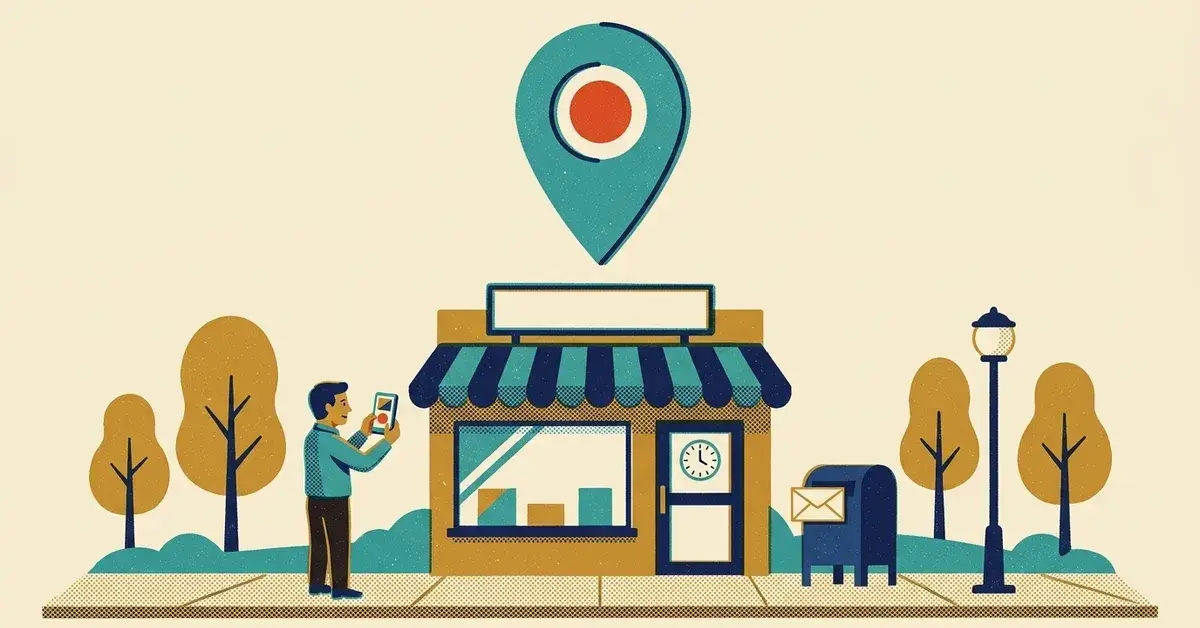
Someone in Grovetown searches for what you do. Three businesses show up on the map. You're not one of them.
That's a missed call you'll never hear about. For a new business, it's most of them.
The fix is a Google Business Profile: the free listing that shows on Google Maps and in the map box on Search. Setting one up takes an afternoon. Getting it verified is where a lot of owners get stuck, sometimes for weeks. The verification steps can take hours to work through, even for people who do this for a living. We offer help with that.
This post covers both, in order. Menus and rules are from Google's own Business Profile help as of October 2026.
The quick answer
- Check whether a listing already exists before you make one. Claim it if it does.
- Pick one primary category that finishes the sentence "This business is a..."
- Decide storefront or service area. If customers don't come to you, hide the address and list the towns you serve.
- Verify with whichever method Google offers you. If it's a video, read the video section below before you hit record.
- Then fill in hours, services, photos and your website, and start asking for reviews.
Before you start: what to have ready
Ten minutes of prep saves a failed verification later.
- A Google Account you'll keep. Google suggests using an account on your business email domain. If you're still on a Gmail address for the business, our post on moving to email on your own domain covers that first.
- Your business name exactly as it appears on your sign, invoices and website. No "Best Plumber Augusta" add-ons.
- A phone number that rings a person. Google's verification help says phone systems with menu prompts (IVR) can't receive the code.
- Paperwork in the business's name. If Google ever asks for proof, it wants documents whose name and address match the profile. For an Augusta business that usually means your Georgia Secretary of State registration for an LLC or corporation, and your Augusta-Richmond County business tax certificate (businesses in Augusta-Richmond County outside Hephzibah and Blythe need one). In Columbia County, it's the county's own business license office, and on the South Carolina side, your city or county license. Plus a utility bill in the business name if you have one.
Not sure which registrations you need in the first place? That's a question for the UGA Small Business Development Center, which offers free consulting for small businesses and people starting one, or a SCORE mentor. Not for us, and not for Google.
Step 1: Create or claim the profile
A listing for your business may already exist, even if you never made one. Check first.
If you find it on Maps and it isn't claimed: open Google Maps on a computer, search your business name and city, select it, then Claim this business > Manage now. In the Maps app it's About > Claim this business > Manage now. (Google: add or claim your Business Profile)
If there's nothing there: go to business.google.com/add and select Add your business to Google. Google's sign-up steps ask for things in this order: name, category, whether customers can visit you, service area, phone and website, then verification.
One business, one profile. Don't make a second one because the first has a problem.
Step 2: Choose the primary category
This is the setting that matters most for showing up. Google's category help says it plainly: the categories you select affect your local ranking.
The rule from Google's guidelines: pick the category that completes "This business is a...", not "This business has a..." As specific as possible ("Nail salon", not "Salon"), and as few as possible. You can't invent your own.
Add a couple of additional categories only for real secondary services. Not one per keyword.
Where: your profile > Edit profile > edit next to Business category.
Get this right at the start. Google says adding or editing a category may prompt you to verify again.
Step 3: Storefront or service-area business?
The question Google asks during sign-up is whether you have a storefront staffed during business hours.
- Yes, customers come to you (a shop in downtown Augusta, an office in Evans): you're a storefront. Enter the address.
- No, you go to them (cleaning, landscaping, mobile repair, most trades): you're a service-area business. Google's guidelines say you should hide your address from customers.
- Both (a shop that also delivers): a hybrid. Show the address and add a service area.
Running the business from home? You're almost always a service-area business. Your house shouldn't be on the map, and per Google it shouldn't be shown.
To hide the address: Edit profile > Location, edit next to Business location, turn off Show business address to customers, and Save (Google: hide your address).
To set the service area: Edit profile > Location, edit next to Service area, add areas, Save. For a business based around Augusta, that list might be Augusta, Evans, Martinez, Grovetown, North Augusta and Aiken. Google's service area help allows up to 20 areas (cities, ZIP codes or similar), no radius, and says the whole area generally shouldn't stretch more than about two hours' drive from your base.
Two things that get profiles suspended: a P.O. box or virtual office as the address, and a separate profile for every town you serve.
Google also says a business without permanent signage on site should be listed as a service-area business, not a storefront. That matters for the next step.
Step 4: Verification (where most owners get stuck)
Verification is Google confirming that you're a real business and that you run it. Until it's done, your photos won't appear and you can only edit some of your information.
The methods Google offers
Google's verification page is clear on one point first: Google picks which methods you get, and you can't change that. Some businesses need more than one. The possible methods:
- Phone or text: a code to your business number. Enter it on your profile. (No IVR systems.)
- Email: a link or instructions sent to an address you can use.
- Live video call: a Google representative watches while you show your location, your business and proof you run it. You have to be at the business, and calls only run during your business hours.
- Video recording: you record a short video on your phone and upload it for review. More on this below.
- Postcard: a 5-digit code mailed to your address. Not offered to everyone. Codes usually arrive within 14 days and expire after 30 days.
All of them start from your profile at business.google.com > Get verified. If video is offered, Google recommends it.
If you're waiting on a postcard: don't change your business name, address or category, and don't request a new code. Either can stop the mailed code from working.
Most reviews take up to five business days. You can check where yours stands with Google's verification status tool.
Video verification: why it gets rejected
The video recording has the most rules, and it usually fails for small, fixable reasons. Google's video verification help sets the rules:
- Live, one take. Recorded through your Business Profile on your phone, unedited, no breaks, at least 30 seconds. A video you shot earlier won't be accepted.
- No private details. No bank, tax or ID numbers, and no other people's faces.
And it has to show three things. What counts depends on your type of business:
- Where you are. Storefront: street signs, the building number, nearby businesses. Service-area business: street signs and landmarks near your business address, not empty land. Working from home, Google's tip is to record the landmarks and signs in your immediate neighborhood.
- That the business exists. Storefront: your sign, with the business name "clearly printed on a permanent fixture," matching the name on your profile. Service-area: your tools, equipment, products, workspace, business cards or branded shirts.
- That you manage it. Storefront: somewhere only staff can go, like the register, the kitchen or a storage room. Service-area: you doing the work or unlocking business-only gear, like a branded van. A business permit, invoice or utility bill in the profile's name also works.
The rejection examples Google gives line up with those three: business name not visible on the storefront, no nearby area shown, no proof you're authorized to run the business. A temporary banner, a sign that doesn't match the profile name, or a video that starts at your desk instead of the street is the kind of thing that trips it.
To record: on your phone, go to your Business Profile > Get verified (enter your phone number if asked) > Business video > Next, read the requirements, then Start recording. Review it before you tap Upload video.
Do a dry run first. Walk the route without recording: street sign, building, sign or tools, then the staff-only part. Then record it in one go.
If the video is rejected
- Open your profile on your phone and tap Review issues.
- Read what was missing.
- Record a new video that includes everything from the first video plus what was missing.
- Upload it.
When verification keeps failing
- The Get verified button came back. Google couldn't fully verify you. Try again, and pick another method if more are offered.
- Google asks for more information. Select Get verified and go through it again.
- The video meets every requirement and still fails. Google's own advice is to try another verification method before contacting support.
- No methods are offered, or nothing works. Contact Business Profile support.
Don't start over with a new profile. That creates a duplicate, and duplicates cause their own problems.
Someone else already claimed it
A former employee, an old web designer, a marketing company from years ago. It happens a lot.
Google's ownership request steps: go to business.google.com/add, enter your name and address, choose your business (you'll see "Someone else may manage this Business Profile"), then Request access, fill in the form and Submit. The current owner gets an email and has 3 days to respond. If they don't, you may get the option to claim it, though Google says that option isn't always available. If they deny it, you can appeal.
A service-area business with no shop gets a different route: contact Google support and choose "Transfer ownership of listing."
If the profile is actually yours and you just can't remember which Google Account owns it, Google points you to its account recovery troubleshooter.
Suspensions
A suspended profile disappears from public view, and you can't edit it. The usual causes are the ones above: keywords in the name, an address that isn't eligible, a home address showing for a service-area business.
Fix the problem first. Then use Google's appeals tool, which shows the decision, the reason and whether it can be appealed. Attach documents with a name and address that match the profile: business registration, a business license, a tax certificate, a utility bill. Google says appeals can only be submitted once, so send everything the first time. If the appeal is denied, you can still request an additional review of that decision. And don't create a new profile for the same business while it's suspended.
One warning
Google doesn't charge for any of this. Its help page on third parties says Google will never try to convince you to pay to maintain your profile, and will never ask for a one-time password or PIN. A caller who wants a fee to "keep your listing active," or asks you to read back a code, isn't Google.
Step 5: Fill in the rest
Once you're verified, finish the profile. Edits usually go through within 10 minutes, but Google says some take up to 30 days (Google: edit review). Make one change, let it clear, then the next.
Hours. Edit profile > Hours. Your regular customer-facing hours. If you're appointment-only, Google's guidelines say you generally shouldn't list hours. Add holiday closures under Special hours (Google: special hours).
Services. Edit services > Add more services, or Add custom service if yours isn't listed (Google: manage services). Keep prices and phone numbers out of custom service names; Google rejects them.
Photos. From your profile on Search or Maps, Photos > Add photos, plus a logo and cover photo. Google's photo guidelines: JPG or PNG, 10 KB to 5 MB, 720 × 720 pixels recommended, in focus, no heavy filters. Photos only show after verification and can take 24 to 48 hours. Start with the outside of your building (or your van), the inside, your work.
Website. Link the page that represents this location. Google's guidelines say no links or numbers that redirect somewhere else, and the phone must be one the business controls. No website yet? Our first-30-days checklist puts it in order with your domain and email.
While you're in there, make sure the name, address and phone match what's on your website and in local directories. We're members of the Augusta Metro Chamber of Commerce and the Aiken Chamber of Commerce, and chamber directory listings are an easy place for an old phone number to hide.
Step 6: Ask for reviews the right way
A new profile with zero reviews is normal. Closing the gap is a habit, not a campaign.
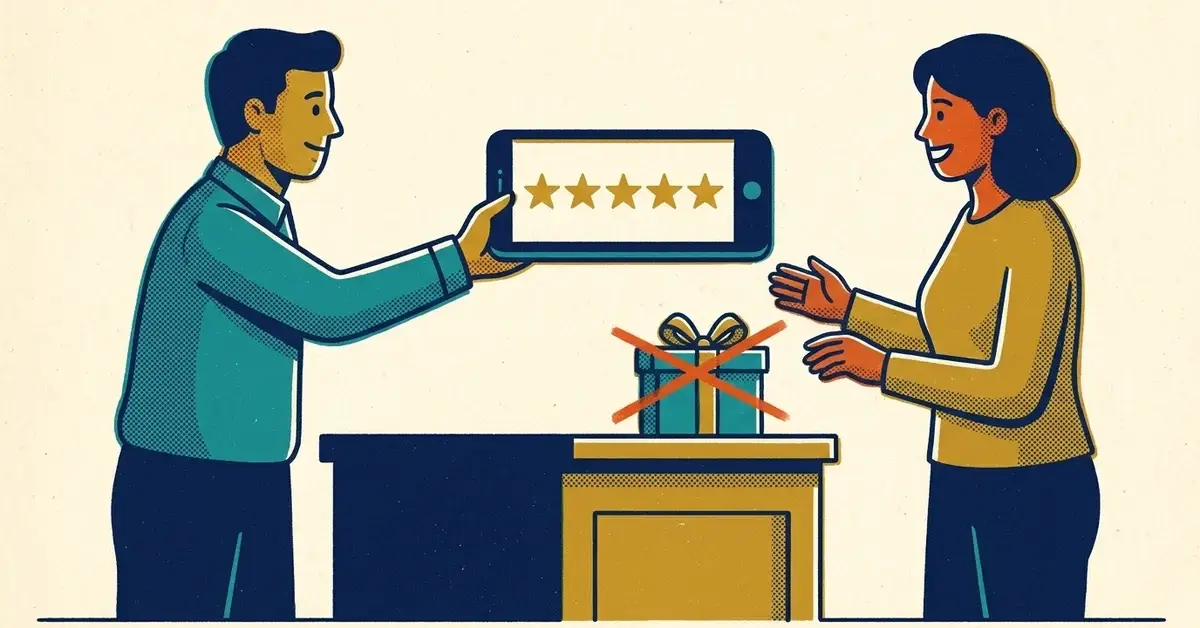
Ask every customer, not just the happy ones. Don't offer a discount or anything else in return. Both break Google's rules. Our guide to asking for Google reviews without breaking the rules has where to find your review link and wording you can copy.
The first week after verification
Add a second owner so a lost login doesn't lock you out, turn on notifications, and check the profile on your phone the way a customer would. Our first-week post goes day by day.
Verified but still not showing up when people search? That's a ranking question: category, distance, reviews. Our post on a business not showing up on Google Maps works through it.
When to get help
- Verification has failed more than twice, or no method is offered.
- Someone else owns the profile and won't answer.
- The profile is suspended and you want the appeal right the first time.
Google Business Profile Setup is a project we offer, including working through verification with you until it's done. If you'd rather hand it off, get in touch.
Related reading
- Just claimed your Google Business Profile? What to do in the first week
- Business not showing up on Google Maps? How to fix your Google Business Profile
- How to ask for Google reviews without breaking Google's rules
Starting a business in Augusta
More from this Saturday series:



No comments yet