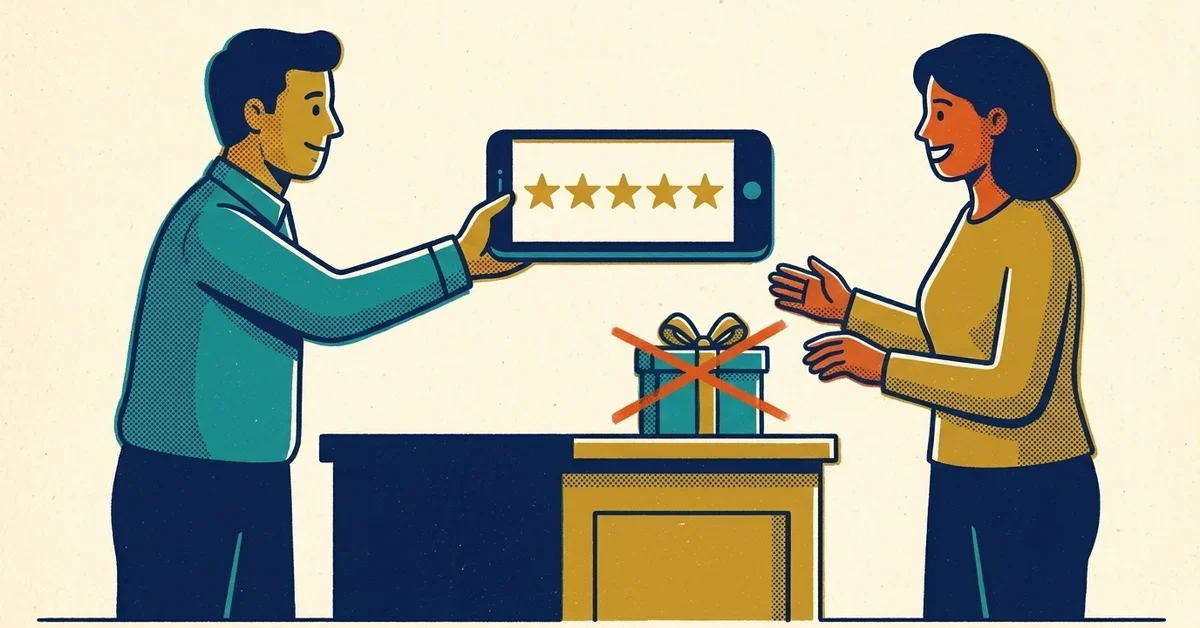
You know reviews matter. A competitor with 140 reviews shows up above you on Google Maps, and you've got a dozen from three years ago. So you start looking at ways to get more, and every option seems to come with a catch: a discount for a review, a "review management" tool that only sends happy customers to Google, a contest for the employee who brings in the most five-star mentions.
Some of those will get your reviews deleted, and some can get your whole Google Business Profile restricted. The good news is that the method that actually works, asking every customer plainly, is also the one Google's rules are built around.
The quick answer
- Get your review link from your Business Profile on a computer: Read reviews > Get more reviews, then Copy.
- Send it to every customer after the job or sale, by email or text, with a short, neutral ask.
- Don't offer anything in return. No discount, no free item, no prize drawing.
- Don't screen people first ("Were you happy? Then review us on Google"), and don't tell them what to write.
- Reply to the reviews you get, good and bad.
Click paths in this post are as of October 2026.
First, check whether your current setup breaks the rules
Google's Maps content policy is short and specific. Run through this list. If any line describes what you're doing now, it's against the policy.
- You offer something for a review. Google bans "payment, discounts, free goods and/or services" in exchange for posting a review, changing one, or removing a negative one. That includes "10% off your next visit" and "everyone who leaves a review is entered to win a gift card", even if you never mention stars.
- You only ask the customers you think are happy. Google says merchants can't "selectively solicit positive reviews from customers". This is often called review gating.
- Your review software asks "How did we do?" first. Some tools send a survey, then show the Google link only to people who pick four or five stars and send everyone else to a private feedback form. That's review gating done by software, and it's the same problem.
- You discourage negative reviews, for example a contract clause or a sign that says to call you instead of posting.
- You tell people what to write, like "please mention our emergency service" or "please mention Jake by name".
- Your staff have review quotas. Google lists "merchants requesting that staff solicit a certain number of reviews" as not allowed, along with asking for reviews that name a staff member.
- Staff, family or friends review the business. Google treats reviews based on "current or former employment" or "familial relationships" as a conflict of interest and removes them.
- You hand customers a tablet at the counter and wait. Google says merchants shouldn't "require or pressure users to leave ratings or write reviews while on the premises". A QR code on the counter is fine; standing over someone isn't.
What Google does allow, in its own words: asking customers to post about "a genuine experience, without offering incentives to do so or attempting to influence the rating or the contents of the review."
Step 1: Get your review link and QR code
Per Google's page on creating a review link or QR code:
- On a computer, go to your Business Profile (search your business name on Google while signed in to the account that manages it).
- Select Read reviews > Get more reviews.
- Select Copy to copy the link.
- For the QR code, right-click it and choose Save image as...
Google says the QR code can only be generated from a computer browser, not a phone. Save the link somewhere your whole team can find it, like a pinned note or your email templates.
One thing customers run into: they need to be signed in to a Google Account to leave a review. Google's tips page notes they can create one with a non-Gmail email address, which helps with customers who say "I don't have Gmail".
Step 2: Decide when and where to ask
Google's own suggestions are receipts, thank-you emails, the end of a chat conversation, and a printed QR code in your shop. In practice, the best moment is right after the job is done and the customer is still thinking about it:
- Service businesses (plumbers, cleaners, IT support): the invoice email or a text the same day the job closes.
- Shops and offices: the receipt, a counter card with the QR code, or the follow-up email.
- Professional services (accountants, consultants): the email that wraps up the engagement or delivers the finished work.
The key word is every. Put the ask in a template that goes to all customers automatically, so nobody on your team is deciding who gets it. That one change takes care of review gating without anyone having to remember the rule.
Step 3: What to actually say
Short and neutral works best. Ask for an honest review, include the link, and stop there.
By text:
Thanks for choosing [Business]. If you have a minute, we'd appreciate an honest review on Google. It helps other people decide and helps us improve: [link]
By email (one line at the end of the invoice or wrap-up email):
If you have a moment, we'd be grateful for an honest review on Google: [link]. Good or bad, it helps us and it helps the next person looking.
In person:
If you get a chance, we'd love a review on Google. The QR code's right here, or we'll text you the link.
Notice what's missing: no stars mentioned, no "if you were happy", no "please mention", no reward. Asking once, plus one reminder a few days later if they didn't get to it, is plenty. More than that starts to feel like pressure.
Step 4: Reply to the reviews you get
Google's tips page recommends replying, and its advice is sensible: keep replies short, skip the identical "thank you" on every review, don't use replies to promote deals, and never share a reviewer's private information. For a negative review, acknowledge the problem, apologize where it's warranted, and offer to sort it out by phone or email.
If you fix the problem, it's fine to let the customer know and say you'd appreciate it if they updated their review. What's not fine is offering a refund, discount or anything else in exchange for changing or removing it. Google's policy bans incentives for "revision or removal of a negative review".
If a review breaks Google's rules (spam, someone who was never a customer, a competitor), report it instead of arguing in public: Read reviews, then Report next to the review (Report inappropriate reviews). Google says a review won't be removed just because you disagree with it.
Why the rules are this strict
Google wants the star rating to reflect what customers really think. Incentives and gating both skew it, even when every individual review is honest: if only happy customers are asked, or only rewarded customers bother, the average no longer means much.
Google's rule is also stricter than US law, which surprises people. The FTC's Consumer Reviews and Testimonials Rule, in effect since 21 October 2024, bans incentives that are conditioned, openly or by implication, on a positive or negative review (FTC announcement). Google goes further and bans incentives for any review on its platform, whatever the customer writes. So "it's legal" doesn't mean "Google allows it".
The FTC's guide on soliciting and paying for online reviews also warns against asking only the customers you expect to be happy, because it can mislead people reading the reviews.
If you've already been doing it wrong
Plenty of businesses have, often because a vendor or marketing company set it up. Fix it now:
- Stop the incentive. Take down the sign, remove the line from your emails, end the contest.
- Switch off the gate. In your review tool, send everyone straight to the Google link, or stop using the tool and send the link from your own email or texting system.
- Drop staff quotas and any request to name employees in reviews.
What Google can do if it finds a problem, per its page on Business Profile restrictions: remove the reviews involved, and also stop the profile from getting new reviews for a set period, unpublish existing reviews for a set period, or show a warning on the profile telling people fake reviews were removed. Google says it emails the business owner before applying a restriction, and you can appeal from that same page.
On the legal side, the FTC warned 10 companies in December 2025 about possible violations of its review rule. Fake reviews and paying for positive ones can carry civil penalties per violation, so this isn't just a Google problem.
"A customer says they left a review and it's not showing"
That's usually not something you did. Google's page on missing or delayed reviews says reviews are checked against its policies, which can take a few days, and that customers on old phones or old versions of the Maps app sometimes have trouble posting. Reviews removed for a policy violation won't be restored.
Making it a habit in your business
- Put the link in your templates: invoice email, job-complete text, email signature. Automatic beats remembering.
- One rule for staff: "We ask every customer the same way, we never offer anything for a review, and we never tell anyone what to write."
- Check your vendors. If a marketing company or review tool runs your requests, ask them directly whether it filters by rating before showing the Google link. If they don't know, assume it does and check.
- Read and reply weekly. Ten minutes on a Monday keeps replies timely without taking over your week.
When to get help
Most businesses can set this up in an afternoon. It's worth getting help if:
- Google has emailed you about a review restriction, or a warning is showing on your profile.
- Your reviews dropped suddenly and you don't know why.
- A vendor runs your review requests and you can't tell how their tool decides who gets the Google link.
If you'd like someone to look over your Business Profile and how you ask for reviews, our SEO and local search service covers it.




No comments yet