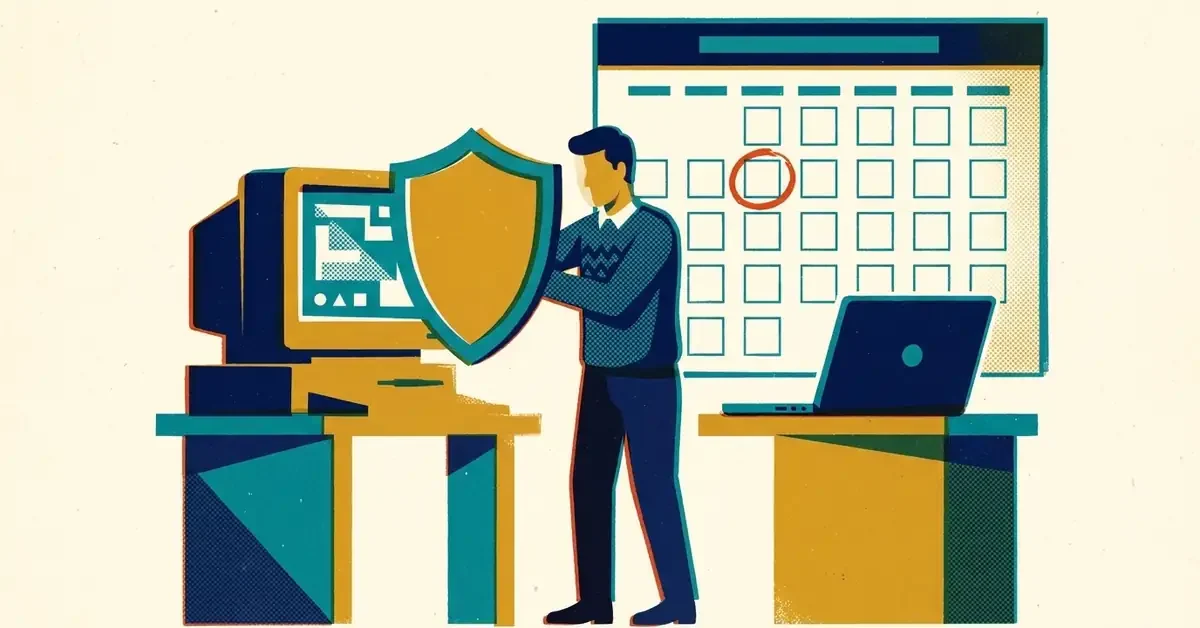
There's a Windows 10 PC in the corner that runs the label printer, or the accounting software, or just belongs to someone who never got round to upgrading. It still works fine. But Windows 10 stopped getting free security updates a year ago, and on October 13, 2026 the first year of Microsoft's paid extension for businesses ran out too.
If you don't know whether that PC is still getting security fixes, this post is for you. It takes about five minutes to find out.
The quick answer
- Find every Windows 10 PC in the office. Press the Windows key, type
winverand press Enter. It tells you which Windows you're on. - For each one, check whether it can move to Windows 11. If it can, upgrade it. That's the cheapest fix by far.
- If it can't, decide this month: replace it, or pay for another year of Microsoft's Extended Security Updates.
- Don't use the free home program on a work PC. Microsoft says it isn't for commercial use.
What actually changed
Windows 10 reached end of support on October 14, 2025. Since then, the only way to keep getting security updates has been Microsoft's Extended Security Updates (ESU) program. There are two versions, and they work differently.
The business program is sold by the year. According to Microsoft's partner documentation, year one covered October 15, 2025 to October 13, 2026. Year two runs to October 12, 2027, and year three to October 10, 2028. That's the end; there is no year four.
The consumer program is for home PCs. Microsoft extended it to October 12, 2027, and anyone already enrolled is carried over automatically. It's free if you sync your PC settings to a Microsoft account, or $30 one-time.
So if your office paid for business ESU last year and nobody renewed it, those PCs stopped getting security updates after this month's patches. If you never enrolled at all, they've had nothing since October 2025.
Why the free home version isn't the answer
It's tempting: the consumer program is free and lasts another year. But Microsoft's own page says the consumer ESU program can't be used in commercial scenarios. It also won't enroll a PC that's joined to your Microsoft 365 (Entra) account or a domain, or managed by device management software. Those are exactly the settings a well-run business PC should have.
How to tell where each PC stands
Is it Windows 10?
Press the Windows key, type winver, press Enter. The window shows the version. ESU only covers Windows 10 version 22H2, so a PC on an older version isn't getting updates no matter what you've paid for.
Is it enrolled in ESU?
Go to Settings > Update & Security > Windows Update. A PC enrolled in the consumer program shows its status there.
For the business program, ask whoever manages your IT, or check it yourself: open Command Prompt as administrator and run slmgr.vbs /dlv. Microsoft's activation guide says an activated PC lists the ESU program by name with a license status of Licensed. Each year is a separate activation, so a PC that only shows year one isn't covered for year two.
Can it run Windows 11?
On the same Windows Update page, Windows 10 usually tells you whether the PC meets the Windows 11 requirements. If it doesn't say, Microsoft's free PC Health Check app gives a yes or no and the reason.
Your options, cheapest first
1. Upgrade to Windows 11
If the PC qualifies, this is the answer. It keeps your files and apps, and the PC gets regular updates again. Back up first, and check that any older line-of-business software runs on Windows 11 (the vendor will know).
2. Replace the PC
Most PCs that can't run Windows 11 are old enough that they're due anyway. Look at the ESU price below before deciding the old one is worth keeping.
3. Pay for business ESU, as a bridge
Microsoft's ESU FAQ lists business ESU at $61 per PC for year one, with the price doubling each year. That makes year two $122 per PC (prices as of October 2026). The catch: ESU is cumulative. A business joining now has to pay for year one as well, so a PC that was never enrolled costs $183 to cover until October 2027.
It's bought per PC through Microsoft volume licensing or a Microsoft partner, and someone has to install and activate the key on each machine. Treat it as time to plan a replacement, not a way to keep the PC forever: it ends in October 2028 regardless, and it only covers security fixes, not support.
4. Take it off the network
A PC that only runs one old piece of equipment, like a machine controller or a label printer, can sometimes be disconnected from the internet entirely. That's a judgment call; get advice before relying on it.
Will Microsoft 365 stop working on it?
Not yet. Microsoft will keep sending security updates for the Microsoft 365 apps on Windows 10 until October 10, 2028. New features stop with Version 2608, and Microsoft support will ask you to move to Windows 11 if a problem only happens on Windows 10. Outlook working fine doesn't mean Windows underneath it is getting patched, though. Those are separate.
Why it matters
An unpatched PC doesn't break. It keeps working exactly as before, which is why it's easy to ignore. What changes is that every Windows security hole found from now on stays open on it. Attackers know which PCs stop getting fixes and when. If that PC can reach your email, your shared files or your backups, so can anyone who gets onto it. Our post on locking down remote access covers how unpatched equipment becomes the way in.
Cyber insurance applications also tend to ask whether you run unsupported operating systems. "One old PC" is still a yes.
Preventing it next time
- Keep a simple list of every computer: who uses it, how old it is, and what Windows it runs. A spreadsheet is fine.
- Plan replacements by age, not when they break. Five years is a reasonable rule of thumb for an office PC.
- Put end-of-support dates in the calendar. The next one for most offices is the Windows 10 ESU end date you choose to rely on, if any.
When to call someone
- You have several Windows 10 PCs and no clear list of which can upgrade.
- An old PC runs software or equipment the business depends on and nobody knows if it works on Windows 11.
- You bought business ESU last year and aren't sure year two was bought and activated.
If you'd like someone to take stock of your computers and plan the upgrades, that's part of our IT support. Or just get in touch with questions.



No comments yet