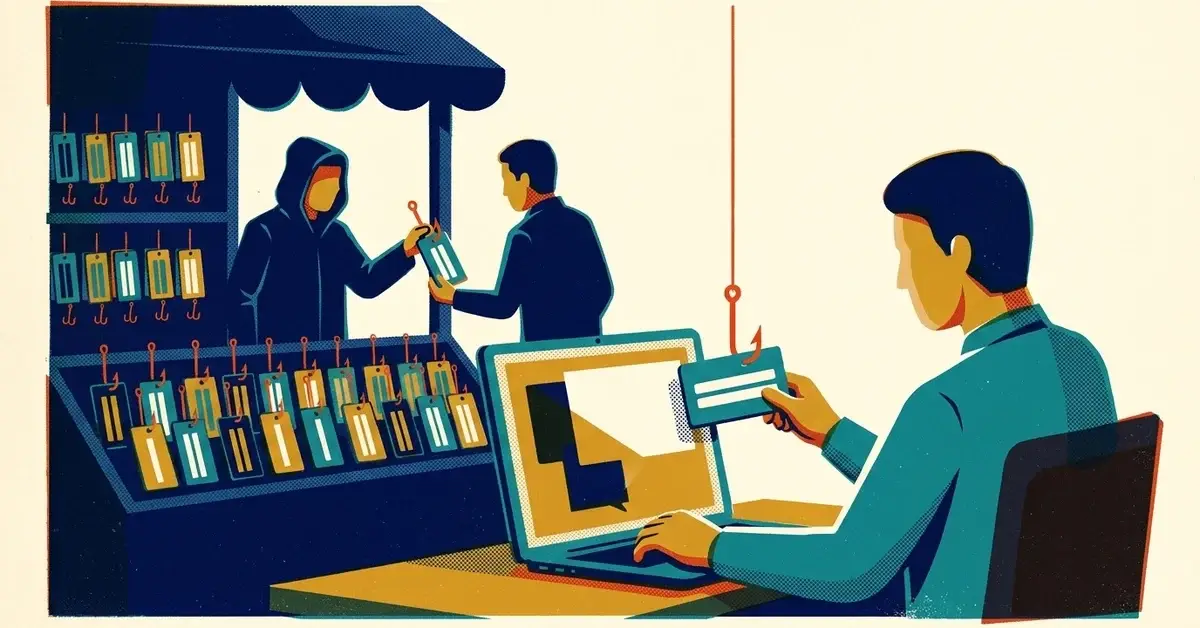
An email lands with no message, just a PDF. Something about a tax document. The PDF has a QR code, you scan it, and up comes a Microsoft sign-in page asking for your password.
It looks right. It isn't. That's how a phishing service called RaccoonO365 worked, and it's why a stolen Microsoft 365 password is still one of the most common ways a small business gets into trouble.
The quick answer
- Don't sign in from a link, QR code or attachment. If an email says you have a document waiting, go to Outlook or office.com yourself and look for it there.
- Check the address bar before you type a password. A real Microsoft 365 sign-in page is on login.microsoftonline.com or login.microsoft.com. Anything else, close it.
- Already typed your password into one? Change it from a different device, then have your Microsoft 365 admin sign you out of every session. Steps are below.
- Report the email with the Report button in Outlook, then delete it.
What RaccoonO365 was
Here's the deal. RaccoonO365 was "phishing as a service": a subscription business that sold ready-made fake Microsoft 365 sign-in pages to other criminals, so they didn't need any skill to run a campaign. Microsoft tracks the group behind it as Storm-2246.
What Microsoft reported:
- The takedown. On September 16, 2025, Microsoft's Digital Crimes Unit said it had seized 338 websites tied to RaccoonO365, under a court order from the U.S. District Court for the Southern District of New York. Cloudflare helped take the infrastructure down, and Microsoft brought the case together with Health-ISAC, a nonprofit that shares security information across healthcare.
- The damage. Microsoft said the kits had been used to steal at least 5,000 Microsoft credentials from 94 countries since July 2024, and to target at least 20 U.S. healthcare organizations.
- The $100K. That's what the operators made, not what victims lost. Microsoft estimated they had received at least $100,000 in cryptocurrency payments, with more than 850 members in the group's Telegram channel and roughly 100 to 200 subscriptions sold, which it called likely an underestimate. (The original version of this post said 340 domains and 850 paying subscribers; the 850 were Telegram members, not paying customers.)
- Who. Microsoft named Joshua Ogundipe, based in Nigeria, as the leader, and said it had sent a criminal referral to international law enforcement. In December 2025, Nigerian police announced three arrests, naming a different man as the platform's alleged developer, after tips from Microsoft, the FBI and the U.S. Secret Service. Reporting at the time didn't say Ogundipe was among those arrested.
One campaign shows how ordinary the lure was. Microsoft's tax-season report found that between February 12 and 28, 2025, tax-themed emails were sent to over 2,300 organizations, mostly in the United States and in engineering, IT and consulting. The emails had empty bodies and a PDF with a QR code that led to a RaccoonO365 fake sign-in page.
Seizing 338 websites is good news. It doesn't retire the trick. Other kits sell the same thing, so the advice below matters more than the name.
How to tell a fake Microsoft sign-in page
- The address. Work and school accounts sign in at login.microsoftonline.com (sometimes login.microsoft.com). Look at the address bar, not the logo. Logos are free to copy.
- How you got there. A sign-in page you reached from an email, a PDF or a QR code deserves suspicion by default. One you reached by typing office.com yourself doesn't.
- The phone problem. A QR code opens on your phone, where the address bar is tiny and your work security tools often aren't. That's the point of using one.
- The pressure. "Your document expires today", "tax refund pending", "voicemail waiting". Urgency is the costume. The ask is always the same: your password.
Why MFA alone didn't stop it
You'd think multifactor authentication (the code or app prompt after your password) would end this. Often it doesn't.
Kits like this sit in the middle: you type your password and your code into the fake page, it passes them to the real Microsoft page in real time, and keeps the session cookie Microsoft hands back. That cookie is a "you're already signed in" pass. Microsoft's own guide to token theft says this adversary-in-the-middle approach can capture session cookies "even bypassing security measures like multifactor authentication."
So keep MFA on. It still stops most password attacks. But the fix for this one is a sign-in method that can't be relayed. More on that below.
If you already entered your password
No drama, but move today, not tomorrow.
- Change the password from a different device you trust.
- Sign out of all sessions. Changing the password doesn't end a session the attacker already has. In the Microsoft 365 admin center, go to Users > Active users, select the person, then on the Account tab select Sign out of all sessions. Microsoft says it can take up to an hour to take effect.
- Check the sign-in methods. Remove any phone number or authenticator app on the account that you don't recognize.
- Look for mailbox rules and forwarding. Attackers love a quiet rule that forwards or deletes mail about invoices. In Outlook on the web or the new Outlook, check Settings > Mail > Rules and Settings > Mail > Forwarding.
- Review recent sign-ins. An admin can see them in the Microsoft Entra admin center under Entra ID > Monitoring & health > Sign-in logs. Look for countries and devices that aren't yours.
- Warn people. If the account sent anything odd, tell the customers and vendors who got it, by phone.
Microsoft's full checklist is Respond to a compromised cloud email account.
Preventing it in a business
The one-line staff rule: never sign in from a link, attachment or QR code in an email. Go to the app or type the address yourself.
Then the settings, cheapest first:
- Make sure everyone has MFA on. Microsoft's setup guide for business covers it.
- Move to phishing-resistant sign-in, admins first. Passkeys, Windows Hello for Business and security keys only work on the real Microsoft site, so a fake page has nothing to relay. Microsoft's authentication overview lists the options.
- Turn on the Report button. The built-in Report button in Outlook sends phishing to Microsoft, your admin or both. Make reporting easy and people actually do it.
- Use DNS filtering so known phishing sites don't load on work devices.
- Run a short phishing talk at your next team meeting. Show them a real one. Ten minutes beats an annual video.
When to get help
- Someone entered a password into a fake page and you're not sure you closed every door.
- You find mailbox rules, forwarding or sign-ins nobody recognizes.
- You want passkeys or Conditional Access rolled out and nobody has the time.
If that's you, we can help.
Related reading
- How to Spot a Fake Microsoft Login Portal
- Scanned a Phishing QR Code? What to Do in the First Hour
- Phone Buzzing With Login Requests? How to Stop MFA Fatigue
Originally published September 2025.


No comments yet