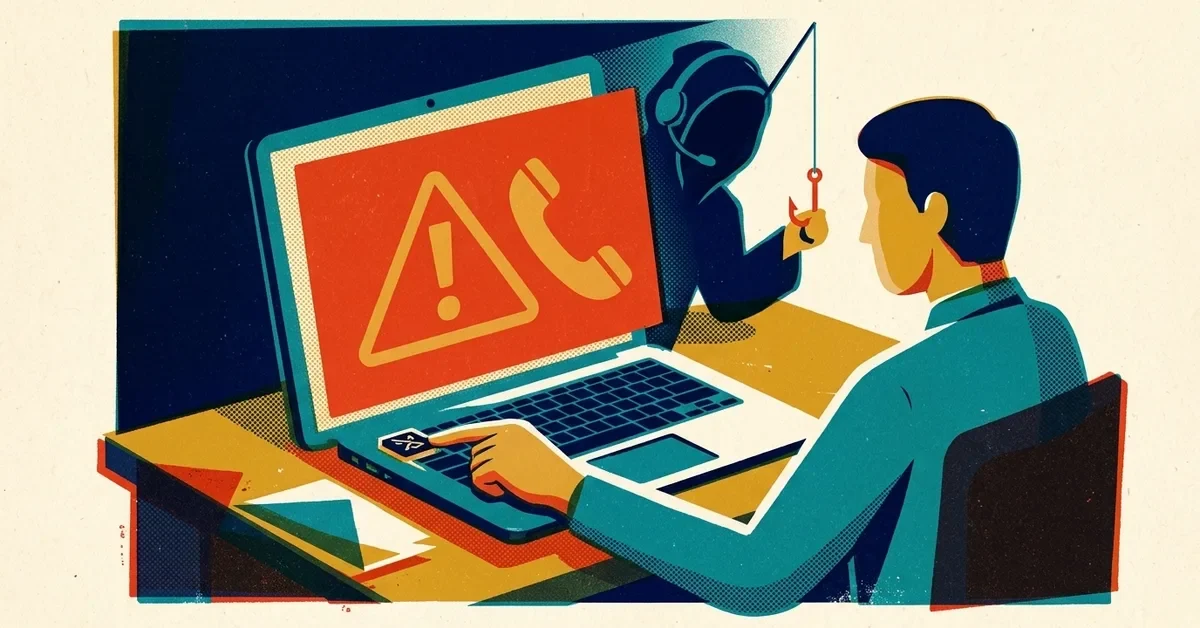
Someone on your team scanned a QR code from an email, landed on what looked like a Microsoft or DocuSign sign-in page, and typed their password. Now they've realized it was fake, or they're not sure.
First: they didn't do anything unusual. QR phishing is built to get past the email filter and the training most people have had. Second: what you do in the next hour matters more than anything else in this post, so that's where we'll start.
If someone already scanned one and signed in
Assume the attacker has the password and may already be signed in. Changing the password alone isn't enough, because the attacker may hold a session token: the "already signed in" pass a device gets after login, so it doesn't have to ask again. Tokens can survive a password change. You need to end those sessions explicitly.
Microsoft 365: the first-hour steps
- Reset the password and sign the user out everywhere. In the Microsoft 365 admin center, go to Users > Active users, select the person, choose Reset password, then select their name again and on the Account tab choose Sign out of all sessions. Microsoft notes it can take up to an hour for every app to notice. In the Microsoft Entra admin center, Entra ID > Users > (the person) > Revoke sessions does the same job.
- Check for sign-in methods the attacker added. In the Microsoft Entra admin center, go to Entra ID > Users, select the person, then Authentication methods. Look for a phone number, authenticator app or passkey the person doesn't recognize and delete it. Registering their own authenticator is how attackers keep access after you reset the password.
- Check inbox rules and forwarding. Sign in to Outlook on the web as the user (or sit with them) and open Settings > Mail > Rules. Delete any rule they didn't create, especially ones that move mail to RSS Feeds, Archive or Deleted Items, or that mention invoices, payments or the CEO's name. Then check Settings > Mail > Forwarding and turn off anything sending mail to an outside address. Attackers set these up within minutes to hide their activity from the real owner.
- Look at what else the account could reach. Shared passwords, connected apps, and anything they could approve (payments, vendor changes). Microsoft's own checklist for responding to a compromised email account also covers app consents and admin roles.
- Warn the people they email. If the mailbox sent anything odd, a short "please ignore messages from me since this morning, my account was compromised" saves someone else from scanning the next code.
Google Workspace
In the Google Admin console, go to Directory > Users, open the person's account, choose Reset password, then under Security open Sign-in cookies and choose Reset to sign them out of browsers and phones (Google's steps). Then check Gmail's Settings > See all settings > Filters and Blocked Addresses and Forwarding and POP/IMAP for anything new, and review their 2-Step Verification methods.
If any of this feels shaky, or money may have moved, get help now rather than tomorrow. If a payment went out, call your bank first; our business email compromise guide covers that case.
Quick answer for everyone else
- Don't scan QR codes that arrive in email or text messages. Not "scan carefully." Don't scan.
- Go to the service yourself. If a message says a document needs signing or your password expires today, type the address, use a bookmark or open the app.
- Report it with your mail app's Report button, even if you're not sure.
Why QR phishing gets past your filter
In January 2026, Microsoft's threat intelligence team counted 7.6 million phishing attacks using QR codes. By March it was 18.7 million, a 146% jump in three months, making it the fastest-growing email attack in a quarter where Microsoft analyzed about 8.3 billion phishing emails. When a tactic grows that fast, it's because it works better than what attackers were doing before.
The reason is mechanical. A QR code is a barcode that holds a web address. In an email, it arrives as an image: a picture in the message or inside a PDF attachment.
Email filters have long worked by reading the links in a message as text and checking them against lists of known-bad sites. A filter that reads text can't check a link that only exists as pixels. Microsoft describes the tactic exactly that way: QR codes are used to get around scanners that are better at reading text and links than images. There's no link for the filter to judge, because the link is a drawing.
The scan moves the victim to their phone
You can't scan a QR code with the laptop you're reading email on, so you pick up your phone. That moves you off the company laptop, with its security software and web filtering, onto a personal phone that usually has none of it. Microsoft notes the codes are designed to land victims on phishing pages opened on unmanaged mobile devices.
Phones also hide the evidence: long addresses get cut off, there's no hovering to preview a link, and people scan while walking or standing in line. We cover why personal phones are such a weak spot, and how to protect company data on them without taking over anyone's device, in your employee's personal phone is an unmanaged company computer.
The CAPTCHA in front of the fake page
Microsoft also saw CAPTCHA-gated phishing more than double in March 2026, to 11.9 million attacks. A CAPTCHA is a "prove you're human" check. Attackers put one in front of their fake login page because automated security scanners that follow links to inspect them can't get past it. The scanner sees a harmless checkbox and moves on; a person ticks it and reaches the fake login. The CAPTCHA isn't there to stop bots. It's there to stop defenders from looking.
The pretexts you'll actually see
Attackers need a reason for a code to be in the email. The common ones:
- Multi-factor re-enrollment. "We're updating our authenticator setup, scan to re-register your device." Scanning a QR code really is how you set up an authenticator app, so this one catches careful people.
- A document to sign, dressed up as DocuSign or Adobe, with a code instead of a button.
- Payroll or HR: "scan to review your updated direct deposit details," timed near payday.
- A voicemail or fax notification.
- An unpaid invoice or parking ticket, urgent, with a payment page.
There's a physical version too: a sticker over the real QR code on a parking meter, restaurant table or payment terminal. The FTC has warned about packages arriving with a QR code asking you to scan to find out who sent it, and the FBI's Internet Crime Complaint Center issued its own advisory on unsolicited packages with QR codes.
Why your training doesn't cover this
Most phishing training teaches three habits: check the sender, hover over links, look for spelling mistakes. On a phone the sender's address is often hidden. Hovering over a QR code is impossible. And these emails are usually well written.
So your team can follow their training exactly and still get caught, because the training assumed a link they could inspect. Say that out loud to your staff: not "be more careful," but "here's a case your training doesn't cover, and here's the rule for it."
Preventing it in a business
- Teach one rule: don't scan QR codes from email or texts. Real processes almost never need it, and the exceptions (like setting up an authenticator) start with you opening the app, not with a message arriving out of the blue.
- Back it with the navigate-yourself habit. Going straight to the service defeats QR phishing, link phishing and most password theft at once, because the attacker no longer chooses where you land.
- Ask whether your email filter reads images. One question to your provider or IT support: does our filtering inspect QR codes inside images and attachments? Many current products do, but it can depend on your license and settings.
- Protect company data on phones. App protection policies (a PIN on the work apps, no copying work data into personal apps, the ability to wipe just the company data) limit what a phished login on a phone can reach. The personal phone post has the setup steps.
- Move to phishing-resistant sign-in. A passkey can't be typed into a fake page, so a stolen password plus a QR scan doesn't get the attacker in. We cover setup in MFA fatigue attacks and passkeys.
- Include QR codes in phishing tests, especially the authenticator re-enrollment pretext, and treat results as a teaching moment, not a scorecard.
- Tell staff about the sticker trick, especially anyone who handles a customer payment terminal.
- Make reporting fast and blame-free. The worst outcome isn't someone scanning a code. It's someone scanning one, realising, and staying quiet for a week out of embarrassment. Fast reporting is the difference between a password reset and an incident. CISA's small and medium business resources include free material you can hand out.
When to call someone
- Someone signed in on a fake page and you don't have admin access, or you can't find the settings above.
- You find inbox rules, forwarding or sign-in methods nobody created.
- Money, payroll details or vendor bank details may have changed.
If you want help working through it, our cybersecurity team handles exactly this.