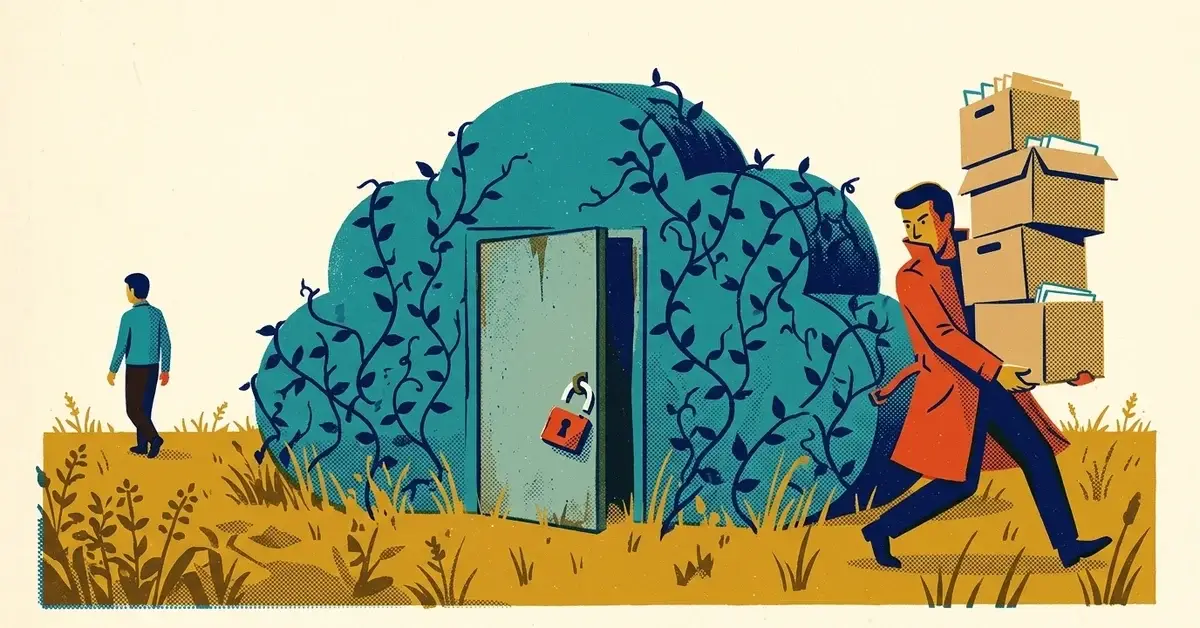
You cleaned up. Deleted the old storage space a developer set up years ago, or forgot about the folder you shared with a client "just for this project." Out of sight, out of mind.
Here's the deal: forgotten cloud storage doesn't stay forgotten by everyone. Attackers look for it, because it's the digital version of a spare key you handed out years ago and never got back.
There are two versions of this problem. One needs a developer to fix. The other you can check yourself this afternoon.
The quick answer
- Check your sharing links in OneDrive, SharePoint or Google Drive and turn off "Anyone with the link" on anything with client or business data.
- Change the default so new links only work for specific people or your own staff.
- Make "Anyone" links expire if you allow them at all.
- If you have a website or app that loads files from cloud storage, ask your developer to check for references to storage buckets you've deleted. Google's four steps are below.
What Google warned about
On August 7, 2025, Google Cloud's security team published a warning about dangling bucket takeovers (Google Cloud blog).
A "bucket" is a named storage space in a cloud service like Google Cloud Storage or Amazon S3. Websites and apps often load files from them: images, scripts, downloads, settings.
The trap works like this:
- You delete a bucket you don't think you need.
- Something still points to it. Old app code, a mobile app nobody updated, a help article, a download link.
- Bucket names can be claimed again once they're free. An attacker registers the same name.
- Now everything still pointing at that name is loading the attacker's files instead of yours.
Google said to pay extra attention to requests for executable code, machine learning models, dynamic web content like JavaScript, and configuration files. Those are the files an attacker can swap for something harmful.
This isn't theoretical. In February 2025, researchers at watchTowr re-registered about 150 abandoned Amazon S3 buckets that had once been used by software vendors, governments and large companies. Over two months those buckets received more than 8 million requests, including for program files, virtual machine images and JavaScript files (The Register). They spent about $420 doing it. Cheap, for the attacker.
Does this apply to you?
Probably the second version more than the first. Ask:
- Do you have a custom app, a mobile app or a developer-built website? Then you may have storage buckets, and the dangling-bucket risk applies. Skip to "If you have a developer."
- Do you share files from OneDrive, SharePoint or Google Drive? Then you almost certainly have old links still working. That's the version most small offices have, and it's the one to check first.
A forgotten "Anyone with the link" share doesn't need an attacker to take over anything. Anyone who has the link (a former client, whoever they forwarded it to, whatever inbox it ended up in) can open it. Microsoft notes that with Anyone links, you can't track who has access to the shared items (Microsoft Learn: sharing settings).
Fix it: OneDrive and SharePoint
Check what you've shared
- Go to OneDrive on the web and select Shared, then the Shared by you view (some versions label it By you).
- Open anything with client or financial data. Select the file, then ... > Manage access.
- Remove links you don't need, or select Stop sharing. Microsoft's steps: Manage sharing and permissions in OneDrive and SharePoint.
Removing a link means anyone who had it gets an error next time. If a client still needs the file, share it again with Specific people.
Change the defaults (admin)
If you're the Microsoft 365 admin, these settings apply to everyone (Microsoft Learn: sharing settings):
- Open the SharePoint admin center, expand Policies and select Sharing.
- Under File and folder links, set the default link type to Specific people or Only people in your organization.
- If you keep Anyone links turned on, set These links must expire within this many days, and set their permissions to View.
- Select Save.
Microsoft's own guidance for securing external access says enabling Anyone links "isn't recommended," and if you do, to set an expiration and restrict them to view (Microsoft Learn: secure external access). I agree. A link that never expires is a key that never gets returned.
Fix it: Google Drive
Check what you've shared
- In Drive, find a file or folder you've shared. Right-click it and select Share > Share.
- Under General access, select the arrow and choose Restricted ("Only people with access can open"), then Done (Google Drive Help: share files).
- On some work and school accounts, you can also select Add expiration when you share with specific people.
To find files shared outside your organization on a Google Workspace account, type sharedwith:external in the Drive search bar (Google Drive Help: search operators). Start with the folders you've shared with clients; sharing a folder shares everything in it.
Change the defaults (admin)
In the Google Admin console, go to Menu > Apps > Google Workspace > Drive and Docs > Sharing settings > Sharing options (Google Workspace Admin Help). From there you can limit sharing outside your organization, allow it only with domains you list, and turn on the warning that flags files from outside your company. Google says changes can take up to 24 hours to apply.
If you have a developer: Google's four steps
Hand this to whoever manages your app or website. It's Google's guidance, condensed (Google Cloud blog):
- Check the logs before deleting a bucket. See what's still requesting files from it. Ignore bots and scanners; look for old app versions, partners and real users.
- Wait at least a week. Google says to confirm no legitimate traffic for at least seven days, to catch weekly reports, batch jobs and occasional users, and update old code first.
- Hunt for leftovers. Search code, configuration and documentation (including old and archived projects) for bucket names, and watch logs for repeated "404 Not Found" errors on storage addresses. Lots of failed requests to the same missing bucket is a red flag.
- Reclaim or remove. If the dangling name isn't yours anymore, remove every reference to it and ship the fix. If it's free, create a bucket with the exact same name in a project you control and lock it down so nobody can read from it.
The same logic applies to Amazon S3 and other storage services. The names change; the trap doesn't.
Why this happens
Cleanup feels finished when the thing is gone from your screen. But the links, code and documents that point to it live somewhere else, and nobody updates them.
Sharing links have the same problem. They're made in a hurry, for one job, and nothing reminds you to take them back.
If it's already gone wrong
- A client file was shared too widely: remove the link now. Then check the file's activity or viewer details, if your plan shows them, before you decide who to tell.
- Your website or app loaded something strange after a cleanup: take the affected page or app version offline and get your developer involved the same day.
- Personal or financial data may have been exposed: talk to your attorney about notification rules. They vary by state and by the kind of data.
Preventing it in your business
A short checklist, run quarterly:
- Sharing review: each person opens their "Shared by you" list (or searches
sharedwith:externalin Drive) and removes what's done. - Defaults: new links go to specific people or staff only. Anyone links expire.
- Offboarding: when a client project ends, stop sharing its folder. When an employee leaves, review what they shared.
- Before deleting cloud storage: your developer checks for references first, every time.
The one-line staff rule: share with names, not with "anyone."
When to get help
- You don't know who has admin access to your Microsoft 365 or Google Workspace, or nobody's ever looked at the sharing settings.
- You've found client data shared with "Anyone with the link" and don't know who opened it.
- You have an app or site built by a developer who's no longer around, and you're not sure what it loads from where.
That's the kind of cleanup we help with. Get in touch if you want a second pair of eyes.
Related reading
- Your old website could still be leaking information years later
- The breach that hurts you probably won't be yours
- Google Workspace or Microsoft 365? An honest comparison for small businesses
Originally published August 2025. Updated October 2026.


No comments yet