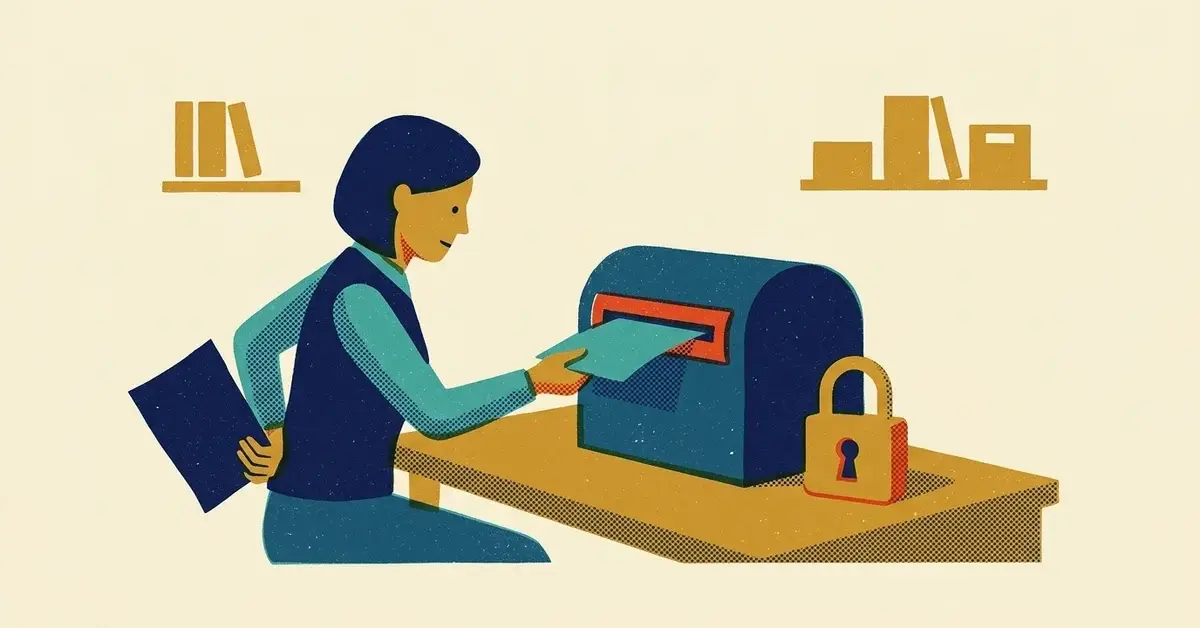
Someone on your team pastes a client's contract into ChatGPT to get a summary. Someone else uploads last quarter's sales export to "find trends". Nobody asked where that data goes next.
That's the real risk with AI tools in a small business. Not a dramatic hack. Just client details landing in an account nobody set up properly.
The fix is mostly settings and a few house rules.
The quick answer
- Use a work account, not a personal one. Business plans of ChatGPT, Microsoft Copilot and Gemini don't train on your data by default. Free and personal plans can.
- On any personal account, turn training off. In ChatGPT: Settings > Data controls > Improve the model for everyone, off.
- Strip out what the task doesn't need. Names, addresses, account numbers, passwords. Paste the problem, not the client.
- Turn on multi-factor authentication for every AI account, same as email.
- Write one rule for staff: which AI tool is approved, and what never goes into it.
Which kind of account are you using?
This matters more than anything else in this post. The same tool behaves differently depending on how you signed in.
Tool | Personal or free account | Work account |
|---|---|---|
ChatGPT | Can be used for training unless you turn it off | Business and Enterprise: not used for training by default |
Gemini | Used for training while Keep Activity is on | Workspace: not used for training |
Microsoft Copilot | Consumer Copilot has its own settings | Signed in with a work account: not used to train foundation models |
The sources, as of October 2026:
- ChatGPT. OpenAI's data controls article says personal Free, Go, Plus and Pro accounts share data for training by default and you can opt out. Its business data policy says ChatGPT Business, Enterprise, Edu and the API don't train on your inputs by default.
- Gemini. Google's Gemini Apps privacy hub says chats are used to improve its services, including training generative AI models, while Keep Activity is on, and some are read by human reviewers. With it off, chats are still kept for 72 hours. For work accounts, Google says Gemini in Workspace doesn't use your content to train its models.
- Microsoft Copilot. Microsoft has renamed Microsoft 365 Copilot to Microsoft Copilot (and Copilot Chat). Its enterprise data protection page says prompts and responses from work accounts aren't used to train foundation models.
How to tell which one you're in: look at the account icon. A work account shows your company email (you@yourbusiness.com). In Microsoft Copilot Chat, a work sign-in shows a green shield at the top, next to the New Chat button; Microsoft says that's how it signals enterprise data protection is applied.
Step-by-step: lock down the accounts you have
ChatGPT (personal Free, Go, Plus or Pro)
- Click your profile picture.
- Go to Settings > Data controls.
- Turn off Improve the model for everyone. Click Done.
That applies to new chats across your devices once you're signed in. Chats from before you flipped it aren't pulled back.
For anything one-off and sensitive, use Temporary Chat (the option at the top of a new chat). OpenAI says it stays out of your history and isn't used to improve its models. OpenAI still keeps a copy for up to 30 days.
Gemini (personal Google account)
- Go to myactivity.google.com/product/gemini.
- Turn off Keep Activity.
Gemini has a Temporary Chat option too. Google says temporary chats aren't used to train its AI models, but they're still kept with your account for 72 hours.
Gemini in a work Google Workspace account is controlled by your Workspace admin, not this page.
Claude (personal account)
Anthropic changed its consumer terms in 2025 so that Free, Pro and Max users choose whether their chats help train Claude. Check the Help Improve our AI models setting in Settings > Privacy and set it the way you want. If it's on, Anthropic keeps those chats for up to five years. Off, it's the usual 30 days.
Microsoft Copilot
If your business has Microsoft 365, have everyone sign in to Copilot with their work account. That's what brings the enterprise data protection with it. A personal Microsoft account at copilot.microsoft.com is covered by consumer terms instead.
Share less in the first place
Even with a business account, the safest data is the data you didn't paste.
Before you send anything, ask: does the AI need this to do the job?
- Summarize a contract? It needs the clauses. It doesn't need the client's name or address. Swap them for "Client A".
- Spot trends in sales? It needs dates, products and amounts. It doesn't need customer names or emails. Delete those columns first.
- Draft a reply to a complaint? Describe the situation. Don't paste the whole email thread with signatures and phone numbers.
What never goes in, on any plan:
- Passwords, MFA codes or recovery keys
- Full card or bank account numbers
- Social Security numbers and ID scans
- Anything a client told you in confidence and didn't agree to share
If a task genuinely needs client data, use a tool your business pays for and has checked. Not whatever someone found on their phone.
Check the vendor before the tool touches client data
For any AI tool beyond the big three (meeting note-takers, transcription apps, AI add-ons to your CRM), look for these on the vendor's site before you sign up:
- A trust or security page. It should say where data is stored, who can see it and how long it's kept.
- A training statement. Does the vendor use your content to train its models? Is that off by default on business plans?
- An independent audit. A SOC 2 Type II report is the common one. Vendors usually share it on request.
- Encryption. In transit (TLS) and at rest. Most reputable vendors say so plainly.
- Ownership in the terms. You should keep ownership of what you upload. If the terms give the vendor broad rights to reuse your content, pick another tool.
If a vendor won't answer basic questions, that is the answer.
The longer version, with 12 questions to send a vendor: AI vendor red flags.
Secure the logins
Most AI account break-ins aren't clever. They're a reused password.
- Unique password for every AI account. A password manager makes this painless.
- Multi-factor authentication on. In ChatGPT, look under Settings > Security and login. For Microsoft and Google work accounts, it comes from your Microsoft 365 or Workspace sign-in.
- Don't force regular password changes. NIST's current password guidance (SP 800-63B-4) says not to require periodic changes. Change a password when there's a sign it's been exposed, and otherwise leave a strong one alone.
- Sign out on shared computers, and remove people's access the day they leave.
An AI account holds every chat ever typed into it. Treat it like an email inbox, because that's roughly what it is.
Why this happens
AI tools are easy to start using and hard to see into. Anyone can sign up with a personal email in a minute, and the default settings on free plans are written for the vendor's benefit, not yours.
So the risk isn't usually the tool. It's that nobody decided which tool, which account and which data.
If client data already went into an AI tool
Don't panic. Do this:
- Find out which tool and which account (personal or work).
- Delete the chat. Deleting removes it from your history. Whether the vendor keeps a copy for a while depends on its retention policy, so check that page.
- Turn training off on that account if it was on.
- If passwords or account numbers went in, change those passwords and watch the accounts.
- If it involves client data you're obliged to protect, talk to whoever handles your legal or compliance questions about whether you need to tell anyone.
More on what happens to chats after you type them: what happens when your chat history isn't private.
Make it a rule in your business
Write it down in five lines and send it to everyone:
- Approved AI tool: [name], signed in with your work account only.
- Never paste passwords, card or bank numbers, ID numbers or client details the task doesn't need.
- Ask before connecting any AI tool to email, files or the CRM.
- MFA on every AI account.
- Not sure? Ask first.
Short enough that people actually read it. That's the part that does most of the work.
When to call someone
- Staff are using several AI tools on personal accounts and you don't know what's been shared.
- You want Copilot or Gemini connected to company email and files and need permissions checked first.
- A vendor's security answers don't make sense to you and client data is involved.
If you'd like a hand, talk to us.
Related reading
- Who Owns the Data I Feed into AI?
- AI Vendor Red Flags: 12 Questions to Ask Before a Tool Touches Client Data
- What Happens When Your Chat History Isn't Private
Originally published April 2025. Updated November 2026.



No comments yet