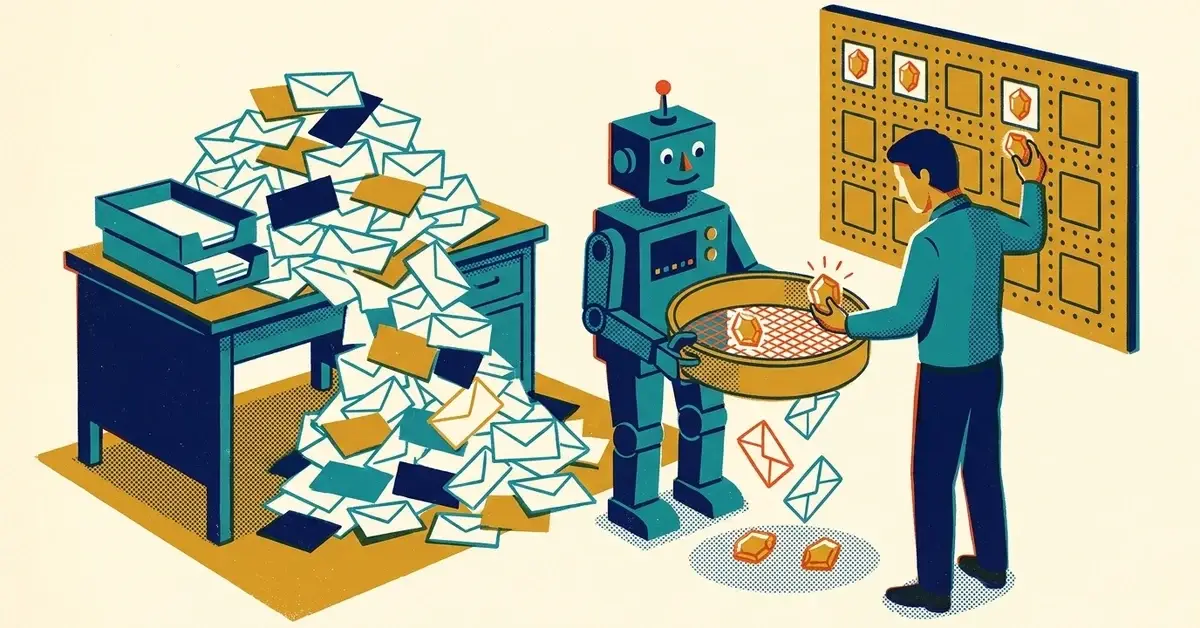
A client emails on Tuesday asking for a revised quote. It gets buried under twelve other threads. On Friday you get "Hey, just checking in..." and now you're the one who dropped the ball.
In a small business, the inbox isn't just email. It's your help desk, your sales pipeline, your job tracker and your billing reminders, all in one list sorted by date.
AI can help. But only if you use it as part of a system, not as a magic "fix my inbox" button.
The quick answer
- Use the AI summary that's already in your email (Summary by Copilot in Outlook, Ask Gemini in Gmail) on any thread longer than three messages.
- Ask it the same four questions every time: what they want, what we promised, the deadline, the next action.
- Turn every "next action" into a task right away, in one place: Microsoft To Do, Google Tasks, your CRM or a shared spreadsheet.
- Add a follow-up task for every quote and open issue, so nothing depends on you remembering.
- Check your AI and privacy settings once, and give your team a one-line rule about what goes into AI tools.
How to tell what's slipping through
Before you change anything, look at last month. If any of these sound familiar, the problem is capture, not effort:
- The "just checking in" email. A client had to chase you for something you'd already agreed to do.
- Rereading. You open the same long thread three times to work out what was actually decided.
- Quotes with no follow-up. You sent the quote, then never heard back, and never asked.
- Tasks living in your head. Or worse, in a pile of unread emails you've "marked as unread so I remember."
- Two people answering the same email. Or nobody answering it, because each thought the other had it.
Each one costs something real: a lost job, a slower payment, a client who feels ignored.
Step 1: Summarize long threads with the AI you already have
You probably don't need a new tool. Both big email platforms have summaries built in now.
Outlook (Microsoft 365)
Open the thread and select Summary by Copilot (or Summarize) at the top of the email. The button looks a little different in new Outlook, Outlook on the web, classic Outlook and the mobile app, per Microsoft's Copilot usage report docs.
Microsoft lists drafting and thread summaries in Outlook among the Copilot features available to people with an eligible Microsoft 365 plan who don't have the paid Copilot add-on (Microsoft Learn: Microsoft Copilot overview). What you see still depends on your plan and your admin's settings. No button? Ask whoever manages your Microsoft 365.
Copilot Chat in Outlook can also read your email, calendar and meetings, so you can ask it questions about your inbox or have it help prioritize and triage your email (Microsoft Learn: Copilot Chat privacy and protections). Searching across all of your work data is still part of the paid Microsoft Copilot license.
Gmail (Google Workspace)
Open the email and click Ask Gemini at the top right, then ask for a summary or a list of action items. Google says this needs an eligible Google Workspace or Google AI plan (Gmail Help: Collaborate with Gemini in Gmail).
No built-in AI?
Copy the thread into whatever AI tool your business has approved and use the prompt below. Read the privacy section first.
Step 2: Ask the same questions every time
A summary is only useful if it answers the questions you actually need answered. Use one prompt for every thread, so everyone on the team gets the same shape of answer:
Summarize this thread in 5 bullets. Then list: (1) what the customer needs, (2) what we promised, (3) any deadlines, (4) open questions, (5) the next action for me. If something isn't in the thread, write "not stated." Don't guess.
That last line matters. Ask an AI for a deadline that isn't there and it may hand you a believable one.
Check the summary against the emails before you act on anything with a date or a dollar amount in it.
Step 3: Sort what you're looking at into three buckets
You don't need a perfect filing system. You need the same one every day.
- Money: quotes, approvals, invoices, renewals.
- Movement: anything that moves a job forward (scheduling, materials, documents, next steps).
- Minutes: quick replies you can send and close out now.
Do Minutes as you go. Money and Movement become tasks.
Step 4: Turn the "next action" into a task
Write every task the same way:
- Title: verb + outcome. "Send revised quote for roof repair", not "Smith email."
- Due date: when it actually matters to the client.
- Owner: one person. Not "the team."
- Notes: paste the AI summary and a link to the email.
Where to put it:
- Outlook: flag the email. Flagged emails show up in the Flagged email list in Microsoft To Do, where you can add a due date and a reminder (Microsoft Support: Using Microsoft To Do with flagged email from Outlook). One catch: flags in a shared mailbox (like info@) don't sync to To Do, so shared-inbox tasks need a different home.
- Gmail: open the email and click Add to Tasks at the top (or More > Add to Tasks if you don't see it). It lands in Google Tasks, which you can open from the Gmail side panel (Gmail Help: Create a task in Gmail).
- Gmail AI Inbox (beta): Google is testing an AI Inbox that pulls suggested to-dos from your Primary tab. As of November 2026 it's US and English only, needs an eligible Workspace or Google AI plan, and doesn't cover delegated inboxes (Gmail Help: Manage to-dos and topics with AI Inbox). Show or hide it under Settings > See all settings > Inbox > Show AI Inbox. Treat it as a second pair of eyes, not your task list.
- A CRM or a shared spreadsheet: fine too. Pick one place. Tasks split across three apps are just a new way to miss things.
Step 5: Build a follow-up safety net
Most dropped balls aren't bad service. They're follow-ups nobody scheduled.
Set a house rule for each type of email. Here's a starting point to adjust to your business:
Email type | Follow-up task | When |
|---|---|---|
Quote sent | Check in with the client | 1 business day, then 3 business days |
Customer problem | Status update, even if it's "still working on it" | End of the same day |
Appointment booked | Confirm time and address | The day before |
Invoice sent | Payment reminder | The day after it's due |
Let AI draft the follow-up wording if it saves you time. You still decide whether to send it, and you stay the person who owns the relationship.
Why inboxes eat tasks
Email is sorted by when something arrived, not by what it needs from you. A thread with a deadline sits right next to a newsletter.
And long threads hide decisions. The "yes, go ahead" is in message seven, under four quoted replies. AI summaries help with exactly that part. They don't help with the other part: deciding who does what and by when. That's the system.
Check your privacy settings before you lean on it
Any tool that reads your email deserves five minutes of checking.
Microsoft 365: Microsoft says prompts and responses in Copilot Chat on work accounts aren't used to train its foundation models (Microsoft Learn: Copilot Chat privacy and protections).
Google Workspace: Google's Workspace privacy hub says your content isn't used to train generative AI models outside your organization without permission (Google Workspace Admin Help: Generative AI in Google Workspace Privacy Hub). In November 2025, after viral posts claimed otherwise, Google also said publicly that it doesn't use Gmail content to train Gemini and hadn't changed anyone's settings (9to5Google, November 24, 2025).
To see what's on in Gmail: Settings (gear) > See all settings > General, then the Smart features section (Gmail Help: Control smart features). Turning smart features off also turns off things like Smart Compose and summary cards, so decide on purpose.
The bigger risk is usually not the built-in tools. It's someone on your team pasting a client's tax details into a free AI chatbot on their personal account.
If something already slipped
- Reply today, not after you've fixed everything. Own it in one line, give the answer or a firm date.
- Search the thread for anything else you promised while you're in there. Ask the AI: "List every commitment we made in this thread."
- Make the task now, with a due date and an owner, before you close the email.
- Then trace why it slipped. Wrong inbox? Nobody owned it? No follow-up rule for that type of email? Fix that, not just this one.
Preventing it in a business
- One task home for the whole team, and a rule that email isn't a to-do list.
- One owner per thread. If a shared inbox gets it, whoever replies first owns it until it's done or handed off by name.
- One summary prompt, saved somewhere everyone can copy it.
- One AI rule for staff: "Use the AI built into our Microsoft 365 or Google Workspace accounts. Don't paste client details into anything else."
- A five-minute daily sweep: what's due today, what's overdue, what's waiting on someone else.
When to get help
- Your shared inbox has no clear owner and things keep falling between people.
- You want emails to create tasks or CRM records automatically instead of by hand.
- You're not sure which AI features are on in your Microsoft 365 or Google Workspace tenant, or who has access to what.
If any of that's on your list, we can help you set it up.
Related reading
- Tired of repeating yourself? Let AI turn your email replies into a knowledge base
- Your AI "automation" is ghosting leads: the follow-up gap nobody notices
- Tech tip: your "confidential" emails? Microsoft Copilot just read them
Originally published December 2025. Updated November 2026.



No comments yet