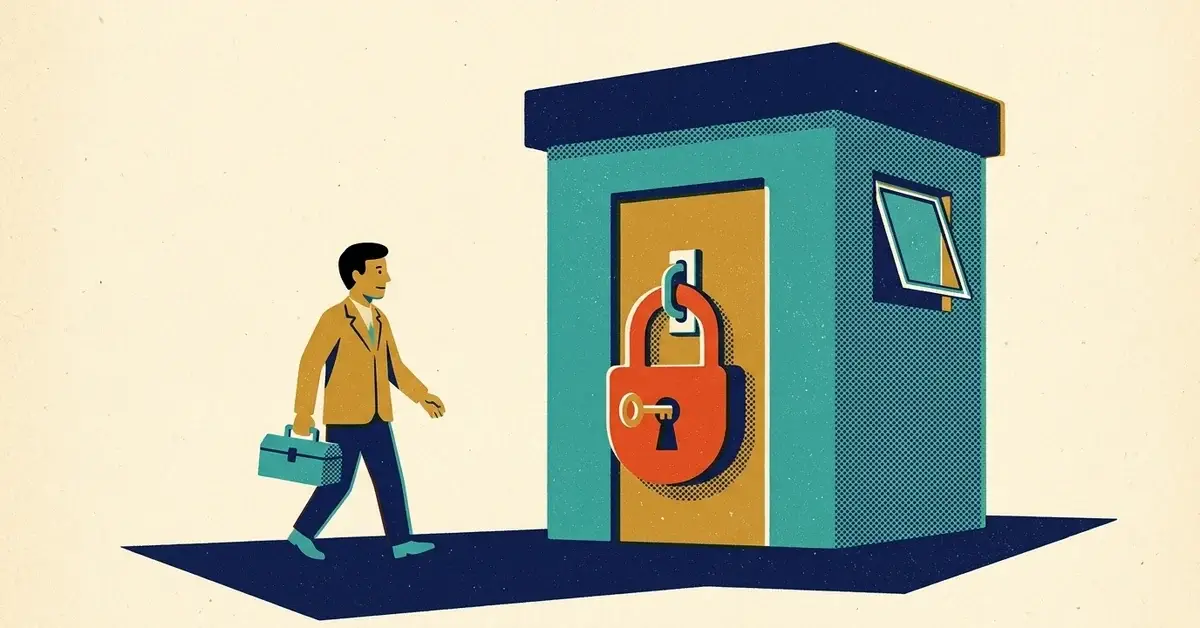
The office manager who set up Microsoft 365 left last spring. The web designer registered the domain "to save you the hassle." The bank login is one password that four people know, and the recovery phone on the company Gmail belongs to someone's ex.
None of that feels like a security problem until the day you need to get in and can't. Or the day someone you no longer trust still can.
Here's the deal: getting hacked isn't the only way to lose control of your business email, website or money. Most small offices are one resignation away from a lockout. These are the five mistakes we'd fix first, and none of them costs anything.
The quick answer
- Have at least two admins for Microsoft 365, plus an emergency account that isn't tied to anyone's phone. On Google Workspace, the same goes for super admins.
- Take admin rights back from people who've left, including old IT providers and contractors.
- Stop sharing one login. Give each person their own, or use a shared mailbox or a business password manager.
- Check where password resets go. Recovery emails and phones should belong to the business, not to whoever set the account up.
- Write it all down on one page: every important account, who controls it, and where its recovery goes.
How to tell if you have this problem
Five questions. If any answer is "I'd have to ask someone," that's your starting point.
- If your Microsoft 365 admin was hit by a bus tomorrow, could anyone else reset a password?
- Does anyone who no longer works with you still have admin rights anywhere?
- Is there a login that more than one person uses with the same password?
- When you click "forgot password" on your bank, payroll or domain account, whose phone gets the code?
- Is there a list of all of this anywhere other than one person's head?
Mistake 1: One admin, and it's someone's everyday account
Microsoft's admin roles guide says the person who bought the subscription becomes a Global Administrator automatically. In a lot of small offices, that's still the only one.
That's a problem in both directions. Too many Global Administrators is risky, and Microsoft says to keep the number as low as possible. But one is fragile. Microsoft's emergency access guidance lists "the person with the most recent Global Administrator access leaves the organization" as one of the ways a business ends up unable to manage its own account. A lost phone with the only sign-in app on it does the same thing.
What to do in Microsoft 365 (as of November 2026):
- Sign in to the Microsoft 365 admin center and go to Roles > Role assignments.
- Select Global Administrator, then the Assigned tab, and see who's there.
- Make sure at least two people who work for you today hold it, or one person plus your IT provider.
- Give everyone else the smallest role that does their job. Microsoft's example: someone who only resets passwords gets Password Administrator or Helpdesk Administrator, not Global Administrator.
Then add a spare key. Microsoft recommends two or more emergency access accounts (it also calls them "break glass" accounts): cloud-only accounts on your .onmicrosoft.com address with the Global Administrator role, not tied to any one person or their phone. It recommends signing them in with a passkey on a physical security key, storing the credentials somewhere safe that more than one trusted person can reach, and testing them at least every 90 days. If you use Conditional Access policies, Microsoft says to exclude these accounts from any policy that blocks sign-in, or they may not work in exactly the emergency they're for.
That's a little technical for most owners. It's a reasonable thing to ask your IT person to set up and show you.
If you use Google Workspace: the top admin role is called super admin. To see who holds it, go to Menu > Account > Admin roles, click Super Admin, then Admins (Google's steps). Google's best practices for admin accounts come down to three things, as of November 2026:
- More than one super admin, each a separate person with their own account. Never a shared admin@ login, or the audit log can't tell you who did what.
- A separate everyday account. Super admins sign in to the admin account only for admin jobs, then sign out.
- Recovery set up before it's needed: a recovery phone and email on each admin account, a spare security key, and printed backup codes kept somewhere safe.
Mistake 2: People who've left still have the keys
A former IT provider, a contractor who helped with a migration, the nephew who "knows computers." Admin access tends to outlive the relationship.
Two places to check in Microsoft 365:
- Settings > Partner relationships. This lists IT companies with a partner relationship to your account. Microsoft's partner guide says you can select a partner you no longer work with and choose Remove roles, then Yes. That takes away their admin roles. It doesn't end a reseller relationship, which you'd ask that partner to end.
- Users > Active users. Look for accounts named after people who've left, or generic ones like "admin" or "it" that nobody can explain. Check what roles they hold.
Outside Microsoft 365, the domain is the big one. Whoever controls your domain controls your email and website. If it's registered in a web designer's account, our post on registering a domain so it stays yours covers how to check and move it.
For the day someone leaves, the steps are in our post on the IT worker who reset 2,500 passwords.
Mistake 3: One login, four people
The info@ mailbox with a password on a sticky note. The bank portal everyone uses as "the office." It's convenient right up until someone leaves and you realize you can't take their access away without changing it for everyone.
Shared logins also break multifactor authentication (MFA, the code or phone tap on top of a password), because the code goes to one person's phone.
Fix them one at a time, easiest first:
- Shared email addresses in Microsoft 365: use a shared mailbox. Each person reads it from their own account, so there's no shared password at all. Microsoft's shared mailbox guide says one doesn't need its own license up to 50 GB, supports up to 25 users, and its sign-in should be blocked and kept blocked. To remove someone, you just take them off the member list.
- Banks, payroll and vendor portals: ask for separate users. Call or check the settings to find out whether yours lets you add each person with their own login. It's worth asking.
- Everything else: a business password manager that lets you share logins with the team, so the password lives in one place instead of on paper. Check how you remove someone, and change any password they could see when they leave.
Mistake 4: The password reset goes to the wrong phone
Every account has a back door for forgotten passwords: a recovery email, a phone number, or both. Whoever controls that back door can take the account.
On a personal Google account, which is what a lot of businesses run their Gmail, YouTube or Google Business Profile ownership through, check it like this (Google's steps):
- Go to myaccount.google.com and select Security & sign-in.
- Under "How you sign in to Google," select Recovery phone, then Recovery email, and edit either one that doesn't belong to the business.
Google says to use an address you check regularly that isn't the one you sign in with, and that changes can take up to seven days to take effect. Work or school Google accounts are handled by your admin instead.
In Microsoft 365, Microsoft says admins are asked for an alternate email address and phone number for account recovery when MFA is turned on (source). Make sure the admin's alternate details are current, not a personal Hotmail from 2014.
Then do the same for the bank, payroll, accounting software, domain registrar and social media accounts. Look in each one's security or profile settings.
Mistake 5: Nobody wrote it down
All of the above lives in one person's memory until it's written down. The fix is a one-page "keys" sheet. Keep it in your password manager or somewhere equally locked, never in a shared drive anyone can open.
These are the columns we'd use. One row per account.
Account | Who's an admin (two names) | Where recovery goes | Last checked |
|---|---|---|---|
Microsoft 365 or Google Workspace | |||
Domain registrar | |||
Website hosting | |||
Bank and payroll | |||
Accounting software | |||
Social media and Google Business Profile |
If a row has only one name in the admin column, that's your to-do list.
Why this keeps happening
Nobody plans it. The person who signs up for a service becomes its owner by default, and in a small business that's whoever had time that week. It's fine for years, and nobody revisits it until there's a resignation, a falling-out or a lost phone.
If you're already locked out
- Microsoft 365: if another Global Administrator or a Privileged Authentication Administrator exists, they can reset the locked-out admin's password, per Microsoft's admin roles guide. If nobody does, you'll be going through Microsoft support, so have your billing details ready.
- Google Workspace: another super admin can reset your password from the Admin console. If there isn't one, go to accounts.google.com/signin/recovery, enter your admin email and click Next, then Try another way. With no recovery phone or email on the account, Google asks you to prove you own the domain by adding a CNAME record at your DNS host, so you'll need that login too (Google's recovery steps). Google says super admin self-recovery is off by default for all new and most existing customers, which is one more reason to have a second super admin.
- Someone who left won't hand an account back: don't argue about it over email. Contact the service directly and keep a record of what you ask for.
- Domain: start with the registrar's support, and see our domain post.
Keeping it fixed
- Add one line to your offboarding checklist: "Removed from every row on the keys sheet."
- Review the sheet every three months. Microsoft suggests testing emergency access accounts at least every 90 days anyway, so do both at once.
- When a new service gets signed up for, it goes on the sheet that week.
When to get help
- You don't know who has admin rights to Microsoft 365, or the only admin has left.
- A former provider or employee still has access and isn't cooperating.
- You want emergency access accounts set up properly and tested.
If that's where you are, we can help.
Related reading
- Picking a Business Domain Name (and Registering It So It Stays Yours)
- Fired IT Guy Resets 2,500 Passwords: Could This Happen to Your Business?
- Lost Phone or Angry Ex-Employee? Protecting Company Data on Personal Phones
Originally published June 2025. Updated November 2026.





No comments yet