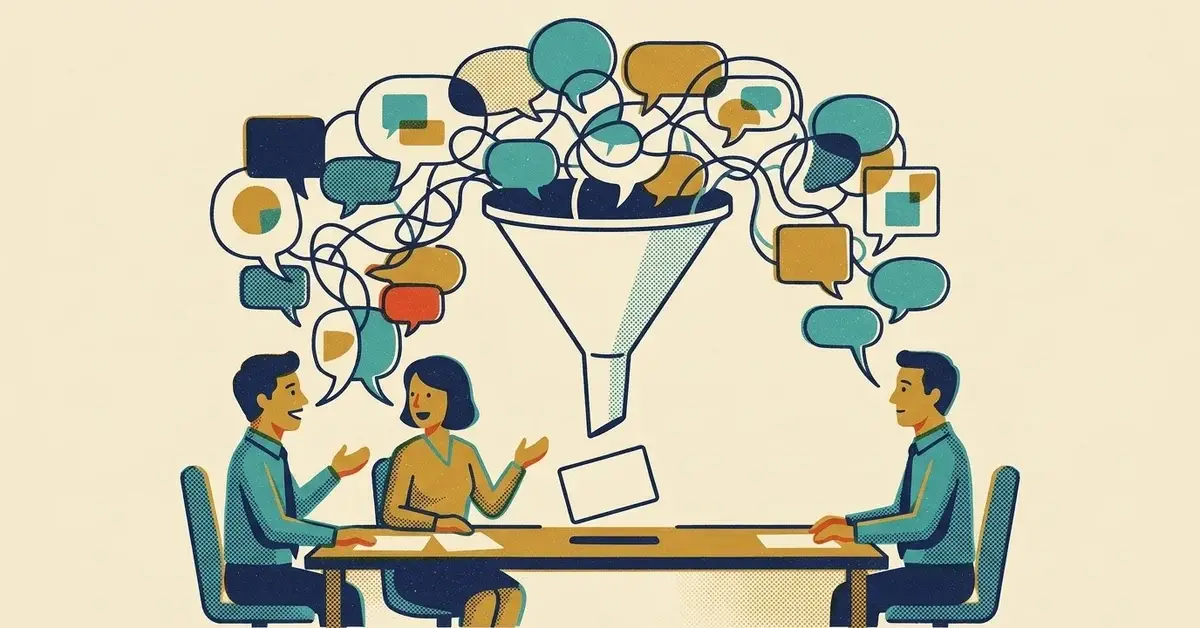
The group chat has 140 new messages. The inbox has 30. Someone posted a customer's change request in the general channel between a lunch order and a meme.
Nobody saw it until the customer called, annoyed.
That's what message overload costs a small team. Not time, exactly. Missed requests, slower replies and the feeling that you have to read everything or risk missing the one thing that matters.
AI summaries can help. But they work best after you fix where messages go in the first place.
The quick answer
- Agree where each kind of message goes (customer requests, internal chat, urgent issues) and write it down on one page.
- Turn down notifications for channels that don't need you, so the important ones stand out.
- Save "urgent" for urgent. Teams can re-alert someone every two minutes; that only works if it's rare.
- Use the summaries you may already have: Gemini in Gmail, Copilot in Outlook and Teams, Slack's AI summaries.
- Check what the AI flagged against the original before acting on anything with a deadline or a dollar amount.
How to tell it's a noise problem, not a people problem
A busy week is normal. Noise shows up as a pattern:
- Customer requests turn up in three different places: email, the team chat, someone's personal phone.
- People ask "did anyone see the message from…?" more than once a week.
- Staff mute whole channels and then miss things in them.
- The same question gets asked in chat because nobody can find the answer from last month.
- You check messages on a day off because you don't trust that nothing's slipped.
If two or more sound familiar, more AI won't fix it on its own. It'll just summarize the mess.
Step 1: write one page of channel rules
This is the step most teams skip, and it does more than any tool.
Copy this and fill it in with your team in 15 minutes:
Message type | Where it goes | Who watches it | Reply within |
|---|---|---|---|
New customer request or change | Shared inbox or one "customers" channel | [name], backup [name] | Same business day |
Urgent (site down, customer waiting now) | Direct message marked urgent, or a phone call | Whoever it's for | Right away |
Internal questions | Team channel, in a thread | Everyone | Same day |
FYI, links, social chat | General channel | Nobody has to | No reply needed |
Three rules that make it stick:
- One topic, one thread. Reply in the thread, not as a new message.
- Customer requests never live only in chat. If it came in by phone or text, it goes into the shared inbox or your job system too.
- Name a person. "Can someone…" gets answered by no one. "@Sam, can you…" gets answered.
Step 2: turn the volume down
Once everyone knows where things go, people can safely mute the rest.
In Microsoft Teams, as of November 2026, notification settings for all channels are under Settings and more > Settings > Notifications and activity. Each channel also has its own: select More channel options next to the channel name, then Manage notifications. Turn on notifications for all new posts in the customer channel for the people who watch it, and leave them off everywhere else.
Urgent messages in Teams notify the recipient every 2 minutes for 20 minutes or until they read it. That's on by default. It's useful for a real emergency and miserable if it's used for "quick question." Put it in your rules: urgent means a customer is waiting right now.
In Slack, each channel can be set to All new posts or Just mentions, you can mute a channel to silence it entirely, and a notification schedule makes after-hours pings wait until morning (Slack Help).
Step 3: let AI catch you up
Now summaries become useful, because they're summarizing the right places.
- Gmail: with an eligible Google Workspace or Google AI plan, click Ask Gemini at the top right and ask for a summary or a list of action items from the email you have open, per Google's Gmail help.
- Outlook: Copilot can summarize a long thread, and Microsoft lists that among the standard Copilot features for business users without the paid add-on (the add-on gets priority access). Microsoft's Copilot overview lists what each level gets.
For turning emails into a task list without missing anything, see how AI can turn emails into tasks.
Team chat
- Microsoft Teams: Copilot in chats and channels catches you up on a conversation you missed, but it needs a Microsoft Copilot license on top of your Microsoft 365 plan, per Microsoft's overview of AI in Teams. Without one, you still get suggested replies and the Copilot Chat app, which works from web data.
- Slack: Slack can summarize a channel, DM or thread on Pro, Business+ and Enterprise+, and daily Recaps of channels you pick are on Business+ and Enterprise+, per Slack's guide to AI features. Older Business+ and Enterprise Grid plans without the AI add-on may only get the Pro features.
Meetings
Meeting recaps from Teams, Zoom or a note-taking app save a lot of rewatching. They also miss things. Why AI meeting summaries miss the one thing that matters covers what to check.
Step 4: one prompt to triage the morning
If your tool lets you ask questions about your messages, this is a good start-of-day prompt:
Summarize what I missed since yesterday at 5 p.m. List first anything from a customer, anything with a deadline, and anything that asks me directly to do something. For each, tell me where it is so I can open the original.
That last line matters. A summary is a pointer, not the message. Open the original before you reply to a customer, agree to a date or approve a cost.
What AI won't fix
- Requests in the wrong place. A customer request in someone's personal texts is invisible to every tool you own.
- Unclear ownership. A perfect summary of "can someone handle this?" still leaves nobody handling it.
- Connected apps nobody checked. Every tool you give access to your email or chat can read it. Before you add another one, check which apps already have access.
When to get help
- You want a shared inbox or a customer channel set up properly in Microsoft 365 or Google Workspace, with the right people watching it.
- You're weighing a Copilot or Gemini add-on and want to know what your team would actually get on your current plan.
- Staff are connecting AI apps to company email on their own and you don't know which ones.
If you'd like a hand sorting it out, get in touch.
Related reading
- How AI can turn emails into tasks without missing the important stuff
- Why AI meeting summaries miss the one thing that matters
- Which apps can access your business email and files?
Originally published November 2025. Updated November 2026.




No comments yet