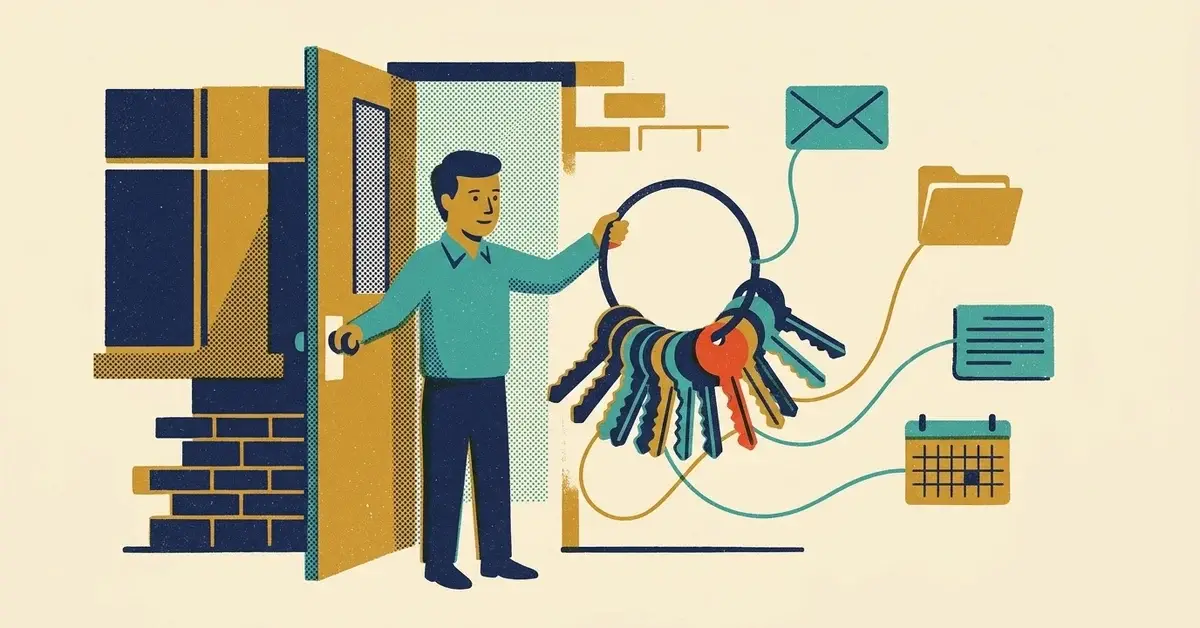
It starts innocently. Someone lets an AI tool read the inbox so it can draft replies. Someone else connects it to Google Drive or OneDrive to summarize documents, syncs the calendar so it can book meetings, and plugs in the CRM so it can log notes.
Months later, nobody remembers what's connected to what. And one of those tools can read, and maybe send, everything.
Here's the deal: every connection is a spare key. You handed it out on purpose, it worked, and you forgot about it. This post shows you where to find those keys in Google and Microsoft 365, how to cut each one down to what it needs, and the one setting that stops new ones being handed out without you knowing.
The quick answer
- See what's connected. Google: myaccount.google.com/linkedapps. Microsoft 365 work accounts: myapps.microsoft.com. Browser: the extensions page.
- Remove anything you don't use or don't recognize.
- Cut what's left to the least access it needs. Read instead of send. One folder instead of the whole drive.
- As the admin, stop staff approving new apps on their own, or limit it to apps from verified publishers.
- Check again every quarter, and every time someone leaves.
What "connected" actually means
When you click "Sign in with Google" or "Allow" on a Microsoft permissions screen, you're not just logging in. You're giving that app a standing permission to act on your account: read your email, send as you, open your files, see your contacts. It keeps that permission until someone takes it away.
For AI tools, the list usually includes:
- AI assistants connected to email, files or calendar
- Browser extensions that "help you write" on any page you visit
- Meeting recorders and note-takers that join your calls
- Automation tools that pass data between apps (Zapier-style workflows)
- CRM and help desk connectors
Each one is a door. Most small businesses never check which ones are still open.
Why this matters more than it sounds
Changing the password doesn't take the key back
This is the part people miss. Microsoft's guidance on what it calls illicit consent grants, where an attacker tricks someone into approving a malicious app, says plainly that "normal remediation steps (for example, resetting passwords or requiring multifactor authentication (MFA)) aren't effective against this type of attack". The app has its own permission. Your new password doesn't touch it.
The same logic applies to a forgotten AI tool. If its company gets breached, or the tool is sold, or it was never what it claimed to be, it still has the access you gave it.
By default, staff can approve apps themselves
In Microsoft 365, Microsoft's documentation says that by default, all users are allowed to consent to applications for permissions that don't need an admin, including access to their own mailbox. So an employee can connect a new AI tool to their email today without asking anyone.
One account, many doors
If an attacker gets into one account that has five tools connected, they don't just get that account. They get whatever those tools can reach.
Ex-employees' tools stay connected
Someone leaves, their account gets disabled eventually, but the shared automation they set up under the company login keeps running with their permissions.
Step 1: Find every connection
Start with the accounts that matter most: the owner, whoever handles money, and any shared or admin account.
Google accounts
- Go to myaccount.google.com/linkedapps.
- Use the filters to see apps that have access to your Google Account, not just ones you sign in with.
- Select an app, then See details to see what it can reach.
- To remove it, select Remove access, then Confirm.
Google's steps for managing linked apps cover the other link types too, including the separate option for Gemini and other Google AI agents.
Microsoft 365 work accounts
- Go to myapps.microsoft.com and sign in with your work account.
- Review the apps listed and the access each one has.
- Revoke anything suspicious or unused. Microsoft's steps for revoking app permissions show where the option sits.
If you're the admin, you can see every user's connected apps in the Microsoft Entra admin center under Users > All users > (select the person) > Applications, as described in Microsoft's consent-grant guide.
Browsers
Type chrome://extensions into the address bar in Chrome, or edge://extensions in Edge. Remove anything you don't use. Our post on checking your browser extensions explains what the permission warnings mean.
The tools themselves
Open the settings of each AI tool and automation platform you pay for and look for Connections, Integrations or Connected apps. Those lists often hold more than you'd expect.
Step 2: Write it down
A spreadsheet is enough. Use these columns:
- Tool
- Connected to (email, files, calendar, CRM)
- What it can do (read, edit, send, delete)
- Whose account (which person, or a shared login)
- Who approved it
- Still needed? (yes / no / not sure)
If nobody can say who approved it or why it's there, that's your answer: it goes.
Step 3: Cut each tool down to what it needs
The rule is simple: if it doesn't need to send, it shouldn't be able to send.
- A summarizer usually needs read access, not send.
- A file tool should see one folder, not the whole drive. Create an "AI workspace" folder and share only that.
- A scheduler needs the calendar, not your contacts.
- A CRM connector should reach the fields it uses. Don't allow full export unless someone really needs it.
- Keep AI tools off the owner's inbox if that inbox holds banking, legal or HR email. Connect a shared inbox like info@ instead.
If a tool only offers "all or nothing" access, decide whether it's worth the risk, or find one that asks for less.
Step 4: Close the front door (admins)
Cleaning up is half the job. The other half is stopping new keys being handed out without anyone knowing.
Microsoft 365
In the Microsoft Entra admin center, go to Enterprise apps > Consent and permissions > User consent settings (Microsoft's instructions). Choose one of:
- Do not allow user consent. Staff can't approve new apps; an admin does.
- Allow user consent for apps from verified publishers, for selected permissions. This is the option Microsoft recommends if you allow user consent at all. Staff can approve low-risk permissions for apps from verified publishers only.
Turn on the admin consent workflow too, so people can request an app instead of finding a workaround. Changing this setting doesn't remove apps already approved, so do Step 1 first.
Google Workspace
In the Google Admin console, go to Security > Access and data control > API controls, then under App access control click Manage Third-Party App Access. There you can mark each app as Trusted, Limited or Blocked; what happens to apps you haven't reviewed yet is set under Settings > Unconfigured third-party apps (Google's instructions).
Everyone
- MFA on every account, and on every admin account without exception. It won't take back an app's key, but it makes a stolen password far less useful.
- No shared logins.
- One rule for the team: no new AI tool or connection without approval. Even in a two-person business.
If you find something you don't recognize
- Remove its access using the steps above.
- Note what it could reach, and whose account it was on.
- Check that mailbox for new forwarding rules or inbox rules you didn't set up.
- Ask the person whether they remember approving it. If not, treat it as a possible compromise.
- Get help if it had access to email or files and you can't tell what it did. In Microsoft 365, the audit log can show when it was approved and what it accessed, if auditing was turned on beforehand.
Make it a quarterly habit
Once a quarter, and whenever someone leaves:
- Review connected apps on the key accounts
- Remove unused tools and extensions
- Confirm MFA is still on
- Update the spreadsheet
When to call someone
- You found an app with access to email or files and nobody knows where it came from.
- You want consent settings locked down without breaking the tools your team relies on.
- You'd like the quarterly review done for you across every account.
If that sounds like you, get in touch.




No comments yet