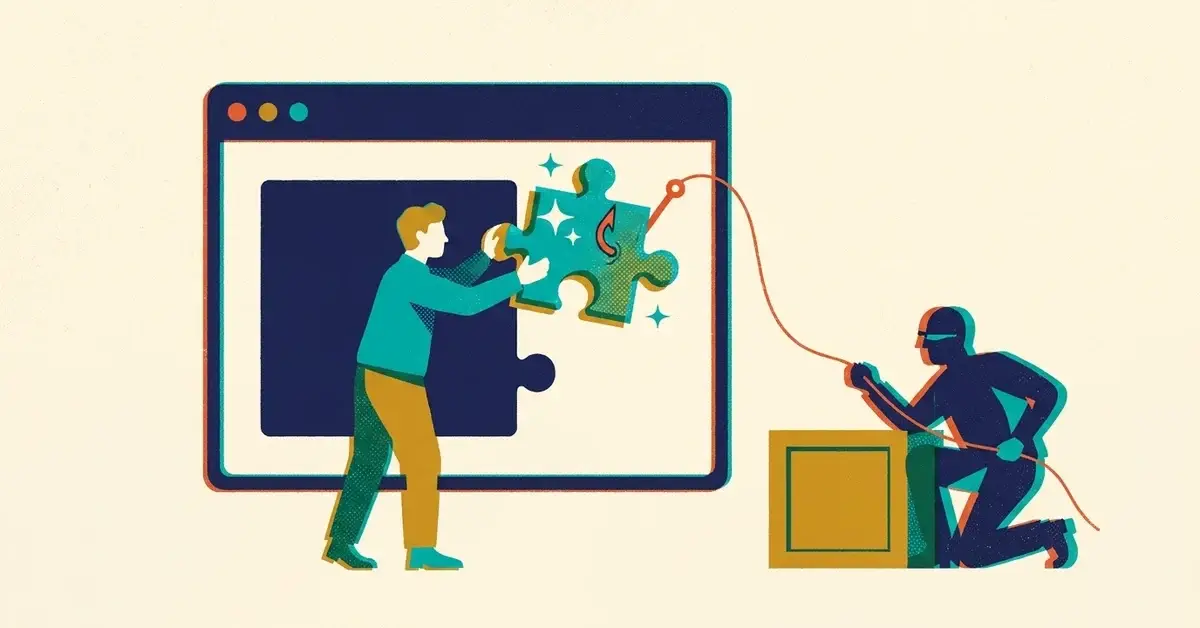
Someone on your team installed an "AI sidebar" extension last week. Or an email says your ChatGPT payment failed and you need to sign in to fix it. Or a page you've never seen asks you to "Approve" an app that wants to read your email.
All three are the same scam wearing different clothes. Attackers put "ChatGPT," "Copilot" or "AI assistant" on the bait because people click AI tools fast, and the payoff is your logins, your chats or a key to your mailbox.
The quick answer
- Don't sign in from a link. Open ChatGPT, Copilot or Gemini from your own bookmark or by typing the address.
- Check your browser extensions today and remove any AI helper you didn't deliberately choose from a publisher you recognize.
- Never click "Accept" on an app permission screen you didn't go looking for, especially one asking to read your mail or files.
- Turn on MFA for email and every AI account.
- If you already clicked: remove the extension or app, change the password, sign out of all sessions, and check what the app could reach (steps below).
Which trap is this? How to tell
Here's the deal: there are three versions, and they need slightly different fixes.
Trap 1: The fake AI browser extension
It shows up as a productivity tool: summarize this page, write my email, "ChatGPT for Chrome." It installs from the official store, it looks polished, and it may even work.
What it does in the background is the problem. In January 2026, OX Security reported two Chrome extensions that copied a real AI sidebar called AITOPIA and quietly sent users' ChatGPT and DeepSeek conversations, plus the addresses of their open tabs, to the attackers every 30 minutes. Between them they had more than 900,000 users, and one carried Chrome's "Featured" badge when OX reported it (OX Security, January 2026).
So no, a store badge isn't a safety rating.
How to tell you might have one:
- You have an AI helper extension and can't say who makes it.
- It asked for access to "read and change all your data on all websites."
- The publisher is new, the reviews sound copy-pasted, or the name is a pile of keywords ("ChatGPT, Claude, DeepSeek & more").
For a full look at what extension permissions actually allow, see Check your browser extensions: they may have more access than you realize.
Trap 2: The fake "AI login" page or subscription email
Classic phishing, new costume. "Your ChatGPT subscription payment failed." "Action required to keep your account." The link goes to a page that looks like the real sign-in.
This one is well documented. In October 2024, Barracuda reported a large campaign of emails impersonating OpenAI that asked businesses to update their payment details for a monthly subscription. The emails came from a domain that had nothing to do with OpenAI (Barracuda, October 31, 2024).
How to tell:
- The sender's address isn't from the company it claims to be.
- It pushes urgency: final notice, account suspended, payment failed.
- You didn't start the sign-in. The email did.
- It asks for a card number or password straight away.
Trap 3: The "Approve access" screen (consent phishing)
This is the sneaky one, because nothing about it is fake except the app.
Instead of stealing your password, the attacker sends you to a real Microsoft or Google sign-in. You sign in normally, then see a permission screen: "This app would like to read your mail, read your files, maintain access." If you click Accept, the app gets its own key to your account. Changing your password doesn't take that key away.
A real example: in October 2025, Datadog Security Labs showed how attackers could host a lure on Microsoft's own Copilot Studio site. The victim clicks "Login," consents to a malicious app, and the access token is quietly forwarded to the attacker (Datadog Security Labs, "CoPhish," October 2025). The link is a real Microsoft address, which is exactly why it works.
Why this matters for a small business: Microsoft's own documentation says that by default, users can consent to let an app access their mailbox (Microsoft Learn: Configure how users consent to applications). One click from one employee is enough.
How to tell:
- A permission screen asks for email, files or contacts, and you weren't trying to connect anything.
- The app name is generic: "AI Tool," "Document Helper," "Secure Viewer."
- The screen says the publisher is unverified.
How to fix it
Easiest first. Do these whether or not you think you clicked anything.
1. Clean out your browser extensions (5 minutes)
Chrome: click the three dots at the top right, then Extensions > Manage Extensions.
Microsoft Edge: click the three dots, then Extensions > Manage extensions.
For each extension, ask: do I know who makes this, do I use it weekly, and does what it asks for match what it does? A grammar tool needs to read text boxes. A "summarize this page" helper has no business with every site you visit. If you're unsure, Remove it. You can always reinstall the real one.
2. Bookmark the real AI sites and use only the bookmark
Save the real addresses (chatgpt.com, copilot.microsoft.com, gemini.google.com, or whatever your team uses) and open them from the bookmark every time. If an email says there's a billing problem, go to the bookmark and check there. If the problem is real, it'll be there too.
3. Turn on MFA for email and AI accounts
An authenticator app or passkey beats text codes. MFA won't stop a malicious app you've approved, but it stops a stolen password from being enough on its own. If your phone starts buzzing with sign-in requests you didn't make, read MFA fatigue attacks and how passkeys stop them.
4. Stop staff approving apps on their own (Microsoft 365)
This is the setting that closes Trap 3. It's the same one we recommend in What AI tasks should I never automate in a small business?: in the Microsoft Entra admin center, go to Entra ID > Enterprise apps > Consent and permissions > User consent settings and choose Do not allow user consent. Then turn on the admin consent workflow so staff can request an app instead of getting stuck (Microsoft Learn: Configure how users consent to applications, Configure the admin consent workflow).
You need a Global Administrator account to change it. The change only affects future approvals, so apps people already approved stay connected until you review them (step 3 in the next section).
Google Workspace: an admin can control which third-party apps reach company data in the Admin console under Security > Access and data control > API controls, and block apps you don't trust (Google Workspace Admin Help: Control which third-party apps access Google Workspace data). As of November 2026, the default lets staff sign in with Google to any third-party app. In the same settings, Don't allow users to access any third-party apps blocks Google sign-in to apps until an admin sets them up, the same idea as turning off user consent in Microsoft 365.
5. Lock down extensions on company PCs
If your PCs are managed (for example through Microsoft Intune or Group Policy), you don't have to rely on everyone being careful. Microsoft Edge's Control which extensions cannot be installed policy set to * blocks everything, and Allow specific extensions to be installed lets through only the ones you approve (Microsoft Learn: Use group policies to manage Microsoft Edge extensions). Chrome has matching policies in Chrome Enterprise.
Why this works on smart people
AI tools are new, everyone's trying them, and nobody knows what the "real" version of an AI sidebar is supposed to look like. That uncertainty is the attacker's best friend.
There's also a real shift in what attackers want. A password is useful. A browser extension that reads every page you open, or an app token that reads your mailbox without ever asking for your password again, is far more useful. That's why we have this thing called layered security: no single setting catches all three traps.
If you already clicked
Don't panic. Work through this in order.
- Remove the extension or disconnect the app right away.
- Change the password for the AI account and for your email. Email is the real prize, since it resets everything else.
- Sign out everywhere. In ChatGPT, open your profile, then Settings > Security and log out of all devices (OpenAI Help). For a Microsoft 365 account, an admin goes to the Microsoft 365 admin center > Users > Active users, selects the person, and chooses Sign out of all sessions on the Account tab (Microsoft Learn).
- Check what apps have access. In the Microsoft Entra admin center, go to Entra ID > Enterprise apps > All applications and look for anything you don't recognize. To cut one off, open it, select Properties, set Enabled for users to sign-in? to No and save (Microsoft Learn: Disable user sign-in for an application). Each app's Permissions page shows what it was allowed to reach (Microsoft Learn: Review permissions granted to enterprise applications).
- Look for mail forwarding rules you didn't create. Attackers add them to keep reading your email after you change the password, and Microsoft lists checking them as a standard step after a compromise (Microsoft Learn: Respond to a compromised email account).
- Run a full antivirus scan on the computer, especially if you downloaded anything.
- Tell the team what it looked like, so nobody else falls for the same one.
Preventing it in a business
The one-page version, for anyone with staff:
- One person approves new extensions and app connections. Everyone else asks.
- Approved AI tools list: write down which AI tools the business uses and the real web address for each.
- Quarterly extension check: 10 minutes, every computer, remove anything nobody can explain.
- User consent off in Microsoft 365 (or third-party app access restricted in Google Workspace).
- MFA on for every email and AI account.
And the one-line staff rule:
If you didn't go looking for it, don't sign in to it, install it or approve it.
When to get help
Call in someone with security experience if:
- You approved an app that could read email or files and you can't tell what it accessed.
- You see sign-ins, forwarding rules or sent emails nobody on your team made.
- The account belongs to an admin, or handles banking or payroll.
If that's where you are, we can help you work through it.
Related reading
- What AI tasks should I never automate in a small business?
- Check your browser extensions: they may have more access than you realize
- Don't click that AI download: hackers are hiding malware in fake tools
Originally published February 2026. Updated November 2026.



No comments yet