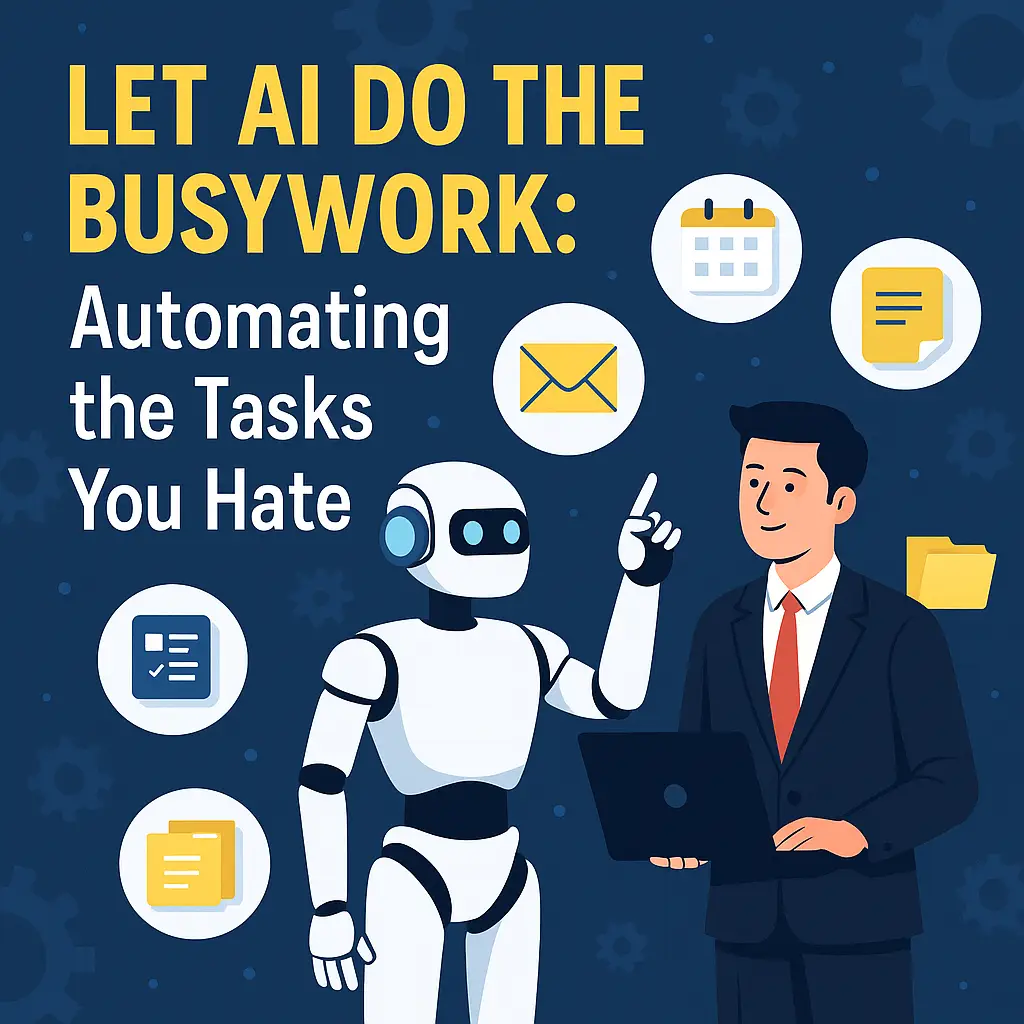
Every week the same small jobs eat the same hours. Confirming appointments. Chasing someone to reschedule. Copying a web form into a spreadsheet. Filing the same kinds of email into the same folders.
You've heard AI can take this off your plate. Some of it can. Some of it doesn't need AI at all, just a rule or a booking page you already pay for.
The quick answer
- Pick one task you do every week that follows the same steps every time.
- Try the built-in tool first. Email rules, a booking page and a simple automation are often already in your Microsoft 365 or Google account.
- Use AI for the parts that need judgment on text: drafting replies, summarizing long threads, turning notes into a tidy list.
- Keep a person on anything that goes to a customer until it's been right for a few weeks.
Which tasks are worth automating
A task is a good candidate when it is:
- Repetitive: same steps, every time.
- Rule-based: you could write the steps on an index card.
- Low risk: if it goes wrong once, nobody loses money or data.
A task is a poor candidate when it involves payments, client confidential data, legal wording, or a judgment call you'd want to explain later.
Try this for one week. Keep a list with three columns: Task, Minutes, Same steps every time? (Y/N). At the end of the week, sort by minutes and look at the Y rows. That's your shortlist.
Fixes, easiest first
1. Email sorting: use rules before AI
Most "email busywork" is moving messages: invoices to one folder, newsletters to another, anything from your biggest client flagged.
Gmail (on a computer): Google's filter instructions:
- In the search bar at the top, click Show search options.
- Enter what to match (sender, subject, words). Run the search to check it catches the right emails.
- Click Create filter.
- Pick what happens (apply a label, skip the inbox, star it), then click Create filter again.
New Outlook for Windows and Outlook on the web: go to Settings > Mail > Rules, then Add new rule. Pick a condition (from, subject contains) and an action (move to folder, flag).
A rule does exactly what you tell it, every time, for free. That's more than you can say for most AI features. If one seems to skip or hide messages, see our fixes for Outlook rules and Gmail filters.
2. Appointments: use the booking page you already have
The back-and-forth of "does Tuesday work?" is the classic time sink.
Microsoft 365: Microsoft Bookings gives you a web booking page tied to your Outlook calendar. Microsoft lists it in Business Basic, Business Standard and Business Premium (and several Enterprise and Teams plans). Microsoft says its email and text notifications "reduce no-shows." Open it at book.ms, or add it to Outlook or Teams from the Apps icon on the left.
Google: appointment schedules in Google Calendar. On a computer: Create > Appointment schedule, set the length and your availability, then set up the booking page, including confirmations and reminders (Google allows up to five). Google notes some appointment schedule features need an eligible Workspace or Google One plan, and you can't create one in the phone app.
Calendly and similar tools do the same job if you already use one. The point is the same: let the customer pick a slot from your real calendar and let the tool send the reminders.
3. Moving data between apps: one simple automation
"When a form comes in, add a row to the spreadsheet and email me" is a job for an automation tool, not a person.
Microsoft 365: Power Automate. Microsoft's license page says basic Power Automate use "is included at no cost for work or school accounts," with "standard connectors only." Standard connectors cover common Microsoft apps such as Outlook, SharePoint and Excel; connecting some outside services needs a paid premium license.
Everything else: Zapier and Make connect a long list of apps without code. Plans and limits change, so check what your automation needs against their current pricing pages before you build.
Start with a two-step automation. One trigger, one action. Watch it run for a week before you add a third step.
4. Writing and summarizing: where AI actually helps
AI is good at the text-heavy jobs: a first draft of a reply, a summary of a long email thread, turning your rough notes into a checklist, rewording a policy in plain English.
Use the version tied to your work account, not a personal login. If you're on Microsoft 365, Microsoft says Copilot Chat (Basic) is included with eligible Microsoft 365 licenses. Sign in with your work account to get it. Our post on which AI tools employees can use has the details for Copilot, ChatGPT, Claude and Gemini, and which ones train on your data.
Don't paste client financials, passwords, health information or anything under an NDA into a chat tool your business hasn't approved.
Why automations break
They do, and usually for boring reasons:
- Someone changed a password and the connection between two apps stopped working.
- A form field got renamed, so the automation copies blanks into the spreadsheet.
- The person who built it left, and nobody knows it exists until it stops.
- The AI draft sounded right but was wrong. A tidy paragraph is not the same as a correct one.
If it's already gone wrong
- Turn it off first. In Power Automate or Zapier, switch the flow or zap off before you fix anything.
- Check what it sent. Look at the run history and your Sent folder for the period it misbehaved.
- Tell the customers it affected with a short, plain note. Most people are fine with "our system sent that twice, sorry."
Our post on why AI assistants still need supervision covers checking AI output in more depth.
Keeping it under control in a business
- Keep a list of every automation: what it does, who built it, which account it runs under. A shared spreadsheet is fine.
- Run automations under a shared or admin-managed account where your tools allow it, not the personal login of whoever set it up.
- Review the list every quarter. Turn off anything nobody uses.
- One staff rule: "Customer-facing messages written by AI get read by a person before they go out."
When to get help
- The automation touches payments, payroll or client records.
- You need to connect a system with no ready-made connector.
- Automations are breaking and nobody can tell which account they run under.
If you'd like a hand setting one up properly, get in touch.
Related reading
- What AI Tools Should My Employees Use Without Getting in Trouble?
- Why Your AI Assistant Still Needs Supervision
- Small Business Success Story with AI: Where to Start So It Actually Saves Time
Originally published December 2025. Updated November 2026.



No comments yet