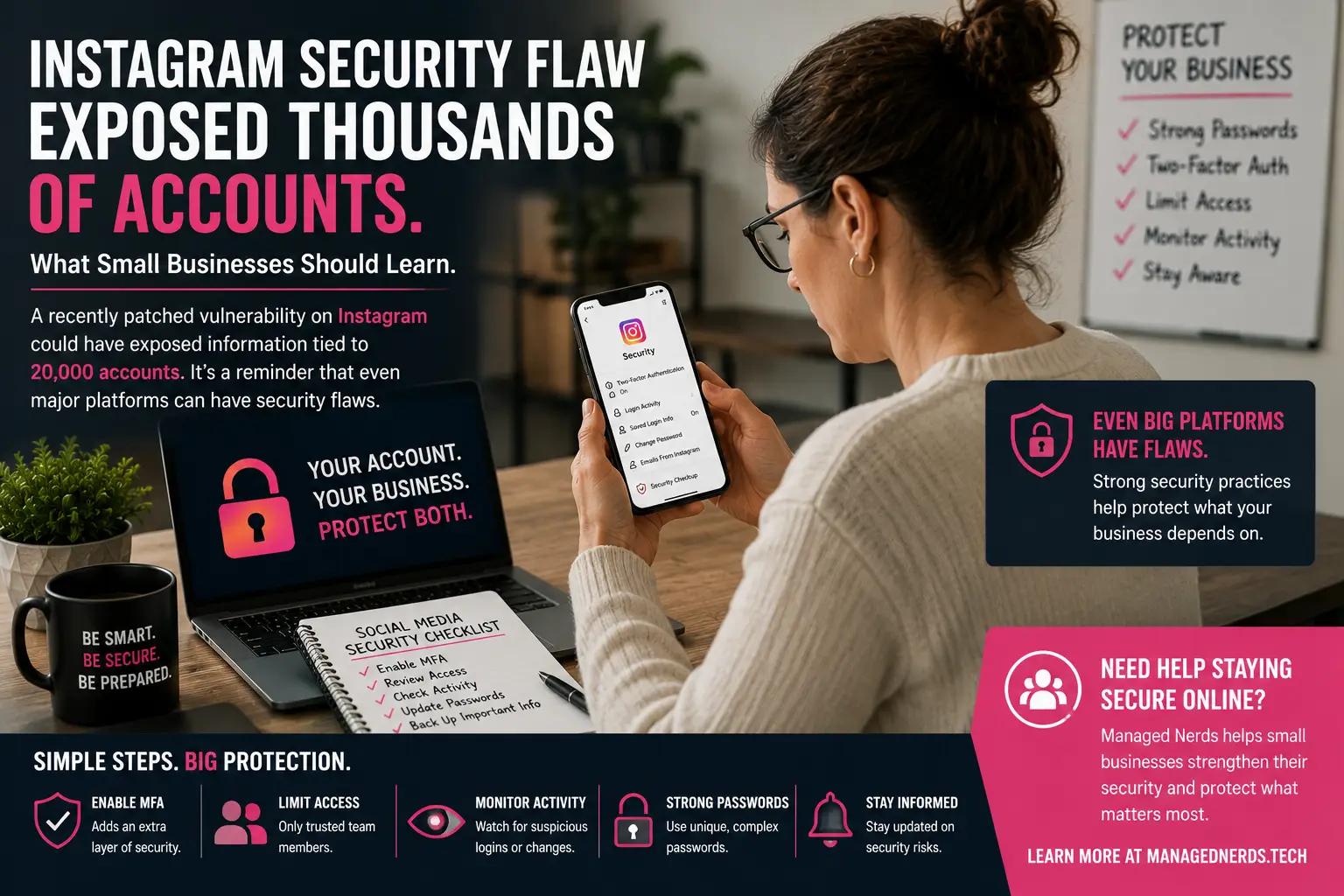
Your business Instagram is where customers message you, where your reviews and photos live, and where a good chunk of new leads come from. Then you read that more than 20,000 Instagram accounts were taken over, and nobody had to guess a password.
Here's the deal. In June 2026, Meta disclosed that attackers had abused a bug in its AI-assisted account recovery support to take over Instagram accounts, as reported by BleepingComputer. Meta says the bug is fixed. The lesson isn't.
The quick answer
- Turn on two-factor authentication on your business Instagram, and on the Facebook account connected to it. Reports said accounts without it were the ones taken over.
- Check the email and phone number on the account. They should be ones your business controls, not an ex-employee's.
- Look at where you're logged in and sign out anything you don't recognize.
- Stop sharing the password. Give staff and agencies their own access instead.
- Write down how you'd prove the account is yours, before you ever need to.
What happened
According to reports of the breach notice Meta filed with regulators, the problem was in Meta's support tool for people locked out of their accounts. The tool, partly run by an AI assistant, didn't properly check that a password reset was going to the email address already on the account.
So an attacker could start a password reset on someone else's account, ask the support chat to send it to an email address they controlled, and take over the account.
Meta found the problem at the end of May 2026, turned off the support tool, and canceled outstanding password reset links. In its breach notice to Maine's attorney general, Meta put the number of affected accounts at 20,225 (BleepingComputer).
Two things are worth noticing. Nobody's password was stolen. And the weak spot was the "I'm locked out, help me" process, which exists to get people around the password.
Why this matters for a small business
Losing a personal account is a bad week. Losing a business account can cost you real money:
- Customer messages go to someone else, or nowhere.
- Leads stop. If Instagram DMs are how people book you, that pipeline just closed.
- Your reputation gets borrowed. Hijacked accounts are a favorite way to send scams to followers, who trust the account because it's yours.
- Ads can run on your card, if the account is connected to an ad account.
And getting a business account back can take a while. Meta's support isn't a phone number you can call and explain yourself.
How to check your account right now
This takes about ten minutes. Do it on the account owner's phone.
1. Turn on two-factor authentication
In the Instagram app, go to your profile, tap the menu, then Accounts Center > Password and security > Two-factor authentication. Pick the account, then choose an authentication app if you can. A text message code is better than nothing, but an app is harder to steal.
Do the same for the Facebook account linked to the business page.
Two-factor authentication means a password alone isn't enough to get in. In this case, reports said it was what stood between attackers and the account.
2. Check the contact details
Under Accounts Center > Profiles and personal details (Meta is gradually renaming Accounts Center to Meta Account settings, so you may see either), look at the email address and phone number. Ask yourself one blunt question: if this person left tomorrow, could we still get in?
Use an email address on your business domain that more than one person can reach, like a shared admin mailbox. Not a personal Gmail. Not your old marketing coordinator's work email.
3. Sign out sessions you don't recognize
Under Accounts Center > Password and security > Where you're logged in, you'll see the devices signed in. Anything you don't recognize, log it out. Then change the password.
4. Stop sharing one login
If your team and your agency all use the same username and password, you've got a spare key in everyone's pocket and no idea who used it last.
Instead, give people their own access through Meta Business Suite, with only the permissions they need. When someone leaves, you remove them. No password change, no scramble.
5. Keep ownership records
Meta can ask you to prove an account is yours. Keep these in one safe place:
- The email and phone number originally used to set up the account
- Any receipts for ads paid from the account
- Your business documents (registration, a utility bill with the business name)
- Screenshots of the profile, follower count and recent posts
It feels like overkill until you need it.
Why "the platform handles security" isn't enough
Big platforms do spend a lot on security. They also run enormous, complicated systems, and bugs show up in all of them: social media, cloud storage, email, phones.
Think of it like a landlord. They're responsible for the building's front door. You're still responsible for locking your own unit. When the front door has a problem, the people who locked their own door are in much better shape.
This bug went after the account recovery process, not the password. That's the part most people never think about, and it's why we keep saying layered security exists for a reason. Two-factor authentication, contact details you control, and fewer shared logins each close a different gap.
If your account has already been taken over
- Check your email for a message from Instagram about a changed email address or password. It may include a link to reverse the change. Use it right away.
- Use Instagram's own recovery flow from the login screen ("Forgot password?" or "Need more help?"). Only use links that come from Instagram or that you typed in yourself. Fake "Meta support" pages and DMs offering to recover your account are scams.
- Warn your customers through your other channels (email list, website, Google Business Profile, Facebook if it's still yours) that the Instagram account isn't you right now and not to pay or click anything it sends.
- Check your ad account for spending you didn't approve, and call your card issuer if you see any.
- Once you're back in, turn on two-factor authentication, change the password, remove unknown devices and people, and check the email and phone on the account.
Preventing it in a business
- Two-factor authentication on every business social account, using an authenticator app.
- A shared business email address as the recovery email, not a personal one.
- Individual access through Meta Business Suite instead of a shared password.
- An offboarding step: when someone leaves, remove their access to social accounts the same day.
- A short ownership file with the setup details and documents listed above.
One-line staff rule: nobody shares the social media password, and nobody "helps" support recover the account except the owner.
When to get help
- You can't get back into an account that brings in leads, and Instagram's recovery flow isn't working.
- You don't know who has access to your social accounts right now, or which email they're tied to.
- A hijacked account has been messaging your customers.
If you'd like a hand sorting out who has access to what, get in touch.
Related reading
- Credential stuffing: why that old breach email might be breaking into your business
- MFA fatigue attacks: why your phone keeps buzzing and how passkeys stop it
- WhatsApp just blocked 3 million scam accounts. Is your business next?
Originally published June 2026.


No comments yet