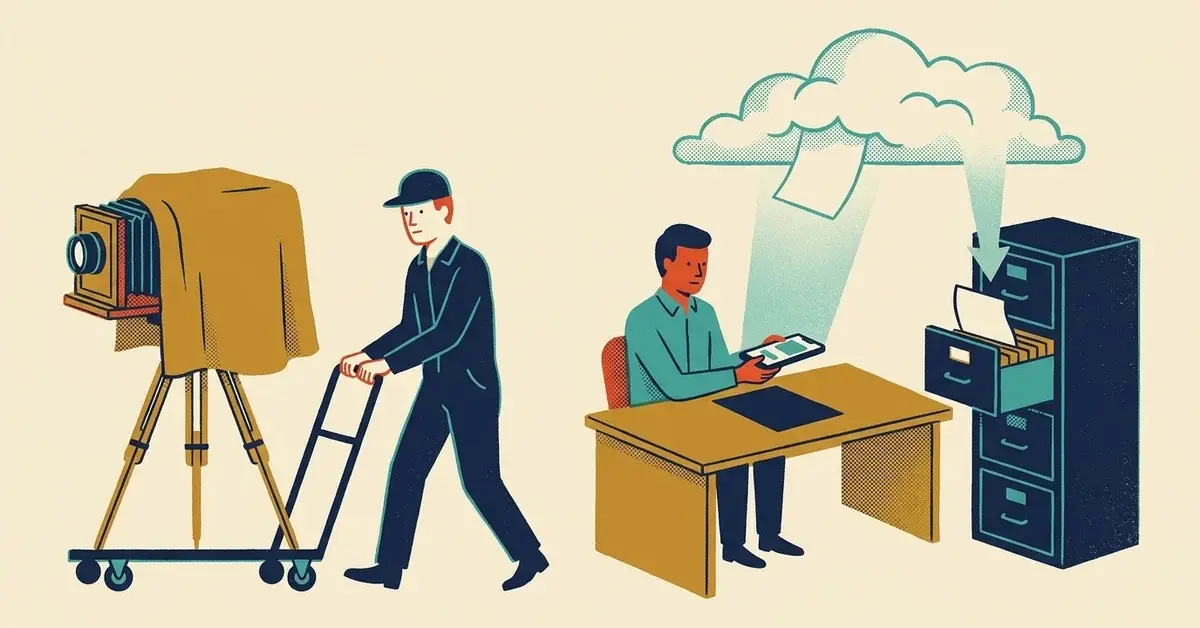
Your team scans receipts, signed contracts and vendor invoices with Microsoft Lens (the app that used to be called Office Lens). Now it won't make a new scan, or it isn't in the app store anymore.
That's not a glitch. Microsoft retired it.
The quick answer
- Install the OneDrive app on each phone that scans for work and sign in with the work account.
- Scan with + > Scan photo in OneDrive. Scans land in OneDrive, not on the phone.
- Before anyone deletes Lens, open it and move any old scans you still need into OneDrive.
- Tell the team which scanner to use, and which ones not to.
What Microsoft changed, and when
From Microsoft's Retirement of Microsoft Lens notice, for Lens on iPhone, iPad and Android:
- January 9, 2026: retirement starts.
- February 9, 2026: support ends and Lens is removed from the Apple App Store and Google Play.
- March 9, 2026: last day to create new scans.
- After that: past scans stay viewable only while the app is still installed, and only if you're signed in to the last account you used in it.
So if you're reading this after March 2026: Lens can't scan anymore, and once it's deleted from a phone it can't be reinstalled from the store.
How to tell where you stand
Check each phone that's used for work scanning.
- Lens is still installed, with old scans in it. Rescue them first (below). Don't delete the app yet.
- Lens is installed, nothing in it you need. Delete it and set up OneDrive.
- Lens is already gone. Skip to setting up the replacement. Anything saved to OneDrive, email or the phone's photos from Lens is still where it was sent.
- Someone switched to a random free scanner app on their own. Find out which one and where it saves files. That's the one to worry about.
Fix 1: rescue old scans before you delete Lens
- Open Lens and make sure you're signed in to the last account you used. Microsoft says you need that account to see past scans.
- Open each scan you still need.
- Share or save it to the right OneDrive or SharePoint folder for the business, not to the phone's camera roll.
- Once everything you need is out, delete the app.
Ten minutes per phone, tops. And it beats losing a signed contract.
Fix 2: switch to scanning in OneDrive
OneDrive is Microsoft's recommended replacement. Steps from the same Microsoft notice:
- Open the OneDrive app on the phone.
- Tap the + button in the bottom corner.
- Tap Scan photo.
- Save the scan to the folder you want in OneDrive.
One catch Microsoft calls out: OneDrive doesn't save scans locally on the phone. For a business that's mostly a good thing. The file goes straight to the company's storage instead of sitting on someone's personal device.
Use the work account, not a personal Microsoft account. Otherwise the contract ends up in someone's personal OneDrive, and you find out when they leave.
A Microsoft support answer on Microsoft Q&A admits OneDrive's scanner doesn't do everything Lens did. If your team relied on a specific Lens feature, test the OneDrive version on a real job before you roll it out.
Other scanners that are already on the phone
If you're not a Microsoft 365 shop, you probably don't need a new app at all.
- iPhone or iPad: the Notes app scans. Open a note, tap the Attachment button, then Scan Documents (Apple Support).
- Android with Google Workspace: the Google Drive app scans. In Drive, tap Camera at the bottom right, capture the page, tap Done, pick PDF, choose a Location folder and tap Save (Google Drive Help).
Same rule as OneDrive: save to the company's shared storage, not the phone.
Picking a third-party scanner app
Adobe Scan and Genius Scan are the names that come up most. Before anyone installs one for work, run through this:
- Where does it save files by default: the phone, its own cloud, or yours?
- Does it need an account? Whose email is on it?
- Is the free version funded by ads or by selling data? Read the privacy policy, not the app store blurb.
- Can it save straight to OneDrive, SharePoint or Google Drive?
- What happens to the files if that person leaves?
If you can't answer those, stick with the scanner built into the storage you already pay for.
Why this matters more than one app
Scanning feels small. But the things that get scanned aren't: IDs, signed contracts, bank details on a vendor invoice, tax forms.
When a tool disappears, people grab whatever's handy. That's how a client's driver's license ends up in a free app nobody vetted, or in a camera roll that syncs to a personal cloud account.
The app changed. The job didn't. Decide where scans go, and make that the easy path.
Preventing the next one
- Write down the scanner. One line in your staff notes: "Scan with OneDrive (or Notes / Drive). Save to the shared folder. No other scanner apps."
- One folder per document type. Receipts, contracts, onboarding. People save to the right place when the place exists.
- If you manage phones with Intune or another device management tool, remove Lens from any required-app lists, push OneDrive instead, and make sure your app protection policy covers it.
- Keep a short list of the apps the business depends on. When Microsoft, Google or Apple retires one, you'll know in a minute who's affected.
When to get help
- Scans of IDs or financial documents are sitting on personal phones and you don't know how many.
- You have staff using personal phones for work and no way to control where company files go.
- You're not sure whether your Microsoft 365 plan includes the device or app management you'd need.
That's the kind of cleanup we do. Get in touch if it's on your list.
Related reading
- Lost phone or angry ex-employee? Protecting company data on personal phones
- The Microsoft 365 security settings small businesses never turn on
- Do your backups actually protect you from ransomware? A 10-minute check and the 3-2-1 rule
Originally published January 2026.


No comments yet