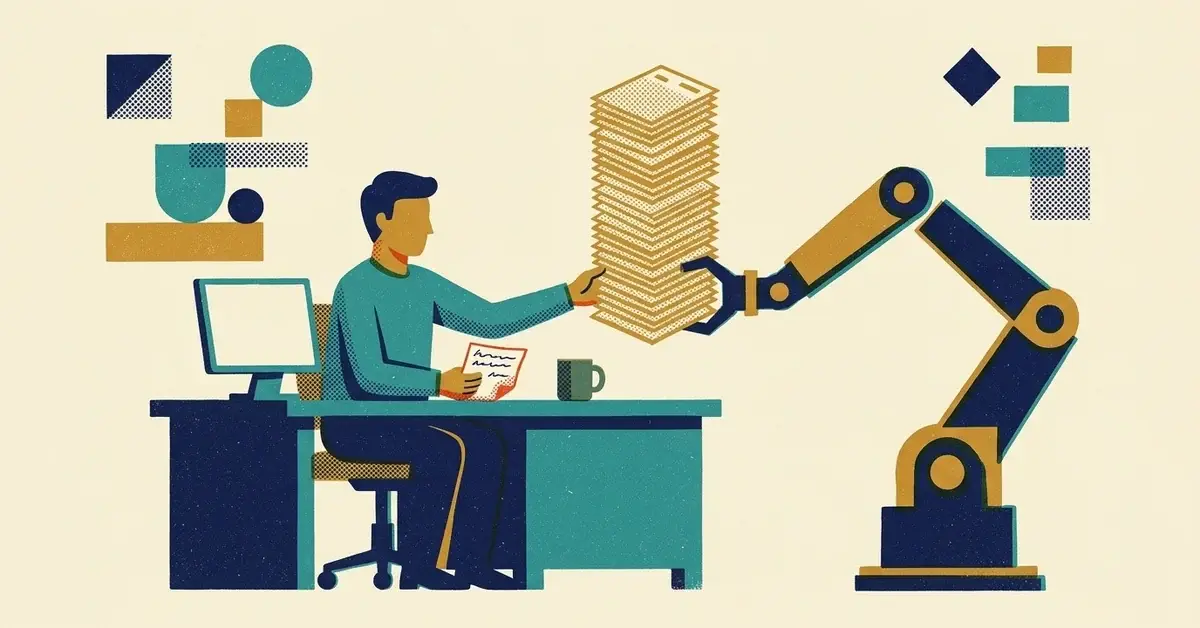
You work in a small office. You answer the phone, send the invoices, keep the schedule and write most of the emails. And lately the boss keeps bringing up AI.
So the question sits there: is it coming for my job?
Honest answer: it's coming for some of your tasks. Whether that shrinks your job or makes it better depends a lot on what you do in the next few months. This post gives you a 30-minute way to check your own week, and what to say to your boss afterward.
The quick answer
- Look at tasks, not your job title. AI takes over pieces of work before it touches whole jobs.
- List your week in a simple sheet (layout below). Thirty minutes, tops.
- Mark the tasks that are mostly looking things up or writing standard text. Those are the ones AI handles best right now.
- Try the AI tool your workplace already approves on your biggest one of those, on your work account.
- Tell your boss what you found, with the hours saved. Offer to own it.
What the research says so far (as of November 2026)
Nobody knows exactly how this plays out. Two pieces of research are worth knowing about, because they look at what's actually happening rather than guessing.
So far it shows up in hiring, not layoffs. In March 2026, economists at Anthropic (the company that makes the Claude AI assistant) published Labor market impacts of AI. They found "no systematic increase in unemployment for highly exposed workers since late 2022." What they did find was "suggestive evidence" that hiring of younger workers has slowed: for 22 to 25 year olds, the rate of finding a job in the most exposed occupations is about 14% lower than in 2022. They call that result "just barely statistically significant" and describe the effects so far as limited.
Office work is right in the overlap. Microsoft Research's paper Working with AI (July 2025) looked at what people actually ask AI to help with at work. The most common activities were gathering information and writing. The job groups where AI's abilities overlap most with the work include office and administrative support, and sales. That's a measure of overlap, not a layoff forecast. But it tells you where change shows up first.
Put those together and you get the real picture. Most people aren't being replaced. The routine parts of office jobs are changing, and the first rung of the ladder, the simple work new hires used to learn on, is getting thinner.
Run the 30-minute task check
Open a spreadsheet or grab a notepad. One row per task you do in a normal week. Five columns:
- Task: in plain words ("send payment reminders for overdue invoices").
- Hours a week: your honest guess.
- Type: Look-up, Writing, Numbers, People or Judgment.
- Could AI do a first draft? Yes, Partly or No.
- What happens if it's wrong? Nothing much, Embarrassing, or Costs money.
An office manager at a ten-person company might end up with rows like these:
- Answering "what are your hours / do you service my area" emails: Writing, Yes, Embarrassing.
- Sending payment reminders: Writing, Yes, Costs money (wrong amount).
- Building next week's crew schedule around call-outs: Judgment, Partly, Costs money.
- Calming down the customer whose job ran late: People, No.
Now sort by hours.
How to read your sheet
- Lots of hours in Look-up and Writing with a "Yes": these tasks will change first. That's your warning, and your opening. You want to be the person who changes them, not the person they're changed around.
- Most hours in People and Judgment: AI is a helper for you, not a rival. Use it to clear the paperwork so you have more time for the parts only you can do.
- Anything marked "Costs money": AI can draft it, but a person checks it every single time. That checking is a skill. Say so when you talk to your boss.
Try AI on your top task this week
Pick the row with the most hours that's Look-up or Writing with a "Yes."
Use the approved tool, on your work account
If your office runs on Microsoft 365, Copilot Chat is the usual starting point. Sign in with your work account and look for the green shield at the top of the chat. Microsoft says that shield means enterprise data protection is on, and that prompts and responses "aren't used to train the underlying foundation models." If your office uses Google Workspace, ask whether Gemini is included in your plan.
Don't paste customer details into a personal AI account. If you're not sure what's approved, ask before you start. That question alone tells your boss you're thinking about this the right way.
A prompt to start with
I work in a small [type of business] office. I need to [task]. Here's an example of how I usually do it: [paste a past example with names and account numbers removed]. Write a first draft in the same style. Keep it short. Don't add any facts I didn't give you.
Time it honestly
Write down how long the task took before. Then how long it takes with AI, including the time you spend checking and fixing. If the checking eats the savings, that's a useful result too. Not every task is worth handing over.
What to say to your boss
Your boss is probably wondering the same things you are, from the other side of the desk. Go to them first. Something like:
I've been trying [tool] on [task]. It took about [X] hours a week before and about [Y] now, including checking everything it writes. I'd like to keep doing it, and use the time for [the thing that never gets done: following up on old quotes, cleaning up the customer list]. Can we agree which tasks are OK to use it on, and which aren't?
That conversation does three things. It shows you're ahead of the change. It puts a real number on the table. And it makes you the person in the office who knows how this stuff works, which is a much better spot than the person who hoped it would go away.
A six-month plan
Month 1: learn the basics
Microsoft's AI Fluency learning path on Microsoft Learn is seven beginner modules: AI basics, generative AI, search and prompting, responsible use, and getting started with Copilot. It's aimed at business users, not programmers.
Months 2 and 3: your top three tasks
Work down your sheet. One task at a time. Keep a note of the prompt that works for each, so you're not starting from scratch every week.
Months 4 to 6: the skills next to AI
Pick the ones that make you harder to replace:
- Checking. Catching the wrong date, the made-up detail, the price that doesn't match. AI writes with full confidence whether it's right or not.
- Clear instructions. People who can explain a task in writing get better results from AI and from coworkers.
- Spreadsheets. Sorting, filtering and a basic pivot table cover most of what a small office needs.
- People. The hard phone call, the upset customer, the vendor who needs a nudge.
All six months: keep a wins log
One line each time: "Monthly report went from four hours to one. Spent the other three calling back old quotes." That log is worth more at review time than any job title.
If your hours are already being cut
That's hard, and it's not a verdict on you.
Ask directly which tasks are going away and which ones are growing. Ask whether there's time or money for training. Write down everything you do that isn't in your job description, because a lot of what holds a small office together never makes it onto paper. And put the AI skills you actually use on your résumé, with the numbers from your wins log.
When to get help
This part is for whoever runs the office. If any of these sound familiar, it's worth getting someone to set things up properly:
- Staff are already using personal AI accounts for work, and nobody knows what's been pasted where.
- You're not sure which AI features your Microsoft 365 or Google Workspace plan includes, or they don't show up for your users.
- There are no written rules yet on which tasks AI can be used for.
If that's where you are, we can help you sort it out.
Related reading
- Will AI Replace My Employees? What It Really Takes Over in a Small Business
- How to Train Your Team to Use AI: A 4-Week Plan for Small Businesses
- What AI Tools Should My Employees Use Without Getting in Trouble?
Originally published May 2025. Updated November 2026.




No comments yet