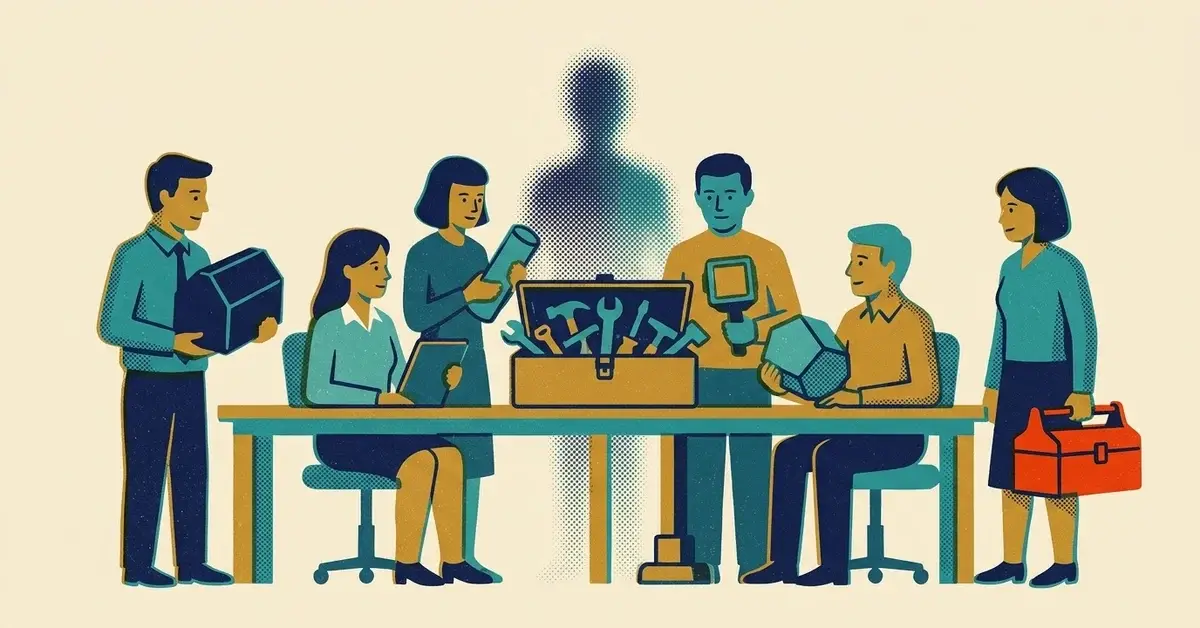
Ask your team which AI tools they use for work and you'll probably get a different answer from each person. One uses ChatGPT on a personal Plus account. One swears by Claude. One uses Copilot because it was already there. The new hire uses whatever their last job paid for.
Nobody's doing anything sneaky. But together it works like a shadow employee: someone doing real work for your business that you can't see, can't train, can't check and can't switch off when they leave.
This post is about getting from five tools to one, without losing the useful work people have built up. If you haven't picked which tool is safe yet, start with what AI tools your employees should use, then come back.
The quick answer
- Find out what's in use, including the subscriptions showing up on expense reports.
- Pick one standard tool on a business plan, signed in with work accounts.
- Move the good stuff over: saved prompts, custom instructions and the few chats worth keeping.
- Put shared prompts in one place the business owns.
- Cancel the extras and disconnect them from email and files.
- Add AI accounts to your offboarding checklist, so nothing walks out the door with the next person who leaves.
What "everyone uses something different" actually costs
It's not just untidy. Here's what goes wrong:
- Work you don't own. A personal ChatGPT or Claude account belongs to the person, not to you. When they leave, their chats, custom instructions and saved prompts go with them.
- No off switch. You can't remove someone from a tool you never gave them. Any client details pasted into a personal account stay there.
- Answers that don't match. Two staff ask two tools the same client question and send two different answers. Each tool has its own instructions, or none.
- Paying twice. You might already pay for Copilot Chat through Microsoft 365, or for Gemini through Google Workspace, and then reimburse personal AI subscriptions on top.
- No record. With business plans, an admin can see who has access and what happens to their data. With personal accounts, nobody can.
It's also normal. In a 2023 Salesforce survey of more than 14,000 workers, over half of those using generative AI at work said they were doing it without their employer's formal approval (Salesforce, November 2023). So this isn't about catching anyone out.
Step 1: Find out what's in use
Ask, then check. Make it clear nobody's in trouble, or you won't get the real answer.
Ask
Send a short message to everyone:
"Quick one, no wrong answers: which AI tools have you used for work in the last month? Include browser extensions, phone apps and anything you pay for yourself. We're picking one to pay for properly."
Check the money
- Expense reports and company card statements for the last three months. Look for OpenAI, Anthropic, Google, Microsoft, Perplexity, Jasper, Grammarly and anything with "AI" in the name.
- App store receipts if staff expense phone apps.
Check the connections
Some tools aren't just websites. They connect to your email and files. Our post on auditing connected AI tools has the click paths for Microsoft 365, Google and browsers. Write down everything you find with one line each: tool, who uses it, personal or work account, what it's connected to.
Step 2: Pick one standard
One tool for general writing and summarizing, on a business plan, signed in with work accounts. Two at most.
It depends on what you already have:
- Microsoft 365: start with Copilot Chat signed in with a work account. It's included in Microsoft 365 business plans. The paid Microsoft Copilot license adds work across your email and files.
- Google Workspace: check whether your edition includes Gemini, and use it with work accounts.
- Team prefers ChatGPT or Claude: pay for the business plan (ChatGPT Business, or Claude Team), not a personal Plus or Pro plan per person.
The employee AI tools post compares how each business plan handles your data.
Step 3: Move the good stuff over
People will resist switching if it means losing the prompts and chats they've built up. So help them move what's worth keeping. Most of it isn't. A handful of prompts and a few reference chats usually is.
From a personal ChatGPT account to ChatGPT Business
OpenAI lets someone merge their personal workspace into your Business workspace. In the Business workspace, go to Settings > Data controls and choose Merge next to the personal workspace (OpenAI Help). Three things to know first:
- It's all or nothing. You can't pick individual chats.
- Not everything transfers, so save copies of anything important before merging.
- After the merge, that content follows your company's rules. Good for you. The employee should know that before they move personal chats in.
If they'd rather keep personal chats personal, they can export them instead: Settings > Data controls > Export data on Free, Go, Plus and Pro accounts (and eligible Edu workspaces). The download link arrives by email, which can take up to 7 days, and expires 24 hours later, so ask for it well before the switch (OpenAI Help). Then they copy the few prompts that matter into your shared library (Step 4).
From a personal Claude account
On the web or desktop app: Settings > Privacy > Export data (Anthropic Help). It doesn't work from the phone apps.
Custom instructions and custom GPTs
These don't move on their own. Have each person open their custom instructions (and any custom GPTs or Claude projects they rely on), copy the instruction text into a document, and rebuild the ones the team actually needs in the business account.
Step 4: Put shared prompts in one place
A prompt that writes your best follow-up email shouldn't live in one person's chat history. Put the team's prompts in a shared document or folder the business owns: a SharePoint page, a OneDrive or Google Drive folder, or a page in whatever your team already uses.
Give each prompt a name, what it's for, and who looks after it. Our post on backing up prompts and workflows has a simple layout for the library and the save features inside Copilot and ChatGPT.
Step 5: Cancel the extras
Once the standard tool is set up and people have moved their work:
- Stop reimbursing personal AI subscriptions from a set date. Give people a couple of weeks' notice.
- Disconnect anything that had access to work email, OneDrive, Google Drive or your CRM.
- Ask people to turn off model training on any personal account they keep for personal use, and to stop using it for client work.
Step 6: Add AI to offboarding
When someone leaves, take them off the AI tool the same day you take them off email. What happens to their work depends on the tool:
- ChatGPT Business: removing a member cuts off access straight away. OpenAI says their chats, files and canvas documents are kept, and come back if you re-add them (OpenAI Help).
- Microsoft Copilot: prompts and responses are stored in the person's own mailbox, in a hidden folder. If their Microsoft 365 account is deleted, Copilot messages covered by a retention policy move to an inactive mailbox and can still be found with eDiscovery (Microsoft Learn). No retention policy, no copy, so check with whoever manages your Microsoft 365 before you delete a departing user's account.
- Personal accounts: you get nothing back. That's the whole reason for Steps 1-5.
Keeping it from drifting back
- One line in your AI policy: "For work, use [tool], signed in with your work account. Ask [name] before using anything else."
- A quarterly five-minute check: expense reports, connected apps, and who still has an account.
- Make the approved tool the easy one. People use whatever saves them time. If the business tool has the good prompts in it, they'll use it.
One-line staff rule: work AI lives in a work account, so the work stays when you go.
When to call someone
- You've found AI tools connected to email or files and don't know what they can see.
- Someone left and their AI account held client work you can't get back.
- You're on Microsoft 365 and nobody has set up retention for Copilot or checked who has access to what.
If that's you, we can help sort it out.
Related reading
- What AI tools should my employees use without getting in trouble?
- Which apps can access your business email and files? How to audit connected AI tools
- Your AI "employee" can quit on you: how to back up prompts, workflows and know-how
Originally published January 2026. Updated November 2026.



No comments yet