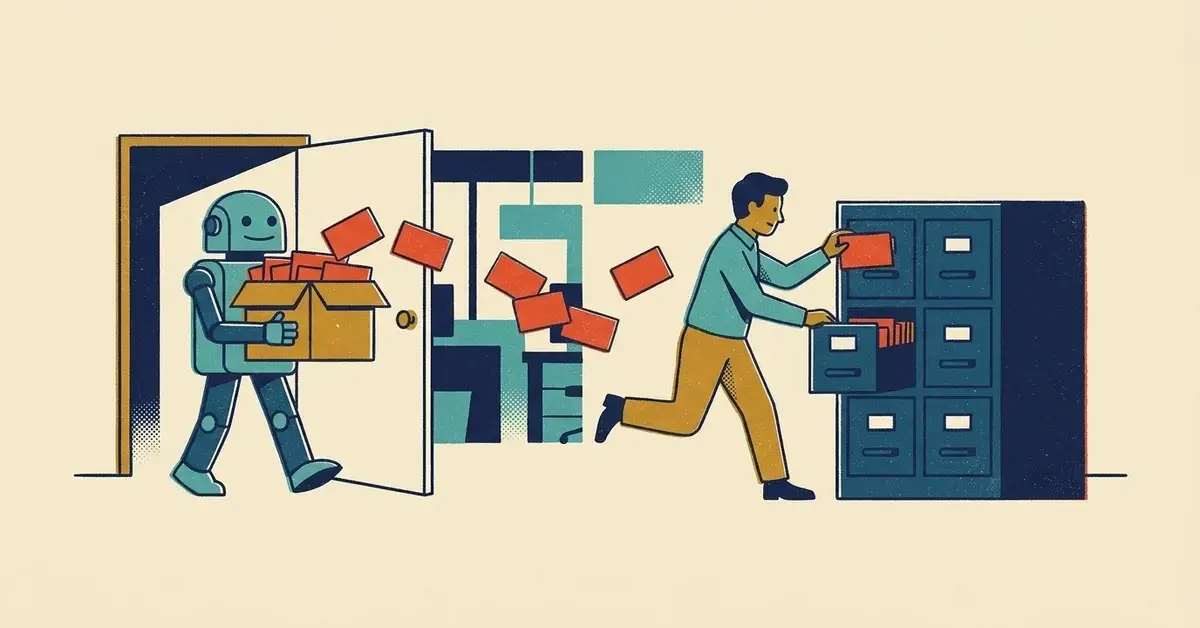
You finally got a prompt that works. It turns messy client emails into clean replies, or builds an estimate summary, or drafts the week's social posts without sounding strange.
Then one morning it doesn't. The tool updated and the output changed. Or the person who wrote it left, and the prompt left with them. Or it's somewhere in a chat thread under 900 other conversations.
That prompt was never a tip. It was a process. And right now the business doesn't own it.
The quick answer
- Copy your best prompts out of the AI tool and into one shared document or folder the business owns.
- Give each one a name, a version number and a short note: when to use it, what to paste in, what good output looks like.
- Test the important ones in a second AI tool, so a change at one vendor doesn't stop the work.
- Make "hand over your prompts" part of the checklist when someone leaves.
That's the core of it. The rest of this post is how to do each step properly.
How to tell if you're at risk
Run through these. Each "yes" is a prompt you could lose.
- It only exists in a chat history. Nobody has copied it anywhere else.
- One person "knows how to get the AI to do that." Ask them to write it down. If they can't, or it takes an hour, that's the risk.
- It's on someone's personal account. A free or Plus ChatGPT login, a personal Gmail, a phone app. When they go, it goes.
- Nobody knows which version is current. Three people have three slightly different copies.
- It's tuned to one model. It worked great until the model behind it changed.
That last one isn't hypothetical. OpenAI retired GPT-4o, GPT-4.1, GPT-4.1 mini and o4-mini from ChatGPT on February 13, 2026, two weeks after announcing it. Anyone whose workflow depended on how one of those models answered had to retest it.
Fix 1: Build a prompt library the business owns
No special software. A Word document in SharePoint, a Google Doc in a shared drive, or a spreadsheet works. What matters is that it lives in a company account, not someone's personal one.
One row or section per prompt, with these fields:
Field | What goes in it |
|---|---|
Name | Plain and searchable: "Review reply", "Estimate summary" |
Version and date | v3, updated October 2026, and who changed it |
The prompt | The full text, copied exactly |
Inputs | What you paste in: the email, the job notes, the price row |
Good output | One example of a result you were happy with |
Never include | Client names, card numbers, passwords, anything confidential |
Tested in | Which AI tools and models it's been checked in |
Keep the old versions. When v4 turns out worse than v3, you want v3 back in 30 seconds, not rebuilt from memory.
Fix 2: Use the save features your AI tool already has
These help, but they're a second copy, not the main one. A save feature inside a tool doesn't help you when you leave the tool.
Microsoft 365 Copilot
Copilot Prompt Gallery keeps prompts users save under Your Prompts, and prompts can be shared with a Microsoft Teams team so everyone on it can reuse them. As of Microsoft's July 15, 2026 release notes, admins can also build prompt collections and publish them to the whole tenant from the Microsoft 365 admin center. To go a step further, our guide to building a shared AI assistant covers a Gem or Copilot agent with your rules built in.
If someone has already left, an admin can still export the prompts a user saved, liked or shared with a PowerShell script. Microsoft's instructions need an account with the Global Administrator role, so this is an IT job, not a five-minute one.
ChatGPT on a personal plan (Free, Plus or Pro)
You can download everything:
- Click your profile icon (bottom left).
- Settings > Data controls > Export data > Export, then Confirm export.
- Watch for the email. OpenAI says the download link expires 24 hours after it arrives, so grab it the same day.
That gets you a ZIP of the chat history. You still have to dig the good prompts out of it, which is why Fix 1 matters more.
ChatGPT Business or Enterprise
The export above isn't available on these workspaces. What happens when someone is removed is the part to know. According to OpenAI's help article on removed members, their custom GPTs and projects are reassigned to a workspace owner, but their own chats and files are not transferred and aren't visible to the owner.
So the GPT survives. The ten conversations where they figured out how to make it work don't. Get the prompts into the library before the account is removed.
Fix 3: The two-tool test
If a prompt only works in one tool, it's fragile.
Once a quarter, take your five most-used prompts and run each one in a second tool. Copilot and ChatGPT, or ChatGPT and Gemini, whatever you have. Note in the library whether it worked as-is or needed changes.
You're not switching tools. You're making sure you could.
Why prompts disappear
- Chat history isn't a filing system. It's sorted by date, not by what the prompt does.
- The know-how is in the follow-ups. The first prompt rarely worked. The fix was in message four ("shorter, no exclamation marks, use our price list"), and nobody copied message four.
- Models change. Vendors retire and replace models on their own schedule. The same words can produce different results after an update.
- Accounts are tied to people. When the person goes, the account usually goes with them.
If you've already lost one
- Check the person's account before it's deleted. In Microsoft 365, convert or hold the mailbox and OneDrive per your usual offboarding. In a ChatGPT Business workspace, ask the owner whether the GPTs and projects came across.
- Search old outputs. The prompt is gone, but the emails, quotes or posts it produced are still in Sent Items or the shared drive. Paste three good examples into an AI tool and ask it to write a prompt that produces output like them. Then test it.
- Write it down this time. Straight into the library, with a version number.
Preventing it in a business
- One library, one owner. Someone is responsible for keeping it current. Not everyone, one person.
- Company accounts for business AI work. Personal logins mean personal property, in practice if not on paper.
- A one-line staff rule: "If you use a prompt more than twice, it goes in the library."
- Add it to offboarding. Next to "return the laptop" and "transfer the mailbox": "export or copy your prompts and workflows."
- Keep secrets out of prompts. The library will be shared, so treat every prompt like a document anyone in the company might read. No client data, passwords or card numbers in the saved text.
NIST's AI Risk Management Framework, a voluntary guide, puts a "Govern" function at the center: knowing who owns an AI process and how it's managed. You don't need the full framework. A shared doc with names and versions is the small-business version of the same idea.
When to get help
- People in the business are using different AI tools on personal accounts, and you don't know what's in them.
- Someone who built your AI workflows is leaving, and you need the prompts, GPTs and saved work moved to company accounts before their access ends.
- You want Copilot prompts published to the whole team, or a Microsoft 365 export done, and nobody has the admin access or time.
That's the kind of cleanup we do. Get in touch if it's on your list.
Related reading
- How do I use AI to create standard operating procedures (SOPs) my team will actually follow?
- Your team's AI is a shadow employee: the hidden risk of everyone using different tools
- AI is remembering your business wrong: the hidden risk of reused prompts and old info
Originally published December 2025. Updated November 2026.



No comments yet