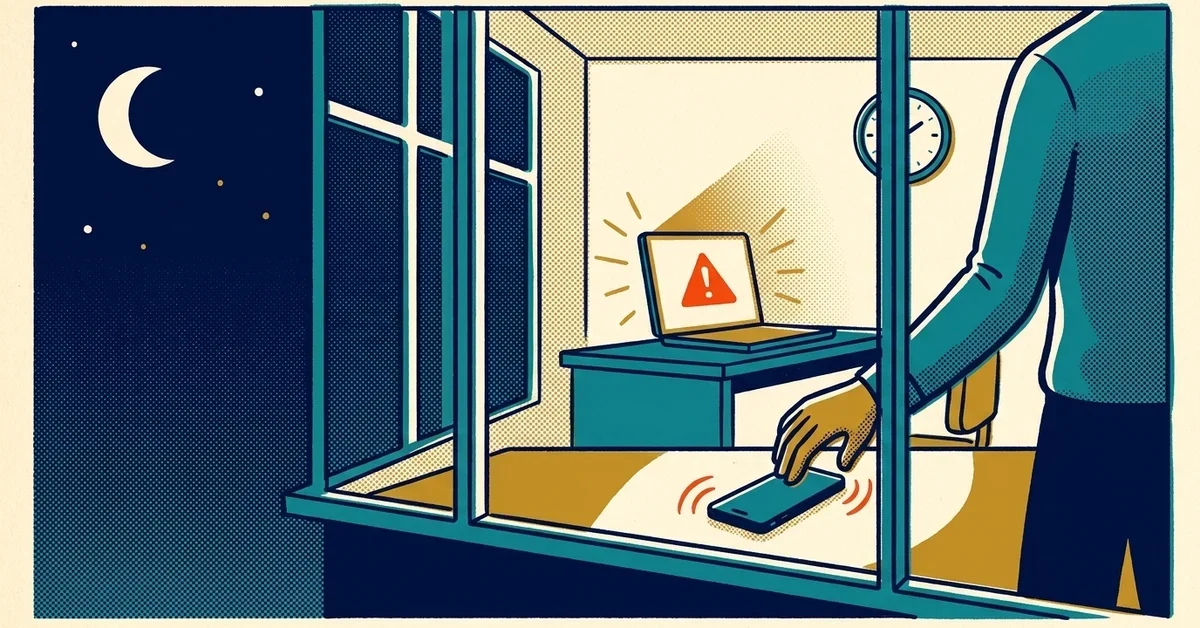
Your IT person is good. They set up the laptops, keep Microsoft 365 running and know where everything is. They're also one person. This week they're on a cruise with no signal, and at 2:14 on Saturday morning an alert lands in their inbox: a computer in accounting is doing something it shouldn't.
Nobody reads it until Monday. That's the gap this post is about. Not whether your security tools work, but who acts on them when the one person who knows them isn't there. Ask yourself now, while nothing is on fire.
The short answer
- Find out where your security alerts go today. Usually it's one inbox, and usually it's your IT person's.
- Name at least two people (or one company) who answer after hours, and make sure both can actually get into the systems.
- Agree in advance on two actions they can take without waking you: cut a computer off the network, and lock a user's account.
- Write a one-page contact card: your IT person, your security partner if you have one, your cyber insurance claims line, your bank's fraud line.
- Test it once. Pick a weekday afternoon, pretend it's 2am, and see who answers.
If an alert is going off right now
If you're reading this mid-incident and you're not technical, these steps are safe for anyone:
- Cut the affected computer off the network. Unplug its network cable, or turn off its Wi-Fi. CISA's #StopRansomware guide puts isolating affected systems first.
- Don't turn it off unless you can't disconnect it. The same guide treats powering down as the fallback, because shutting down wipes evidence held in memory that investigators may need.
- Talk by phone, not email. CISA advises coordinating by phone or another out-of-band channel so attackers watching a compromised mailbox don't learn they've been spotted.
- If it's a Microsoft 365 account, someone with admin rights should reset the password and sign the user out of all sessions (steps below).
- Call your insurer's claims line before you hire anyone or pay anyone. Your policy may say who you have to notify and which response firms it covers.
Do you have a 2am gap? Three questions
Answer honestly:
- If a security alert arrives at 2am on a Saturday, who sees it, and how fast? "It goes to an inbox" isn't an answer. Inboxes don't wake people up.
- Who covers when your IT person is on vacation, out sick or quits? If the answer is "we'd figure it out," you have a gap.
- Does that backup person have the access to act? Knowing the alert came in doesn't help if they can't sign in to the admin center or reach the computer.
The timing isn't hypothetical. When Mandiant reviewed its ransomware investigations from 2017 to 2019, it found ransomware was set off after hours (weekends, or before 8am or after 6pm on weekdays) in 76% of incidents. Its researchers suggested some attackers pick those times on purpose, expecting the response to be slower.
Step 1: Find out where your alerts actually go
Make a short list of every system that can tell you something is wrong, and next to each one, write down who gets the alert and how:
- Your endpoint security or EDR (the agent on each computer).
- Microsoft 365 or Google Workspace security alerts.
- Your backup system's failure emails.
- Your firewall, if it sends alerts.
You're looking for two things: alerts that only go to one person, and alerts that only arrive by email. Both are fine at 2pm on a Tuesday and useless at 2am on a Saturday.
A common surprise here: buying a security product with a 24/7 team behind it doesn't mean that team handles everything. Huntress, for example, says its 24/7 SOC investigates around the clock and, for high-impact threats, can take response actions such as isolating a computer or remediating a compromised identity. Its pricing page is upfront that buying direct leaves part of the job with you: the SOC "still hunts, investigates, and stages remediations around the clock, while you handle deployment, acting on what the SOC sends over, and integration it into your workflows." Check what your own tools' teams do and what they hand back to you.
Step 2: Name who answers, and a backup for the backup
You need at least two names for after hours, and they need to know they're on the list. Options for a 10-50 person company:
- Your IT person plus a second person inside the company (an operations manager, a technical owner) who can follow a written checklist.
- Your IT provider's after-hours service, if they have one. Ask what it covers: do they take security alerts, or only "the server is down" calls?
- A security partner who takes the alerts for you, while your IT person keeps the everyday work. More on that below.
Put the names, phone numbers and the order to call them on one page. Print it. If your email is the thing that's compromised, you won't want the plan to be stored only in it.
Step 3: Agree on what they can do without asking
At 2am, the person answering shouldn't need to wake the owner for permission. Agree on these two now:
Cutting a computer off the network
Most endpoint security tools can isolate a computer remotely so it can still talk to the security tool but nothing else. If yours can, find out who's allowed to press that button. If it can't, the fallback is physical: unplug the cable or turn off the Wi-Fi, as in the CISA guidance above.
Locking a Microsoft 365 account
Microsoft's steps for blocking a user's access are:
- In the Microsoft 365 admin center, go to Users > Active users.
- Select the user, then Reset password.
- Select the user again, and on the Account tab, select Sign out of all sessions.
- To keep them out entirely, select Block sign-in, then Block this user from signing in, and Save changes.
Two details from that page that matter at 2am: Microsoft says blocking sign-in can take up to 24 hours to take effect, so reset the password first because that works right away. And signing out of all sessions can take up to an hour to kick an attacker out, because existing access tokens last that long.
Microsoft's guide to responding to a compromised email account lists what to check after that, including MFA methods the attacker may have added, apps they approved and mail forwarding rules. That part can wait until morning if the account is locked.
Step 4: Make sure the backup can actually get in
This is where most plans fall apart. The only admin account belongs to your IT person, it's protected by MFA on their phone, and their phone is on the cruise ship.
Microsoft recommends emergency access accounts (often called break-glass accounts) for exactly this kind of lockout:
- At least two, cloud-only, using your
onmicrosoft.comdomain. - Protected with a passkey or security key, not a code sent to one person's phone.
- Excluded from Conditional Access policies that could block them during the emergency they're for.
- Credentials stored safely, sign-ins monitored, and the accounts tested regularly.
Agree with your IT person who holds these, where they're stored, and that any sign-in to them gets treated as an event worth asking about. For the same reason, we ask co-managed clients for our own dedicated admin account, reserved for security work.
Step 5: The contact card
One page, printed, kept somewhere the backup can find it:
- Your IT person (mobile, not just email).
- The backup person or company, with their after-hours number.
- Your security partner's response line, if you have one.
- Your cyber insurance policy number and claims hotline.
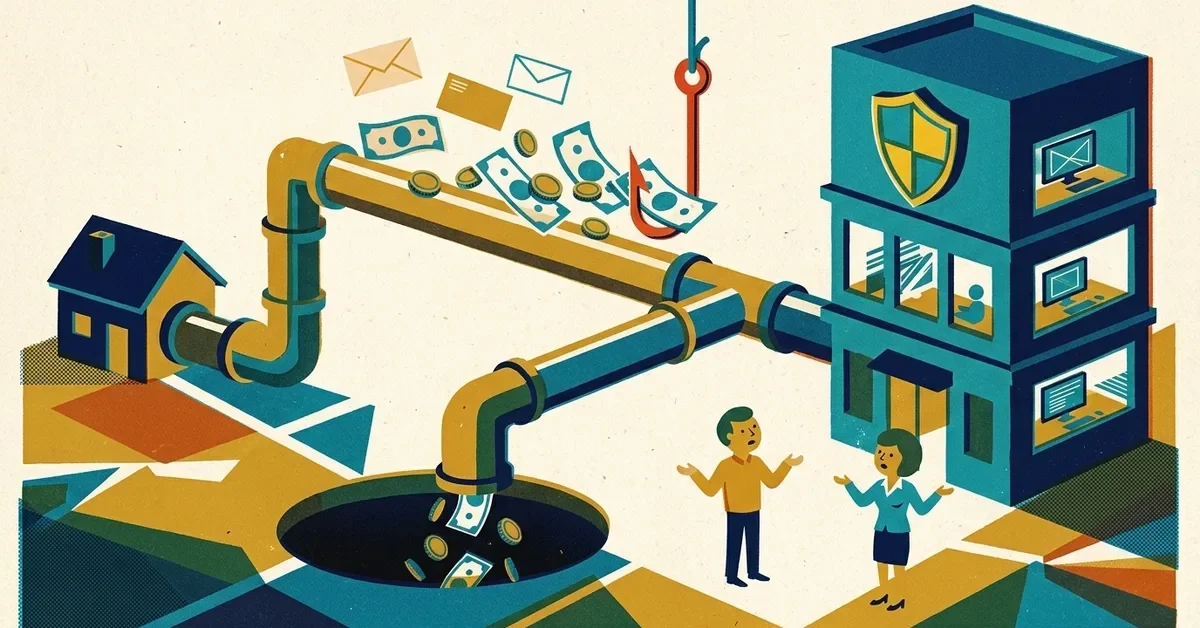
- Your bank's fraud line, for a fake invoice or a changed wire.
Read the incident section of your cyber insurance policy while you're at it. Many policies have rules about how quickly you tell them and which response firms they'll pay for. It's better to know that before you call anyone at 2am.
Step 6: Test it
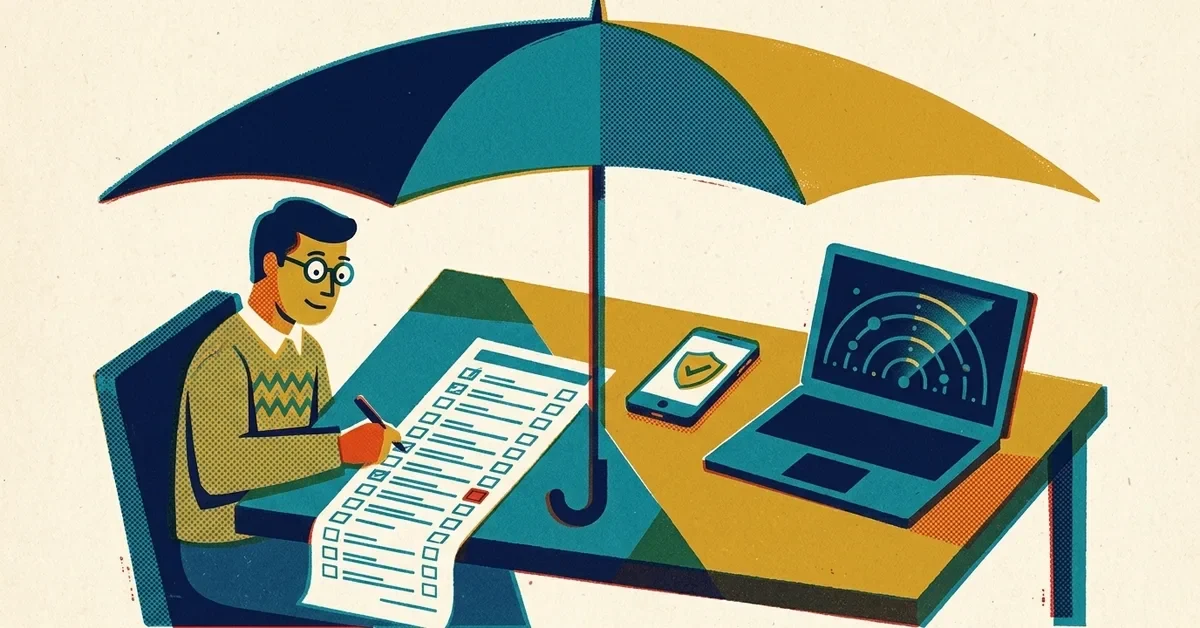
Pick an afternoon and walk through it: "It's 2am Saturday, this alert just came in." Who gets it? Can the backup sign in to the admin center with the emergency account? Do they know how to isolate a computer? Did anyone actually pick up the phone?
Fix whatever didn't work, then repeat it when someone joins or leaves.
Why one IT person isn't enough for this
It's not a skill problem. Watching for attacks around the clock is a different job from running IT, and no single person can be on call every night of the year. Your IT person needs vacations, sleep and sick days like anyone else. A plan that depends on them being reachable at all hours will fail the first time they aren't.
Getting after-hours coverage without replacing your IT person
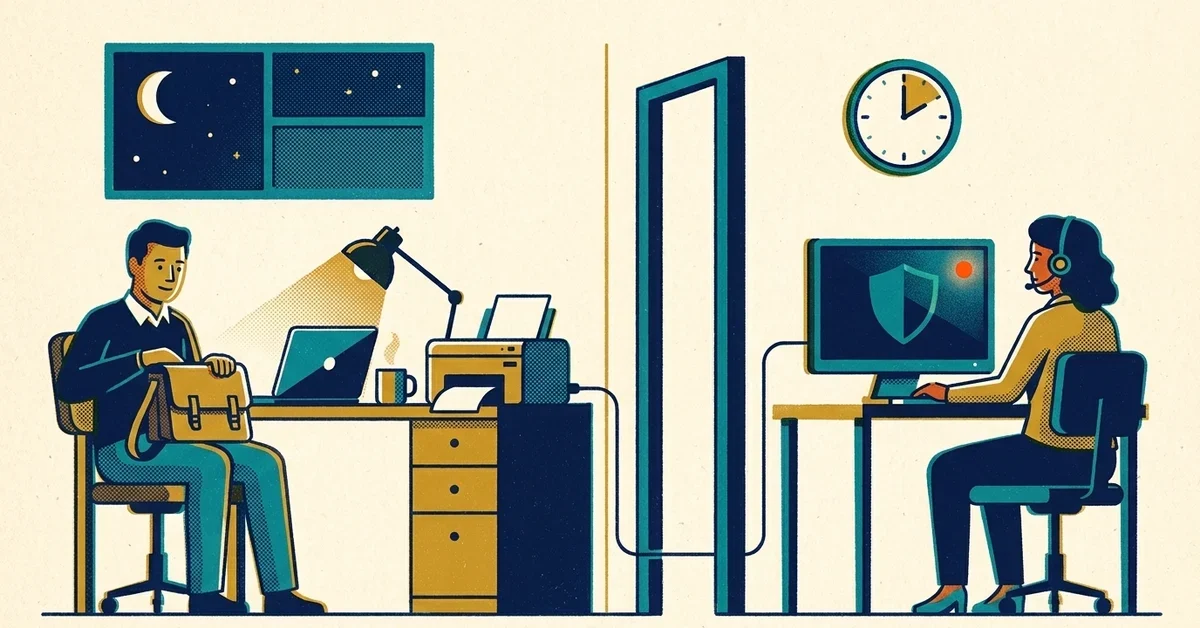
You don't have to choose between your IT person and security coverage. A co-managed setup splits the work: your IT person keeps laptops, users, printers and Microsoft 365 administration, and a security partner owns the security tools and the after-hours response.
That's how our co-managed security service works. We run Huntress for you and we take the call: when Huntress flags something after hours, our team triages it, isolates the computer or locks the compromised account, then cleans up, waits for your OK or hands it to your IT person (your choice, agreed up front), and you get a plain-English summary. Under 50 seats, Huntress requires going through a partner like us, and we do that work for you. At 50 or more, you can buy through us as your authorized Huntress reseller and keep running it in-house.
Whoever you work with, ask the same questions: who answers at 2am, what can they do without asking, and how do they hand things back to your IT person? Our post on getting Huntress without switching IT providers has the full list.
When to get help
- You worked through the three questions above and the honest answer was "nobody".
- Your cyber insurance renewal or a big customer is asking about 24/7 monitoring or incident response.
- Alerts or incident reports are already piling up unread.
If any of those sound familiar, send us a message.


No comments yet