A customer replies: "Wait, I thought you were open Saturdays?"
Or: "Your email said the deposit was 25%."
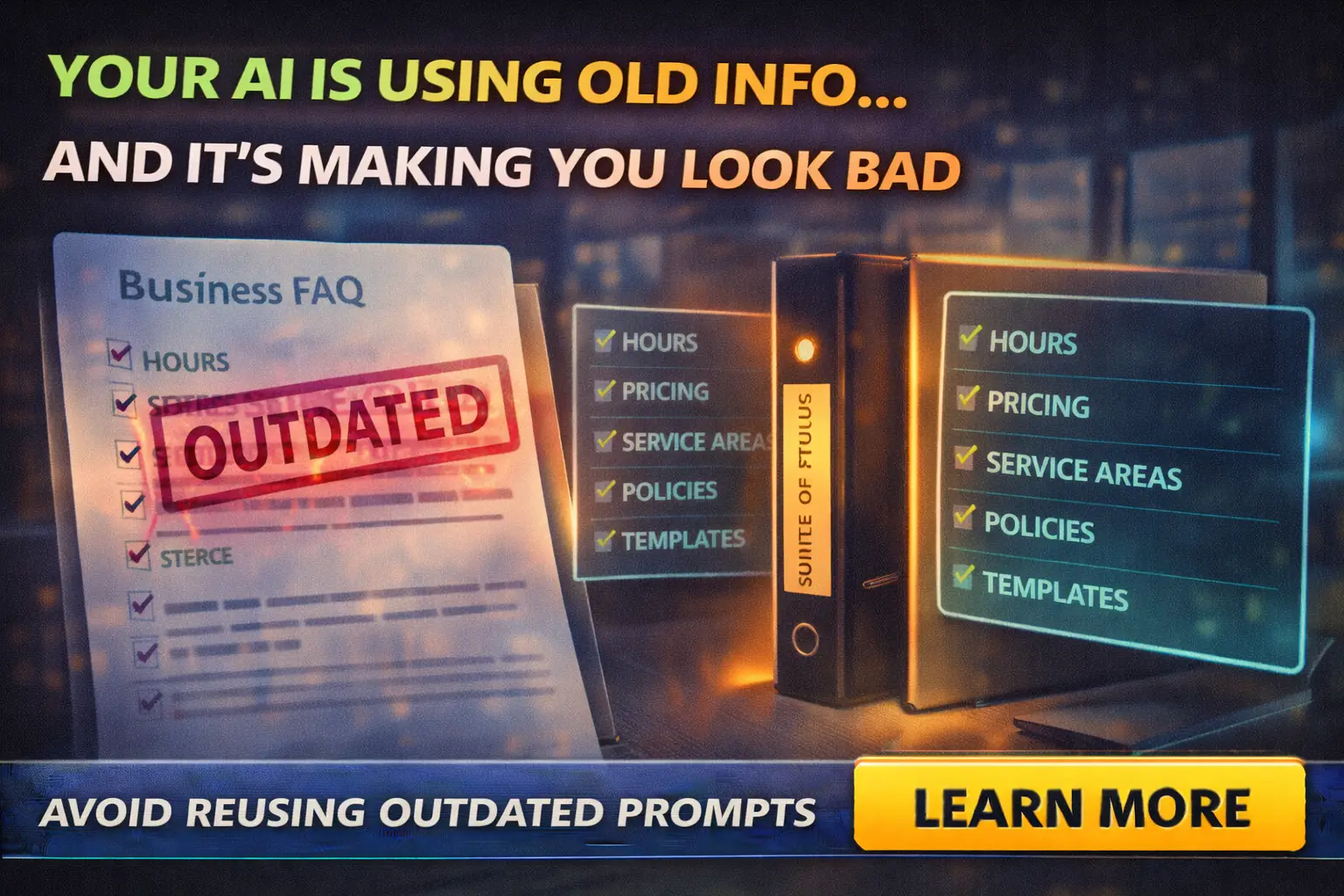
You check what went out. It's wrong. You didn't make it up. Your AI did, from a prompt, template or note you wrote months ago and never updated.
The AI doesn't know your business. It knows whatever you last told it.
The quick answer
- Write one "Business Source of Truth" document with your current hours, service areas, pricing rules and policies.
- Update or delete old saved prompts, templates and uploaded files that disagree with it.
- Clear stale AI memory and custom instructions. Turning memory off doesn't delete what's already saved.
- Tell the AI not to guess. Missing detail means a question or a placeholder, never an invented answer.
- Spend 15 minutes a quarter checking your top prompts and templates against the Source of Truth.
Where the old info comes from
Most owners blame the AI model. Usually it's what you've been feeding it.
Saved prompts and templates
That prompt you wrote in a rush last spring is now writing your follow-ups. If it says "we serve the whole county" and you've since dropped half of it, every reply says so too.
AI is very good at rewriting a template. It's not going to question one.
Uploaded files
Last year's price list, an old brochure, a proposal from a past job. Upload it to a chat or a project and the AI treats it as fact.
AI memory and custom instructions
This is the one people forget exists.
Copilot, Gemini and ChatGPT can all remember details about you between chats. Tell it once "we charge a $50 call-out fee" and it may keep using that long after you changed it.
Turning memory off doesn't fix it. Microsoft says that switching off saved memories or custom instructions stops Copilot from using them "but doesn't remove" them. And deleting a chat "doesn't delete saved memories that were generated from that chat" (Microsoft Learn: Copilot memory). Google says Gemini's saved instructions stay "until you choose to delete it" (Gemini Apps Privacy Hub).
Your website and old emails
If the website still lists old hours, anyone copying from it spreads them. So does an AI tool connected to your inbox that finds a two-year-old email with the old rate.
Staff memory plus AI
Someone types "I think we still do weekend calls." The AI turns "I think" into "we do."
How to tell if your AI has stale info
Ask it. Seriously. In each tool your team uses for customer messages, open a normal chat (not a temporary one) and try:
- "What are our business hours?"
- "What areas do we serve?"
- "What's our cancellation policy?"
- "How much is the deposit?"
If it answers confidently and the answer is wrong, you've found a stale source. If it says it doesn't know, good. That's what you want.
Then check the saved stuff:
- Copilot: Settings > Personalization shows custom instructions and saved memories (Microsoft Learn).
- Gemini: check your saved instructions, whether Memory (using past chats to personalize) is on, and your Memory summary, where you can view, edit and delete what Gemini knows about you (Gemini Apps Privacy Hub).
- ChatGPT: look under Settings > Personalization for memory and custom instructions. Turning memory off doesn't delete memories ChatGPT already saved; you delete those separately (OpenAI: Memory FAQ).
Fix it, easiest first
1. Delete or correct stale memories
Go through the saved memories in each tool. Delete anything about prices, hours, policies or service areas. You'll re-add the right versions from one place in step 2.
In Copilot and Gemini, if a past chat has the wrong info in it, delete that chat too. Google says deleting a chat stops Gemini using it to personalize; Microsoft says that once you delete every chat that mentioned a detail, Copilot's chat-history memory drops it within seven days (saved memories you still delete separately) (Microsoft Learn).
2. Write the Source of Truth document
One living document, called Business Source of Truth. A Google Doc, Word doc or Notion page. Keep it short. Put in:
- business name and contact details
- hours and response times
- service areas
- core services
- pricing rules (how pricing works, not necessarily every price)
- deposit and payment terms
- warranty wording
- cancellation and reschedule policy
- things you never promise ("same-day", "guaranteed")
- tone and phrases you like
Put a "last updated" date at the top. This document is the only authority. Everything else points to it.
3. Update saved prompts and templates
Open your saved prompts, canned replies and email templates. Anything that states a fact from the list above either gets corrected or loses the fact and points to the Source of Truth instead.
Remove old uploaded files from projects and custom assistants. Upload the current Source of Truth in their place.
4. Use a prompt that doesn't allow guessing
Copy this into your saved prompts:
Use the Business Source of Truth below as the only source for hours, prices, policies and service areas. If a detail isn't in it, ask me instead of guessing. Use a placeholder like [PRICE] if you can't ask. Don't invent hours, prices, policies, timelines or service areas.
Then paste the relevant section of the Source of Truth under it.
5. Run a quarterly 15-minute audit
Put it on the calendar. Check:
- your top 10 prompts
- your top 10 templates
- quote and proposal wording
- follow-up scripts
- saved AI memories and custom instructions
Against five questions: hours still right? Pricing language still right? Service areas still right? Policies still right? Still sounds like you?
Anything changed in the business since last time? Update the Source of Truth first, then the prompts.
Why it happens
AI tools reuse patterns. That's the point of them. Give one an old pattern and it reproduces it, fluently, with no hint of doubt.
Memory makes it stickier. A fact you mentioned once can turn up in a chat months later, and it's not always obvious where it came from.
If the wrong info already went out
Correct it fast and plainly: "Quick correction to my last email: our deposit is 30%, not 25%. Sorry for the mix-up." Then fix the source so it doesn't happen again.
If the wrong info was a price or a promise, decide whether to honor it before you reply. We cover that in more detail in my AI sent the wrong info to a client. Now what?
Preventing it in a business
One rule for the team:
If you're not sure, don't let the AI fill it in. Use a placeholder, check the Source of Truth, or ask.
And one workflow for quotes:
- Bad: "Write a quote email for this job." The AI invents the timeline, deposit and policies. It looks professional, so it gets sent.
- Safe: paste the job details, paste the policy section of the Source of Truth, and ask it to "draft a quote email using only these policy statements, and ask me about anything missing."
The AI handles structure and tone. It doesn't get to make up business rules.
When to get help
- Several people use different AI tools for customer messages and nobody knows what's saved in each.
- AI is connected to your inbox or shared drive and keeps finding old documents.
- You want shared templates and approved prompts set up once for the whole team.
If that's you, we can help set it up.
Related reading
- My AI sent the wrong info to a client. Now what?
- Why your AI assistant keeps getting it wrong (and how to fix it)
- Your AI employee can quit on you: how to back up prompts, workflows and know-how
Originally published March 2026. Updated November 2026.




No comments yet