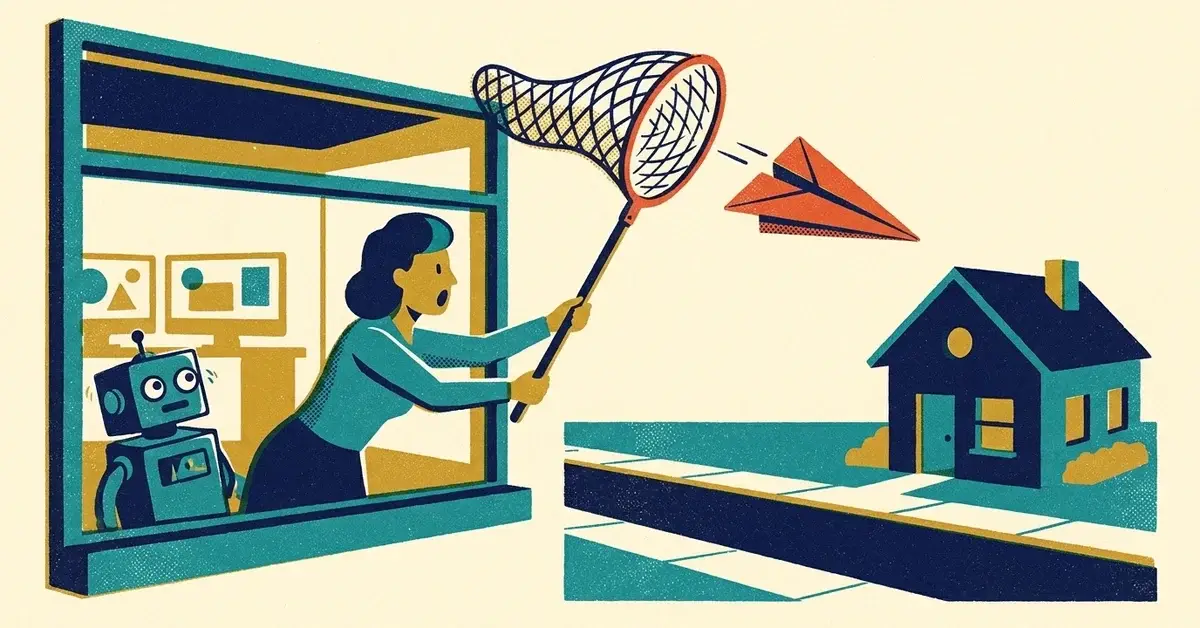
An AI-drafted email just went to a client. It had the wrong price. Or the wrong appointment time. Or another client's name in the greeting.
You noticed after you hit Send. Here's what to do in the next ten minutes, and how to set things up so it doesn't happen twice.
The quick answer
- If you sent it seconds ago, click Undo now. Gmail and the new Outlook both hold mail for a few seconds if Undo send is turned on.
- Work out what actually went out: a wrong detail, a wrong promise, or someone else's information.
- Send a short correction yourself. Don't blame the tool.
- If another client's personal information went out, treat it as a possible data breach, not a typo.
- Fix the prompt, template or automation that produced it before you use it again.
Work out how bad it is
Open the email in your Sent folder and read it start to finish. Then put it in one of these buckets.
What went out | How serious | What it needs |
|---|---|---|
A typo or awkward wording | Low | Nothing, or a one-line follow-up |
A wrong detail (time, date, address) | Medium | A correction today |
A promise you can't keep (price, guarantee, deadline) | High | A correction and a decision about honoring it |
Another client's details or a confidential file | Highest | Containment first, then a correction |
Check the recipients too. Look at To, Cc and any forwarded thread underneath. AI drafts that reuse an old thread can carry someone else's conversation along at the bottom.
Try to pull it back
Undo send (seconds only)
This only works if it was turned on before you sent. The window is short.
- Gmail: Settings (gear icon) > See all settings > General > Undo Send. Choose 5, 10, 20 or 30 seconds, then Save Changes (Google's steps).
- New Outlook for Windows and Outlook on the web: Settings > Mail > Compose and reply > Undo send. Microsoft raised the maximum from 10 to 30 seconds in January 2026 (release notes).
- Classic Outlook for Windows: no Undo button, but a rule can hold every message in the Outbox. File > Manage Rules & Alerts > New Rule > Apply rule on messages I send, skip the conditions, then tick defer delivery by a number of minutes and set it to 1 or 2.
Turn one of these on today. Set it to the maximum.
Recall (Outlook, inside your own company only)
Outlook's Recall sounds like the fix. For clients, it usually isn't.
Microsoft says cloud message recall works within your own Microsoft 365 organization, or with another Microsoft 365 organization whose admin has specifically allowed it. It can't recall mail sent over the internet to Gmail, Yahoo or most other companies.
So recall a message sent to a coworker. Don't count on it for a client.
Gmail has no recall once the Undo window has passed.
Send the correction
Short, plain and from you. Not from the tool.
Wrong detail:
Hi [Name], quick correction to my last email: your appointment is on [correct day] at [correct time], not [wrong time]. Sorry for the mix-up. Everything else in that email stands.
Wrong price or promise:
Hi [Name], I made an error in the quote I sent earlier. The correct price for [service] is [price], not [wrong price]. I've attached the corrected version. Happy to talk it through if you have questions.
Email sent to the wrong person:
Hi [Name], I sent you an email by mistake earlier today that was meant for someone else. Please delete it and don't forward it. Thanks for your help, and sorry for the trouble.
Don't explain how AI works. The client doesn't need to know which tool you used. They need the right information and to see that you caught it.
If you quoted a price that's too low and the client already accepted, decide whether to honor it this once. Either way, fix the source.
If someone else's information went out
This is the one to slow down for.
If the email contained another client's personal details (account numbers, ID numbers, health or financial information), contact the person who received it and ask them to delete it. Then talk to your attorney about whether you have to notify anyone.
The FTC's Data Breach Response: A Guide for Business notes that every state, plus D.C., Puerto Rico and the Virgin Islands, has a breach notification law, and what counts and who must be told depends on the information involved and where you are. Don't guess on this one.
Write down what was sent, to whom and when, while it's fresh.
Why it happens
AI tools are good at producing an email that looks finished. They don't know which details are wrong.
The usual causes:
- Reused context. You started the draft in a chat that already had another client's details in it, and they leaked into the new one.
- Old information. The tool pulled a price, policy or appointment from an old document or an old conversation.
- Filled gaps. You didn't give it a detail, so it supplied a believable one.
- Automation with no review step. A tool that drafts and sends on its own will eventually send its mistakes.
- Autocomplete on the To line. Not AI at all, but the most common way an email reaches the wrong person.
Preventing it in a business
Settings to change today:
- Turn on Undo send at the maximum delay, on every mailbox.
- In the new Outlook or Outlook on the web, use Schedule send for anything important so it sits in Drafts until the time you pick.
Rules for AI drafts:
- Start a fresh chat for each client. Don't reuse a conversation that has someone else's details in it.
- Paste the facts in; don't let it remember them. Give the AI the exact price, date and address from your own records each time.
- Tell it not to fill gaps. Add this line to your prompts: "Use only the details I give you. If something is missing, write [CHECK] instead."
- Nothing AI-drafted goes to a client without a human read. Check names, numbers, dates and the recipient list.
Automations: if a tool can send email on its own, switch it to draft-only until you trust it. Should you let AI actually do things in your business, or just draft them? covers how to decide.
One staff rule: read the To line out loud before you send anything with an attachment.
When to get help
- Client personal information went to the wrong person and you're not sure what to do next.
- An automation keeps sending wrong information and you can't find where it's getting it from.
- Your team uses several AI tools connected to email and nobody knows what each one can see or send.
Those are worth a second pair of eyes. Get in touch if you'd like ours.
Related reading
- The email draft looked great until it replied to the wrong client
- Your AI is making promises you can't keep: the liability trap in emails and proposals
- AI is "remembering" your business wrong: the hidden risk of reused prompts and old info
Originally published September 2025. Updated November 2026.




No comments yet