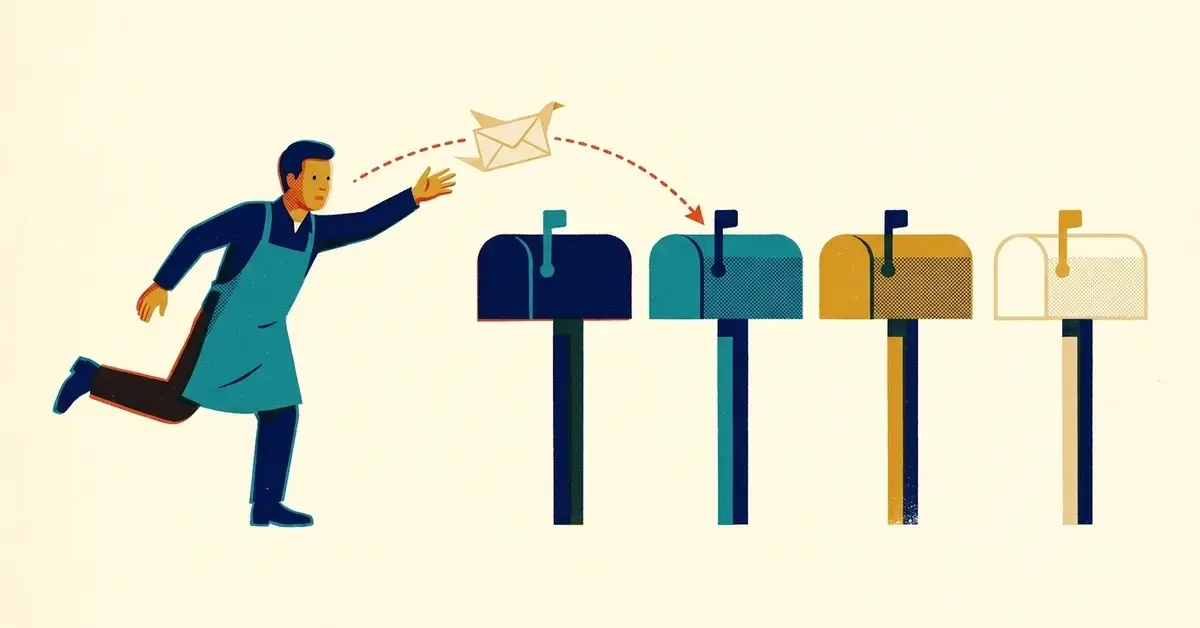
You asked the AI in your inbox to draft a reply. It read well. Polite, clear, had the pricing in it. You sent it.
Then the client called: "Why did you send me someone else's estimate?"
The draft wasn't the problem. Where it went, and what it pulled in, was. Here's how that happens and the settings that stop it.
The quick answer
- Turn on a send delay today. Outlook and Gmail can both hold a sent message for a few seconds so you can undo it. Steps below.
- Check the To line last, every time. Autocomplete picks the person you emailed most recently, not the one you meant.
- Draft inside the right thread. Ask the AI to reply from the client's own email, not from a blank message or a different thread.
- Never let the AI fill in prices, names or attachments on its own. You add those, from your own records.
- If it already went out, see My AI sent the wrong info to a client. Now what?
How these mistakes actually happen
There are four ways an AI-assisted email ends up with the wrong client. They need different fixes, so work out which one you had.
- Wrong recipient. The draft was fine; the address wasn't. Two clients named Sam, and autocomplete picked the one you emailed last week.
- Wrong thread. You replied from inside a different conversation, so the AI read that client's history and wrote to it.
- Wrong details. The AI pulled a name, date or price from another email it could see. Microsoft says Microsoft 365 Copilot can ground its answers in your emails, chats, documents and calendar, anything you have permission to see, not just the message in front of you (Microsoft Learn).
- Wrong attachment. The file was the last one you used, not the one for this client.
AI didn't invent any of these mistakes. People made all four long before AI. What AI changes is speed. A draft that looks finished gets read less carefully, and a lot of these errors only show up when someone reads it slowly.
The settings that catch it
Start with these. They take five minutes and work whether you use AI or not.
Here's where each safety setting lives, as of October 2026:
Setting | Where to find it | What to set |
|---|---|---|
Undo send (new Outlook for Windows, Outlook on the web) | Settings > Mail > Compose and reply > Undo send | The longest delay offered |
Delay all sent mail (classic Outlook for Windows) | File > Manage Rules & Alerts > New Rule | Defer delivery 1-2 minutes |
Undo Send (Gmail on a computer) | Settings > See all settings > General > Undo Send | 30 seconds |
External recipient warning (Google Workspace) | Admin console: Apps > Google Workspace > Gmail > End User Access | On |
External recipient MailTip (Microsoft 365) | Exchange Online PowerShell, admin only | On |
1. Turn on a send delay
New Outlook for Windows and Outlook on the web: go to Settings (the gear, top right) > Mail > Compose and reply, and under Undo send pick how many seconds Outlook should wait. It applies to everything you send. The window is seconds, not minutes (Microsoft Q&A).
Classic Outlook for Windows can hold every message in the Outbox for minutes instead. Microsoft's moderators give these steps on Microsoft Q&A:
- File > Manage Rules & Alerts > New Rule.
- Under Start from a blank rule, pick Apply rule on messages I send, then Next.
- Don't tick any conditions. Click Next, then Yes when Outlook warns it'll apply to every message.
- Tick defer delivery by a number of minutes, click a number of in the description, enter 1 or 2, then OK.
- Next past the exceptions, name the rule, Finish.
One catch. The deferred message sits in your Outbox, and classic Outlook has to be open and online to send it (Microsoft Q&A). Close the laptop and it waits.
As of this writing, new Outlook has no rule like this. If you need minutes, not seconds, use Schedule send from the arrow next to Send for the messages that matter.
Gmail: Settings > See all settings > General. Next to Undo Send, choose 5, 10, 20 or 30 seconds, then Save changes at the bottom (Gmail Help). Pick 30.
2. Clean up autocomplete
Autocomplete is the biggest source of wrong-recipient mail. Remove the stale and look-alike addresses.
Outlook (any version): start a new email, type the first few letters, hover over the wrong suggestion and click the X next to it (or press Delete). That removes it from suggestions, not from your contacts. Email them again and it comes back (Microsoft Learn).
To wipe the whole list in classic Outlook: File > Options > Mail, then under Send messages click Empty Auto-Complete List. Edge case: Microsoft says that from Version 2202 on, if you're on an Exchange Online (Microsoft 365) mailbox, suggestions come from Microsoft Search instead, and only the one-at-a-time removal applies.
Gmail: start a message, type the name, right-click the wrong suggestion and pick Hide suggestion. To delete it outright, open Google Contacts, go to Other contacts, open the entry and choose More > Delete. Gmail saves people you email to Other contacts automatically. To change that, use Create contacts for auto-complete in Gmail settings (Google Account Help).
3. Turn on an "outside your company" warning
A banner that says "this is going outside your organization" makes people look at the To line again.
Google Workspace: Google says the external recipient warning is on by default. An admin can check it under Apps > Google Workspace > Gmail > End User Access > Warn for external recipients (Google Workspace Admin Help). It doesn't apply to personal Gmail accounts.
Know the gap: Gmail doesn't warn for people already in your Contacts. A client you've saved is exactly the person you'd mix up. So the warning helps, but it won't catch a Sam-for-Sam swap.
Microsoft 365: the External Recipients MailTip is off by default. Your admin turns it on with Set-OrganizationConfig -MailTipsExternalRecipientsTipsEnabled $true in Exchange Online PowerShell (Microsoft Learn: MailTips). It shows in Outlook, Outlook on the web and Outlook for iOS and Android.
Why recall won't save you
People reach for Recall after the fact. It rarely helps with clients.
Microsoft's own docs say message recall in Exchange Online works inside your organization, or between two Microsoft 365 tenants when the receiving one has allowed it. It can't recall messages "over the internet," so a client on Gmail or another company's mail system keeps the email (Microsoft Learn: cloud-based message recall).
The send delay is the real undo. Recall isn't.
Using AI to draft without the mix-ups
The writing assistants built into Outlook and Gmail put text into a draft; you still click Send. Microsoft's own steps for drafting with Copilot in Outlook have you generate a draft, then "Review the message" and edit it before you send (Microsoft Support). Treat every draft as a first draft.
Five habits that cover most of it:
- Start from the client's own email. Open their latest message, click Reply, then ask the AI. Don't start a fresh message and ask it to "reply to Sam."
- Leave blanks for the risky parts. Tell it: "Don't fill in prices, dates or names. Write [PRICE], [DATE] and [NAME] where they go." You fill those in from your own records.
- Attach the file yourself, last. Open it first and check it's the right client.
- Read the draft once for facts, not tone. Name, number, date, attachment, recipient. In that order.
- Read the To and Cc lines last. Then send.
A pre-send check you can pin to your monitor
- Is this the right person, and the right Sam?
- Am I replying inside their thread?
- Is every name, price and date from my records, not the AI?
- Is the attachment theirs?
- Is anyone on Cc who shouldn't see this?
Thirty seconds. It's cheaper than the phone call.
Why it matters more for some businesses
For most businesses, a misdirected email is embarrassing and costs you a correction.
For anyone handling confidential client information (legal, accounting, insurance, health, real estate), it can be a privacy incident. Another client's details in the wrong inbox may trigger obligations under your contracts, your professional rules or state law. If that's you, don't treat it as a typo. The follow-up post covers what to do in the first hour.
Preventing it across the team
- Set the send delay on every mailbox, not just yours.
- Turn on the external warning in Microsoft 365 or Google Workspace.
- One team rule: AI drafts the words; people add the prices, names and attachments.
- Decide which AI tools can see client email. If staff paste client emails into a personal ChatGPT account, that's a separate problem. The Copilot post covers what a built-in assistant can read.
- No auto-send. If a tool or automation can send replies without a person clicking Send, switch that to draft-only until you trust it.
When to get help
- You've had more than one wrong-recipient email this year.
- You want the external warning, send delay and AI settings set the same way for everyone.
- Client data went to the wrong person and you're not sure what you're now required to do.
That's the kind of setup we handle for small offices. Get in touch if you'd like it done.
Related reading
- My AI sent the wrong info to a client. Now what?
- Should you let AI actually do things in your business, or just draft them?
- Tech tip: your "confidential" emails? Microsoft Copilot just read them
Originally published August 2025. Updated November 2026.


No comments yet