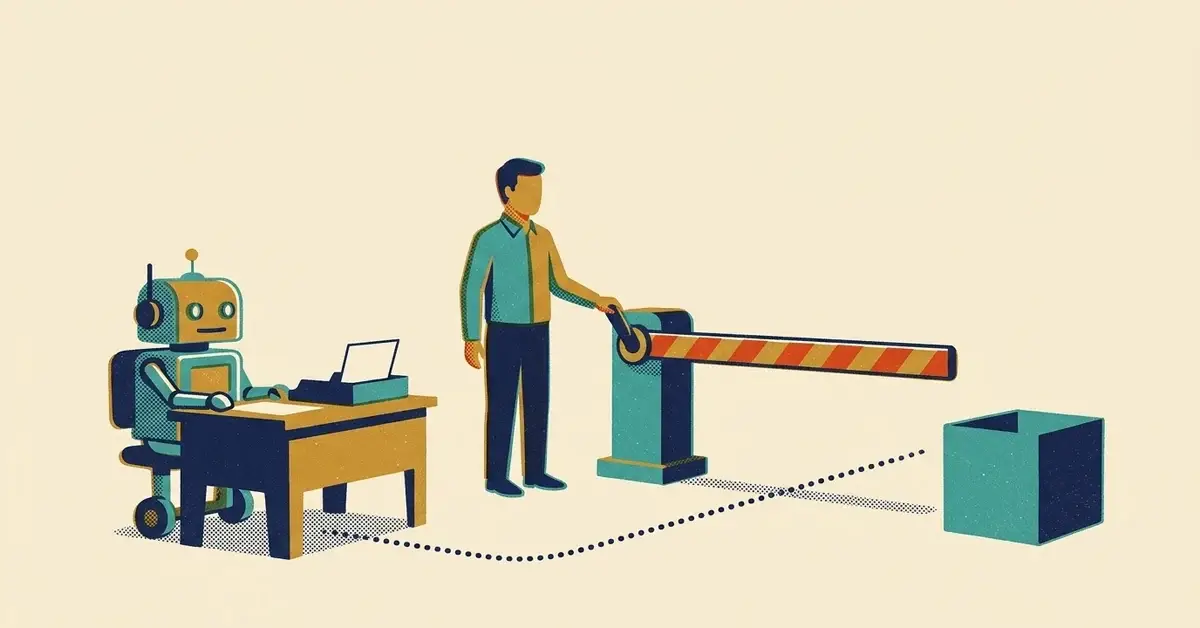
A year or two ago, AI in your business wrote something and you decided what to do with it.
Now the tools offer to send the email, update the CRM, book the appointment and pay the invoice. Often it's a toggle in software you already pay for.
A bad draft costs you two minutes of reading. A bad action costs you a client, or a payment you can't pull back.
This post is about that line and how to hold it. Which client messages AI can touch is covered in Can You Let AI Talk to Your Clients?, and the bigger climb from chat to agents is in From ChatGPT to AI Agents. This one is narrower: which actions, and how to make a tool ask first.
The quick answer
- Let AI read and draft almost anything.
- Anything that sends, spends, publishes, deletes or commits you needs a person's yes first.
- Start every new connection read-only for a few weeks.
- Write a one-page permissions map for each tool. Remove one permission. Add one approval.
- Give every automation a named owner and a second person who looks at it.
The line: five verbs
Draft versus do comes down to five verbs. If the action is one of these, a person approves it.
- Send. Email, text, chat reply, invoice.
- Spend. Pay a bill, buy ad clicks, place an order.
- Publish. A post, a web page, a review reply.
- Delete. A record, a file, a calendar event.
- Commit. Book a job, accept a quote, promise a date.
Reading, summarizing, sorting and drafting stay on the safe side. Most of the value is there too. You can get a lot out of AI without ever crossing the line.
Start read-only
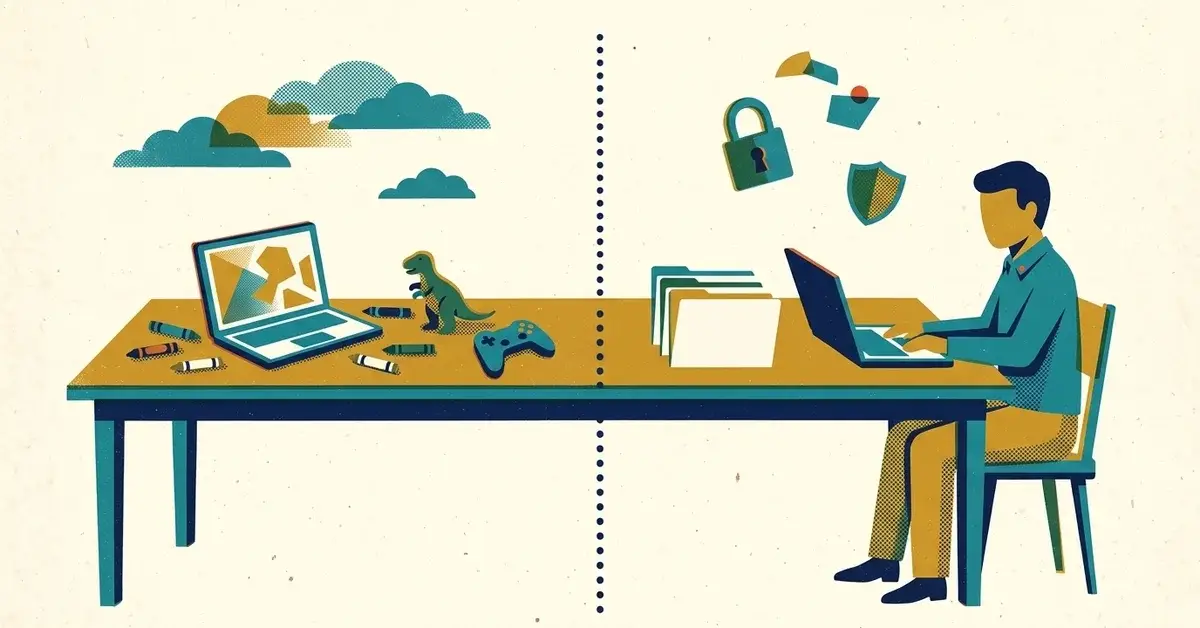
When a tool asks to connect to your email, CRM, calendar or files, give it read access first. Live with that for a few weeks.
Then test it on questions you already know the answers to:
- Which invoices are past due?
- Which deals have gone quiet?
- What did I agree to in that thread with the supplier?
Check each answer against the real system. You're not only testing whether it works. You're testing whether it's right about your business. A tool that sounds sure and gets your data slightly wrong is the one that hurts you.
Once the reading is reliable, let it write, but start with low-stakes things. Internal tasks. Draft records. Not client messages.
What connecting actually hands over
Connecting an assistant to your email doesn't just let it read the one message you asked about. It usually gets standing access to the mailbox.
Microsoft's documentation on user consent says that by default, all users in a Microsoft 365 tenant can consent to apps for permissions that don't need administrator consent. Its example is letting an app access their mailbox. So, depending on the app, an employee can connect an AI tool to their own inbox without asking you.
Microsoft recommends allowing user consent only for apps from verified publishers. As of October 2026, an admin sets that in the Microsoft Entra admin center:
- Sign in as a Global Administrator.
- Go to Identity > Applications > Enterprise apps > Consent and permissions > User consent settings.
- Under User consent for applications, pick the setting you want.
- Select Save.
On Google Workspace, check the equivalent in the admin console. The question is the same: who can connect what?
Draw a permissions map
Pick the one workflow where AI has the most access. On one sheet of paper, write down every place it can:
- read
- write
- send
- publish
- spend
- delete
Most people are surprised by their own list.
Then do two things. Remove one permission it doesn't need. Add one approval step before the highest-impact action it can take. It takes ten minutes, and it shrinks what can go wrong more than any policy document will.
It's the same access problem as in Is Your AI Assistant Oversharing Company Files?, just with the ability to act on it.
Make the tool ask first
An approval has to be built into the tool. A rule on a sticky note won't stop anything.
- Power Automate. Add the Approvals > Start and wait for an approval action. The flow stops until the approver responds. Microsoft's approvals guide lists four types, including "Everyone must approve" and "First to respond," and approvers can answer from email, the approvals center or the Power Automate app.
- Copilot Studio. Microsoft's agent flows overview lists "human in the loop" actions, such as approval requests, next to the AI ones.
- Anything else. Look for a draft-only or "ask me first" setting. If the tool can save a draft instead of sending, pick that. If it has no approval option and can only act on its own, don't give it the send, spend or delete permission.
Anthropic, which makes the Claude models, describes agents in its guide to building effective agents as able to "pause for human feedback at checkpoints." It also says autonomy means "higher costs, and the potential for compounding errors." Same idea. Put a checkpoint where a mistake would be expensive.
Nobody approves their own work
If one person built the automation, that person shouldn't be its only reviewer. Familiarity makes strange behavior look normal. You stop noticing that it phrases things oddly, or that it skipped a step last week.
You don't need a committee. You need one other person who looks at the output for ten minutes a week and asks whether it still looks right.
And every automation needs a named owner. "The system does that" is how a broken process runs for three months.
Plan for the tool changing
Tools get renamed, repriced and replaced. A tool can stay good while the arrangement behind it changes.
For your three most important AI workflows, write down:
- How to turn it off, and how long that takes.
- Whether you can export your data.
- Who still remembers how to do the job by hand.
Do it now, while nothing is wrong.
When to get help
- You can't tell what your AI tools can currently reach, or who connected what.
- You want an agent to touch customer data, payments or several systems and need the access limited.
- You're on Microsoft 365 or Google Workspace and want app consent locked down.
If any of that sounds like you, talk to us.
Related reading
- Can You Let AI Talk to Your Clients? A 3-Question Trust Test
- From ChatGPT to AI Agents: A Roadmap for Small Businesses
- What AI Tasks Should I Never Automate in a Small Business?
- How Can Small Businesses Use AI to Find the "Busy Work" That Should Be Automated?
Originally published September 2026. Updated October 2026.

No comments yet