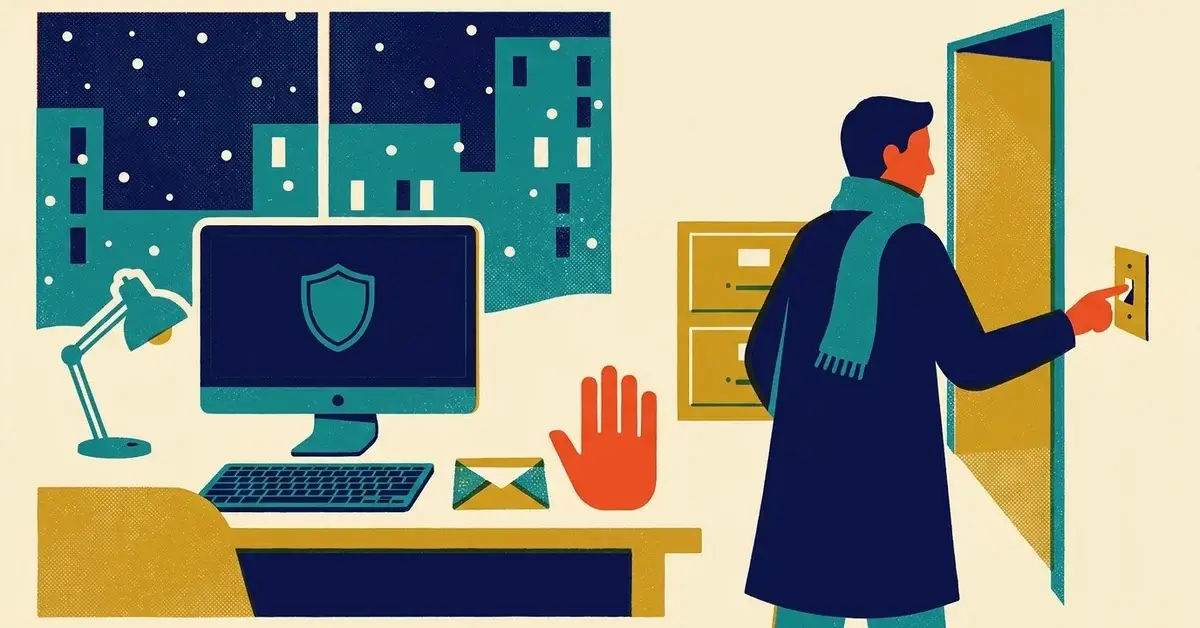
The office closes on the 24th and opens again on the 2nd. Everyone's thinking about travel and family, not computers. That's exactly why scammers like this week: the people who'd normally catch a strange email or a failed backup aren't looking.
None of this takes long. Most of it is an hour or two the week before you close, plus one conversation with your staff.
The quick answer
- Warn your staff about gift card and "urgent payment" requests, including ones that look like they come from you.
- Freeze bank detail changes until you're back, unless they're confirmed by phone on a number you already have.
- Install updates and restart every computer before you leave.
- Check that last night's backup actually worked.
- Set out-of-office replies that don't advertise an empty office.
- Decide who's on call if something goes wrong while you're closed.
1. Warn everyone about gift card scams
This is the one to talk about in person. The usual version: an employee gets an email or text that looks like it's from the owner or a manager. "Are you at your desk? I need a favor. I'm stuck in a meeting and need you to pick up some gift cards for client gifts. Send me the codes and I'll pay you back." Around the holidays, it sounds completely normal.
The FTC's rule is simple: gift cards are for gifts, not payments, and anyone who tells you to pay with a gift card is a scammer. Its advice on boss impersonation is just as direct: before doing anything, call your boss on a number you already know, not one written in the message.
Tell your staff, in these words if you like:
"I will never ask you to buy gift cards, by email or text, for any reason. If you get a message like that from me, it's not me. Call me on my mobile before you do anything."
If someone already sent the codes
Move fast. The FTC says to contact the gift card company right away, tell them the card was used in a scam, and ask whether they can refund the money. Keep the card and the receipt. Then report it at ReportFraud.ftc.gov. The FTC keeps a list of gift card company contacts on the same page.
2. Freeze payment changes until you're back
The bigger-dollar version of the same trick is a fake request to change where a payment goes: a vendor "updating their bank details," or a client being told to send money to a new account. A short-staffed week is a good time for it to slip through.
Set one rule before you close: no changes to bank details over the holidays, and any change after that gets confirmed by a phone call to a number you already have on file, never one from the email. Our posts on business email compromise and a client's wire that never arrived go through how these scams work and what to do if money has already moved.
3. Install updates, then restart
Microsoft usually releases its monthly Windows updates on the second Tuesday of the month (Microsoft Learn). In December 2026 that's the 8th, so by the time you close, every computer should have them.
On each computer, before you leave:
- Open Settings > Windows Update and select Check for updates.
- Install anything waiting, then restart, even if it doesn't insist. A pending restart means the update isn't finished.
- Do the same on Macs (System Settings > General > Software Update) and on phones used for work email.
Don't pause updates for the break to "keep things stable." Get them installed now, so nothing important is sitting half-finished while you're away.
4. Check your backups actually worked
Backups fail quietly. The email saying "backup failed" goes to someone who left, or to a folder nobody reads. Before you close:
- Open your backup system and look at the last successful backup, not just whether it's turned on.
- Restore one file from it, just to see that it works.
- Make sure someone gets the failure alerts while you're away.
If you're not sure your backups would survive ransomware, our 10-minute backup check walks through it.
5. Out-of-office replies that don't give too much away
An auto-reply that says "Our office is closed until 2 January and nobody is checking email" tells a scammer exactly when to strike, and who's away. Keep it short and give a way to reach someone:
"Thanks for your email. We're operating with limited hours until 2 January. For anything urgent, please call [main number]."
Both Gmail and Microsoft 365 let you send a different reply, or none, to people outside your contacts:
- Gmail: Settings > See all settings > General > Vacation responder. Under the message, tick the box to send the reply to your contacts only (Gmail Help).
- Outlook (Microsoft 365): File > Automatic Replies in classic Outlook. Write separate messages on the Inside My Organization and Outside My Organization tabs; Microsoft 365 can also limit outside replies to people in your contacts (Microsoft Learn).
6. Laptops and phones that travel
Laptops get left in airports and rental cars more often around the holidays. Before people leave:
- Screen lock on, with a PIN or password, on every laptop and phone with work email.
- Find my device turned on. On Windows, it needs location services and the Find my device setting turned on; you can then find or lock the computer from your Microsoft account (Microsoft Learn). iPhones and Android phones have their own versions.
- Know who to tell. If a work laptop or phone goes missing, staff should tell you the same day, so you can lock it and change passwords.
7. Tidy up accounts
Seasonal staff, an employee who left in November, a contractor who finished the project: if their accounts still work, now's the time to turn them off. An unused account with an old password is one more way in, and nobody will notice it being used over the break.
While you're there, check that every account with admin access still belongs to someone who should have it.
8. Decide who's on call
If a security alert goes off on 27 December, who sees it? If the answer is "it goes to our IT person, who's on vacation," sort that out now. Agree who's reachable, what they can do without waking you, and how to reach them. Our post on who answers a 2am security alert has a one-page plan you can fill in.
Also leave a printed card with the essentials: your IT contact, your bank's fraud line, and your cyber insurance claims number.
What about turning everything off?
It's tempting to unplug everything and walk away. A few things to know:
- Leave on anything that needs to keep working or keep being protected: the firewall and internet equipment, any server, the backup system, and anything on a battery backup.
- Office computers can be shut down, but turn them back on a day early in January (or ask your IT person to) so they can catch up on updates before people need them.
- If you shut computers down, make sure your backups and monitoring don't depend on them being on.
When to call someone
- Someone already bought gift cards or sent a payment based on an email.
- You can't confirm your backups worked, or don't know where to look.
- Nobody will be watching for security alerts while you're closed.
If you'd like help ticking through this list before you close, send us a message.




No comments yet