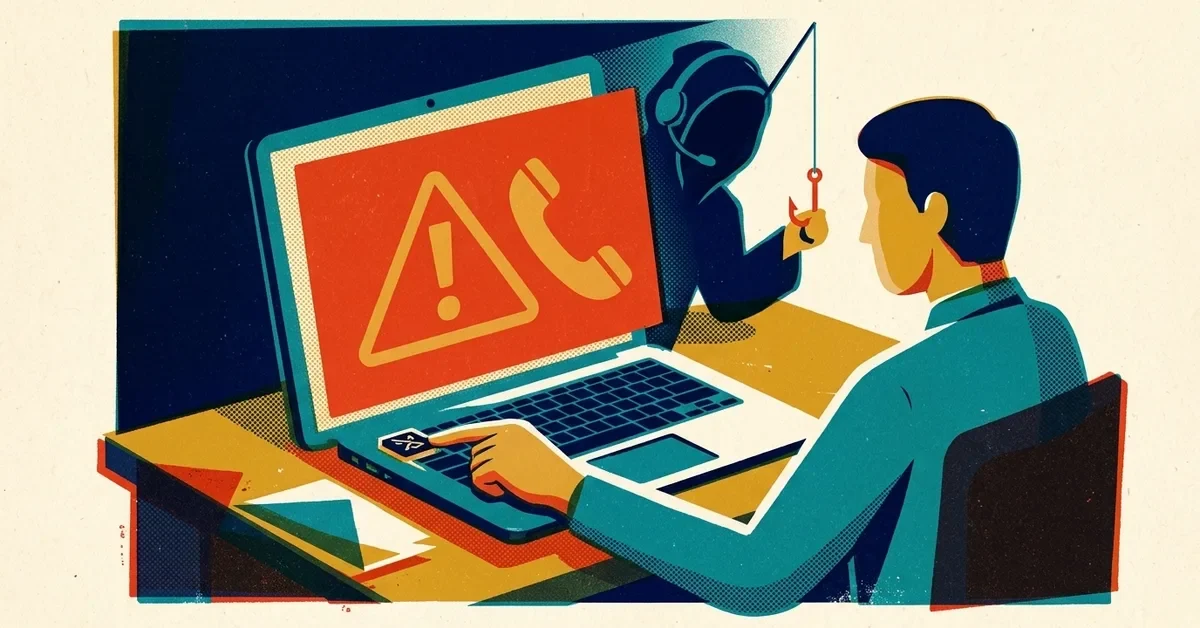
You're reading a news site or looking up a recipe, and the screen goes red. A window that looks like Windows Security says your computer is infected, your files are at risk, and you need to call Microsoft support right now. Sometimes there's a loud voice or an alarm. Sometimes the mouse seems frozen and you can't close anything.
It's fake. Your computer is almost certainly fine. It's a web page pretending to be a security warning, and the phone number goes to a scammer, not Microsoft.
The 30-second answer
- Don't call the number. Microsoft says plainly that its error and warning messages never include a phone number.
- Don't click anything inside the warning, including "OK", "Cancel" or the X drawn on the page. Those buttons are part of the scam page.
- Close the browser. If it won't close, the steps below will force it.
- When you reopen the browser, don't restore your old tabs. That reopens the scam page.
If you've already called or let someone connect to your computer, skip down to If you already called them below.
How to tell it's fake
Real warnings from Windows Security or your antivirus show up as a small notice in the corner of the screen or inside the antivirus app itself. They don't take over your web browser. A fake one usually has several of these:
- A phone number to call. That alone settles it.
- It's inside your browser window: you can see the address bar, or it appeared while you were on a website.
- Countdown timers, alarms, a recorded voice, or warnings that your computer will be "disabled" or your data deleted.
- Claims that someone is using your computer for something illegal or that hackers have your banking details.
- Your IP address or location shown on screen to make it look official. Any website can see those.
Microsoft also doesn't make unsolicited calls to fix your computer. If someone calls you out of the blue saying they're from Microsoft, Windows or "the security department", hang up.
How to close it when it won't go away
These pages use tricks to look stuck: full-screen mode, endless pop-up loops, hiding the mouse pointer. The computer isn't locked. Try these in order:
- Press Esc to get out of full screen, then close the browser normally.
- Press Alt + F4 to close the browser window. You may need to press it a few times.
- Press Ctrl + Shift + Esc to open Task Manager. Find your browser (Edge, Chrome, Firefox) in the list, click it, and click End task.
- If nothing responds, hold the power button down for about 10 seconds until the computer turns off, then turn it back on.
On a Mac, press Cmd + Q to quit the browser, or Option + Cmd + Esc to force quit it.
When you open the browser again and it offers to restore your previous tabs or pages, say no.
Why it happened
Nobody hacked you to put that page there. The usual causes:
- A bad ad. Criminals buy ad space on ad networks, and their ads can show up on normal, legitimate websites. Click one, or sometimes just load the page, and you get redirected to the scam. This is called malvertising.
- A typo in a web address. Scammers register misspellings of popular sites.
- A fake search result. Ads at the top of search results for things like "Microsoft support number" or "printer help" sometimes lead to scammers.
- You allowed notifications from a site. A page asked "Allow notifications?" and someone clicked Allow. Now that site can push fake virus alerts to the corner of your screen, even when the browser is closed. This is the most common reason the warnings keep coming back.
If the warnings keep coming back
A one-time pop-up you closed is over. If you keep getting "virus detected" alerts, especially small ones in the corner of the screen, work through these:
1. Remove the notification permission
- Chrome: Settings > Privacy and security > Site settings > Notifications. Under "Allowed to send notifications", remove any site you don't recognise. (Google's instructions)
- Edge: Settings > Cookies and site permissions > Notifications. Remove anything under "Allow" that you don't recognise.
While you're there, you can turn notification requests off entirely. Very few sites need them.
2. Check your browser extensions
In Chrome, go to the three-dot menu > Extensions > Manage Extensions. In Edge, it's the three-dot menu > Extensions > Manage extensions. Remove anything you didn't install on purpose or don't use, especially "PDF converters", "search helpers" and anything with a vague name.
3. Run a scan
Open Windows Security (search for it in the Start menu) > Virus & threat protection > Scan options. Run a Full scan. If you're still worried, choose Microsoft Defender Offline scan: the computer restarts and scans before Windows loads, which catches things that hide while Windows is running.
If you paid for an antivirus product, open that program directly and scan from there. Don't trust any "scan" a website offers you.
If you already called them
You're not the first, and it's not because you're careless. These scams are built by professionals to create panic. The FBI's Internet Crime Complaint Center counted about $2.1 billion in reported tech support scam losses in 2025, and it was the biggest source of losses for people over 60. What matters now is moving quickly.
If you only talked to them and didn't give them access, money or passwords, hang up and stop there. Expect follow-up calls, and don't take them.
If you let them connect to your computer, gave them a password, or paid them:
- Disconnect the computer from the internet. Unplug the network cable or turn off Wi-Fi. This cuts off their remote connection.
- Remove the remote access program they had you install. Go to Settings > Apps > Installed apps and uninstall it. Common ones are AnyDesk, TeamViewer, UltraViewer, ScreenConnect and LogMeIn. If you're not sure which one it was, look for anything installed on the day of the call.
- Run a Microsoft Defender Offline scan (see above). Scammers sometimes leave other software behind.
- Change your passwords from a different device, like your phone. Start with email, then banking, then anything they saw you type or asked about. Turn on two-step verification where you can.
- Call your bank or card company if you paid them or showed them a banking site. Paid with gift cards? Contact the gift card company right away and tell them it was a scam. Speed matters: the sooner they know, the better the chance of stopping or reversing the payment.
- Report it at ReportFraud.ftc.gov and the FBI's IC3. The FTC's tech support scam page covers what to do for each payment method.
If it's a work computer, tell whoever handles your IT before you do anything else. A scammer with access to a business computer may have seen saved passwords, email, or shared files, and your IT person needs to check more than the one machine.
If you aren't sure the computer is clean after all that, a full reset (Settings > System > Recovery > Reset this PC) is the surest fix. Back up your files first.
How to stop it happening in your business
You can't stop people from visiting websites, but you can make these pages far less likely to show up, and far less dangerous when they do:
- Turn on Edge's scareware blocker. Edge has a feature that recognises full-screen scam pages and closes them. Check it's on: Settings > Privacy, search, and services > Security > Scareware blocker. (Microsoft's page)
- In Chrome, use Enhanced protection. Settings > Privacy and security > Security > Enhanced protection.
- Use an ad blocker. Most of these pages arrive through ads. uBlock Origin Lite is free for Chrome and Edge.
- Filter DNS for the office. A DNS filter blocks known scam and malware sites for every device on your network before the page ever loads. Our post on DNS security explains how it works.
- Block site notifications across the company's browsers so nobody can click Allow by accident. In a Microsoft 365 business, this can be set once through Intune policy instead of on each computer.
- Don't give everyone admin rights. If staff log in with standard user accounts, a scammer talking someone through "installing a fix" usually hits a password prompt they can't get past.
- Make one rule and say it out loud: "We never call a number from a pop-up. If you see one, close the browser and tell me." People who know it ahead of time don't panic when it happens.
When to call someone
Closing the browser and clearing a notification is something anyone can do. Get help if the warnings keep coming back after the steps above, if someone had remote access to a computer that holds business email, banking or client data, or if you're not sure what they installed. In those cases the job is checking what they touched, not just cleaning one PC.
If you'd like us to take a look, you can reach us here.


