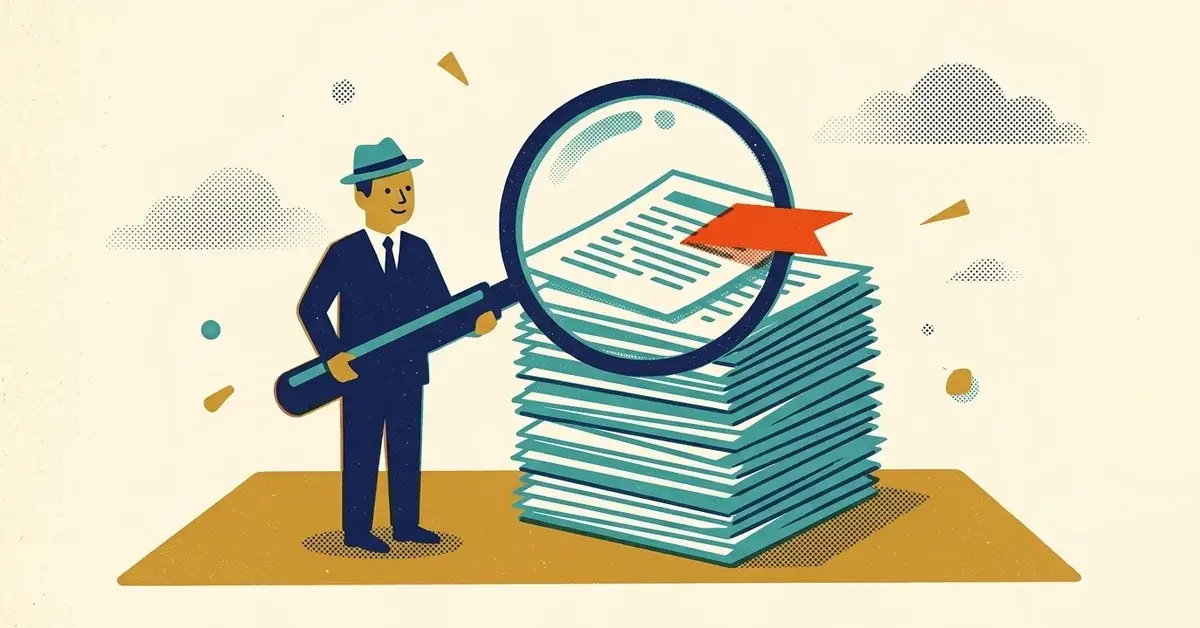
A client spots the typo in your proposal before you do. Or the follow-up you meant to send last Tuesday never went. Or the quote email had the wrong total.
Small teams don't have a proofreader or a project manager checking everything. The AI tools already built into your email and documents can do some of that checking for you. Not all of it, and not without a person in the loop. But enough to catch the everyday slips.
The quick answer
Turn on the checks you probably already pay for:
- Add a send delay. Gmail: Settings > See all settings > General > Undo Send, set it to 30 seconds. New Outlook: Settings > Mail > Compose > Undo send.
- Turn on follow-up reminders. Gmail: Settings > See all settings > General > Nudges. Outlook and most CRMs can flag a sent email for follow-up.
- Run an AI check on anything important before it goes out: proposals, quotes, contracts, anything with a number in it.
- Keep a person on the final read. The AI check is the second pair of eyes, not the first.
Which mistakes AI is good at catching (and which it isn't)
Not every mistake is the same. Here's where an AI check helps, and where it doesn't.
Mistake | Can AI catch it? | What to use |
|---|---|---|
Typos, grammar, unclear wording | Yes, reliably | The spelling and grammar check in Word, Outlook or Gmail, or an AI assistant |
Tone that sounds rude or rushed | Mostly | Copilot coaching in Outlook, or ask an AI assistant to review the tone |
A follow-up nobody sent | Yes, if it's turned on | Gmail Nudges, Outlook flags, CRM tasks |
A wrong price, date or name | Only if you give it the right one to compare | You, with the job notes open |
A promise you never agreed to | Sometimes | A scope check prompt (below), then you |
A fact that's simply made up | No, it may add its own | You, checking the source |
The pattern: AI is good at checking writing against rules. It's bad at knowing what's true about your business. So the last row is always yours.
Set up the checks that run on their own
1. A short send delay
This is the cheapest safety net there is. You click Send, notice the wrong attachment, and click Undo.
- Gmail: Settings (gear) > See all settings > General > Undo Send. Choose 5, 10, 20 or 30 seconds, then Save Changes at the bottom.
- New Outlook and Outlook on the web: Settings (gear) > Mail > Compose > Undo send. Pick the number of seconds.
- Classic Outlook for Windows: a rule can hold every sent email in the Outbox for a minute or two. File > Manage Rules & Alerts > New Rule > Apply rule on messages I send, then defer delivery by a number of minutes.
Microsoft's moderators describe both Outlook options on Microsoft Q&A.
2. Reminders for replies you're waiting on
- Gmail: turn on Nudges (Settings > See all settings > General). Gmail then brings back emails you sent that didn't get a reply.
- Outlook: right-click a sent email and flag it, or set a reminder, so it shows in your task list.
- CRM: if you use one (HubSpot, Zoho, Pipedrive), make a follow-up task part of every quote you send.
3. AI writing feedback
If your business has Microsoft 365 Copilot, Outlook has a Get coaching button while you write. Microsoft's Copilot release notes (August 2026) say it now gives tone and clarity suggestions in the Copilot chat pane, and you pick which ones to apply. Gmail's Help me write (Gemini) can polish a draft on eligible Google Workspace or Google AI plans.
Check which features your plan includes before buying an add-on. Many small businesses already have more than they use.
Use an AI assistant as a reviewer, not a writer
For a proposal, quote or contract, paste the draft into your business AI tool (Copilot, ChatGPT Business or Enterprise, or Gemini in Workspace) along with the facts it should match. Then ask it to check, not rewrite:
"Review this proposal against the job notes below. List: (1) any price, date, name or quantity that doesn't match the notes, (2) anything promised that isn't in the notes, (3) any sentence a client could read as a guarantee. Don't rewrite the proposal. Just list the problems."
Then you fix them. That last step matters: AI tools can miss things and can invent problems too.
A note on client data. Only paste client details into a business AI account whose terms say your data isn't used to train the model. Not a free personal account. More on that in who owns the data I feed into AI?
Make it a team habit
Pick one rule and write it down:
"Anything with a price, date or promise in it gets an AI check and a human read before it goes out."
Then:
- Keep the job notes, price list and standard terms in one shared place, so both the AI and the person checking have the same facts.
- Use one checklist for every quote: names, numbers, scope, next step.
- When a mistake does reach a client, add it to the checklist so it gets caught next time.
This isn't about watching your staff. It's about everyone having the same safety net.
When to get help
- You want follow-up reminders tied into your email and CRM, and it's not working.
- You're not sure which Microsoft 365 or Google Workspace plan includes which AI features.
- Staff are pasting client information into AI tools and you don't know which accounts they're using.
If that sounds familiar, we can help.
Related reading
- How Do I Stop AI From Hallucinating in My Business Documents?
- AI Sent the Wrong Info to a Client? What to Do Now
- AI Email Draft Went to the Wrong Client? How to Stop It
Originally published November 2025. Updated November 2026.


No comments yet