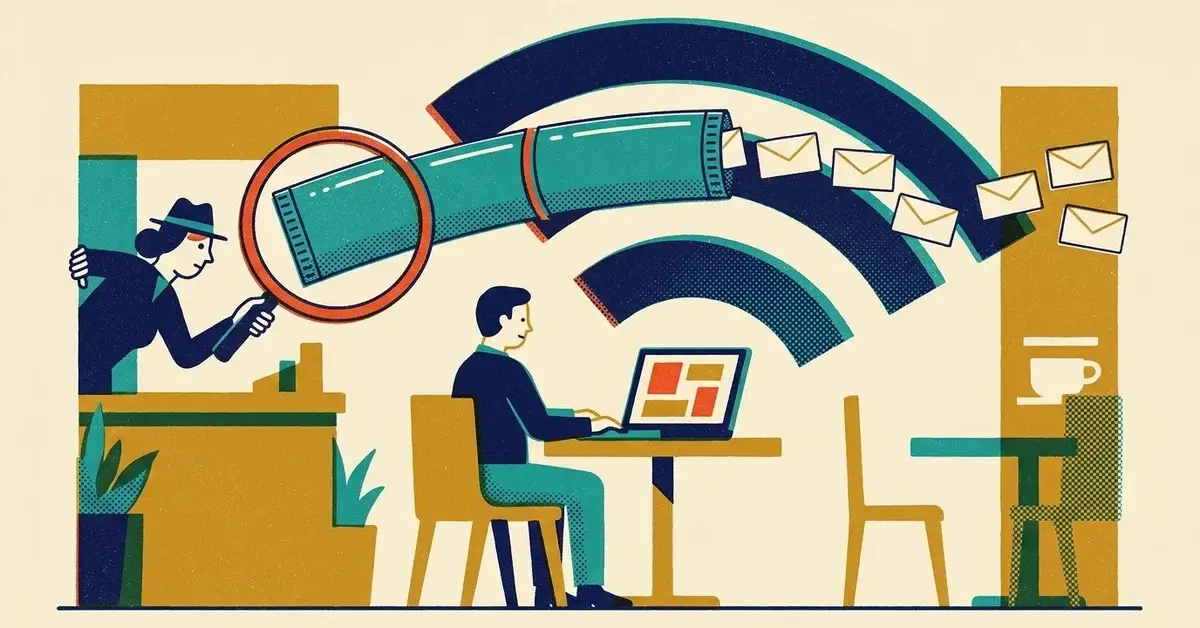
You're on the coffee shop Wi-Fi, answering a client email. Or an employee asks whether the office Wi-Fi lets you see what they browse. Or you're at a hotel and wondering who's on the other end of that network.
Can the person who runs the Wi-Fi see what you're doing?
Some of it. Less than most people fear, more than most people assume. And it depends a lot on whose device you're holding.
The quick answer
- On a normal HTTPS site, the Wi-Fi owner can usually see which site you went to (the domain, like yourbank.com), when, and roughly how much data moved. Not the page, not what you typed, not your search terms or passwords.
- On a plain http:// site, they can see everything. Browsers mark these "Not secure."
- On a company-managed laptop, your employer may see much more, including full page addresses and content, if IT has set up traffic inspection.
- To shrink what a network sees: turn on secure DNS in your browser, never click through a certificate warning, and use a VPN or your phone's hotspot on networks you don't trust.
- Your search history isn't stored on the router. It lives in your browser and in your Google or Microsoft account.
What a Wi-Fi owner can and can't see
This is for a personal device on someone else's Wi-Fi, visiting HTTPS sites (which is nearly all of them now).
What | Can the Wi-Fi owner see it? | Why |
|---|---|---|
Which devices are connected | Yes | The router lists them |
Which site you visit (the domain) | Usually | Shown by the DNS lookup and the start of the HTTPS connection, unless both are encrypted |
The server's IP address, times and data volumes | Yes | Every connection needs these |
The full page address and your search terms | No | Encrypted by HTTPS |
What you type, read, upload or download | No | Encrypted by HTTPS |
All of the above on an http:// site | Yes | Nothing is encrypted |
Think of it like mail. The network sees the envelope: who it's going to and how thick it is. HTTPS seals the letter inside.
One envelope is not much. A day of them adds up. A list of domains with times can say a lot about someone: which bank, which doctor, which job site, which competitor.
How the domain leaks, even on HTTPS
Two places, both at the start of a connection.
The DNS lookup. Before your browser can open yourbank.com, it asks a DNS server (the internet's phone book) for the address. Microsoft's documentation puts it plainly: traditional DNS is unencrypted, "which exposes DNS traffic to passive monitoring". Anyone running the network can log those lookups.
The opening handshake. An HTTPS connection starts with your browser telling the server which site it wants, in a field called the Server Name Indication (SNI). By default that field isn't encrypted. Microsoft's own description of what network security tools see without decryption is exactly two things: the destination IP address and the SNI. Domain, yes. Page and content, no.
Both gaps have fixes, covered below. Neither fix works everywhere yet.
How to tell which situation you're in
Three checks. Two minutes.
1. Is this a company-managed device?
- Windows 11: go to Settings > Accounts > Access work or school. A work or school account listed there usually means the PC is managed.
- Chrome: open the three-dot menu. If the bottom says Managed by your organization, it is. Type
chrome://managementin the address bar to see details (Google Chrome Help). - Edge: type
edge://managementin the address bar.
If it's managed, skip to the section on work devices below. Different rules.
2. Is the site HTTPS?
Look at the address bar. A site that isn't using HTTPS gets a Not secure label in Chrome and Edge. On those, the network can read everything, so don't sign in or enter anything you care about.
3. Did you see a certificate warning?
"Your connection is not private," "Your connection isn't private," "Warning: Potential Security Risk Ahead." If one of these showed up on a site that normally works, stop there. That's covered under fixes.
Fixes, easiest first
1. Turn on secure DNS in your browser
This encrypts the DNS lookup, so the Wi-Fi owner can't read it.
Chrome (Windows or Mac): More (three dots) > Settings > Privacy and security > Security, then under Advanced turn on Use secure DNS. Google says it's on in automatic mode by default, and that automatic mode falls back to an unencrypted lookup if the secure one has trouble. Picking a specific provider from the list stops that fallback.
Edge: Settings and more (three dots) > Settings > Privacy, search, and services > Security, then the Use secure DNS toggle. Same deal: by default Edge uses your current DNS provider and falls back to unencrypted if the secure lookup fails. Choosing a provider stops the fallback.
On a managed device you may not be able to change this. Google says you can't use Chrome's secure DNS on a managed device, and Microsoft says Edge has it off by default on managed machines unless IT turns it on.
2. Make the browser refuse plain HTTP
Chrome: More > Settings > Privacy and security > Security, then under Secure connections check that Always use secure connections is on. Chrome then upgrades sites to HTTPS and warns you before loading one that doesn't support it. Chrome's release notes say version 154 (stable September 22, 2026) prompts before loading insecure HTTP sites by default, so it may already be on, and admins can still control it with the HttpsOnlyMode policy.
3. Never click through a certificate warning
A certificate warning means your browser can't confirm it's talking to the real site. On public Wi-Fi, that's the moment something in the middle could be reading your traffic.
Close the tab. Don't click "Advanced" and "Proceed anyway."
One honest exception: hotel and coffee shop Wi-Fi often needs you to accept terms on a sign-in page first. Chrome usually detects these sign-in portals and prompts you. Finish that page, then try the site again. If the warning is still there, don't continue.
And if a network asks you to install a certificate, a profile or an app before you can browse, disconnect. A legitimate guest network doesn't need that.
4. Use a VPN or your phone's hotspot on networks you don't control
A VPN wraps all your traffic in an encrypted tunnel to the VPN provider. The local Wi-Fi then sees one connection to the VPN and nothing about where you go next.
It moves the trust, it doesn't remove it. The VPN provider can now see what the Wi-Fi owner used to. So use the one your business provides, or a paid provider you've actually vetted. Free VPN apps are a bad trade.
A VPN also won't stop you typing your password into a phishing page, and it won't make malware harmless.
Your phone's hotspot is often the simpler answer. It's your own network.
Why the domain still shows up
HTTPS was built to protect what you send, not where you send it. The network has to know where a connection is going to deliver it, so the IP address is always visible.
The domain is a different story, and it's slowly closing:
- Encrypted DNS (DNS over HTTPS) hides the lookup. Covered above.
- Encrypted Client Hello (ECH) hides the site name in the handshake. With it, Cloudflare says, a network watching a visit to an ECH-enabled site on Cloudflare sees only that you visited a Cloudflare site, not which one. Cloudflare turns ECH on by default for sites on its free plan.
The catch is that ECH only works when the site supports it and the browser can fetch the site's encryption keys through DNS. Microsoft says Edge may or may not use ECH depending on server support and the availability of the site's HTTPS DNS record. Mozilla's support pages say ECH is on by default from Firefox 119 but only works when DNS over HTTPS is on. Plenty of sites don't support it yet, so assume the domain is visible unless you know otherwise.
Networks can also switch ECH off. Cloudflare's docs explain how a network's own DNS server can stop browsers like Chrome and Firefox from using it, so existing filtering keeps working. That's normal on company and school networks.
Work devices are a different story
On a laptop the company owns and manages, the rules change.
Businesses can install their own trusted certificate on company devices and route traffic through a security service that decrypts it, checks it, and encrypts it again. Microsoft documents this for its own product: with this "TLS inspection" turned on, security tools can see full URL paths, request and response content, and file uploads and downloads, not just the domain. Other security vendors offer the same thing.
That's a legitimate security tool. It's how a business blocks malware downloads and stops client files going to the wrong place.
Two things follow:
- For employees: a company laptop is not a private device. Keep personal banking, health and job hunting on your own phone.
- For owners: if you inspect traffic, say so. Microsoft's own guidance is to communicate clearly with users before turning it on, and many organizations use a terms-of-use notice. Put it in writing.
Also worth knowing: when inspection is set up but a device doesn't trust the company certificate, users get "Your connection isn't private" errors, as Microsoft's troubleshooting notes describe. Same warning, same lesson. Only your own IT should ever be in the middle, and they set it up so you never see the warning.
If you think something went wrong
Say you clicked through a certificate warning on hotel Wi-Fi and then signed in to email. Or you joined "CoffeeShop_FREE" and later realized the shop's real network was "CoffeeShop Guest."
- Disconnect from that network.
- Change the password for anything you signed in to, from a network you trust (your office, your home, your phone's data).
- Sign out other sessions. Microsoft 365 and Google accounts both have a security page where you can sign out of other devices.
- Check that multi-factor authentication is on for email and banking.
- Tell whoever handles your IT if it was a work account. They can check the sign-in logs for anything odd.
Look-alike networks are easy to make. Anyone can name a network anything. If you're not sure which one is real, ask the staff, or use your hotspot.
Preventing it in a business
Your own office Wi-Fi
CISA's home Wi-Fi checklist is a solid baseline for a small office too (CISA Project Upskill, Module 5):
- WPA3 Personal, or WPA2 with AES if some devices can't do WPA3.
- Change the router's default admin username and password, and make it different from the Wi-Fi password.
- Keep the router firmware updated, automatically if the router allows it.
- A separate guest network with its own long password, for customers, visitors and smart devices.
- Turn off remote management, WPS and UPnP unless you know you need them.
If the router hasn't had an update in years, that's usually a sign it's time to replace it.
Laptops that leave the office
- Turn on secure DNS and "always use secure connections" through your device management, so it doesn't depend on each person remembering.
- Give people a company VPN or a hotspot plan for travel.
- Turn on multi-factor authentication for Microsoft 365 or Google Workspace. A stolen password alone then isn't enough.
One-line staff rule
"If the browser warns you about a certificate, stop and close the tab. If a Wi-Fi network asks you to install anything, disconnect."
When to get help
- You want secure DNS, a VPN or traffic filtering set up on every company laptop, not one by one.
- Someone on your team signed in to a work account after clicking through a certificate warning.
- Your office runs on one flat network where guests, cameras and work PCs all share the same Wi-Fi.
If any of those sound like your office, we can help you sort it out.
Related reading
- Your flat office Wi-Fi is a back door: a segmentation guide
- The false sense of internet privacy and the role of VPNs
- Don't let DNS hijacking sneak up on you
Originally published August 2026. Updated November 2026.





No comments yet