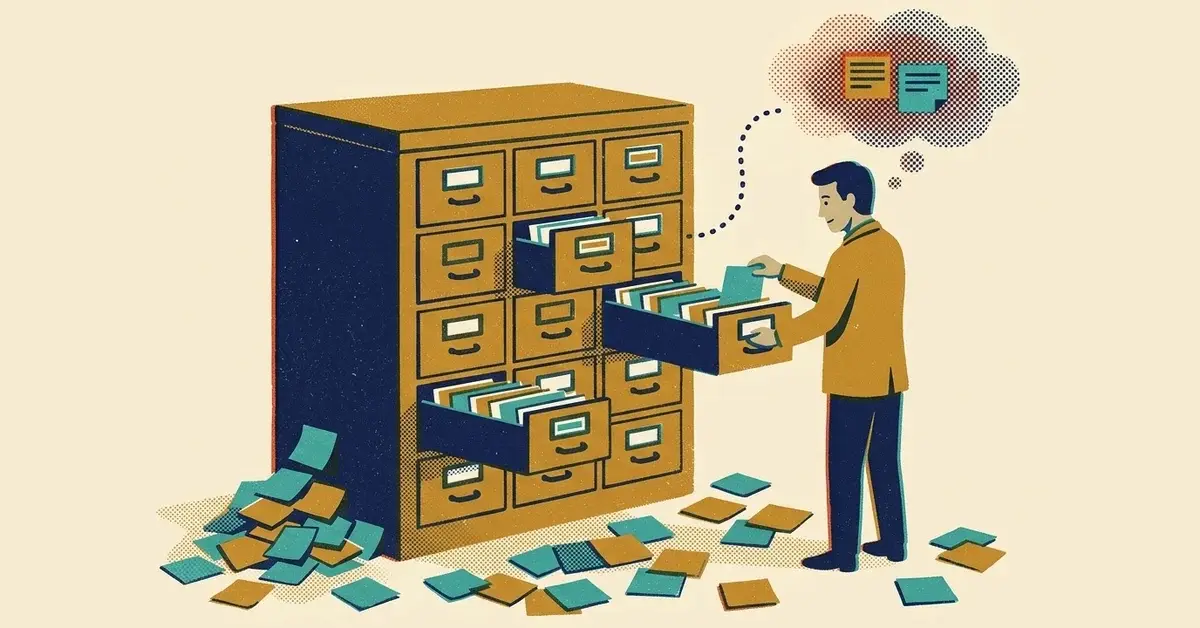
You know where everything is. Which customer wants a text instead of a call. Which vendor actually shows up. What to say when someone asks the same question for the fifth time this week.
That's the problem.
If all of that lives in your head, every question comes to you. Training takes forever. Steps get skipped when you're out. And the business can't grow past the number of questions you can answer in a day.
A "second brain" fixes that. It's one shared place where the business's know-how is written down, organized and easy to find. AI doesn't replace your experience here. It does the boring part: turning your messy notes, voice memos and old emails into checklists, templates and FAQs.
The quick answer
- Pick one home for it. A shared folder in OneDrive or SharePoint, Google Drive, OneNote or Notion. Whatever your team already opens every day.
- Dump the mess first. Sticky notes, old emails, voice memos. Don't tidy anything yet.
- Ask AI to sort it into FAQs, checklists, templates and rules. Tell it not to invent missing details.
- Review every draft yourself before anyone uses it.
- Spend 20 minutes a week adding to it. Anything you explained twice goes in.
What goes in it
Start with what you already use every week. Not the whole business on day one.
- Customer questions. What does it include, how long does it take, what happens next, do you serve my area.
- Service steps. New client intake, job prep, follow-up after service, closing out a project.
- Vendor notes. Who they are, what they supply, how to order, renewal dates, the backup option.
- Message templates. New lead reply, quote follow-up, appointment reminder, review request.
- Decision rules. When to ask for a deposit, when to decline a job, when to escalate to the owner.
- Training notes. How to use the tools, how to file things, the mistakes new people make.
What stays out: passwords, card numbers, bank details, Social Security numbers and anyone's health or HR records. Passwords go in a password manager. The rest stays in the system built for it, with the access it already has.
Build it in six steps
Step 1: Dump the messy information
Collect it all in one document or folder: screenshots, old emails, text snippets, meeting notes, voice note transcripts. Then paste it into your AI tool with this:
Organize these messy notes into a small business knowledge base. Create categories, suggest folder names, identify repeated themes, and flag anything that should become a checklist, template, FAQ, or policy. Do not invent missing details.
You'll be surprised how much you already know.
Step 2: Set up simple folders
For most small businesses, this is enough:
- Customers
- Services
- Sales and follow-up
- Operations
- Vendors
- Templates
- Policies
- Training
- Admin and finance
- Technology
You can split them later. The goal is that a new hire can find things without asking you.
Step 3: Turn repeated questions into FAQs
Turn these common customer questions into a FAQ for a small [type of business]. Keep answers short, helpful, and easy to understand. Do not overpromise. Include a clear next step when appropriate.
One good FAQ feeds your website, your email replies, your onboarding messages and staff training.
Step 4: Turn repeated tasks into checklists
A checklist is the cheapest way to cut mistakes.
Turn this process into a clear checklist for a small business. Include the task goal, tools needed, step-by-step instructions, common mistakes, and a final quality check.
No time to write the process down? Talk it through instead. Record a voice memo on your phone while you do the job, turn it into text with whatever transcription your phone or AI tool offers, then:
Turn this rough voice note into a clear business process. Organize it into: purpose, when to use it, step-by-step instructions, customer communication points, common mistakes, and owner review points. Keep my meaning, but make it easier to follow.
You talk. AI organizes. You check it.
Step 5: Build a template library and decision rules
If you write the same message more than twice, make it a template. A few starters:
- New lead: "Thanks for reaching out. To point you in the right direction, can you send [needed detail]?"
- Quote follow-up: "Following up on the estimate we sent. Any questions about the scope, timeline or next step?"
- Appointment reminder: "Quick reminder that we're scheduled for [date/time]. Please have [prep item] ready before we arrive."
- Review request: "Thanks again for choosing us. If you had a good experience, would you leave a quick review?"
Decisions you make over and over get written as if/then rules:
- If the lead is outside the service area, send the polite not-a-fit message.
- If the customer cancels twice, confirm before rebooking.
- If the issue involves money, document it and send it to the owner.
- If the issue involves safety, stop and review.
Create simple decision rules for this recurring situation: [situation]. Use if/then language. Include when to proceed, when to pause, and when to escalate to the owner.
Step 6: Name things so they can be found
"Notes," "New doc" and "Template 1" are where knowledge goes to die.
Use names someone would actually search for: "New Lead Reply Templates," "Appointment Prep Checklist," "Vendor Contact List." Ask AI to suggest names for a batch of files if you're stuck.
Can AI search the whole thing for you?
It depends on what you pay for. In Microsoft 365, as of October 2026, Microsoft's own Copilot Chat overview breaks it down like this:
Plan | What it can read from your business |
|---|---|
Copilot Chat (included with work accounts) | Mainly the web, plus files you upload or paste in. In Outlook, also your mail, calendar and a limited set of files |
Paid Microsoft Copilot license | Emails, meetings, chats and files across Microsoft 365 that the user already has permission to open |
Microsoft has renamed these (Microsoft 365 Copilot is now Microsoft Copilot, per the same page), so you may still see the old names in your admin center.
One catch. Copilot only shows people what they could already open. If your shared folders are wide open, a paid license makes that easier to find, not safer. Fix the sharing first.
Google Workspace has its own Gemini features, and what they can reach varies by plan. On Business Starter, Gemini works in Gmail and the standalone Gemini app; Gemini in Drive, Docs, Sheets and Meet starts at Business Standard (Google's edition comparison). Check your plan before you count on it.
What AI shouldn't do here
AI drafts and organizes. You approve. Don't let it:
- Invent policies, prices or promises you can't keep.
- Write legal terms or financial rules without someone qualified reviewing them.
- Publish anything customer-facing without a human read.
- Work from a free personal account. Sign in with your work account instead: Copilot Chat used with a Microsoft work account gets Microsoft's enterprise data protection, and prompts aren't used to train its models.
Keep it alive
A second brain goes stale fast if nobody feeds it. Put 20 minutes on the calendar every week and ask:
- What did we explain more than once?
- What mistake happened again?
- What message did we write from scratch?
- What task needs a checklist?
Then:
Here are the repeated questions, issues, and tasks from this week: [paste list]. Tell me what should be added to our knowledge base as a FAQ, checklist, template, decision rule, or training note.
One rule for the team: if you answered it twice, it goes in the brain.
When to get help
Most offices can set this up themselves in a couple of weekends. Get someone in if:
- You don't know who can see what in your shared folders.
- You want Copilot or Gemini searching your files and need the permissions cleaned up first.
- The knowledge is spread across five tools and three personal accounts.
If that sounds like you, we can help sort it out.




No comments yet