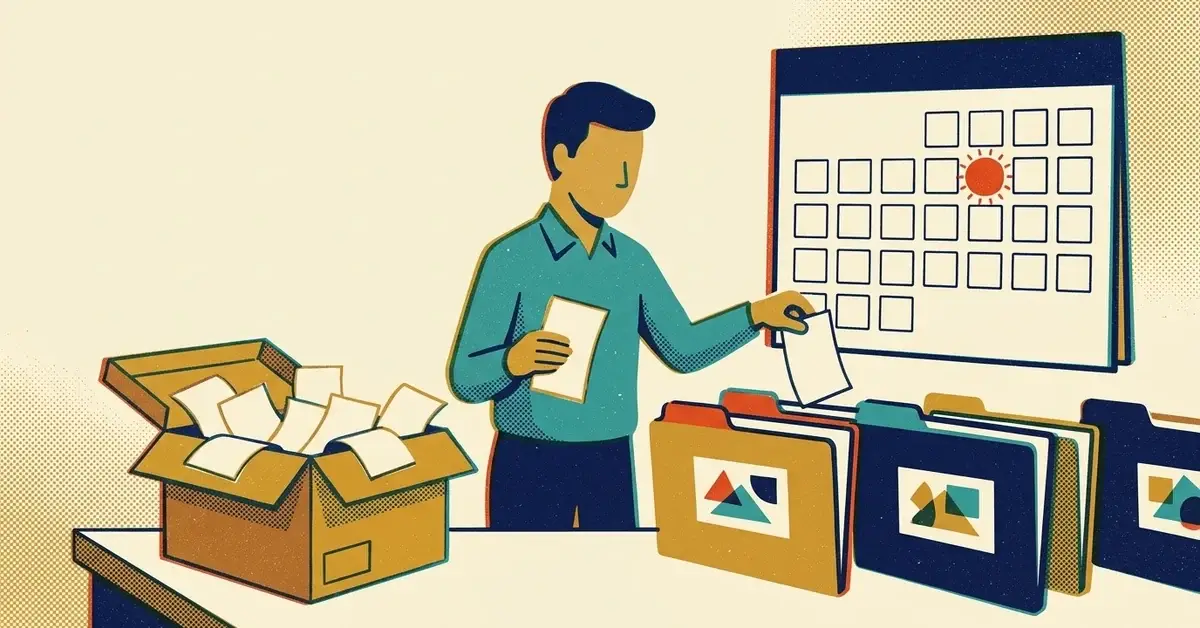
Every January it's the same. Your accountant asks for something. You don't have it. You spend an evening digging through a year of email for a receipt from March.
November and December are when you can still fix that. Vendors still answer the phone, customers can still pay this year, and a missing document is a quick email instead of a scramble.
Here's a week-by-week checklist you can run from mid-November to New Year, with the spots where AI saves you real time. AI does the sorting, searching and drafting. Your spreadsheet or accounting software does the math. And your accountant makes the tax calls.
We're not accountants, and nothing here is tax advice. What to deduct, how to categorize something, which forms you owe and when: ask the person who does your taxes.
The quick answer
- Week 1: pull every receipt and invoice out of your email into one folder.
- Week 2: chase unpaid invoices. AI writes the reminders.
- Week 3: export the year's transactions and sort them by vendor. Cancel what you don't use.
- Week 4: list every contractor you paid and check you have a Form W-9 from each.
- Week 5: reconcile every bank and card account through November.
- Week 6: write your questions for your accountant.
- First week of January: reconcile December, save the year-end reports, hand it all over.
An hour or two a week.
Ground rules before you paste anything
AI organizes. Software calculates. AI chat tools predict text. They can hand you a wrong total with total confidence. Let the spreadsheet or your accounting software add things up.
Paste the minimum. Vendor names, amounts and dates are usually enough. Leave out full bank statements, account and routing numbers, card numbers and Social Security numbers.
Use a work account. If you're on Microsoft 365, sign in to Copilot Chat with your work account and look for the green shield at the top. Microsoft says that means enterprise data protection is on, and prompts and responses aren't used to train its models. Whatever tool you use, know how it handles your data before you paste financial details in. Who Owns the Data I Feed into AI? covers what to check.
Week 1: get every receipt out of your email
Most of a year's receipts are sitting in your inbox. Get them into one place.
In Gmail
Paste this into the Gmail search bar on a computer:
has:attachment (receipt OR invoice OR order) after:2025/12/31
Every operator there comes from Google's search operators list: has:attachment finds messages with files attached, OR matches any of the words, and after: limits the date. Add filename:pdf to narrow it to PDFs.
Then:
- Select the results and add a label like Receipts 2026.
- Save the attachments into one Drive or OneDrive folder, named the same way every time:
2026-03-14 Vendor 89.50.pdf. - Run the search again with other words your vendors use: "payment confirmation," "statement," "your order."
In Outlook
Search for the same words (receipt, invoice, order), narrow the results to messages with attachments from this year, and save the files into the same folder.
Where AI helps
Once the folder is full, list the file names and paste the list into your AI tool:
Here's a list of receipt file names from this year. Group them by vendor and by month. Tell me which months look like they're missing a regular monthly charge.
That last line is how you find the gap before your accountant does.
Week 2: chase the money you're owed
This is the one step that puts cash in your account before year-end.
- In your accounting software (QuickBooks Online, Xero, or whatever you use), run the unpaid invoices or accounts receivable aging report. Aging just means it's sorted by how long each invoice has been overdue.
- Export it, or copy the customer names, invoice numbers, amounts and due dates.
- Paste into your AI tool:
Here are my unpaid invoices with due dates. Group them as: under 30 days late, 30 to 60, over 60. Draft a short, friendly payment reminder for each group. The first is a nudge, the second is firmer, the third asks for a payment date. Professional, never threatening. I want to keep these customers. Use [invoice number] and [amount] as placeholders so I can fill them in.
Then fill in the real numbers yourself, straight from the report. Don't let AI copy amounts across. And send them this week, not in late December when everyone's out.
If some invoices will never be paid, that's a question for your accountant. Don't write anything off on your own.
Week 3: sort a year of spending in a spreadsheet
Get the data
Export 12 months of transactions as a CSV file from your accounting software or your bank and card accounts. Delete the account number columns before you do anything else.
In Google Sheets with Gemini
Google's Gemini in Sheets page says Gemini can create pivot tables, apply filters and analyze your data. It needs an eligible Google Workspace or Google AI plan. Steps:
- Open the CSV in Google Sheets. If it opened as an Excel file, use File > Save as Google Sheets first.
- Click Ask Gemini at the top right.
- Ask: "Create a pivot table on a new tab that totals the Amount column by Vendor, sorted largest first."
- Then: "Highlight vendors that appear in at least 10 different months."
- Click Insert on anything you want to keep. Google warns you lose the chat history if you reload or close the sheet.
A pivot table is just a summary table: one row per vendor, with the total next to it. The spreadsheet does the adding, so the totals are right.
In Excel
Whether you see a Copilot button inside Excel depends on your Microsoft 365 plan and license. Microsoft's Copilot overview explains the tiers. If you have it, ask the same questions. If you don't, insert a PivotTable with Vendor in rows and Amount in values. Same result.
What to look for
- Subscriptions nobody uses. Cancel them before they renew.
- The same tool paid twice, often by two people on two cards.
- Price increases you didn't notice.
- Vendors you don't recognize. Check every one. An unfamiliar recurring charge can be fraud.
Week 4: list every contractor you paid
Pull a list of everyone you paid this year who isn't on your payroll: freelancers, subcontractors, the bookkeeper, the web person.
Paste the names and yearly totals (from your pivot table, not from AI) into a simple sheet with these columns:
- Name
- Total paid this year
- Paid how (check, bank transfer, card, payment app)
- Do we have a current Form W-9 on file? (yes or no)
Send that sheet to your accountant and ask which forms you need to file for them, and by when. Here's what the IRS says, so you know what you're asking about. Form 1099-NEC reports what you paid people who aren't your employees. For payments made in 2026, the IRS's 1099-NEC instructions (revised December 2026) set the bar at $2,000 or more to one person in the year, and say it may be adjusted for inflation starting in 2027. For payments made in 2025, filed in January 2026, the April 2025 instructions said $600 or more.
The form goes to the contractor and to the IRS by January 31. When that date falls on a weekend or legal holiday, the IRS moves it to the next business day, and January 31, 2027 is a Sunday, so 2026 payments are due Monday, February 1, 2027. The same instructions say payments made by credit card or through a payment app or other third-party network go on Form 1099-K from the payment company, not on your 1099-NEC. Whether a given contractor needs one is still your accountant's call.
Your job is getting any missing details from the contractors now, while they're still answering email. The form for that is Form W-9, Request for Taxpayer Identification Number and Certification: their legal name, tax ID number and address, in their own hand. A short request, drafted by AI, is fine:
Write a short, friendly email to a contractor asking them to fill in and send back a current Form W-9 for our year-end records. Keep it under 80 words.
Week 5: reconcile through November
Reconciling means checking that every transaction in your books matches your bank and card statements. Do every account, through November 30.
Your accounting software has a reconcile screen for this. If you've never used it, this is the week to ask your bookkeeper to walk you through it once.
The uncategorized pile
Most books have a pile of transactions nobody categorized. Export that list (date, vendor, amount, nothing else) and ask:
Group these transactions by vendor and tell me what each vendor most likely is (software, fuel, supplies, meals and so on). Don't assign tax categories. Flag anything you can't identify.
Use that to jog your memory. You or your bookkeeper still pick the category.
Week 6: questions for your accountant
Write the list now, not in the meeting.
I'm meeting my accountant about year-end. Here's what changed this year: [new hire, new vehicle, new equipment, new location, a big customer lost, started selling online]. Give me a list of questions to ask, each explained in one plain sentence so I understand what I'm asking. Don't answer them.
"Don't answer them" keeps AI from guessing at tax rules. The answers come from the person who knows your numbers.
First week of January: close it out
- Reconcile December for every account.
- Save these reports as PDFs into one 2026 Year-End folder: profit and loss, balance sheet, unpaid invoices, unpaid bills.
- Add the receipts folder and the contractor sheet.
- Share the folder with your accountant. One link, not 40 emails.
- Ask your bookkeeper whether to lock 2026 in your accounting software so nobody edits a closed year by accident.
If you're already behind
It's late December and none of this is done? Do these three, in this order:
- Reconcile your bank accounts.
- Make the contractor list.
- Find receipts for anything big: equipment, vehicles, a large software purchase.
Then tell your accountant early that you're behind. They'd much rather know in January than in April.
Keep it from piling up next year
- Set up a Gmail filter. Run the receipt search from Week 1, then use it to create a filter that labels new receipts automatically. Google's search page links the steps.
- Thirty minutes a month. First Monday: reconcile last month, file receipts, send reminders for anything overdue.
When to get help
- Your accountant or bookkeeper: anything about taxes, categories, write-offs, forms or deadlines. Always.
- An IT person: if your records are scattered across personal email accounts, laptops and phones and you want them in one backed-up place, or if staff are pasting financial data into personal AI accounts. That part we can help with.
Related reading
- How Can Small Businesses Use AI to Build a Q4 Plan in an Afternoon?
- Who Owns the Data I Feed into AI?
- "QuickBooks" Called Saying Our Database Is Corrupted. Is It a Scam?
Originally published October 2026. Updated November 2026.


No comments yet