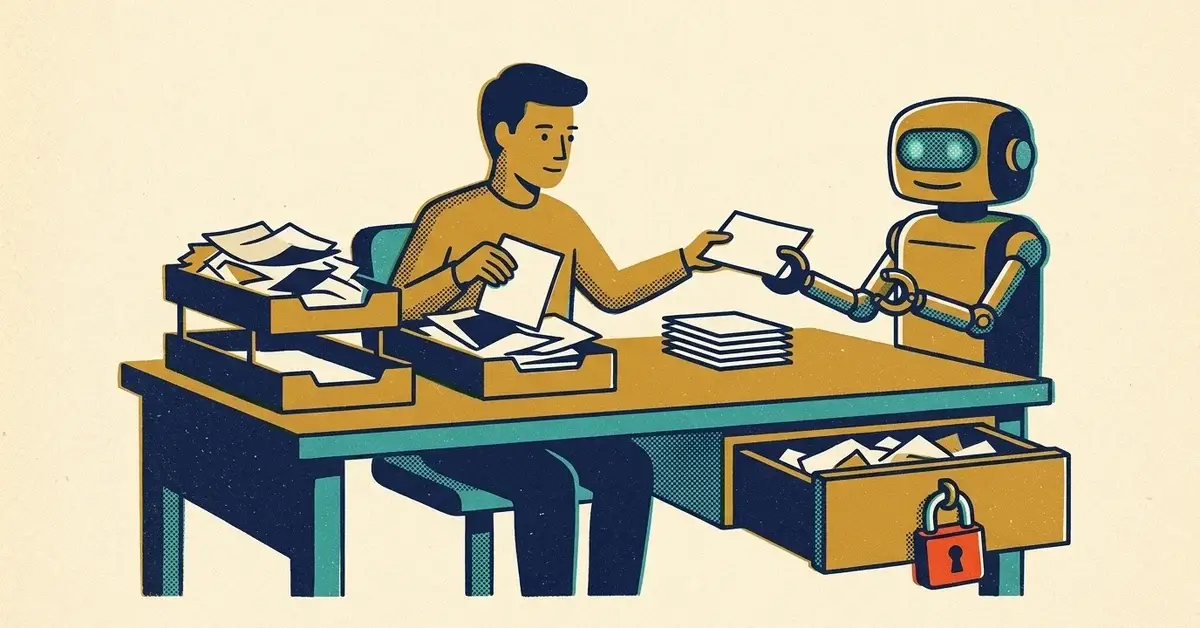
You want the AI to stop sounding like a robot and start sounding like your business. The obvious fix is to feed it your best material: sent emails, proposals, service descriptions, old FAQs.
The catch is that your best material is also where client names, prices, contract terms and private details live. So before you upload a folder of "examples," it's worth sorting what's safe to hand over and what isn't.
This post is about that sorting job. For the voice part itself (writing a voice card, saving instructions, testing), see Can You Train AI to Sound Like You?
The quick answer
- Use a business plan, signed in with a work account. Business versions of the big tools don't train on your content by default. Personal and free ones can.
- Feed it examples of how you write, not records of what you did. Five clean sample emails beat a whole Sent folder.
- Strip out names, contact details, prices and anything a client told you in confidence before anything goes in.
- Be careful what you share. Anyone you share a custom assistant with can usually see the files inside it.
- Write one team rule so nobody "helps" by uploading the client folder.
What "training it" usually means
When a small business says it trained its AI, it almost never means the model itself was changed. It means one of these:
- Saved instructions: Custom Instructions in ChatGPT, or instructions in a Claude Project or a Gemini Gem.
- Uploaded files: example documents added to a Project, a custom GPT or a Gem, which the AI reads each time.
- A connection to your accounts: the AI reads your mailbox, calendar and files directly. Microsoft Copilot inside Microsoft 365 works this way.
Each one has a different risk, so it helps to know which you're doing.
The three ways your material gets out
1. The vendor can use it
On free and personal plans, what you type and upload can be used to improve the vendor's models unless you turn that off. On business plans it generally isn't by default. Microsoft, for example, says prompts, responses and data accessed through Microsoft 365 "aren't used to train foundation LLMs" (Microsoft Learn: Data, Privacy, and Security for Microsoft Copilot).
The plan-by-plan detail, and how to switch training off, is in Who Owns the Data I Feed into AI?
2. The people you share it with can see it
This is the one people miss. Build a custom assistant, load it with your documents, share it with a contractor or the whole team, and the documents go with it.
Google says it plainly for Gemini: "Any Gem instructions and files that you have uploaded to the Gem can be viewed by any user with access to the Gem," and "don't share the Gem with anyone who you don't want to view the files" (Google: Share a Gem). Check the sharing rules for any other tool before you share an assistant built on your files.
3. A connected AI sees what the person sees
When the AI reads your accounts directly, it follows the permissions you already have. Microsoft says Copilot "only surfaces organizational data to which individual users have at least view permissions."
That's good news and bad news. Copilot won't show staff anything they couldn't already open. But if a folder of salaries or client contracts is shared with "Everyone" in SharePoint, anyone can now find it by asking, instead of having to stumble on it. Fix the sharing before you switch it on.
What's safe to use as examples
Sort your material into three piles.
Fine to use
- your published website copy and service descriptions
- public FAQs and blog posts
- marketing emails you've already sent to your whole list
- a short "how we sound" description you wrote yourself
Use only after cleaning
- sent emails to clients (great for tone, once names and details are out)
- proposals and quotes (keep the structure and wording, drop the client and the numbers)
- support replies and chat transcripts
Keep out entirely
- contracts and signed agreements
- anything with financial details, ID numbers, passwords or health information
- HR files, reviews and anything about an employee
- your pricing formulas and cost sheets
- anything a client asked you to keep private
A simple test: if it would be a problem to see it forwarded to the wrong person, it doesn't go in.
How to clean a sample in five minutes
Take one sent email or proposal and work through it:
- Replace names with placeholders: "Client A," "[Contact name]."
- Delete contact details: phone numbers, email addresses, street addresses.
- Remove numbers that matter: prices, account numbers, invoice totals, dates of birth.
- Cut the specifics: project details, problems the client told you about, anything you'd recognize as theirs.
- Read what's left. If it still sounds like you, it's a good example. If it's now three sentences of placeholders, pick a different one.
You need fewer samples than you'd think. Five to ten cleaned messages covering different situations (a follow-up, a scheduling note, an apology, a polite no) is plenty for tone.
A cautionary tale from 2023
At the end of April 2023, Samsung told staff in one of its biggest divisions that it was temporarily restricting generative AI tools on company computers, after cases of misuse. Bloomberg reported that some staff had uploaded sensitive code to ChatGPT (CNBC). From the reports, this was staff using a handy tool for everyday work, not anyone trying to leak secrets.
That's usually how it goes in a small business too. The risk isn't a villain. It's a helpful employee with a deadline and a folder of client files.
Put it in a team rule
A one-line rule people will remember works better than a policy nobody reads:
Only use AI tools on our business account, and never paste in client names, contact details, prices, contracts or anything private.
Then back it up:
- Give people the approved tool so they're not tempted to use a personal account.
- Keep a shared folder of cleaned examples so nobody has to make their own from client files.
- Decide who can build and share custom assistants, and check what's inside before one is shared outside the company.
- Check SharePoint, OneDrive or Google Drive sharing before turning on an AI that reads them.
When to get help
- You're about to switch on Copilot or Gemini across the company and aren't sure who can see what in your shared files.
- Someone has already uploaded client documents to a personal AI account and you need to work out what to do next.
- You want a set of approved tools, settings and a short staff rule without spending a week on it.
If that sounds familiar, we can help.




No comments yet