You're the whole business. So a week off means one of two things: you check email from the beach every morning, or you come back to 300 messages and a client who thinks you vanished.
Neither is a vacation.
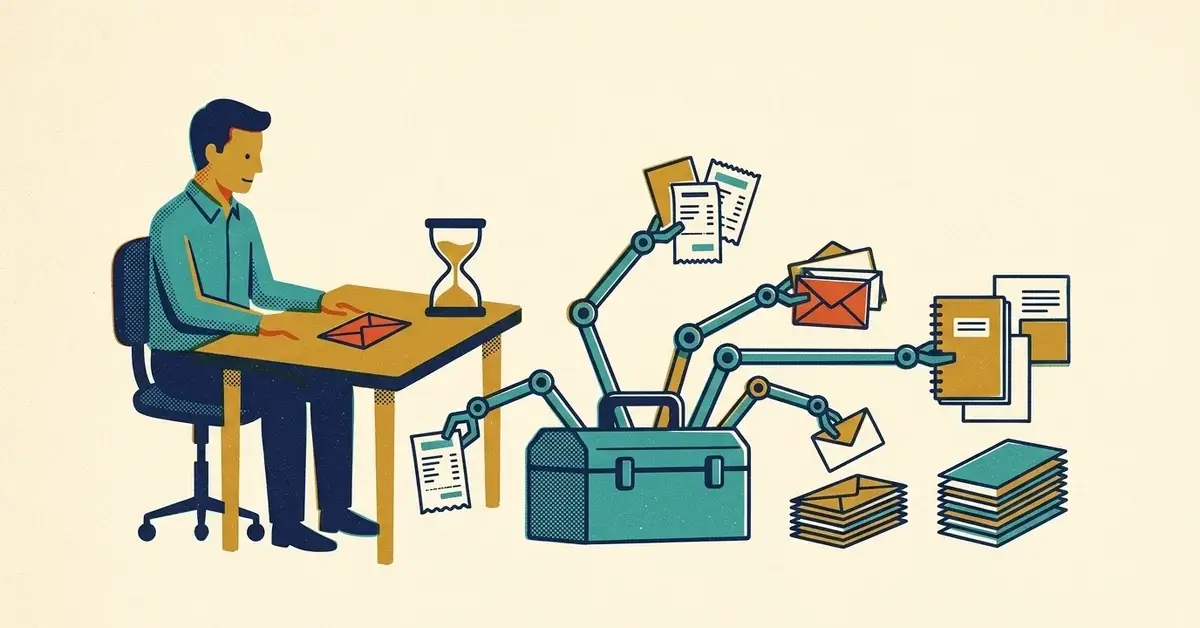
There's a middle path, and it uses tools you already have. An automatic reply that actually helps people. A few emails scheduled to go out while you're gone. And AI summaries that turn the pile into a short to-do list the morning you're back.
Here's the setup, step by step, for Gmail and Outlook.
The quick answer
- A week before: list what can't wait while you're out, and decide who (if anyone) handles it.
- Write an auto-reply that answers the top three questions, with your return date. Set it with start and end dates so it turns itself off.
- Schedule the emails you'd normally send that week: invoices, reminders, the Monday check-in.
- Update your voicemail greeting to match the auto-reply.
- Your first morning back: use the AI summaries in Gmail or Outlook to sort the backlog, then check anything involving money or dates by opening the original.
A week before: decide what can't wait
Before touching any settings, spend ten minutes on a list. Three columns on a sticky note is enough:
- Can wait a week: most of it. Quotes, newsletters, "just checking in."
- Can't wait, but has an answer: where to send a payment, how to book, what to do in an emergency. These go in the auto-reply.
- Can't wait, needs a person: a job in progress, an urgent client. These need a name and a number: a trusted contractor, a colleague in your trade, or you, once a day, at a set time.
That third column is usually shorter than you fear. Tell those few clients directly before you go. A personal heads-up beats any auto-reply.
Write an auto-reply people can actually use
"I'm out of the office" tells people nothing. A good one answers their question so they don't have to wait for you.
You can use your AI assistant to draft it. Give it the facts:
Write a short out-of-office reply for a one-person [type of business]. I'm away [dates] and back on [day, date]. I'm not checking email. For new bookings, use [booking link]. Invoices can be paid at [payment link]. For urgent problems with a job already in progress, call or text [name] at [number]. Friendly, under 90 words, no exclamation marks.
Then read it. Make sure every link and number is right, and that it doesn't promise a reply time you won't meet.
Turn it on in Gmail
From Gmail Help, on a computer:
- Click Settings at the top right, then See all settings.
- On the General tab, scroll to Vacation responder.
- Select Vacation responder on.
- Enter the first and last day, a subject and the message.
- Optional: tick the box to send replies only to people in your contacts.
- Click Save Changes.
Worth knowing: it runs from 12:00 AM on the first day to 11:59 PM on the last. Most people get it only the first time they email you, but the same person gets it again if they write after four days and it's still on. Mail that lands in spam doesn't get a reply.
Turn it on in Outlook (Microsoft 365)
From Microsoft's automatic replies guide, as of November 2026:
- New Outlook for Windows: View > View settings > Accounts > Automatic Replies. Turn on Automatic replies, select Send replies only during a time period, set the dates, write the message, and Save.
- Outlook on the web: Settings > Account > Automatic replies, then the same steps.
- Classic Outlook: File > Automatic Replies > Send automatic replies, tick the date range, and fill in the Outside My Organization tab. That's the one your customers see.
A one-person business on Microsoft 365 is its own "organization," so the outside message is the one that matters. Microsoft warns that replying to everyone outside your organization also replies to newsletters and junk. If you get a lot of that, choose Send replies only to contacts (or My contacts only in classic Outlook), but only if your customers are actually saved as contacts. If they aren't, leave it open to everyone.
Outlook sends the reply once to each sender. If you use Gmail or another IMAP account inside the Outlook app, there's no Automatic Replies option; set the vacation responder in Gmail itself instead.
Schedule what you'd normally send that week
If you send invoices on Fridays or a reminder before every appointment, write them before you leave and schedule them.
- Gmail: write the email, click the arrow beside Send, then Schedule send. You can have up to 100 scheduled emails, and they go out by the time zone you scheduled them in (Gmail Help).
- New Outlook and Outlook on the web: click the dropdown next to Send, choose Schedule send, and pick a time. The message waits in Drafts until then (Microsoft Support). It isn't available for IMAP or POP accounts.
Don't schedule anything that depends on something happening while you're gone ("Thanks for your payment"). If it might be wrong by the time it sends, it waits.
Don't forget the phone
Customers who don't get an email answer call. Update your voicemail greeting with the same return date and the same "urgent" contact as the auto-reply. If you're thinking about having AI answer the phone instead, read Can AI Answer Your Phone Without Losing Customers? before you leave, not the night before.
Your first morning back: catch up with AI
Now the part that saves the most time. Don't read 300 emails top to bottom.
Step 1: Clear the junk first
Archive newsletters, receipts and notifications in bulk. Search for "unsubscribe" in Gmail or Outlook and you'll catch most of them in one go. What's left is the real mail.
Step 2: Summarize the long threads
- Gmail: open a thread. An AI Overview summary appears at the top; if it doesn't, click Summarize this email. Google says this is available to all Gmail users, work or personal, as long as Smart features are turned on in Gmail settings. If a summary includes a task with a due date, you can click Remind me to set a reminder.
- Outlook: open a conversation and select Summary by Copilot (or Summarize) at the top (Microsoft Support). Microsoft lists thread summaries among the Copilot features business users get without the paid Copilot add-on, though that basic access depends on service capacity.
Step 3: Ask your inbox a question
If your plan includes it, Gmail can now answer a plain question typed in the search box. Try "Which customers asked for a quote while I was away?" or "Did anyone reschedule an appointment?" Google's Gmail search help says personal accounts need a Google AI Plus, Pro or Ultra plan and work accounts need an eligible Workspace plan. It doesn't work if you use search operators like is:unread.
Workspace users can also open Ask Gemini at the top right of Gmail and ask it to "Create a list of action items for me based on this email" (Gemini in Gmail help).
Step 4: Check before you act
Google's own help says Gemini may give inaccurate information. A summary is a map, not the territory. Open the original email before you:
- Confirm a date, time or price.
- Reply to a complaint.
- Pay, refund or send anything with a number in it.
The summaries tell you which ten emails matter. You still read those ten.
Why this works
Most of a week's email falls into a few buckets: questions with standard answers, mail that needs nothing from you, and a handful that need you personally. The auto-reply handles the first bucket, bulk archiving handles the second, and AI summaries help you find the third fast.
What AI can't do is know your business. That's why the human parts (the heads-up to key clients, the "urgent" contact, the final read) stay with you.
Make it reusable
Save three things in a note called "Time off" so next time takes ten minutes:
- Your auto-reply text, with blanks for the dates.
- The list of clients who get a personal heads-up.
- Your voicemail script.
If you'd like to set up more of this kind of help without hiring, How Can Solo Business Owners Use AI When They Don't Have an Assistant? goes further.
When to get help
- Automatic Replies is missing in Outlook, or you're not sure whether your email is Microsoft 365, Google Workspace or something your web host set up.
- You want someone else to be able to see or answer your business email while you're away, without sharing your password.
- You came back to messages saying your auto-reply never went out.
If that's you, we can help set it up.
Related reading
- How Can Solo Business Owners Use AI When They Don't Have an Assistant?
- "Search My Inbox" Without the Chaos: How AI Can Turn Emails Into Tasks Without Missing the Important Stuff
- Can AI Answer Your Phone Without Losing Customers?
Originally published March 2025. Updated November 2026.




No comments yet