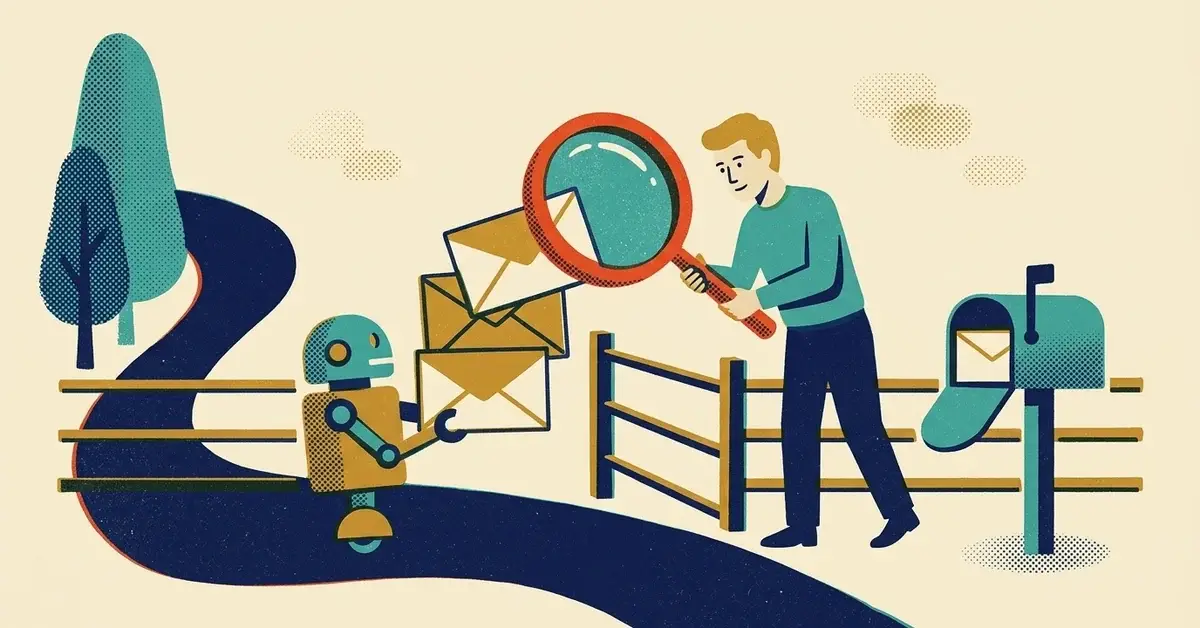
You let AI draft the customer emails. Then the replies to reviews. Then someone connected it to the shared inbox so it could "help" with follow-ups.
Now a customer is quoting something back to you that nobody in your office remembers saying.
That's the real risk with AI at work. Not that the tools are bad. It's that nobody decided what they're allowed to do without a person looking first.
The quick answer
Set these four rules this week:
- Nothing customer-facing goes out unread. AI drafts, a person sends.
- List every AI tool that can act on its own (send, post, book, reply, change files) and who owns each one.
- Turn off what you aren't using, and give the rest the least access that works.
- Know where the logs are so you can see what the AI did and on whose behalf.
Why "who's watching" matters more now
When this post first went up in November 2025, most small businesses used AI as a writing helper. You asked, it drafted, you copied and pasted.
That's changed. AI tools now do things. Microsoft 365 has an Agents section in the admin center where admins see, install and block AI agents across the organization (Microsoft Learn). Chat tools can connect to your email, calendar and files. Some can browse and fill in forms.
The security world noticed. On December 9, 2025 the OWASP GenAI Security Project, a volunteer security community, published a Top 10 list of risks for "agentic" AI (AI that takes actions, not just writes text). Several items on it come down to the same thing: an AI with more access than it needs, and nobody checking what it does with it.
And legally, "the AI said it" doesn't get you off the hook. In February 2024 a Canadian tribunal held Air Canada responsible for what its website chatbot had told a customer about bereavement fares. As news reports described it, the airline argued the chatbot was responsible for its own words, and the tribunal called that a "remarkable submission" (Moffatt v. Air Canada, 2024 BCCRT 149). Different country, small claim, same lesson: your AI speaks for you.
How to tell if your AI is unsupervised
Answer these honestly:
- Can any AI tool send an email, text or social post without a person clicking send?
- Is any AI connected to your shared inbox, calendar, CRM or file storage?
- Did someone sign up for an AI tool with a work account and connect it to company data without telling anyone?
- If a customer complained about something the AI said last Tuesday, could you find it?
If you answered yes, yes, maybe and no, you're normal. You're also exposed.
How to put a person back in the loop
1. Make a list of what AI does for you
Open a spreadsheet with four columns:
- Tool (Microsoft Copilot, ChatGPT, your CRM's AI assistant, your website chatbot)
- What it does (drafts emails, answers website visitors, summarizes calls)
- What it can reach (inbox, files, customer records)
- Owner (the one person who answers for it)
No owner, no tool. If nobody wants to own it, turn it off.
2. Decide what needs a human
Not everything needs the same level of checking. Sort each job into one of three levels:
Level | What it means | Examples |
|---|---|---|
AI can do it alone | Low risk, internal, easy to undo | Summarizing your own notes, first drafts, tagging emails |
AI drafts, a person approves | Anything a customer sees | Emails, quotes, review replies, social posts, blog posts |
AI stays out | Promises, money, legal or health questions | Guarantees, refunds, pricing exceptions, contract terms, advice |
The middle row is where most of the trouble starts. An AI reply that promises a refund, quotes last year's price or mixes up two clients reads exactly as confident as a correct one.
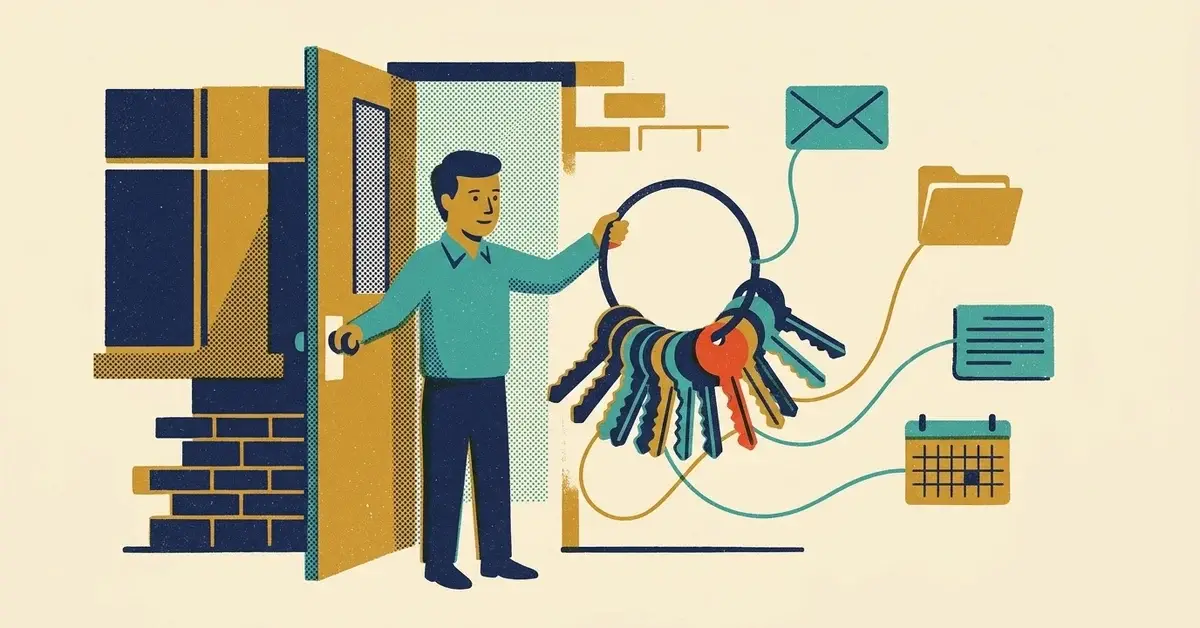
3. Give each tool the least access that works
An AI that only drafts blog posts doesn't need your inbox. One that summarizes meetings doesn't need your accounting folder.
If you're on Microsoft 365:
- Agents: In the Microsoft 365 admin center, go to Agents > All agents. Select an agent to see what it is and who can use it, and Block anything you didn't approve (Microsoft's steps).
- Copilot itself: Microsoft says Copilot only shows data the person using it already has permission to view. So the fix for "Copilot found the salary spreadsheet" is cleaning up who has access to the salary spreadsheet.
If your team uses ChatGPT, put work use on a business plan (ChatGPT Business, called ChatGPT Team until August 2025, or Enterprise) so an admin controls who's in the workspace and which apps are allowed, instead of everyone using personal accounts. In Business, apps are on by default, so it's worth an admin looking at that list.
4. Know where the record is
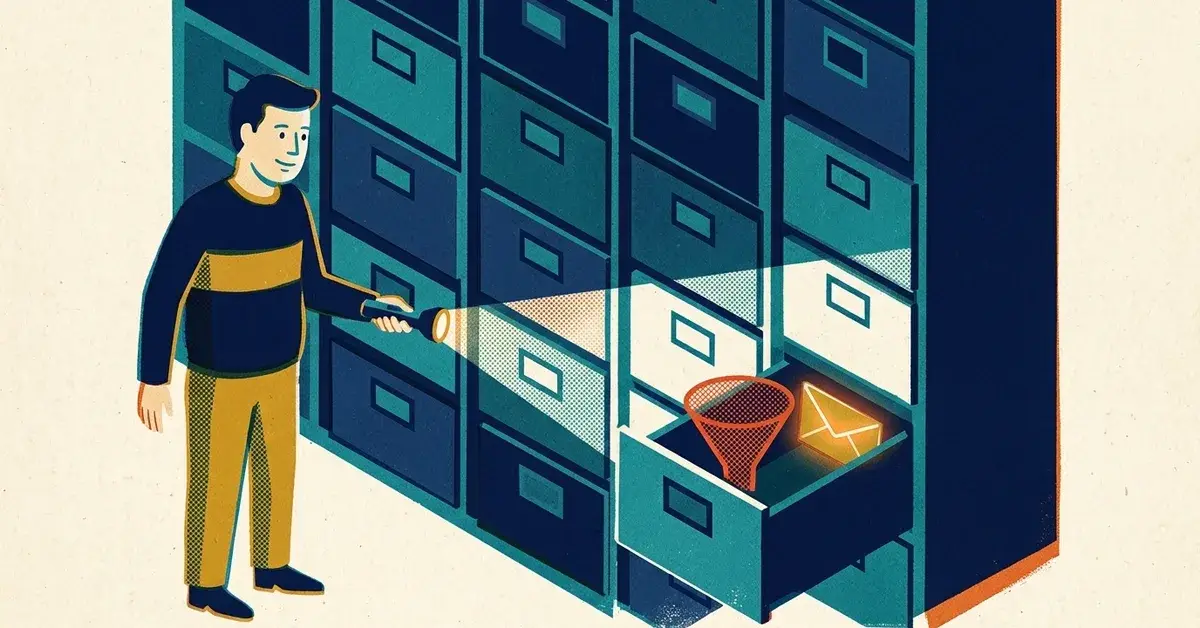
You can't supervise what you can't see.
- Microsoft 365: Copilot activity is recorded in the audit log automatically when auditing is on. In the Microsoft Purview portal, go to Solutions > Audit and search with the Copilot workload selected (Microsoft Learn). The records show who used it, when, and which files it read.
- Website chatbots and CRM assistants: check the tool's settings for a conversation history or transcript export, and keep it.
- Everything else: if a tool keeps no record of what it sent on your behalf, it shouldn't be sending anything on its own.
5. Write it down in one page
Three lines is enough to start:
- "AI drafts. People send."
- "AI doesn't make promises about price, refunds, results or legal questions."
- "New AI tools that touch company data get approved by [owner] first."
Pin it where people work. Revisit it when you add a tool.
Why AI goes off the rails
AI chat tools predict what a good answer would sound like. Most of the time that's close to right. Sometimes it's confidently wrong: a made-up figure, a policy you don't have, last month's price.
Add access to your inbox or website and that wrong answer goes straight to a customer. Add the ability to act, and it can do the wrong thing, not just say it.
The tool isn't misbehaving. It's doing exactly what it was set up to do, without the check you'd give a new hire.
If it's already gone wrong
- Stop the tool from sending or posting until you know what happened. In Microsoft 365, block the agent; elsewhere, disconnect it or switch off auto-send.
- Find what went out. Pull the logs or transcripts for the period.
- Correct it with the people affected, plainly and quickly. A short "that message was wrong; here's the right information" beats silence.
- Fix the gap, usually by moving that job from "AI alone" to "a person approves."
When to call someone
Get help if:
- An AI tool has access to company email or files and you can't tell who set it up.
- A customer, regulator or insurer is asking about something your AI said or did.
- You want AI connected to your systems but need the permissions and logging set up properly first.
If that's you, we're happy to help.
Related reading
- How to Catch Email and Proposal Mistakes Before Clients Do (With AI Checks): using AI as the second pair of eyes.
- AI Gave Your Client the Wrong Link, Phone Number or Bank Details? What to Do
- What Do AI Hallucinations Cost a Business? 5 Real Cases
Originally published November 2025. Updated October 2026.



No comments yet