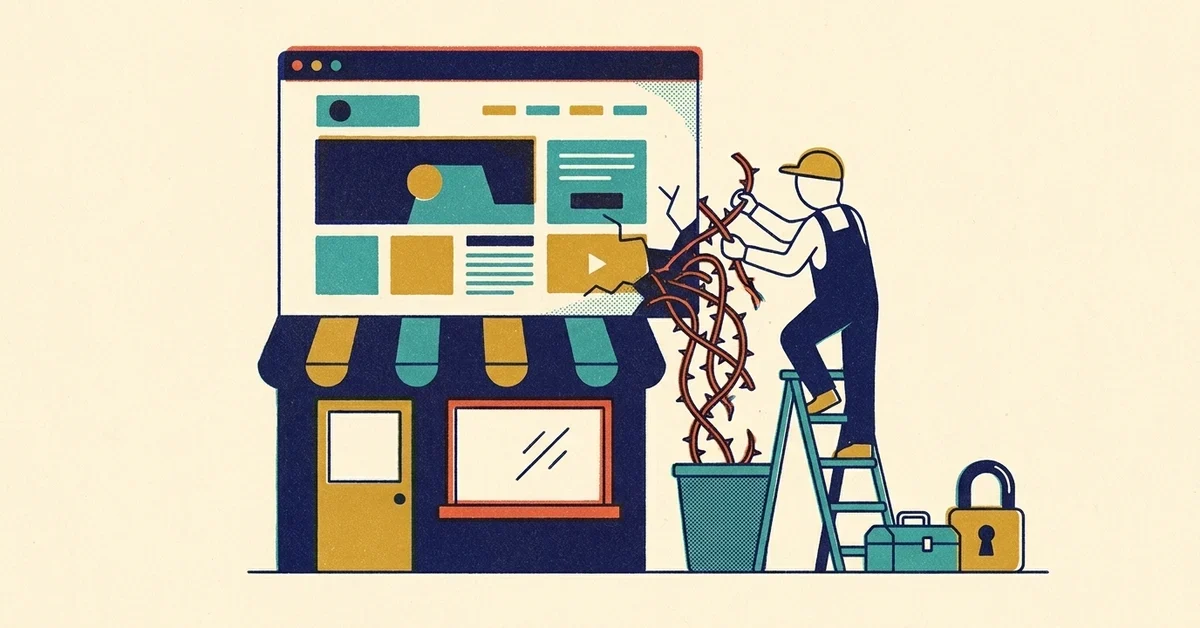
A customer calls to say your website sent them to a casino site. Or you search your business on Google and the result says "This site may be hacked." Or Chrome shows a red warning page in front of your homepage, and your host has emailed to say the account is suspended.
It's a bad morning, but it's fixable. Hacked WordPress sites are common, and the cleanup follows a known order. The most important thing is to do it in that order, so the attacker doesn't walk straight back in the day after you clean up.
The quick answer
- Write down what you're seeing and when you first noticed it, before you change anything.
- Call your web host. They can often see what changed, and some will help with cleanup.
- Change every password tied to the site: WordPress admins, hosting account, FTP/SFTP and the database.
- Take a backup of the hacked site as it is now, then clean it or restore a backup from before the hack.
- Update WordPress, every plugin and every theme, and delete the ones you don't use.
- Check Google Search Console's Security issues report, and request a review once everything is clean.
If you're not comfortable working with hosting control panels and site files, skip to the end. This is a reasonable job to hand to someone.
How to tell if your site was hacked
Common signs:
- Visitors get redirected to spam, gambling, pharmacy or fake prize sites, especially when they arrive from Google.
- Google shows a warning under your listing, or Chrome shows a red warning page before your site loads.
- Strange pages show up on Google. Search
site:yourdomain.comand look for pages you didn't write: drug names, foreign-language text, knock-off products. Google suggests doing this search regularly for exactly this reason. - Admin users you don't recognize appear under Users in WordPress.
- Your host suspended the account or warned you about malware or sending spam.
Why it might look fine to you
Hackers often hide their changes from the site owner. Google's Security issues report help explains that hacked content is often cloaked: shown only to visitors coming from Google, or only to Google's crawler, so you never see it when you type your address straight in. It also warns against opening suspected infected pages directly in your browser, because malware can target the browser itself.
Two safer ways to look:
- Search Console's Security issues report (under Security & Manual Actions). Google calls this report the source of truth for whether it sees a problem, even if you can't reproduce the warning yourself.
- The URL Inspection tool in Search Console, which shows you the page the way Google sees it.
Step 1: Write down what you see
Before you start changing things, note:
- What you or your customers saw, and on which pages.
- When it was first noticed.
- Anything that changed recently: a new plugin, a new theme, a new person with access, a plugin you've been meaning to update.
WordPress's own hacked site FAQ puts documenting first for a reason: it helps whoever cleans the site find how the attacker got in, and it's the record you'll want if customers or your insurer ask questions later.
Step 2: Call your host
Google's security checklist tells site owners to contact their hosting company, and it's the right second call. Your host can tell you whether other sites on the account are affected, may have server logs showing what changed, and can sometimes take the site offline while you clean it, so visitors aren't sent anywhere harmful in the meantime.
Step 3: Lock the attacker out
Change passwords for everything that can touch the site, from a computer you trust:
- Every WordPress administrator account (and remove any you don't recognize).
- Your hosting control panel (cPanel, Plesk or your host's own dashboard).
- FTP or SFTP accounts.
- The database password.
- The email account the WordPress admins use, since password resets go there.
The WordPress FAQ also recommends forcing a password reset for all users and regenerating the security keys in the wp-config.php file, which logs out anyone who's still signed in, including the attacker. Turn on two-factor authentication for every admin account while you're there.
Scan the computer you use to manage the site too. The WordPress FAQ notes that in many cases the infection starts on the site owner's own computer, with saved passwords stolen from it. Google's checklist makes the same point: keep the machines you work on the site from clean and up to date.
Step 4: Take a backup of the hacked site
It sounds backwards, but back up the site as it is now, infected. If the cleanup goes wrong, you can get back to this point without losing your real content, and it preserves evidence of what the attacker changed. Keep it somewhere separate from your good backups and label it clearly.
Step 5: Clean the site
There are two routes.
Restore a clean backup
If you have a backup from before the hack, restoring it is usually the fastest fix. The catch is knowing the backup is actually clean: the hack may have started well before anyone noticed it. Pick a backup from before the first sign of trouble, restore it, then go straight to updating everything (Step 6) and changing passwords again, or you'll restore the same hole.
Clean it in place
Without a clean backup, the WordPress FAQ's approach is to replace the software with fresh copies rather than hunting through every file:
- Replace WordPress itself (the
wp-adminandwp-includesfolders) with a fresh download of the same version, uploaded over SFTP. The FAQ advises against using the reinstall button inside the dashboard for this. - Replace every plugin and theme with fresh copies from WordPress.org or the developer's site. Delete any you don't use.
- Check the `.htaccess` file for redirects you didn't add. Google's Security issues help names it as a common place for hackers to hide redirects.
- Look through your uploads folder for files that don't belong, like PHP files mixed in with your images.
Google's help page lists code that often shows up in hacked files, such as eval, base64_decode and links to sites you don't recognize. It's also honest about who this is for: fixing a malware problem "requires the ability to read and understand code." If that's not you, this is the point to bring someone in.
Step 6: Close the hole that let them in
Cleaning without fixing the cause means getting hacked again. Google's help page lists the usual ways in: an insecure folder on the server, out-of-date WordPress, and vulnerable third-party plugins.
- Update WordPress, every plugin and every theme.
- Delete plugins and themes you don't use. Deactivated isn't enough; the files are still there.
- Replace anything from an unofficial source. Google's checklist says to pick third-party add-ons "very carefully" and only from trusted, legitimate sources. A "free" download of a paid theme from a random site is neither.
- Check who has admin access and cut it down to the people who need it.
Step 7: Ask Google to clear the warning
Once everything is clean, open Search Console's Security issues report, confirm the issues listed there are fixed, and select Request review. Google's instructions say a good request explains what was wrong, what you did to fix it, and the result.
Some timing to know:
- Google says a security review can take a few days to a few weeks, and it emails you when it's done.
- Fix everything before you ask. Google says fixing only some pages won't earn a partial return, and requesting a review when the problem isn't fixed can slow the next one down.
- Sites that keep flipping between clean and infected can be labeled repeat offenders. Under Google's Safe Browsing repeat offenders policy, that blocks new review requests for 30 days.
If it keeps coming back
A site that gets reinfected days after cleaning usually has something left behind: a hidden admin account, a modified file, a backdoor in the uploads folder, or the original vulnerable plugin still installed. It can also mean the stolen password was never changed, or the attacker still has access to your hosting account or your computer. At this point, a full rebuild on fresh hosting from known-good content is often less work than another round of cleaning.
Preventing it next time
- Keep everything updated, and don't let plugins sit for months. Google's checklist warns that a common mistake is installing software on a site "and then forget about it."
- Use fewer plugins. Every one is something else to keep updated.
- Strong, unique passwords and two-factor authentication for every admin account and the hosting login.
- Off-site backups you've actually tested restoring.
- Verify the site in Search Console and make sure its messages reach an inbox someone reads. Google notifies verified owners there when it detects malware.
- Search `site:yourdomain.com` now and then to catch pages you didn't create.
When to call someone
- The cleanup involves reading code or server files you're not comfortable with.
- The site was cleaned once and got hacked again.
- The site takes payments or collects customer information. If there's any chance that data was exposed, talk to your insurer and attorney about what you might need to tell people.
Managed Nerds cleans up hacked WordPress sites. Afterwards, we can keep yours on our secure WordPress hosting, where it's hardened, backed up daily and monitored, and if anything ever slips through, we clean it at no extra charge and get it cleared from Google's blocklist. If your site is hacked right now, send us a message.


No comments yet