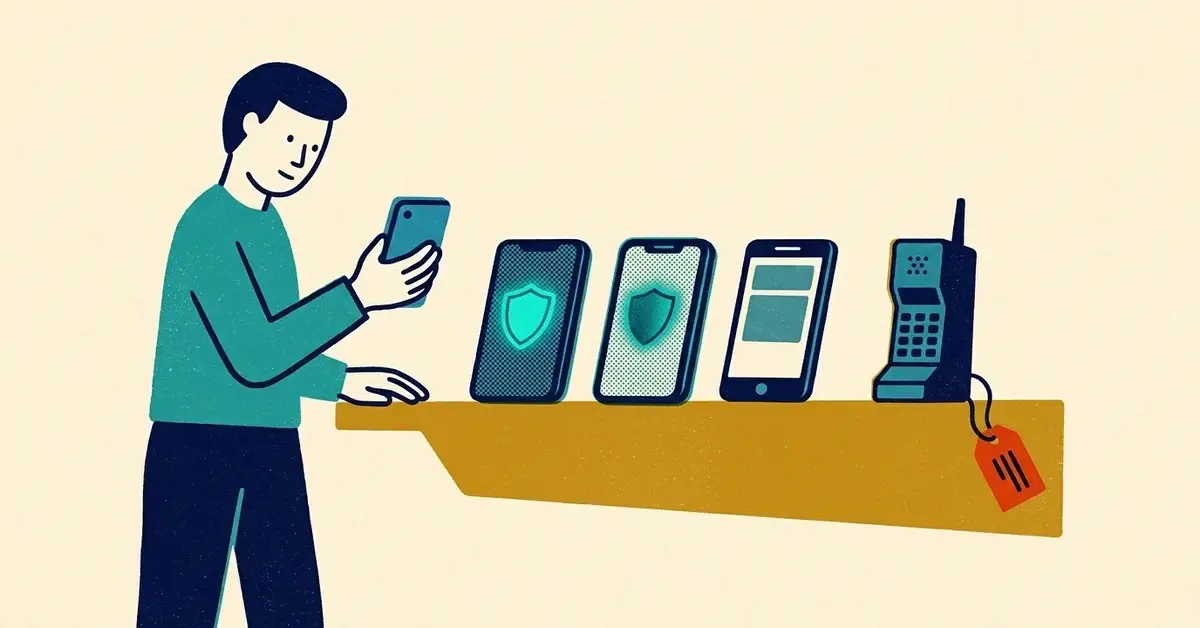
A headline says Android users need to update now. You've got six phones in the office. Two are old, one belongs to a part-timer, and nobody is sure what version anyone is running.
That's the real problem. Not the headline. Those phones hold your email, your bank app and the login approvals for everything else, and most of them haven't been checked since the day they were handed out.
This post is how to check a phone in two minutes, what to do about the ones that can't be updated, and a rule that keeps it from coming up again.
The quick answer
- On each phone, open Settings > About phone > Android version. Find the line called Android security update. That's the date of the last security patch the phone installed.
- Open Settings > System > Software updates. If something is waiting, install it. Connect to Wi-Fi first and charge to at least 75%, because Google says updates can be large.
- Restart the phone. On a Pixel, Google says a downloaded update becomes active the next time you restart.
- If the phone says there's nothing newer and the patch date is more than a few months old, it may be too old to get updates. Check the table below.
- Put the rule in writing: phones that touch company email get updated, and phones that can't be updated don't touch company email.
How to tell if a phone is behind
Look at the security update date from step 1. Then compare it to Google's Android Security Bulletins, the monthly lists of fixes. If the phone's patch date is months behind the newest bulletin, it's missing fixes that have already been published.
Two things trip people up.
First, the menus move. Google's own help page describes the path above, but Samsung, Motorola and others label things their own way. If you don't see Software updates under System, search Settings for "update".
Second, a phone can be fully up to date and still be behind. Google says update schedules vary by device, manufacturer and mobile carrier. Google's Pixel page says updates roll out gradually and can take a few weeks to reach your phone. That's normal. A phone that hasn't moved in months is not.
Android version, security update, Play system update: three different things
Open Settings > About phone > Android version. Google's help page lists four lines there: Android version, Android security update, Google Play system update and build number.
People mix the first two up all the time. They're not the same.
- Android version is the big number, like Android 15. It changes when the phone gets a whole new release of Android.
- Android security update is a date. It's the monthly security patch the phone has installed. This is the line to check when a headline says "update now".
- Google Play system update is a third, separate line. It's listed on the same screen, so check that it isn't months behind either.
A phone can be on a recent Android version and still carry an old patch date, and the date is the one that matters. Google says that to get the latest security update, you need the latest Android version available for your device. If the manufacturer has stopped releasing new versions for that model, the patches stop too.
Google also says most system updates and security patches install automatically. Good. But "automatically" only works if the phone is connected, charged and not out of storage, and it only works while the maker is still shipping updates. So the monthly check is still worth ten seconds.
Which phones stop getting updates
Eventually every phone stops. When it does, nobody tells the owner. The phone just sits there, getting a little less safe each month.
For Pixels, Google publishes the schedule. This is from its Pixel update page as of October 2026:
Pixel model | How long it gets updates |
|---|---|
Pixel 8 and later | 7 years from when it first went on sale in the Google Store (US) |
Pixel 6, 6a, 6 Pro, 7, 7a, 7 Pro and Pixel Fold | 5 years from the same date |
Pixel 5a and earlier | No longer receives updates |
For any other brand, Google's help page says to ask the manufacturer or carrier. Do that before you buy phones for staff, not after. "How many years of security updates?" is a fair question to put to a salesperson.
If a phone is past its end date, replace it for work use. Giving it back to the family as a game console is fine. Reading company email on it is not.
If it won't update
Run through these in order:
- Not enough space. The update needs room. Delete old videos or move photos off the phone, then try again.
- It started and stalled. Google says the phone retries automatically over the next few days and sends a notification when it does.
- Still nothing. Restart, check again, and if the phone is old, go back to the table above. Google notes that older devices can't always run newer Android versions.
Two more checks while you have the phone in your hand
Play Protect. This is Google's built-in app scanner. Google says it's on by default, and that you can turn it off. It also recommends keeping it on. To confirm, open the Play Store, tap your profile icon, go to Play Protect, then Settings, and make sure Scan apps with Play Protect is on. If a harmful app is found, Google says in most cases you get a notification that it was removed. It can also prompt you to uninstall it.
Apps. A patched phone can still be exposed by an old app. Google's steps: in the Play Store, tap your profile icon, then Manage apps & device. Under Updates available, tap See details, then Update all. To turn on auto-update, go to Settings > Network preferences > Auto-update apps and pick an option. Wi-Fi only is a sensible pick if staff are on limited data plans.
Then look at the app list and ask one question: does anyone use this? If not, remove it. In the Play Store, that's profile icon, Manage apps & devices, Manage, pick the app, Uninstall. Google notes some of those steps only work on Android 13 and up, so older phones may look different. On a company-managed phone, apps your IT person installed may not have an Uninstall button at all. That's by design.
Making it a business rule
One-off checks work until the next busy week. Three things make it stick.
Write it down. One line in the staff handbook: "Phones used for company email or login approvals must be on a supported Android version with current security updates, and a screen lock."
Let the system enforce it, if you have one. If your phones are enrolled in Microsoft Intune, a compliance policy can include a minimum security patch level. Microsoft's docs say you enter the oldest patch date a phone may have in YYYY-MM-DD format, and that no date is set by default. A phone older than that date shows as noncompliant. The same setting exists in the app protection policy, where it can warn, block or wipe the work account from the phone.
Keep work and personal apart where you can. A separate work profile keeps company apps and data apart from whatever else is on the phone.
If all of that sounds like more than your office needs, the minimum is the first line. A written rule and a quick check once a month beats a policy nobody reads.
Personal phone or company phone?
Before you write any rules, answer this: who owns the phone? It changes what you can ask of it.
Microsoft's Intune enrollment guide splits Android into a few types. Two matter for a small team.
- Personally owned, with a work profile (BYOD). Work apps and data sit in a separate, company-managed space. Personal apps and data stay in the personal profile. The employee keeps using the phone as usual.
- Company-owned. Microsoft lists two main options. Corporate-owned with a work profile is for phones that are also approved for personal use. Fully managed is for work only, with one user per device. Microsoft says it lets you manage the whole device and enforce things a work profile can't, like allowing app installs from Managed Google Play only, blocking users from uninstalling managed apps and preventing factory resets.
The trade is simple. A work profile is easier to ask an employee to accept on their own phone, because you only see the work side. Fully managed gives you more control and is better on phones you bought. Microsoft's guide says company-owned phones shouldn't use the personal work profile option, and personal phones belong on it. Pick by who owns the phone.
If you use Intune, here are the exact places to set a minimum patch date. Have the admin center open.
- Compliance policy. In the Microsoft Intune admin center, create a device compliance policy and set Platform to Android Enterprise. Microsoft's settings reference puts Minimum security patch level under Device properties for fully managed and corporate-owned work profile phones. For personally owned work profile phones it's under System security > Device security. Enter the oldest allowed patch date as YYYY-MM-DD. There's no default date, so nothing is enforced until you pick one.
- Other settings in the same policy. Under System security, Require a password to unlock mobile devices can be set to Require. Under Device health, Microsoft lists a Play Integrity Verdict setting, which has options for basic integrity and for basic plus device integrity. None of these are on by default.
- App protection policy. This one targets the apps rather than the whole phone. In Microsoft's reference, look under Conditional launch > Device conditions. Min patch version takes a YYYY-MM-DD date, and the action is warn, block access or wipe data. Min OS version is there too. So is Require threat scan on apps, which makes sure Google's app scanning is on.
One caveat from that page. The Intune Company Portal has to be on the device to get app protection policies. If staff haven't installed it, the policy never reaches the phone.
No Intune? Skip all of that. The written rule below and the audit table still work. They just rely on a person instead of a policy.
A phone rule you can copy
Short enough that people will read it. Paste it into the handbook and change the words to suit.
- Any phone used for company email, files or login approvals must be on an Android version that still gets security updates.
- Check Settings > About phone > Android version once a month. If the security update date is more than a couple of months old, tell [name].
- Install system updates when they appear. Restart the phone afterward.
- Keep a screen lock on. Keep Play Protect on.
- Don't install apps you don't need. Delete the ones you stop using.
- If the phone is lost or stolen, tell [name] the same day.
- A phone that can no longer be updated doesn't get company email. We'll sort out a replacement.
Fill in the "couple of months" with whatever your owner will actually enforce. A rule that's too strict gets ignored.
The 10-minute phone audit
Count the phones that touch company accounts. Then fill in one row per phone. For six phones it takes about ten minutes, most of it chasing people for their phones.
Phone | Model | Android version | Security update date | Still supported? | Owner | Next action |
|---|---|---|---|---|---|---|
Front desk | Pixel 7 | e.g. 15 | From About phone | Pixel table above | Office | Update and restart |
Sales | Galaxy (model on label) | e.g. 14 | From About phone | Ask Samsung or the carrier | Part-timer | Ask the maker how long updates last |
Owner | Pixel 5a | e.g. 12 | From About phone | No | Owner | Replace, move email off it |
The first three rows are examples, so swap in your own. Under Still supported?, use the table above for Pixels. For any other brand, Google's help page says to ask the manufacturer or carrier. Write down what they tell you, with the date. Under Next action, use one of four: update, replace, restrict, retire.
Do this once, and put a calendar reminder on it. The second time takes five minutes.
What to do with phones that can't be updated
Google says older devices can't always run newer Android versions. When a phone hits that wall, you have four options.
- Replace it. Best for any phone that holds company email or approves logins.
- Restrict it. If a replacement has to wait, take company email and login approvals off it and let it do nothing sensitive in the meantime. A short deadline helps.
- Retire it. Sign out of every work account, remove it from the company, then factory reset it before it goes home or to a drawer.
- Repurpose it. A phone with no work accounts on it is a camera, an alarm clock or a game machine. Fine.
The one thing you can't do is keep it on company email because "it still works". It does still work. It just doesn't get patched.
Next time you buy phones, ask how many years of security updates the model gets, and write the answer down. For Pixels, Google publishes it in the table above.
What happens when a phone isn't patched
You don't need a specific flaw to see the cost. A phone that's logged into email, cloud storage and your login approvals is worth more to an attacker than the laptop sitting next to it. And every month a phone goes without updates is another month of fixes it doesn't have.
One correction to how this post first read. When it went up in May 2026 it said Google had warned that attackers might already be exploiting a critical flaw. We couldn't re-confirm that against Google's bulletin when we refreshed it, so we've taken the claim out. What to do with any headline like that: open the bulletin and read the line that says whether Google knows of attacks. That line is the source. Headlines tend to run ahead of it.
When to call someone
- You're not sure which phones touch company email or approve logins.
- A phone with company email on it was lost or stolen. That's a same-day problem, not a someday one.
- You want a minimum patch level enforced on every phone and don't have a management tool.
If that's you, get in touch and we'll sort out which phones are the problem.
It's also worth calling if you're unsure which enrollment type fits your phones, or if you'd rather someone else build the compliance policy. Our IT services cover phones alongside the laptops, and we can run the audit above with you.
Related reading
- Your Phone Might Be Giving Away More Than You Think (Until Now)
- Centralized Device Management Without an IT Department
- iOS 27 Is Here: The Siri Settings Small Business Owners Should Check First
Originally published May 2026. Updated October 2026.



No comments yet