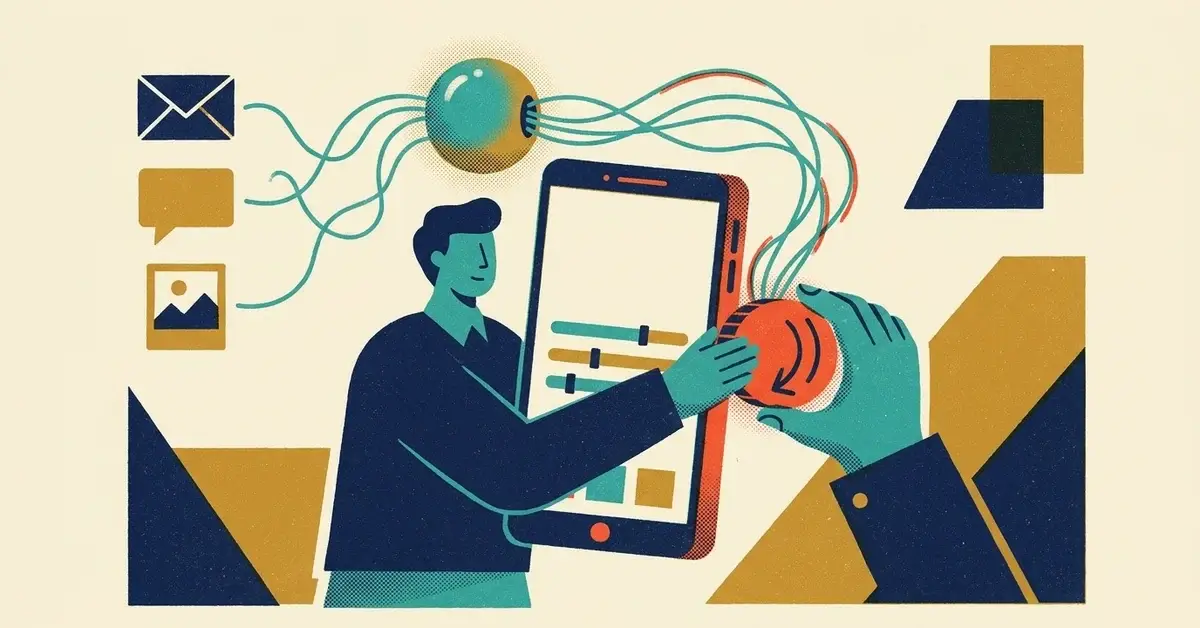
Your phone just asked if you want to update to iOS 27. The new Siri is the headline, and it can now reach into your email, messages and photos to answer questions.
That's useful. It's also a lot of reach on a phone that probably holds client emails, job photos, invoices and your whole inbox.
So before you tap "Update" on every phone in the business, spend five minutes on the settings below.
The quick answer
- Update one phone first, use it for a week, then update the rest.
- Go to Settings > Apple Intelligence & Siri > Apps and turn off Learn from this App for anything with client or financial data in it.
- Go to Settings > Face ID & Passcode and, under Allow Access When Locked, turn off Siri.
- Treat the new Siri app's conversation history as a record. Don't ask Siri about payroll, disputes or staff issues.
- Send your team one sentence of guidance (copy it from the bottom of this post).
What actually changed in iOS 27
Apple released iOS 27 on September 14, 2026 (Apple Newsroom). The big piece is Siri AI, a rebuilt Siri that Apple describes as able to:
- Use personal context from your messages, email and photos, so you can ask for "the invoice from that vendor in March" without saying which app it's in.
- Answer questions about what's on your screen.
- Keep a history. There's a dedicated Siri app where you can go back to an earlier conversation, and iCloud syncs that history across your Apple devices.
Apple says Siri AI runs on its own models, built in collaboration with Google's Gemini models, working on the device and on Apple's Private Cloud Compute servers. Apple's privacy claim is that when Private Cloud Compute handles a request, your personal data isn't stored or made accessible to Apple or anyone else (Apple Newsroom: Siri AI is here).
Fine. The privacy question for a small business is less about Apple's servers and more about who can talk to Siri on your phone, and what it can find when they do.
Check which version of the problem you have
Not every phone gets the new Siri. Work out which group each phone is in:
- The phone updates but keeps the old Siri. iOS 27 runs on the same iPhones as iOS 26, so most phones from the last several years will update (9to5Mac's compatibility list). Siri AI needs an iPhone 15 Pro, iPhone 15 Pro Max or any iPhone 16 or later (Apple Newsroom). An older phone in your fleet will update fine and simply not get it.
- Siri AI is there, in English. At launch Apple labeled Siri AI a beta, in English first, with French, Japanese, Korean, Portuguese and Spanish to follow (Apple Newsroom). Apple's How to get Siri AI page covers turning it on.
- You or staff are in the EU. Apple said Siri AI would not ship in the EU with iOS 27 on iPhone and iPad because of the Digital Markets Act (Apple Newsroom).
If a phone has Siri AI, the settings below matter more. If it doesn't, they're still worth doing; the lock-screen one has mattered for years.
The settings to check, easiest first
1. Don't update the whole team on day one
Day-one releases ship with day-one bugs. If the business runs on a field service app, a POS app or a scheduling tool, give your vendors a week to confirm they work on iOS 27.
Update one phone (yours is a good choice) and use it hard for a week. Then roll it out.
2. Decide what Siri is allowed to learn from
Go to Settings > Apple Intelligence & Siri > Apps. Pick an app and you'll see Learn from this App. It's on by default for each app once Siri is turned on (heise online). The same switch also appears per app under Settings > Apps > [app name].
Walk the list. Turn it off for:
- Business email if it's on a personal phone
- Banking, payroll and accounting apps
- Client messaging and document apps
There's no wrong answer here. There's just a difference between choosing it and leaving it on because you tapped through the setup screens.
That path is how the menu read on iOS 26. If iOS 27 moves it, search Settings for "Learn from this App".
3. Keep Siri off the lock screen
If Siri can pull details out of your email and photos, and Siri answers from a locked phone, then a stolen or borrowed phone is a bigger problem than it used to be.
Go to Settings > Face ID & Passcode (or Touch ID & Passcode), enter your passcode, and under Allow Access When Locked turn off Siri. Apple's own guide puts it plainly: turning off lock-screen access stops someone holding your iPhone from seeing personal information through that feature (Apple iPhone User Guide).
You lose "Hey Siri" while the phone is locked. On a business phone, that's a fair trade.
While you're on that screen, check that Stolen Device Protection is on. It adds a Face ID or Touch ID check and a security delay for sensitive changes when the phone is away from familiar places (Apple Support).
4. Treat Siri conversation history as a record
The Siri app keeps past conversations and iCloud syncs them to your other devices. Ask Siri about a client dispute, a payroll number or an employee issue, and that exchange now sits in a list anyone with your unlocked phone, Mac or iCloud account can scroll through.
Two habits:
- Keep two-factor authentication on your Apple Account (Apple Support). It protects the iCloud copy of that history.
- Don't ask Siri about anything you wouldn't want sitting in a searchable list. If something is already there, delete that conversation in the Siri app.
5. Check what you share with Apple to improve Siri
Under Settings > Privacy & Security > Analytics & Improvements there's a toggle for sharing Siri audio and requests with Apple to improve Siri. Reports on iOS 27 describe it as opt-in, labeled Improve Siri & Apple Intelligence (HuffPost). On a business phone, leave it off.
Why this matters for a small business
Most small businesses don't have separate work phones. The owner's personal iPhone is also the business email, the invoice camera and the client text line.
An assistant that can search all of that is great when you're the one asking. It's a problem when someone else is. AI tools are only as safe as the access you give them, a theme we keep coming back to in your AI assistant might be sharing secrets.
If a phone is already lost or stolen
- Mark it as lost from iCloud.com/find or the Find My app on another device, then erase it if you won't get it back.
- Change the Apple Account password and check which devices are signed in.
- Change the business email password and sign out other sessions, since Siri on that phone could reach your mail.
- Watch for follow-up scams. Fake "we found your iPhone" texts and calls are a known trick to get your Apple Account password. See think you found your lost iPhone? It might be a scam.
Preventing it across the team
Your staff will update their personal phones whether you weigh in or not, and many of them have business email on those phones.
Send one message in your team chat. Copy and paste:
Fine to update to iOS 27. Two rules: don't ask Siri about client or money details, and turn off Siri on the lock screen (Settings > Face ID & Passcode > Allow Access When Locked > Siri).
That's the whole policy. Ten seconds to send.
If your company phones are managed with mobile device management (MDM), your IT provider can block Siri on the lock screen for every phone at once instead of relying on each person.
When to get help
- Staff use personal iPhones for business email and you have no way to wipe company data if one goes missing.
- You want Siri and Apple Intelligence settings set the same way on every company phone.
- A phone with client data has gone missing and you're not sure what it could reach.
That's the kind of setup we help with. Talk to us if it's on your list.
Related reading
- Your employee's personal phone is an unmanaged company computer
- Your stolen iPhone could call you back: how AI is making phone theft more dangerous
- Your AI assistant might be sharing secrets: here's how to stop it
Originally published September 2026.




No comments yet