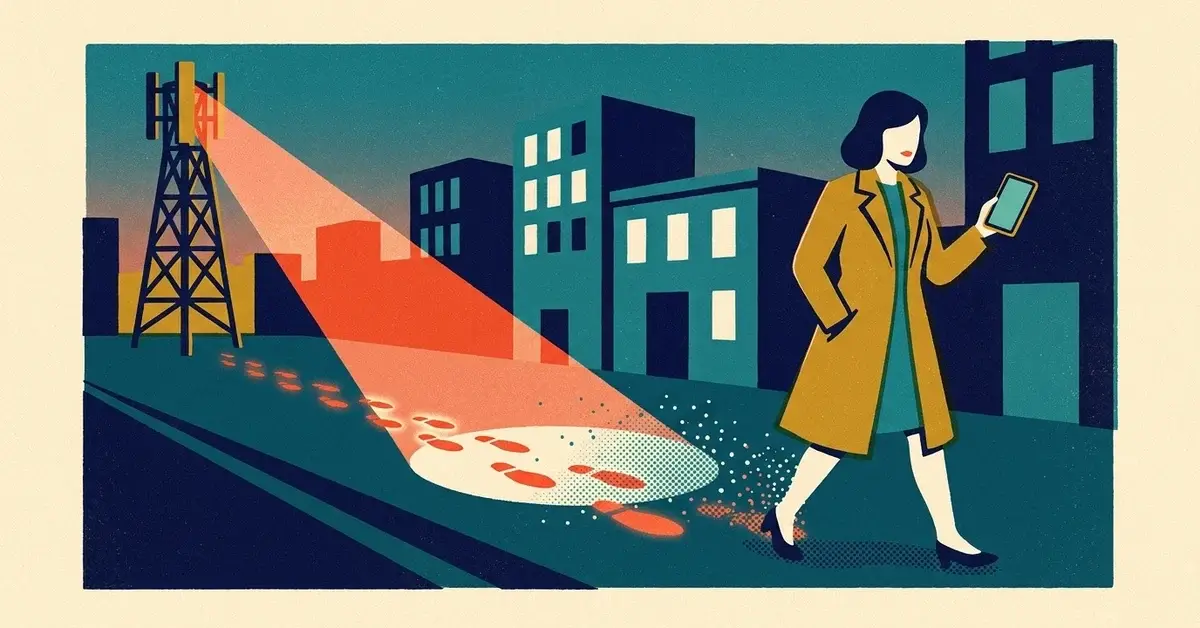
You lock your laptop. You use a password manager. Maybe you even cover the webcam.
But your phone has been announcing the same ID number to every cell tower it talks to, for as long as you've had that SIM. Most people have never heard of it.
That number is the IMSI. In late 2025 a carrier started changing it every day, and in early 2026 Apple and Google shipped settings of their own that cut down what the cell network can learn about you. Here's what changed, what it does and doesn't fix, and the few settings worth checking on the phones your business uses.
The quick answer
- Your SIM carries a fixed subscriber ID (the IMSI). The network needs it to route your calls and data, and on most plans it never changes.
- Cape, a U.S. privacy-focused carrier, now rotates it every 24 hours for subscribers on a compatible phone. It's a paid carrier switch, not a setting you can turn on with your current provider.
- For everyone else, the useful settings are free: on Android, turn on 2G network protection; on a supported iPhone with a supported carrier, turn on Limit Precise Location.
- For staff who might be targeted on purpose (executives, people handling large payments, anyone in a legal dispute), iPhone's Lockdown Mode goes further.
- None of this stops app tracking. Location permissions in apps are a separate fix, and usually the bigger one.
What an IMSI is, in plain English
IMSI stands for International Mobile Subscriber Identity. It's a number stored on your SIM or eSIM that tells the network which subscriber you are, so calls, texts and data reach the right phone.
The trouble is that it stays the same. Every tower your phone connects to sees it. Over time, that means a record of where a given subscriber's phone has been.
It also means fake cell towers work. These devices, called cell-site simulators or "IMSI catchers" (Stingray is one brand name), pretend to be a real tower so nearby phones connect and give up their identifiers. The Electronic Frontier Foundation has a plain-English explainer on cell-site simulators if you want the detail.
One more number to know: your phone also has an IMEI, a hardware ID for the handset itself. That's separate from the IMSI, and swapping or rotating the SIM's ID doesn't change it.
What Cape changed
Cape is a mobile carrier (an MVNO, meaning it rents space on a bigger carrier's towers) that sells itself on privacy. Here's what its own pages say about the feature, as of early 2026:
- Daily rotation. Cape's Identifier Rotation page says your IMSI automatically changes every 24 hours once it's on.
- A weekly set from a shared pool. Cape's support article on IMSI rotation says each subscriber gets seven unique IMSI values a week, drawn from a large pool of reserved numbers that cycles between Cape customers from week to week.
- On-demand change. You can also switch to a new identifier from the Cape app, for travel or a sensitive meeting.
- Who gets it. It started as an experimental feature. Cape's press page dates the rollout to all subscribers to December 2025, and its January 27, 2026 nationwide consumer launch announcement describes it as available to all customers with a compatible device.
- Which phones. The same support article lists eSIM-capable iPhones and Google Pixels as supported, with only partial Samsung support. Check Cape's current list before you buy anything.
What it doesn't do matters just as much:
- It doesn't change the handset's IMEI. Privacy researchers have pointed this out as a real limit.
- It doesn't make you anonymous. Cape rides on another carrier's network, and it doesn't touch what your apps, browser or Google/Apple account know about your location.
So it's a genuine improvement against one kind of tracking. It's not an invisibility cloak.
Do you need to switch carriers?
For most small businesses, no.
Cape is a full carrier switch, paid per line, and that's a bigger change than most offices need. It makes sense for a specific person with a specific risk: someone who travels to sensitive places, a business owner going through a nasty dispute, someone who has been stalked or harassed.
For everyone else, the settings below cost nothing and cover more of the everyday risk.
Settings worth checking on the phones you already have
This is the short version. Menu names vary by phone maker and OS version; the paths below are for stock Android 16 and iOS 26.
Phone | Setting | Where to find it |
|---|---|---|
Android 12 or later | 2G network protection (older versions: "Allow 2G") | Settings > Network & internet > SIMs > your SIM |
iPhone Air, 16e or 17e on iOS 26.3+ | Limit Precise Location | Settings > Cellular > Cellular Data Options |
Any iPhone on iOS 16+ | Lockdown Mode | Settings > Privacy & Security > Lockdown Mode |
1. Android: turn on 2G network protection
Fake cell towers often push phones down to 2G, which has weak encryption. Android has had a switch to stop that since Android 12. Google's 2G connectivity toggle documentation says Android 16 renamed it from "Allow 2G" to 2G network protection, and added a second entry point under Mobile network security in the Safety Center.
- Open Settings > Network & internet > SIMs and tap your SIM.
- Turn on 2G network protection (or turn off Allow 2G on older versions).
- Repeat for a second SIM or eSIM if the phone has one.
If the switch is grayed out, your carrier requires 2G on that line (Android 13 release notes).
In the U.S. this costs you almost nothing. The major carriers have shut down their 2G and 3G networks. One catch, per Google's disable-2G notes: some roaming deals abroad still assume 2G, so a traveler may need to switch it back on to get a signal.
Android 16 also has network notifications that warn when the network asks for your phone's identifiers or connects without encryption. Google's mobile network security documentation says they need newer modem support, so many current phones don't show them yet. If yours does, turn them on.
2. iPhone: turn on Limit Precise Location (if your phone and carrier support it)
Apple's iOS 26.3 added a setting that limits how precisely the cell network can work out where you are. Apple's support article says that with it on, the carrier may only see something like the neighborhood rather than a street address. It doesn't change the location sent to emergency services on an emergency call, and it doesn't change what apps get through Location Services.
The catch: it needs Apple's own modem and a participating carrier. Apple's page lists the iPhone Air, iPhone 16e and iPhone 17e, and a short list of participating carriers. Check Apple's list for your carrier before counting on it; not every major U.S. carrier was on it in early 2026.
- Open Settings > Cellular.
- Tap Cellular Data Options (pick the line first if you have two).
- Turn on Limit Precise Location. Restart if it asks you to.
If you don't see the option, your phone or carrier doesn't support it yet.
3. iPhone: Lockdown Mode for people at real risk
Lockdown Mode is Apple's extreme-protection setting for people who may be personally targeted. Among other things, it switches off 2G cellular support. It also blocks a lot of everyday features (some message attachments, some web features, unknown FaceTime calls), so it's not for the whole office.
Turn it on at Settings > Privacy & Security > Lockdown Mode, then Turn On Lockdown Mode and restart.
Why the network can track you in the first place
Cell networks were built to deliver calls, not to protect privacy. To send a call to your phone, the network has to know roughly where your phone is and which subscriber it belongs to. A fixed ID makes that simple for the carrier, and it makes it simple for anyone else who can see the same signals.
Phones also fall back to older network types when the signal is weak, and the oldest, 2G, is the easiest for a fake tower to abuse. That's why the 2G switch matters.
If you think a phone is already being tracked
Signs worth taking seriously: a stalker or ex-partner who keeps turning up, a former employee in a dispute who seems to know where you've been, or a phone that suddenly drops to 2G or "E" in a city with good coverage.
- Check app location access first. That's the usual culprit. iPhone: Settings > Privacy & Security > Location Services. Android: Settings > Location > App location permissions.
- Check for shared location you forgot about (Find My, Google Maps location sharing, family apps).
- Turn on the network settings above.
- If you're in danger, contact local police and a victim advocate before you change anything, so evidence isn't lost.
Preventing it in a business
- Add two lines to your phone setup checklist: 2G network protection on for Android, and Limit Precise Location on where the iPhone supports it.
- Review app location permissions when you hand out a company phone, and again when someone leaves.
- Give your highest-risk people the extra step. Lockdown Mode, or a privacy carrier, for the one or two people who travel to sensitive places or handle large payments.
- One staff rule: if your phone shows 2G, "E" or no service in a place where it normally works fine, tell IT.
If staff use personal phones for work email, the bigger risk is usually the phone itself, not the cell network. Our post on personal phones as unmanaged company computers covers that.
When to get help
- Someone on your team believes they're being followed or tracked and it's tied to their work.
- You manage more than a handful of company phones and want these settings applied centrally rather than phone by phone.
- You're not sure which of your phones and carriers support these settings.
If any of that sounds like you, we can help you sort it out.
Related reading
- Your employee's personal phone is an unmanaged company computer
- Your stolen iPhone could call you back: how AI is making phone theft more dangerous
- Can someone see what you're doing through Wi-Fi?
Originally published January 2026.

No comments yet